How to Turn Video into Live Photo on iPhone | 5 Easy Ways

5 mins read

Updated on 2026-07-03 22:01:48 to Video Tips

Have you ever captured a perfect clip of your pet or a stunning travel moment and wished it could be your wallpaper? Turning short videos into Live Photos creates beautiful, moving lock screens that breathe life into your iPhone. Unfortunately, the built in Photos app doesn't support direct conversion, so a dedicated live photo maker is required. This guide explores exactly how to turn video into live photo using top tier apps and iOS shortcuts.

how to turn video into live photo

Can You Make a Video into a Live Photo & How Long Can It Be?

The short answer is yes! While Apple’s native software focuses on capturing Live Photos at the moment. Third party developers have bridged the gap, allowing you to convert existing video files. However, there are technical constraints to keep in mind.

A standard Live Photo consists of a high quality still image paired with a 3 second MOV video file. Therefore, while you can import long videos, you will typically need to trim them to a 3 to 5 second window to ensure they function correctly as a "Live" element on your lock screen.

Understanding the difference between a Live Photo and a GIF is important for quality. While GIFs are widely compatible, they often suffer from color banding and lack audio. Live Photos, conversely, maintain high resolution and include sound.

  • Feature
  • Live Photo
  • GIF
  • Audio Support
  • Yes, includes original sound.
  • No, GIFs are silent.
  • Wallpaper Use
  • Can be used as an interactive Lock Screen.
  • Cannot be used as an interactive wallpaper.
  • Format
  • Proprietary Apple bundle (HEIC + MOV).
  • Universal image format (.gif).
  • Looping
  • Plays once on touch (or loops in settings).
  • Loops infinitely by default.
  • File Size
  • Generally larger due to high quality video.
  • Smaller, but often with lower color depth.

Easiest Ways to Turn a Video into a Live Photo (Quick Overview)

If you are looking for a fast solution, several methods stand out for their ease of use and output quality. Here are the top methods available today:

  • Method
  • Best For
  • Complexity
  • intoLive
  • Precise editing and high-res output
  • Moderate
  • TikTok
  • Quick, free conversion without new apps
  • Low
  • Shortcuts
  • Native enthusiasts who dislike third party apps
  • High
  • Online Tools
  • One-time users who prefer browser workflows
  • Low
  • 4DDiG Enhancer
  • Restoring blurry or low quality conversions
  • Moderate

How to Turn a Video into a Live Photo on iPhone (Step by Step)

If you're looking for the fastest way to convert videos into Live Photos, dedicated apps are usually the best solution. They offer customization options, high quality output, and a simple workflow. Below are three popular methods that can help you create Live Photos in just a few minutes.

Method 1: Using intoLive App (Easiest & Most Recommended)

The intoLive app is widely considered the gold standard for creating custom Live Photos on iOS. It offers a professional grade interface that allows you to transform any video, GIF, or burst photo into a stunning live wallpaper. With its precise trimming tools, filter options, and playback speed adjustments, intoLive ensures your Live Photo looks exactly how you envisioned it before saving it directly to your camera roll.

Steps to use intoLive:

  • Install intoLive from the App Store and launch the application.

  • Grant photo permissions and select the "video" you wish to convert from your library.

  • Use the sliders at the bottom to choose the specific part of the video (up to 5 seconds for free users).

  • Choose the "Key Photo" that will appear as the still image on your lock screen.

  • Tap "Make" in the top right corner, then select "Save Live Photo" once processing is complete.

    intolive convert video into live photo

Method 2: Using TikTok's Built in Live Photo Feature (Free & No Extra App)

If you already have TikTok installed, you have a powerful Live Photo converter at your fingertips without needing a dedicated utility app. TikTok allows users to save any public video or their own private uploads directly as a Live Photo. This method is incredibly convenient because it handles the technical conversion on its servers. It provides a high quality file that is instantly compatible with your iPhone's lock screen.

Steps to use TikTok:

  • Open TikTok, tap the + icon, and upload the video you want to convert.

  • On the "Post" screen, change "Who can watch this video" to "Only me" to keep it private.

    tiktok video view limit settings
  • Tap "Post" and wait for the video to finish uploading to your profile.

  • Go to your private videos, open it, and tap the three dots (...) or Share icon.

  • Scroll through the bottom options and select "Live Photo" to save it to your Photos app.

    tiktok share video as live photo

Method 3: Using Other Popular Apps (Video to Live Photo Converter)

While intoLive is a leader in the space, other applications like "VideoToLive" or "Video Live Wallpaper" offer simplified interfaces for those who find complex editing tools overwhelming. These apps focus on a "one click" philosophy, stripping away advanced filters in favor of speed. They are ideal for users who simply want a functional wallpaper without worrying about frame rates, aspect ratios, or color grading.

Steps for general converter apps:

  • videotolive app
  • Select the video you want to convert into a Live Photo, then tap the “Convert” button.

    videotolive video to live photo feature
  • Choose the aspect ratio for your video before converting it into a Live Photo.

    videotolive live photo ratio
  • Edit your video as needed by trimming the length, applying filters, or adjusting settings, then tap “Convert Now”.

    videotolive convert video to live photo now
  • Your Live Photo will be saved automatically, and you can now use it as your wallpaper.

How to Turn a Video into a Live Photo without Any App

Sometimes you may not want to install extra apps. iPhone users can also use built in tools or online services to create Live Photos. These methods are useful when storage is limited or when you only need occasional conversions.

Method 1: Using Shortcuts

Apple's built in Shortcuts app lets you create a "Video to Live Photo" tool without downloading any third party software. You can process videos locally on your device using Apple’s native frameworks, either with a pre-made automation or by creating your own. This method is the most secure and privacy focused way to convert media, as no data ever leaves your iPhone or enters an external developer's ecosystem.

Steps for Shortcuts:

  • Add the Convert Live Photos to Video shortcut to the Shortcuts app. Open the shortcut link, tap "Get Shortcut," and then select "Add Shortcut."

    ios convert video to live photo shortcuts
  • Open the Shortcuts app and go to "My Shortcuts" then "All Shortcuts." Find and tap "Convert Live Photos to Video" to run it.

  • The shortcut will open the Photos picker. Select the Live Photo(s) you want to convert. If you only want to view Live Photos, switch to the "Albums" tab and choose "Live Photos."

  • Tap "Add" to confirm your selection.

  • Choose the album where you want to save the converted videos. Once the process is complete, you will receive a notification confirming that your Live Photos have been converted into videos.

Method 2: Using LivePhoto.online

LivePhoto.online is a versatile web based tool that eliminates the need for any app installation entirely. It works directly in your Safari or Chrome browser, offering a clean interface for uploading, trimming, and converting videos into iPhone ready files. Since it processes the conversion in the cloud or via browser side scripts, it is an ideal solution for users with limited storage space who need a quick, one time conversion.

Steps for Online Tools:

  • Open your browser and go to LivePhoto.online.

  • Tap the "Upload" button and select your video from your Photo Library. Add your video (MP4 or MOV) or GIF to the converter.

    livephoto online
  • Watch the video, choose the start and end, and pick a 1–6 second loop.

  • Change format, size, FPS, aspect ratio, and background if needed.

  • Download your file or export an iPhone ready MOV file to use as a Live Photo.

⚡ How to Enhance Blurry/Low Quality Converted Live Photos to 4K

Converting a Live Photo into a GIF or video is convenient for sharing, but the process can sometimes reduce image quality. You may notice blurry details, pixelation, compression artifacts, or a lack of sharpness, especially when viewing the file on larger screens. Fortunately, AI powered enhancement tools can restore lost details and significantly improve visual quality.

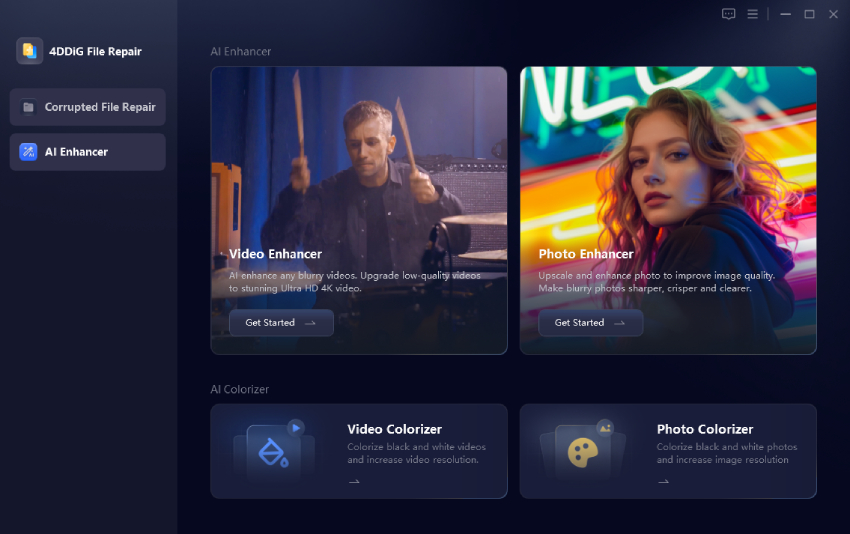
One of the best tools for this task is 4DDiG Video Enhancer. Unlike many traditional upscaling tools, it supports GIF enhancement and uses advanced AI models to intelligently sharpen details, reduce noise, and upscale low resolution files to HD, 4K, or even 8K quality. Whether you're restoring old Live Photos or improving recently converted GIFs, 4DDiG makes the process simple for beginners.

Key Features of 4DDiG Video Enhancer

  • Upscales videos to 4K, HD, and higher resolutions.
  • Improves video quality with AI for sharper and clearer results.
  • Reduces noise and removes grain from blurry videos and live photos.
  • Restores old or damaged videos.
  • Enhances brightness, colors, and overall video appearance.
  • Offers AI models for general videos, faces, and anime.
FREE DOWNLOAD

Secure Download

FREE DOWNLOAD

Secure Download

Steps to upscale converted Live Photos using 4DDiG Video Enhancer:

  • Launch 4DDiG Video Enhancer, go to "AI Enhancer," and select " Video Enhancer."

    select 4ddig video enhancer
  • Click "Add Videos" or drag and drop your converted Live Photo file into the software.

    add live photos to 4ddig
  • Select an AI model (General, Anime, or Face Model) based on your content. Choose 4K resolution as the output target and click "Enhance."

    select ai model and reset resolution
  • The software will process your file by reducing blur, improving sharpness, restoring details, and enhancing colors.

    live photo enhancement completed
  • Preview the enhanced result and click "Save" to export your improved 4K Live Photo video or GIF.

People Also Ask about Converting Video to Live Photo

Q1: How to Turn Video to Live Photo on CapCut?

CapCut does not have a direct "Save as Live Photo" button. To do this, export your edited video from CapCut as an MP4, then use the "intoLive" app or the "TikTok" method described above to complete the conversion.

Q2: Can I convert MP4 to Live Photo online?

Yes, using a video to live photo online converter like LivePhoto.online is a viable option. You upload the MP4, the site processes it, and you download the compatible file. However, note that online tools often have file size limits and may not offer the same "Key Photo" selection as dedicated apps.

Conclusion

In summary, learning how to turn a video into a live photo on an iPhone is a fantastic way to personalize your device and bring your favorite memories to life. Whether you choose the feature-rich intoLive app, the convenient TikTok trick, or a video to live photo online converter, the process is now easier than ever. For the best visual results, especially with older videos, we recommend using 4DDiG Video Enhancer to upscale your content to 4K before conversion. This ensures that your new moving wallpaper is not only animated but also crystal clear.

FREE DOWNLOAD

Secure Download

FREE DOWNLOAD

Secure Download

William Bollson (senior editor)

William Bollson, the editor-in-chief of 4DDiG, devotes to providing the best solutions for Windows and Mac related issues, including data recovery, repair, error fixes.

(Click to rate this post)

You rated 4.5 ( participated)