Disable Hyper-V Windows 11: Step-by-Step Guide to Turning Off Virtualization
Virtualization is powerful, but it can quietly become a problem when it runs in the background without your awareness. Many Windows users discover performance drops, compatibility issues with emulators, or errors when running VMware, VirtualBox, Android emulators, or game anti-cheat systems, only to find Hyper-V is the cause.
If you’re trying to regain control of your system, learning how to disable Hyper-V Windows 11 properly is essential. Let’s learn what Hyper-V does, why turning it off helps, and how to disable it safely without damaging your system.
1. What is Hyper-V? What does Hyper-V do on Windows 11/10?
Hyper-V is Microsoft’s built-in virtualization platform designed to run virtual machines directly on Windows hardware. It creates a virtualized layer between your operating system and physical hardware, allowing multiple operating systems to run simultaneously.
On Windows 11 and Windows 10, Hyper-V plays a deeper role. Even when you’re not actively using virtual machines, Hyper-V can power features such as Windows Sandbox, Virtual Machine Platform, WSL 2, and certain security components.
2. Why Do I Need to Disable Hyper-V?
Hyper-V is not harmful, but it is not ideal for every user. If you rely on third-party virtualization tools, gaming software, or performance-sensitive applications, Hyper-V can create conflicts.
When Hyper-V is enabled, Windows takes exclusive control of virtualization extensions like Intel VT-x or AMD-V. This prevents other programs from using them properly. When you turn off Hyper-V, it restores full hardware access and often resolves crashes, emulator errors, and compatibility problems.
3. How to Check If Hyper-V is Enabled?
Before making changes, it’s important to confirm whether Hyper-V is currently active. Windows provides a simple built-in way to verify this without using command-line tools.
-
Press “Win + R”, type “optionalfeatures”, and press Enter.
-
In the Windows Features window, look for Hyper-V.
-
If the box is checked, Hyper-V is enabled. If unchecked, the feature is disabled.
After restart your PC, you can run in Command Prompt (admin): msinfo32 > Look under System Summary for "Virtualization-based security," it should say not enabled.
4. How to Turn off Hyper-V in Windows 11/10?
Below are four reliable methods to disable Hyper-V. Each method works differently, and you only need to use one.
Method 1: Turn off Hyper-V via Device Security
-
Search for “Windows Security” in the Start menu and open the app.
-
Click “Device Security” and go to “Core Isolation Details.”
-
Toggle off the “Memory Integrity” option and restart your computer to save the changes.
This method disables security-linked virtualization features. If Hyper-V still appears active, proceed to the next method.
Method 2: Turn off Hyper-V via Control Panel
The Control Panel method is the most used and safest way to disable Hyper-V completely. It directly removes Hyper-V components from Windows. This method works on both Windows 11 and Windows 10 and does not require advanced technical knowledge.
-
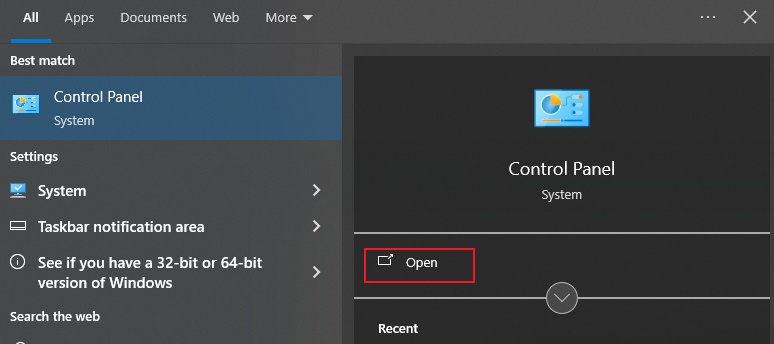
Open “Control Panel” on your computer and go to “Programs and Features”.
-
Click the “Turn Windows Features on or off” option from the right.
-
Scroll down to locate the Hyper V option and uncheck it, then click "OK." Do the same for the “Windows Hypervisor Platform” and then restart your PC.
This approach fully disables Hyper-V services. For most users, this method alone is enough.
Method 3: Turn off Hyper-V via PowerShell
This method is useful when the graphical interface fails or when settings are locked. It is safe when executed correctly, but should be used carefully.
-
Click “Start” and search for “Terminal", then right-click and select "Run as Admin”.
-
Enter the following command: “Disable-WindowsOptionalFeature -Online -FeatureName Microsoft-Hyper-V-All”.
-
Press Enter and restart your computer after the process in the terminal is complete.
PowerShell provides a direct system-level solution. It is ideal for advanced users or troubleshooting stubborn Hyper-V behavior.
Method 4: Turn off Hyper-V via the bcdedit Command
BCDEdit modifies Windows boot configuration and ensures Hyper-V does not load during startup. This method is extremely effective when Hyper-V keeps re-enabling itself.
-
Search for “Command Prompt” in Windows Search and right-click to choose “Run as Admin” on the Command Prompt.
-
Run the command “bcdedit /set hypervisorlaunchtype off" and wait for the command prompt to complete the process, then restart your PC.
This method prevents Hyper-V from launching at boot. It is one of the most reliable ways to ensure Hyper-V is fully disabled.
⚡ Extra Tip: Fix Startup Issues After Disabling Hyper-V in Windows 11
In rare cases, disabling Hyper-V can cause boot or startup issues, especially on systems that previously relied on virtualization-based security features. If Windows fails to boot properly or gets stuck in a startup loop, a reliable repair tool is required to restore normal operation.
4DDiG Partition Manager includes a powerful Boot Repair feature that can automatically fix corrupted boot configurations, resolve black screen or boot loop issues, and restore system startup without reinstalling Windows. It supports Windows 11 and Windows 10, offers a beginner-friendly interface, and performs repairs safely without risking data loss.
-
Download and install the 4DDiG Partition Manager software on your computer and launch it. Go to “Toolkit” and select the “Repair Boot” function.
FREE DOWNLOADSecure Download
-
Click the “Boot Disk” to select it and click “Repair Now” to begin the process.
-
Wait patiently as 4DDiG does its job, and when the boot repair is successful, click "Finish" then close the program.
More FAQs about Hyper-V
1. How to force a shutdown of Hyper-V?
You need to stop its related services and virtual machines rather than “closing” Hyper-V itself. You can open Hyper-V Manager, right-click any running virtual machine, and choose Shut Down or Turn Off. If services are stuck, open Services, stop Hyper-V Virtual Machine Management, or use PowerShell with administrative privileges to force stop Hyper-V processes safely.
2. Can I disable Hyper-V on Windows 11
Yes, you can disable Hyper-V on Windows 11 using several built-in methods. Disabling Hyper-V does not uninstall Windows and can be reversed at any time if you later need virtualization features again.
3. Is Hyper-V enabled by default in Windows 11?
Hyper-V is not always enabled by default in Windows 11, but it is commonly activated on systems that support virtualization, even if users did not manually turn them on.
✅ You may also like: 4 Ways to Download VHD Files and Recover them or What Is a VMDK File? How to Open a VMDK File in Windows 10/11?
Conclusion
Disabling Hyper-V on Windows 11 or Windows 10 can significantly improve compatibility, performance, and software stability. Whether you use emulators, virtual machines, or gaming applications, knowing how to disable Hyper-V Windows 11 correctly helps prevent conflicts and startup issues.
By following the methods above and using 4DDiG Partition Manager when boot problems occur, you can safely turn off Hyper-V and restore full control over your system without data loss.
Secure Download
💡 Summarize with AI:
You May Also Like
- Home >>
- Windows Fix >>
- Disable Hyper-V Windows 11: Step-by-Step Guide to Turning Off Virtualization
ChatGPT
Perplexity
Grok