How to Fix “Cleaning up, Don’t Turn off Your Computer” on Windows

5 mins read

Updated on 2026-06-18 18:40:21 to Windows Fix

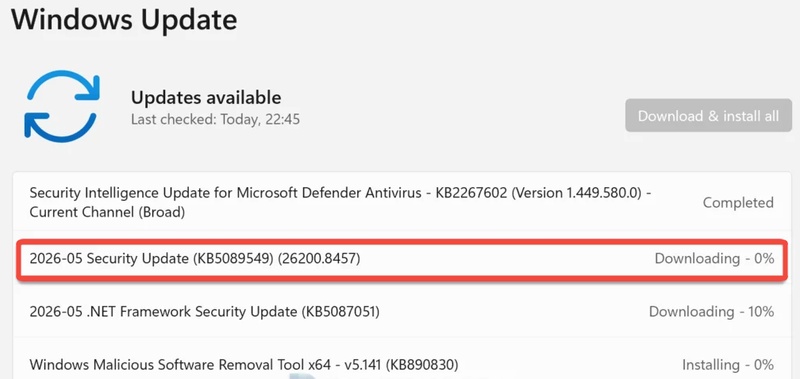
Many users encounter “cleaning up , don’t turn off your computer” screen after a Windows update and worry that their computer has frozen or something has gone wrong. In some cases, the process completes normally after a short wait.

However, when the system remains stuck for hours, it may indicate a problem with Windows updates, corrupted files, or insufficient disk space. This guide explains why the message appears and shows several effective solutions to get your computer working again.

1. Why This Message Appears?

The message usually appears after Windows installs updates. During this phase. However, the process may become stuck due to:

  • Corrupted Windows update files
  • Interrupted updates
  • Damaged system files
  • Low available disk space
  • Hard drive issues

If you see cleaning up 0 complete don’t turn off your computer without any progress for a lone time, troubleshooting may be required.

2. How to Fix Cleaning up 100 Complete Stuck?

The cleanup process can sometimes take a significant amount of time, especially after large Windows updates. As a general rule, wait at least 1-2 hours before assuming the process is frozen.

Fix 1: Force Restart Your Computer

A force restart can often resolve temporary update glitches that prevent Windows from finishing the cleanup process.

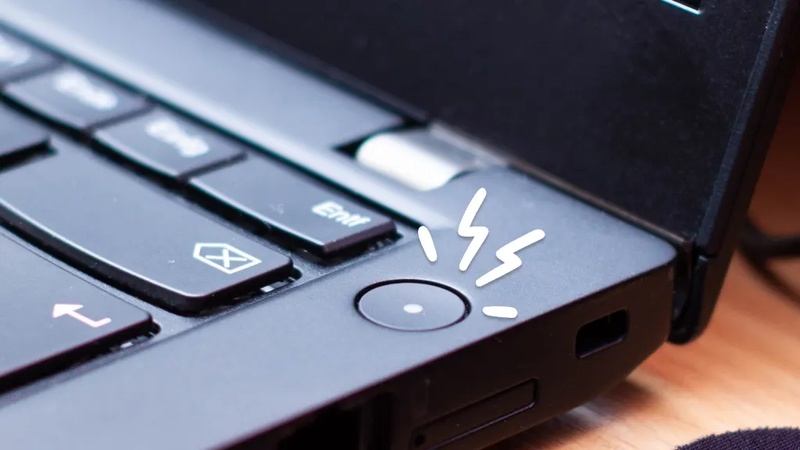
  • Press and hold the Power button for about 10 seconds until the computer shuts down.

    shut down pc
  • Wait 30 seconds. Press the Power button again to restart the PC and check whether the cleanup screen has disappeared.

If the system successfully starts, Windows may automatically repair the interrupted update process.

Fix 2: Use Windows Startup Repair

If Windows fails to start correctly after the restart, Startup Repair can help identify and fix boot-related problems.

  • Turn off the computer completely. As soon as you see the Windows logo or your Windows logo, press and hold the physical power button for about 10 seconds to force a hard shutdown. Repeat this process two more times

  • Windows should enter the Recovery Environment automatically. Select Troubleshoot > Advanced Options > Startup Repair.

    choose startup repair
  • Allow Startup Repair to scan and repair startup issues.

Startup Repair can often resolve problems caused by incomplete updates and failed cleanup operations.

Fix 3: Boot into Safe Mode and Retry Updates

If “cleaning up 100% complete” message stuck, Safe Mode can help you isolate the issue.

  • Press Win + I to open Settings. Go to System > Recovery. Under Recovery options, find Advanced startup. Click Restart now.

  • After your PC restarts, select Troubleshoot > Advanced Options > Startup Settings.

    startup settings
  • Click Restart. Press F4 to enter Safe Mode.

    enter safe mode
  • Once inside Safe Mode, open Settings > Windows Update. Check for available updates.

  • Install any pending updates. Then, restart your computer normally.

Safe Mode loads only essential Windows services, making it easier to complete problematic updates.

Fix 4: Run SFC and DISM Scans

Corrupted system files are one of the most common reasons behind this issues. Windows includes built-in repair tools that can scan and restore damaged files.

  • Restart you computer, and open Command Prompt as administrator.

  • Enter the following command: sfc /scannow.

    run sfc command
  • Wait for the scan to finish. After that, run the following commands one by one:

    DISM /Online /Cleanup-Image /RestoreHealth

    dism command
  • Allow DISM to complete the repair process.

The SFC tool repairs damaged system files, while DISM restores the Windows image itself, helping resolve update-related problems.

Fix 5: Run System Restore

If the issue began after a recent update, System Restore can return your computer to an earlier working state.

  • Open the Windows Recovery Environment. Select Troubleshoot > Advanced Options > System Restore.

    system restore
  • Choose your Windows account. Select a restore point created before the problem started.

  • Review the restore details. Click Finish to begin the restoration.

  • Then, wait for Windows to restart automatically.

After the restoration is complete, Windows should return to the previous stable configuration.

⚡ Bonus: Remove System Junk Files to Prevent Cleanup Delays

Windows cleanup problems are often caused by failed updates, corrupted temporary files, and insufficient free storage space. Therefore, keeping your system clean can help updates install more smoothly and reduces the chances of future cleanup delays.

A convenient way to manage this is by using the Windows Clean feature in 4DDiG Partition Manager.

  • First, install and open 4DDiG Partition Manager. Click Windows Clean from the menu on the left side. Then select the types of junk files you want to remove and click Start Scan.

    FREE DOWNLOAD

    Secure Download

    windows clean
  • The tool will scan your computer for temporary files, update leftovers, caches, and other unnecessary files. After the scan is complete, files that are safe to delete are usually selected automatically. You can open each category to review the files and make any changes if needed.

    select items to clean
  • Now click Clean and confirm your choice. The software will remove the selected files and free up space on your drive. Wait until the cleanup process is finished.

    click clan and sure to proceed
  • Once the cleanup is complete, you'll be able to see how much storage space has been recovered.

    clean successfully

A cleaner drive can help your PC run better and may reduce the chance of Windows update issues in the future.

Conclusion

Seeing the cleaning up don’t turn off your computer message can be alarming, especially when it appears stuck for a long time. In many cases, the best solution is simply to wait patiently while Windows completes its update process. However, if the cleanup screen remains frozen for hours, solutions such as Startup Repair, Safe Mode, SFC/DISM scans, and System Restore can help resolve the issue.

To reduce the chances of future cleanup delays, it’s also a good idea to keep your system free from junk files and update leftovers. 4DDiG Partition Manager provides an easy way to maintain storage health and help Windows updates run more smoothly in the future.

FREE DOWNLOAD

Secure Download

William Bollson (senior editor)

William Bollson, the editor-in-chief of 4DDiG, devotes to providing the best solutions for Windows and Mac related issues, including data recovery, repair, error fixes.

(Click to rate this post)

You rated 4.5 ( participated)