How to Open 7z Files on Windows and Mac: The Easiest Ways 2026

5 mins read

Updated on 2026-07-02 19:38:34 to File Tips

A 7z file is a compressed archive format that stores one or more files while reducing their size for easier storage and sharing. This file format is not common, so many people search for how to open 7z files after seeing messages like “Cannot open file as archive” or finding that the computer doesn’t recognize the format.

This complete guide covers quick, safe, and free methods to open 7z archives on Windows, Mac, and other devices, along with solutions for damaged archive files.

how to open 7z files

What Is a 7z File & What Programs Open 7z Files?

The 7z format is a compressed archive created by 7-Zip, a free and open-source file compression utility. Compared with ZIP files, 7z often delivers higher compression ratios, making it popular for sharing large software packages, backups, documents, and multimedia files.

A 7z archive can contain one file or thousands of files organized into folders while preserving their original structure. Several applications support opening 7z files, including:

  • Program
  • Windows
  • Mac
  • Free
  • 7-Zip
  • Yes
  • No
  • Yes
  • WinRAR
  • Yes
  • Limited
  • Trial
  • PeaZip
  • Yes
  • Yes
  • Yes
  • Bandizip
  • Yes
  • Yes
  • Free & Paid
  • The Unarchiver
  • No
  • Yes
  • Yes
  • Keka
  • No
  • Yes
  • Yes

If you’re looking for a reliable .7z extractor, 7-Zip remains the most recommended option for Windows because it is lightweight, free, and supports virtually every major archive format.

How to Open 7z Files on Windows 10/11

Let's explore the 3 most reliable options to open 7z files if you are a Windows user.

Method 1: Open 7z Files with 7-Zip (Recommended & Free)

If you’re searching for how to open 7z files on Windows 10, 7-Zip should be your first choice. Developed by the creators of the 7z format, it offers the highest compatibility and consistently handles both small and large archives without issues. Installation only takes a minute, and once installed, you can extract files directly from the right-click menu inside Windows Explorer.

  • Download and install 7-Zip, then locate the 7z archive.

  • Right-click the file and select “7-Zip”.

  • Choose “Extract Here” or “Extract to 'Folder Name'".

    7zip open 7z files
  • Wait for the extraction to finish, then open the extracted folder.

Method 2: Open 7z Files with Windows File Explorer (Windows 11 23H2 or Later)

Recent versions of Windows 11 include native support for several archive formats, including 7z. If you’re running Windows 11 version 23H2 or later, you may not need to install additional software for basic extraction. While the built-in feature doesn’t offer advanced archive management like 7-Zip, it’s convenient for occasional users who simply need a quick answer to how to decompress 7z files.

  • Open File Explorer and navigate to the 7z archive.

  • Right-click the file and select “Extract All," then choose a destination folder.

    file explorer extract 7z files
  • Click “Extract” and access the extracted contents after the process is complete.

Method 3: Use Another 7z File Extractor (WinRAR, PeaZip, etc.)

If you already have another archive utility installed, there’s usually no need to switch applications. Programs like WinRAR, PeaZip, and Bandizip all support the 7z format and provide similar extraction features.

These tools are particularly useful if you frequently work with multiple archive formats and want a single application that handles ZIP, RAR, TAR, ISO, and 7z files together.

Here's how to unzip 7z files:

  • Install your preferred archive utility like WinRAR and launch the application.

  • Click Options in the top menu and select Settings (or press Ctrl + S).

  • In the Settings window, click on the Integration tab. Under Associated WinRAR with, ensure 7Z box is checked.

    winrara ensure 7z file extension box
  • Double-click the .7z file and then it should open directly in WinRAR.

  • Select the files/folders you want (or press Ctrl + A to select all). Click “Extract To” at the top.

  • Choose your destination folder and click OK.

    winrar extract 7z files

How to Open 7z Files on Mac

MacOS also has some options to work with the 7z files that we will explore here.

Can macOS Open 7z Files by Default?

Unlike ZIP archives, macOS does not natively support the 7z format through Finder. Double-clicking a 7z file usually won’t extract its contents unless you’ve installed third-party software. If you need to uncompress 7z on Mac, you’ll need an archive utility such as The Unarchiver or Keka.

Open 7z Files with The Unarchiver

The Unarchiver is one of the most popular archive utilities available for macOS. It’s lightweight, free, and integrates directly with Finder, making it easy to open 7z files without learning a new interface. Besides 7z archives, it supports dozens of compressed file formats, making it a practical long-term replacement for the default Archive Utility.

  • Install The Unarchiver from its official website or the Mac App Store and launch it.

  • Right-click the 7z file and choose "Open With," then click "The Unarchiver” and wait for extraction.

    unarchiver open 7z files on mac

⚡ Why You Can’t Open 7z Files Still (Quick Fixes)?

If the archive still refuses to open after trying different extraction tools, the issue may lie with the file itself rather than the software you're using.

Here are the most common reasons why a 7z archive won't open:

  • If the download was interrupted, some parts of the archive may be missing, preventing extraction.
  • File corruption caused by system crashes, damaged storage devices, or transfer errors can make the archive unreadable.
  • Password-protected 7z files cannot be extracted unless you enter the correct password.
  • Older archive utilities may not fully support newer 7z compression methods or encryption standards.
  • Bad sectors or failing hard drives, SSDs, or memory cards can damage archive files and cause extraction failures.
  • Disconnecting a USB drive or network connection before the transfer finishes may leave the archive incomplete.
  • Viruses, malware, or file system errors can alter the archive structure, resulting in errors such as cannot open file as archive 7zip.

Method 1: Convert 7Z to ZIP Format

If the archive itself is healthy but your device doesn’t support 7z, converting it to ZIP can improve compatibility. When facing problems with how to extract 7z files, simply convert them to ZIP for better accessibility.

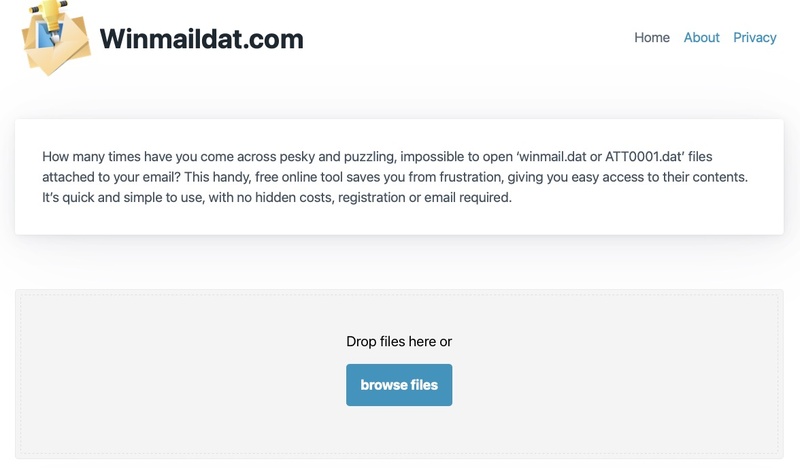
  • Open an online archive converter like CloudConvert and upload the 7z archive by clicking “Select File”.

    cloudconvert 7z to zip converter online
  • Select ZIP as the output format.

  • Start the conversion and download the ZIP archive after the conversion is complete.

Method 2: Repair Corrupted Archive Files Using a Dedicated Tool

Sometimes the archive itself is damaged, making extraction impossible regardless of which 7z file opener you use. This often happens because of interrupted downloads, faulty storage devices, unexpected system shutdowns, or transfer errors. If you repeatedly encounter messages such as cannot open file as an archive 7zip, repairing the archive is usually more effective than trying different extraction programs.

One reliable solution is 4DDiG File Repair, which is designed to recover damaged files that standard applications can no longer open.

Key Features of 4DDiG File Repair

  • Repairs corrupted archive files, including 7Z, ZIP, RAR, and other popular compressed formats.
  • Utilizes advanced AI-powered technology to rebuild damaged file structures while maximizing data preservation.
  • Supports batch repair, enabling multiple corrupted files to be fixed in one operation.
  • Effectively recovers files damaged by interrupted downloads, storage failures, system crashes, and transmission errors.
  • Includes a preview function so you can check repair results before saving.
  • Supports a wide range of document and file formats beyond archives for comprehensive recovery.
  • Features a simple, user-friendly interface that requires no technical expertise.
FREE DOWNLOAD

Secure Download

FREE DOWNLOAD

Secure Download

Steps to Repair Corrupted 7Z or ZIP Files Using 4DDiG File Repair

  • Install and launch 4DDiG File Repair, then choose the "File Repair" feature from the left side and click "Add Files" to import the damaged 7z or ZIP archive.

    add archive files to 4ddig
  • Now, click “Repair All” to start the repair process.

    repair all archives
  • Wait for the repair to complete and preview the repaired file with the “Preview” button when available.

    preview repaired archive files
  • Save the repaired archive and extract it normally to a different location by clicking “Save”.

    save repaired archive files

People Also Ask About 7z Files

How to Open 7z Files on Android and iPhone?

Several mobile apps support 7z archives. On Android, apps like ZArchiver and RAR can extract 7z files. On iPhone and iPad, utilities such as iZip and Documents by Readdle provide similar functionality.

How to Open 7z Files Without Installing Software?

If you’re using Windows 11 version 23H2 or newer, File Explorer can extract many 7z archives directly. Alternatively, browser-based archive extraction tools can help without requiring software installation.

How to Open 7z Files Without a Password?

If the archive is encrypted, there is no legitimate way to access its contents without the correct password. Password protection is part of the archive’s security and cannot be bypassed by standard extraction tools.

Can You Open 7z Files Without 7-Zip?

Yes. Applications such as WinRAR, PeaZip, Bandizip, and The Unarchiver can all open 7z archives, depending on your operating system.

Does 7-Zip Work on Mac?

The official version of 7-Zip is designed for Windows. Mac users typically rely on alternatives such as The Unarchiver or Keka to open and extract 7z files.

Conclusion

Understanding how to open 7z files is straightforward once you have the right extraction tool. Whether you choose 7-Zip, Windows File Explorer, WinRAR, or The Unarchiver, each method makes it easy to access compressed archives safely.

If a damaged archive prevents extraction or displays errors like cannot open file as archive 7zip, 4DDiG File Repair offers a practical solution for repairing corrupted archive files before attempting extraction again.

FREE DOWNLOAD

Secure Download

FREE DOWNLOAD

Secure Download

William Bollson (senior editor)

William Bollson, the editor-in-chief of 4DDiG, devotes to providing the best solutions for Windows and Mac related issues, including data recovery, repair, error fixes.

(Click to rate this post)

You rated 4.5 ( participated)