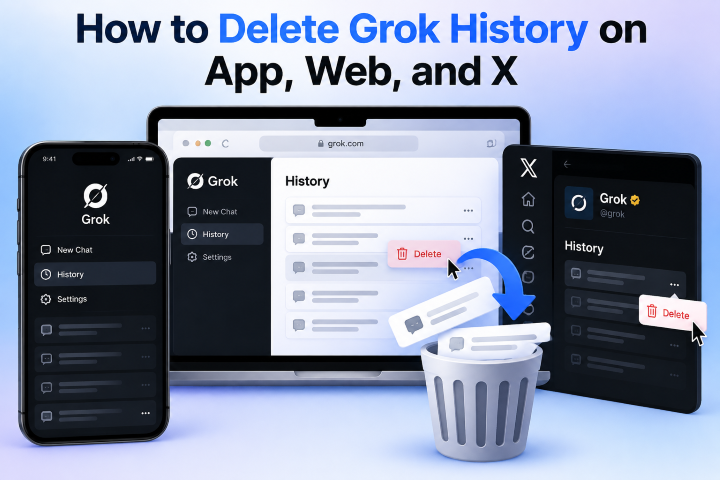
How to Export Grok to PDF: Save Grok AI Chats Easily

5 mins read

Updated on 2026-10-08 21:42:56 to File Tips

Have an important Grok conversation you want to keep, share, or read offline? If you are looking for a simple way to export Grok to PDF, you have several options. You can use a Chrome extension, print the chat as a PDF, use an online converter, or ask Grok to create a document from your conversation. This guide explains each method, including how to use a Grok link to PDF, repair damaged exports, and save your chats safely.

export grok to pdf

Part 1. Can Grok Export to PDF Directly?

No, Grok does not currently offer a native “Export to PDF” button within its user interface. While xAI continues to update the platform with new features like DeepSearch and Imagine, direct file export remains missing. Users who want to save Grok to PDF must rely on external solutions like browser extensions or manual printing methods. These third party tools bridge the gap between a live web chat and a durable, shareable document format.

Privacy Caution:

Before using any third party extensions or online tools, please consider your data privacy. While many tools process data locally in your browser, some may collect personally identifiable information. Always review the tool’s privacy policy before granting it access to your AI conversations, especially if those chats contain sensitive or confidential information.

Part 2. Best Way: Use a Grok to PDF Chrome Extension to Export the Entire Chat

For capturing a complete conversation, a Grok to PDF Chrome extension is the most efficient choice. These tools parse the Grok interface to generate clean documents without UI clutter.

1. Using “Grok to PDF” Chrome Extension

The “Grok to PDF” extension is a specialized tool that makes archiving your AI interactions effortless. It provides a one click solution to convert your entire conversation into a polished document while preserving all visual elements, like tables and code blocks, perfectly. It also says basic features are free, optional upgrades are available, and processing occurs locally in the browser.

grok to pdf chrome extension

Steps:

  • Add the extension to your Chrome browser.

  • Go to your desired Grok conversation.

  • Tap the tool icon from the top extension menu and hit the “Export to PDF” button.

    groktopdf chrome extension export to pdf button
  • Configure your preferred PDF layout settings.

  • Click “Export PDF” to save the file.

    groktopdf export grok chat to pdf

2. Using “Grok Chat Exporter” Extension

Grok Chat Exporter is more customizable than a basic Grok chat to PDF tool. Its listing supports PDF, Markdown, text, CSV, and JSON, plus page size, margins, fonts, themes, timestamps, page numbers, and page breaks. It is best for developers and researchers who need granular control over how their conversation data is structured and presented. It also advertises support for code, math, tables, images, and long chats.

grok chat exporter

Steps:

  • Install the Grok Chat Exporter extension from the Chrome Web Store.

  • Open grok.com and your target conversation.

  • Click the “Export PDF” button near the input bar.

  • Select “PDF” from the drop-down menu and click “Download.”

    grok chat exporter extension export grok chat to pdf
  • Use “Save Grok Chat as PDF” Chrome Extension

This popular free extension can not only export entire Grok chats but also convert selective messages to PDF in one click with custom styling (layout, fonts, margins). It keeps math and code intact, works entirely in-browser with no data sent to servers, remembers your settings, and supports light/dark themes.

Steps to use a Grok to PDF online converter (e.g., GrokToPDF.com):

  • Download the extension on your browser.

  • Open your Grok chat and click the top-right “Export” button provided by the tool.

  • Select “Export Entire Chat” or “Select Messages” from the menu to save full chat or selective information as PDF.

    save grok chat as pdf export button
  • Set the Export Format as “PDF” and download the final file.

    save grok chat as pdf export format
Note:

These are independent third-party extensions. Always review permissions and privacy policies before installing new software.

Part 3. Free Alternative Methods to Export or Convert Grok Chat to PDF

If you prefer not to install extensions or need a quick fix, two alternative methods can help you save Grok to PDF without additional software.

Method: Use Browser Print to PDF

The simplest way to capture a conversation is to use your browser’s built-in print function. While it may not preserve all the advanced formatting of a dedicated extension, it is a fast and universal way to create a grok chat to pdf document.

Steps to use Browser Print:

  • Open Grok and go to the conversation you want to save.

  • Scroll through the chat to make sure the required messages are loaded.

  • Press Ctrl + P (Windows) or Cmd + P (Mac) to open the print menu.

  • Select “Microsoft Print to PDF” from the Destination menu.

  • Review the preview to ensure the content is visible, then click “Print”.

    browser print grok chat to pdf

2. Prompt Grok to Generate a PDF Document

You can ask Grok itself to reformat the conversation (or key parts of it) into clean, structured text or Markdown that is easy to turn into a professional PDF.

Grok cannot always produce a direct downloadable PDF file for the full chat history in every interface, but it can generate well-organized content that you then copy and convert using free tools (browser print, Google Docs, Word, or online Markdown-to-PDF converters). This method gives you more control over the final appearance.

Steps:

  • Type a prompt like: “Summarize our conversation and format it as a formal document.”

  • Once Grok generates the structured text, copy the content into a document editor like Microsoft Word or Google Docs.

  • Use the “File,” then “Download” option in your editor to select PDF.

    google doc export copied grok chat as pdf
  • This ensures the final PDF reflects your desired structure and professional layout.

⚡ How to Repair Corrupted PDF Files Exported from Grok

Exporting a long Grok conversation to PDF (via Chrome extensions, browser Print to PDF, or other methods) can sometimes go wrong. The resulting file may refuse to open, show blank or missing pages, display garbled text, cut off images/code blocks, or throw error messages like “file is damaged and cannot be opened.”

These issues often stem from incomplete loading of the chat, browser rendering glitches, large file sizes, or interrupted saves, leaving you with a potentially important transcript you can no longer access.

When that happens, a dedicated repair tool is far more effective than repeatedly re-exporting or trying generic PDF viewers. 4DDiG File Repair is a practical choice for this scenario: it is specifically designed to fix corrupted PDFs and other documents, works on both Windows and Mac, and lets you preview results before saving.

Key Features of 4DDiG File Repair:

  • Supports PDF versions from 1.0 to 1.7 on Windows and Mac.
  • Restores embedded elements such as text, images, tables, and hyperlinks with high accuracy.
  • Batch repair many corrupted PDF files simultaneously, saving you significant time.
  • Repairs various PDF errors: PDFs won’t open, display garbled text and blank pages,and more.
  • Standard and advanced repair modes.
  • Also repairs Word, Excel, ZIP, RAR, and even Adobe Photoshop files
  • Free preview of repaired files so you can check quality before committing.
  • High success rate and straightforward interface suitable for non-technical users.
FREE DOWNLOAD

Secure Download

FREE DOWNLOAD

Secure Download

Steps to repair damaged PDF files with 4DDiG File Repair:

  • Download and install 4DDiG File Repair from the official website. Launch the application and select the “File Repair” tab from the main menu. Click “Add Files” to upload your corrupted Grok PDF.

    add corrupted pdf files to 4ddig
  • Click “Repair All” and wait for the AI powered engine to process the document.

    repair all corrupted pdf files exported from grok
  • Preview the results to confirm the text is readable again. Click “Save All” to save your healthy PDF to a safe location.

    preview and save repaired pdfs

FAQs About Grok to PDF

Q1: How can I export an entire Grok chat?

Use a dedicated Grok to PDF Chrome extension and choose the full-chat option, or open the chat in Chrome and use Ctrl+P or Command+P. For long threads, scroll through the page first and inspect the downloaded file.

Q2: Why can’t I upload a PDF to Grok xAI?

The cause may be the product surface, model, account permissions, file size, or an unsupported workflow. xAI’s current documentation supports PDF attachments in its documented file workflow and lists a 512 MB per-file limit, but API and consumer interfaces may not expose identical controls.

Q3: Can Grok make a document?

Yes. Grok can write a report, outline, letter, or formatted notes. To create a finished PDF, ask for a document ready response, then use an exporter or Chrome’s Print to PDF command.

Conclusion

The easiest way to export Grok to PDF is a dedicated Chrome extension that captures the entire conversation and preserves rich formatting. For occasional needs, Chrome Print to PDF is free, while GroktoPDF and Pactify provide additional export workflows. Always review the final file, especially when it contains formulas, images, or long replies. If the export is damaged, 4DDiG File Repair may help restore readable content before you save Grok to PDF again.

FREE DOWNLOAD

Secure Download

FREE DOWNLOAD

Secure Download

William Bollson (senior editor)

William Bollson, the editor-in-chief of 4DDiG, devotes to providing the best solutions for Windows and Mac related issues, including data recovery, repair, error fixes.

(Click to rate this post)

You rated 4.5 ( participated)