5 Ways to Make Video Lower Quality for Memes, Discord & Other Purposes

5 mins read

Updated on 2026-10-13 16:37:23 to Video Tips

Want to make video lower quality for memes, Discord, or smaller file sizes for easy uploading and sharing? Lowering quality can create that classic funny look or help with sharing limits. In this guide, you’ll learn five practical ways to how to lower video quality using free tools. Whether you need a video quality reducer for memes or just a smaller file, these steps keep things simple and effective.

Part 1. What Does Lowering Video Quality Mean

Lowering video quality means making a video look less sharp and clear on purpose. You reduce detail so the picture becomes blurrier, more pixelated, or compressed.

When you how to decrease the quality of a video, a few things usually change. Resolution drops (for example from 1080p to 480p), so the image loses sharpness. Bitrate goes down, which creates visible artifacts like blocks or muddy colors. Frame rate may also fall, making motion less smooth. As a result, the file size gets smaller and easier to share.

People often make video lower quality for memes because the rough look feels funnier and more authentic online. Others do it simply to meet upload limits or create a specific style. In short, you trade clarity for smaller files, faster sharing, or that classic low-quality meme effect.

Part 2. How to Make Video Lower Quality for Different Purposes

Now that you know what lowering quality does, let’s look at five simple ways to do it. These methods work well whether you want to make video lower quality for meme, shrink files for Discord, or just create a funny low-quality effect. Each one uses free tools and takes only a few minutes.

Method 1: Lower the Video Resolution (using Hnadbrake)

One of the easiest ways to make video lower quality is to reduce its resolution. For example, converting a 1080p video to 720p or 480p removes pixels from each frame, making the image softer and usually reducing the file size as well. HandBrake is a free desktop tool that lets you set a resolution limit when encoding a video.

  • Download and open HandBrake (free for Windows, Mac, and Linux).

  • Click “Open Source” and select your video.

  • Under the “Dimensions” tab, lower the resolution. Try 640×360 or 480×270 for a clear drop in quality.

    handbrake lower video resolution
  • Keep the aspect ratio locked so the video doesn’t stretch.

  • Click the “Start Encode” button at the top menu and wait for the new file.

Best for: Reducing file size and sharpness while keeping the video usable.

Method 2: Reduce the Video Bitrate (using VLC)

Bitrate controls how much video data is used per second. Lowering it increases compression, which can introduce blur, blockiness, and other visible artifacts.

VLC supports transcoding with a custom video bitrate, making it useful when you want to decrease the quality of a video while keeping the same dimensions. VLC's documentation confirms that bitrate and frame rate can both be adjusted during transcoding.

  • Open VLC Media Player and go to Media > Convert / Save to launch the Open Media dialog.

  • Click Add and choose your video and then select the bottom Convert / Save button afterward.

    add videos to vlc for lower quality
  • Choose a video profile such as Video – H.264 + MP3 (MP4) and click the wrench icon to edit it.

    vlc wrench icon to edit video settings
  • In the Video codec tab, lower the bitrate.:

    In the Video codec tab, lower the bitrate (try 500–800 kb/s for a noticeable drop).

    vlc lower video bitrate for low quality
  • Click Save, choose an output location, and start the conversion via the “Start” button.

Best for: creating a smaller file without necessarily changing the resolution.

Method 3: Lower the Frame Rate

Dropping the frame rate makes motion look choppier and less smooth, which often feels funnier in memes. A lower frame rate pairs well with other methods if you want to make video low quality funny.

  • Open your video in HandBrake or VLC.

  • In HandBrake, go to the “Video” tab and set “Framerate (FPS)” to a lower number like 15 or 12.

    handbrake lower video framerate for low quality
  • In VLC, use the same Convert/Save path and set a lower frame rate in the codec options.

  • Export the new video.

Method 4: Compress or Reduce Size of Video with Online Video Compressor

If your main goal is to make video bad quality online, an online compressor is often the fastest option. FreeConvert Video Compressor lets you upload a video and reduce its size using a target file size or quality setting.

Its current compressor supports percentage-based file-size targets and advanced compression settings. Smaller target percentages apply stronger compression.

  • Open the FreeConvert Video Compressor.

    freeconvert video compressor
  • Click Choose Files and upload your video.

  • Leave the default settings or open Advanced Settings.

  • Choose a smaller target file size or stronger compression level.

    freeconvert video compressor advanced settings
  • Click Compress Video.

  • Download the processed file when compression is complete.

Method 5: Intentionally Add Visual Degradation (Meme Style)

For the strongest meme effect, add extra visual damage on purpose. This approach lets you fully make video very bad and gives that unmistakable low-quality meme aesthetic many people look for.

  • Upload your video to a free online editor (such as Kapwing or Clideo) or open it in any basic video editor.

    kapwing add vhs effect to lower video quality
  • Apply filters like heavy compression, noise, blur, or “VHS” effects to lower video quality.

  • Reduce sharpness and increase grain if available.

  • Export at a low resolution or bitrate for the final touch.

Part 3. How to Restore and Enhance Low-Quality Videos If You Need

Sometimes you lower video quality for memes or file size, then later wish you could bring the clarity back. That’s where a good AI tool helps. 4DDiG AI Video Enhancer (part of 4DDiG File Repair) is a solid choice for this.

It uses AI to upscale low-resolution videos to 4K or 1080p, and even 8K, sharpen blurry details, reduce noise, fix compression artifacts, and even restore old or faded footage. It also offers specialized models for general video, anime, faces, and colorizing black-and-white clips. The process stays simple and works well for both beginners and regular creators.

How to Enhance a Low-Quality Video to 4K with 4DDiG

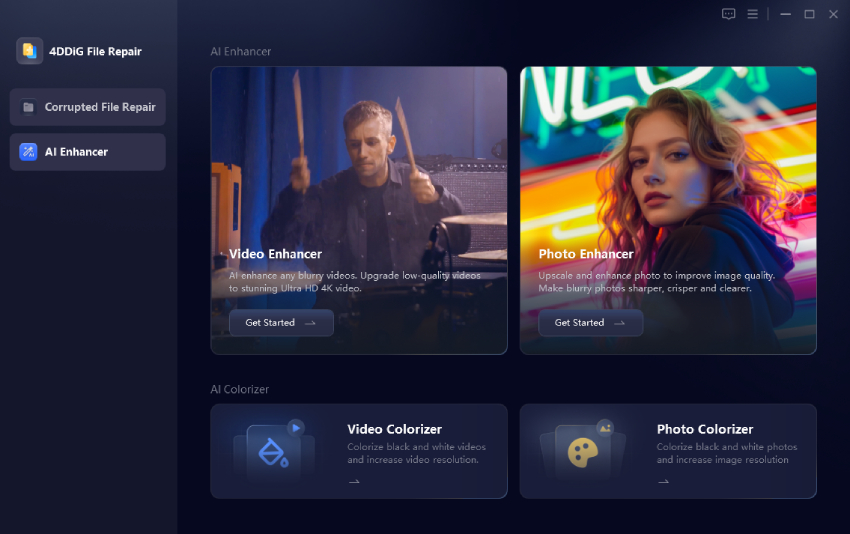
  • Open the 4DDiG File Repair software, go to the AI Enhancer tab on the left, and select Video Enhancer.

    open 4ddig ai video enhancer
  • Click Add Videos and import the low-quality file you want to improve.

    add low quality videos to 4ddig
  • Choose an AI model that fits your footage (General Denoise for most videos, Anime, or Face). Set the output resolution level (2x or 4x) for 4K if available, then click Enhance.

    select ai model and resolution level to enhance video quality
  • Preview the result. If you’re happy with the clearer details and sharper look, click Save to export the improved video.

    preview and save enhanced high quality videos

FAQs about Lowering Video Quality

Q1: How to lower video quality on iPhone after recording?

After recording, open the Photos app, select the video, and tap Edit. You can also export it through the Shortcuts app or a free third-party tool like CapCut or iMovie, then choose a lower resolution or quality setting before saving. Another simple option is to AirDrop or share the video and select a smaller size if the option appears.

Q2: How to download Google Drive video in low quality?

Google Drive usually downloads the original full-quality file. The easiest way is to download the video first, then use one of the methods in this guide (such as HandBrake, VLC, or an online compressor) to reduce the quality afterward. This gives you full control over the final result.

⚡ Conclusion

Learning how to make video lower quality gives you useful options for memes, Discord uploads, or smaller files. The five methods above cover everything from simple resolution drops to full meme-style degradation.

And if you ever need to restore clarity, 4DDiG Video Enhancer can quickly upscale and sharpen those same videos back to higher quality. Try the techniques that fit your needs and keep both tools ready for different situations.

FREE DOWNLOAD

Secure Download

FREE DOWNLOAD

Secure Download

William Bollson (senior editor)

William Bollson, the editor-in-chief of 4DDiG, devotes to providing the best solutions for Windows and Mac related issues, including data recovery, repair, error fixes.

(Click to rate this post)

You rated 4.5 ( participated)