Top 5 Best Excel Password Removers in 2026

5 mins read

Updated on 2026-01-19 16:46:12 to File Tips

When you forget the password to an Excel file, it can be frustrating and time-consuming to regain access. Luckily, there are several Excel XLSX password removers available that can help you unlock protected workbooks and sheets. This guide highlights the top 5 Excel password removers and offers effective, free methods to unlock protected Excel, helping you easily regain control of your files.

Part 1. What Does Excel Password Protection Mean?

Excel password protection is a built-in security feature designed to safeguard your spreadsheets from unauthorized access or changes. However, forgetting a password can lock you out of your own files, making it frustrating when you need to remove excel password or unprotect excel sheet.

1Types of Excel Passwords

Microsoft Excel offers several layers of protection, each serving a different purpose:

  • Password to Open: Encrypts the entire file (.xlsx or .xls). Required to view contents; strongest protection.
  • Password to Modify: Opens the file in read-only mode; editing requires the password.
  • Worksheet Protection: Locks specific sheets to prevent editing cells, formulas, or formatting
  • Workbook Protection: Blocks structural changes, like adding or deleting sheets.
  • VBA Project Password: Secures macros and Visual Basic code from viewing or modification.

2Why Passwords Are Hard to Crack

Excel passwords are difficult to crack because modern versions of Excel use strong encryption algorithms, such as AES, especially for .xlsx files. Passwords are not stored in plain text but as encrypted hashes, which cannot be reversed directly. As a result, manually guessing or bypassing protection is inefficient, making a professional Excel password remover the most practical solution.

3When to Use a Remover

Use an Excel password remover when:

  • You've forgotten the password for a personal or inherited file.
  • You need to edit a protected sheet urgently ("how to unprotect excel sheet").
  • Dealing with legacy files or simple restrictions.
  • Always for legal, personal use only---never on files you don't own.

Free methods work great for sheet/workbook protection, while stronger tools handle open passwords.

Part 2. Free Methods to Remove Password from Excel

Before downloading software, try these proven free techniques to remove password from excel or remove password from xlsx. They work best for worksheet/workbook protection and are safe if you back up your file first.

Method 1: ZIP Trick for Sheet Protection

This popular method exploits the XML structure of .xlsx files to unprotect excel sheet without a password, best for older Excel files with basic password protection.

  • Make a copy of your protected .xlsx file.

  • Rename the extension from .xlsx to .zip.

  • Open the ZIP archive and navigate to the folder that contains the Excel sheet.

  • Open the relevant sheet#.xml file (e.g., sheet1.xml) in a text editor like Notepad.

  • Search for <sheetProtection> and delete the entire tag (from <sheetProtection ... /> or the full block).

  • Save the file, update the ZIP archive, and rename back to .xlsx.

  • Open the file and protection is removed.

Method 2: VBA Code for Older Files

If you're dealing with an older Excel file and know the VBA password, you can use a simple VBA code to unlock the sheet. This method works best with Excel 2010 or earlier. Here's a basic approach:

  • Open the protected workbook.

  • Press Alt + F11 to launch the VBA editor.

  • Insert a new module (Insert > Module).

  • Paste this code:

    Sub PasswordBreaker()

    Dim i As Integer, j As Integer, k As Integer

    Dim l As Integer, m As Integer, n As Integer

    Dim o As Integer

    Dim password As String

    On Error Resume Next

    For i = 65 To 66: For j = 65 To 66: For k = 65 To 66

    For l = 65 To 66: For m = 65 To 66: For n = 65 To 66

    For o = 65 To 66

    password = Chr(i) & Chr(j) & Chr(k) & _

    Chr(l) & Chr(m) & Chr(n) & Chr(o)

    ActiveSheet.Unprotect password

    If ActiveSheet.ProtectContents = False Then

    MsgBox "Password is " & password

    Exit Sub

    End If

    Next: Next: Next: Next: Next: Next: Next

    End Sub

  • Run the macro (F5). It generates a working password to unprotect the sheet.

    use vba macro mode to remove excel password

Method 3: Upload and Re-download to Strip Protection

Apart from the above 2 methods, A quick no-software trick using Google Sheets:

  • Go to sheets.google.com and upload your protected .xlsx file.

  • Open it in Google Sheets (protection is often ignored or stripped).

  • Make any needed edits.

  • Download as .xlsx (File > Download > Microsoft Excel).

    remove excel password in google sheet

Part 3. Top 5 Best Excel Password Removers in 2026

If free methods like the ZIP trick or VBA code don't work for your protected excel xlsx file, a dedicated excel password remover tool is the next step.

Here are the top 5 best Excel password removers in 2026, selected based on recovery rates, ease of use, compatibility with modern .xlsx files, and user feedback. These tools excel at helping you remove password from excel or unlock unprotect excel sheet scenarios.

1Passper for Excel -- Fast and Reliable Excel XLSX Password Remover

Passper for Excel stands out as a fast, reliable solution for recovering open passwords and instantly removing worksheet/workbook restrictions in .xlsx files, making it ideal for most needs to remove password from excel.

passper for excel password remover

Best for: Complex open passwords and instant sheet/workbook unprotection (highest overall recovery rate ~95%).

Free/Pricing: Free trial; full version starts at ~$39.95 (one-month license).

User Rating: 4.8/5

Key Features:

  • Supports all Excel versions (97-2021, including Office 365).
  • 4 advanced attack modes (Brute-force, Mask, Dictionary, Combination) with GPU acceleration for faster recovery.
  • 100% success removing editing restrictions; no data loss.
  • Recovers passwords for open, modify, worksheet, workbook, and VBA protection.
  • Pros
  • Cons
    • User-friendly interface;
    • High success rate for modern .xlsx encryption;
    • Preserves original file data.
    • Paid for full recovery of strong passwords;
    • No Mac version mentioned in some reviews.

2iSunshare Excel Password Remover -- Cross-Platform Compatibility

iSunshare offers strong cross-platform support (Windows and Mac), excelling at removing passwords from both older .xls and newer .xlsx files.

isunshare excel password remover

Best for: Users needing Mac compatibility or batch removal from multiple files.

Free/Pricing: Free trial; full versions from ~$29.95.

User Rating: 4.6/5 (praised for ease and speed).

Key Features:

  • Removes open, modify, worksheet, and workbook passwords.
  • Batch processing for multiple files.
  • Supports Excel 97-2021 and Microsoft 365.
  • Advanced algorithms for quick removal.
  • Pros
  • Cons
    • Works on Mac;
    • High success for sheet protection;
    • Affordable bundles with other Office tools.
    • Slower on very complex passwords;
    • Limited to shorter passwords in some older versions.

3Straxx Excel Password Remover Pro -- Best Free Add-in Excel File Password Remover

Straxx Pro is a popular Excel add-in that instantly removes sheet and workbook protection, perfect as a free excel password remover for personal

straxx excel password remover pro

Best for: Quick, free removal of worksheet/workbook protection (no open password recovery).

Free/Pricing: Free version for personal; Pro ~$25-39 for business/Mac/advanced features.

User Rating: 4.7/5 (highly recommended for simplicity).

Key Features:

  • Direct Excel add-in with "Unprotect" buttons.
  • Removes passwords of any length/special characters for sheet/workbook.
  • Supports Excel 2007-2021/Office 365 (Pro for newer versions).
  • No installation needed beyond add-in.
  • Pros
  • Cons
    • Completely free for basic use;
    • Instant results;
    • No file upload risks.
    • Doesn't handle "password to open" files;
    • Pro needed for latest Excel/Mac.

4LostMyPass.com -- Best Excel Password Remover Online Free

LostMyPass is a top cloud-based service for recovering strong open passwords without installing software---great as an excel password remover online free starting point.

lostmypass excel password remover

Best for: Online recovery of strong open passwords (no download needed).

Free/Pricing: Free for weak passwords/restrictions removal; paid (~$29-59) for strong recovery.

User Rating: 4.9/5 on Trustpilot (thousands of reviews praise speed and success).

Key Features:

  • Cloud-powered brute-force (over 50% success for strong passwords).
  • Removes editing restrictions for free.
  • Supports .xls/.xlsx up to 100MB.
  • Fast results (minutes to hours).
  • Pros
  • Cons
    • No software install;
    • High success rate;
    • Privacy-focused (files deleted after).
    • Requires file upload (privacy concern for sensitive data);
    • Paid for complex cases.

5PassFab for Excel -- GPU Accelerated Pro

PassFab uses GPU acceleration for rapid recovery, making it a pro choice for tough remove password from xlsx scenarios.

passfab for excel

Best for: GPU-accelerated recovery of complex passwords.

Free/Pricing: Free trial; full ~$39.95+.

User Rating: 4.7/5 (strong feedback on speed).

Key Features:

  • Multiple attack modes (Brute-force, Mask, Dictionary).
  • 100% restriction removal; high open password recovery.
  • Supports all Excel formats/versions.
  • No data damage.
  • Pros
  • Cons
    • Very fast with GPU;
    • Intuitive UI;
    • Supports multiple recovery methods for varied needs
    • Windows-focused;
    • Trial limits full recovery

⚡ Part 4. What If the Excel File Gets Corrupted During Password Removal

Manual methods like the ZIP trick or aggressive recovery with tools can sometimes corrupt your Excel file, leading to errors like "file format or extension invalid" or unopenable .xlsx sheets. This is common when trying to remove excel password forcefully.

In such cases, 4DDiG File Repair is an excellent follow-up tool. It uses AI-powered algorithms to fix corrupted Excel files (and other Office documents) with a high success rate, supporting batch repair for multiple files at once. It also features an Advanced Repair mode for heavily damaged files, restoring tables, formulas, charts, and formatting without data loss.

Steps to Repair Corrupted Excel Files Using 4DDiG File Repair

If you encounter Excel file corruption and face error message such as: The file is corrupted and cannot be opened in Excel, please give 4DDiG File Repair a shot. It is pretty friendly for beginners.

  • Download and launch 4DDiG File Repair on your Windows or Mac. Select "File Repair" from the left menu, and click "Add Files" to upload your corrupted .xls or .xlsx file(s).

    FREE DOWNLOAD

    Secure Download

    FREE DOWNLOAD

    Secure Download

    select file repair and add corrupted excel files
  • Click "Repair All" to start the process (use Advanced mode if needed for severe damage).

    start repair all corrupted excel files
  • Preview the repaired files (first page shown). If satisfied, save the fixed files to a new location.

    preview and save repaired excel files

People Also Ask about Excel Password Remover

Q1: What is the best Excel password remover?

In 2026, Passper for Excel and PassFab for Excel top the list for reliability and speed. For free options, Straxx excels at sheet protection removal, while LostMyPass.com is best online.

Q2: What is Ctrl +F12 in Excel?

Ctrl + F12 opens the Open file dialog in Excel, useful for quickly accessing protected files you want to unprotect or remove password from.

Q3: How do I disable protection in Excel?

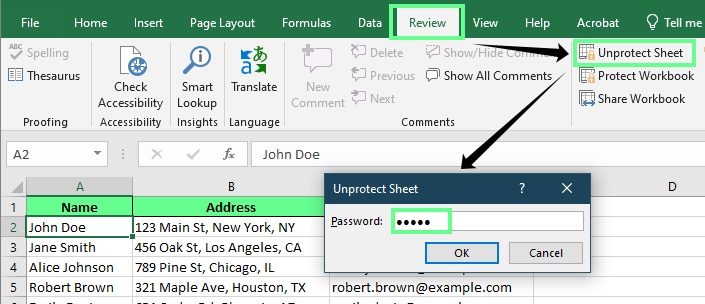
If you know the password: Review > Unprotect Sheet. If forgotten, use the ZIP trick, VBA code, or a trusted Excel password remover like Passper or Straxx for instant results.

Q4: How do I stop Excel from asking for a password?

Use an Excel password remover like Passper or LostMyPass.com to permanently decrypt the file. For sheet protection, unprotect once (via known password or free method) and save, the prompt stops forever.

Q5: How to permanently unprotect an Excel workbook?

Go to Review > Unprotect Workbook (enter password if known). If forgotten, use the ZIP trick or a tool like PassFab/Straxx to remove it instantly, then save as a new .xlsx file. Protection is gone permanently.

Conclusion

Regain control of your locked spreadsheets with these top 5 best Excel password removers and proven free methods. Whether you need to remove password from Excel, unprotect sheets, or handle .xlsx files, safe solutions exist. Always back up files first and use tools ethically.

Besides, if you encounter file corruption during password removal, don't fret and try 4DDiG File Repair to save your file data.

FREE DOWNLOAD

Secure Download

FREE DOWNLOAD

Secure Download

William Bollson (senior editor)

William Bollson, the editor-in-chief of 4DDiG, devotes to providing the best solutions for Windows and Mac related issues, including data recovery, repair, error fixes.

(Click to rate this post)

You rated 4.5 ( participated)