Best GIF Upscalers to Enhance Animated Images [6 Top Picks]

5 mins read

Updated on 2026-10-10 10:11:25 to Video Tips

Blurry GIFs can look worse after resizing because their original frames contain limited detail. A GIF upscaler can enlarge those frames while improving sharpness and visual clarity. However, different tools use very different approaches. Some use AI reconstruction, while others simply resize each frame.

This guide compares six GIF upscalers, explains their strengths and limitations, and shows how to upscale animated GIF files to higher resolutions.

Part 1. What Is a GIF Upscaler?

A GIF upscaler increases the resolution of an animated GIF by enlarging its individual frames. Basic tools resize the frames using interpolation, while AI-powered tools can analyze image content and reconstruct additional visual details.

For example, a 320 × 240 GIF can be enlarged to 640 × 480 or 1280 × 960. However, increasing the pixel dimensions alone does not automatically make the animation sharper. A good GIF quality enhancer should also reduce noise, improve edges, and preserve important details across frames.

GIFs also have technical limitations. The format uses indexed colors and can produce larger files as resolution increases. Therefore, the best approach depends on whether you prioritize visual quality, file size, animation preservation, or advanced enhancement.

Part 2. Top 6 Best Animated GIF Upscalers in 2026

These six tools take different approaches to GIF enlargement. 4DDiG focuses on AI video enhancement, while other options specialize in online GIF processing, anime images, cloud workflows, or conventional resizing.

1. 4DDiG Video Enhancer

4DDiG Video Enhancer is a desktop AI enhancement tool that can process animated GIFs and other video content. Its main advantage is that it focuses on improving image quality rather than simply increasing dimensions. AI models can sharpen details, reduce noise, and upscale low-resolution animation.

It is best for users who want more than basic resizing, especially when a blurry GIF needs visible quality improvement.

4ddig ai video enhancer

Main Features of 4DDiG AI Video Enhancer

  • Wide format compatibility (GIF, MP4, MOV, MKV, AVI, and more) plus easy export of enhanced results
  • AI-powered GIF and video quality enhancement
  • Specialized AI models: General, Face, and Anime for optimal results on different content
  • Upscale video to 4K and up to 8K with Quality or Speed priority
  • Simultaneous noise reduction, deblurring, sharpening, and artifact cleanup
  • Dedicated Anime model that enhances lines and textures without altering style
  • Batch processing with fast, high-success-rate handling of multiple files
  • Simple one-click workflow with side-by-side preview
  • Pros
  • Cons
    • AI-based resolution enhancement
    • Supports GIF and video workflows
    • Can upscale footage to higher resolutions
    • Multiple enhancement models available
    • Reduces noise and visual artifacts
    • Improves apparent frame details
    • Supports batch enhancement workflows
    • Limited free versions
    • Require desktop software installtion

2. ConvertICO Free GIF Upscaler

ConvertICO GIF Upscaler provides a browser-based tool to enhance GIF quality free designed for straightforward resolution enlargement. Its main strength is convenience. Users can upload a GIF, choose an enlargement level, and process the animation without setting up an advanced editing workflow. It is best for users who need a quick enhance GIF quality online solution for relatively simple animations.

convertico gif upscaler
  • Pros
  • Cons
    • Simple GIF-specific workflow
    • Designed for animated GIF files
    • Convenient browser-based processing
    • Useful for quick resolution enlargement
    • No advanced editing knowledge required
    • Less control than desktop software
    • AI enhancement capabilities are limited
    • Output quality depends on source frames
    • Large GIFs may process more slowly

3. Waifu2x

Waifu2x is an image upscaling model originally developed for anime-style artwork. It uses neural-network-based processing to enlarge images while reducing noise and preserving illustrated details.

Because it is optimized for anime and artwork, it can be particularly useful for animated GIFs containing cartoons, illustrations, sprites, or other clean-edged graphics. It is less suitable for realistic photographic GIFs.

waifu2x gif upscaler
  • Pros
  • Cons
    • Strong anime-oriented reconstruction
    • Effective noise reduction
    • Preserves illustrated edges well
    • Suitable for cartoon-style GIF frames
    • Multiple scaling options available
    • Primarily designed for individual images
    • Animated GIF workflows can require extra steps
    • Less suitable for photographic content
    • Output depends heavily on source artwork

4. Cloudinary GIF Upscaler

Cloudinary provides image transformation tools that can be integrated into media workflows through its cloud platform. Its image upscaling capabilities are aimed more at developers and content teams than casual GIF editing.

Its biggest advantage is automation. Businesses can integrate image transformations into websites, applications, or content pipelines instead of manually processing every file.

cloudinary gif upscaler
  • Pros
  • Cons
    • Designed for automated media workflows
    • Useful for developer integrations
    • Cloud-based image transformations
    • Suitable for large content libraries
    • Supports broader media management
    • More complex than consumer tools
    • Requires understanding Cloudinary workflows
    • Not focused exclusively on GIF enhancement
    • Advanced functionality may require paid usage

5. ArtPlayer Animated GIF Upscaler

ArtPlayer’s GIF upscaler provides a focused online workflow for increasing the dimensions of animated GIFs. It is designed for users who want to process an animation without navigating a full video-editing application.

Its strength is simplicity and direct GIF handling. It is more appropriate for straightforward enlargement than detailed restoration of severely blurry animation.

artplayer animated gif upscaler
  • Pros
  • Cons
    • Focused specifically on GIF enlargement
    • Handles animated content directly
    • Simple processing workflow
    • Useful for quick resolution changes
    • Suitable for casual GIF editing
    • Limited advanced enhancement controls
    • Less restoration capability than AI tools
    • Enlarging cannot recreate missing details
    • Output depends on original frame quality

6. Ezgif

Ezgif is a broad online GIF editing platform with tools for resizing, optimization, conversion, cropping, and animation editing. Its GIF resize feature can increase the dimensions of an animation while giving users control over output size and related settings.

It is best for users who want to resize a GIF and perform additional editing in the same browser-based workspace.

ezgif gif upscaler and enlarger
  • Pros
  • Cons
    • Extensive GIF editing toolkit
    • Supports resizing and optimization
    • Provides animation-specific controls
    • Useful for reducing output file size
    • Handles many common GIF operations
    • Good for quick manual adjustments
    • Conventional resizing does not add detail
    • Limited AI reconstruction capabilities
    • Large GIFs can become significantly larger
    • Multiple settings may confuse beginners

Part 3. How to Upscale a GIF [Step-by-Step Guide]

A basic resize can make GIF HD size without making it clearer. If the original animation is blurry, an AI enhancer is more useful because it can analyze the visual information in individual frames.

4DDiG Video Enhancer provides an AI-based workflow for improving low-resolution animated content. It can upscale the GIF, reduce noise, and improve visible details before exporting the enhanced result.

Steps to Upscale GIF Quality to 4K with 4DDiG

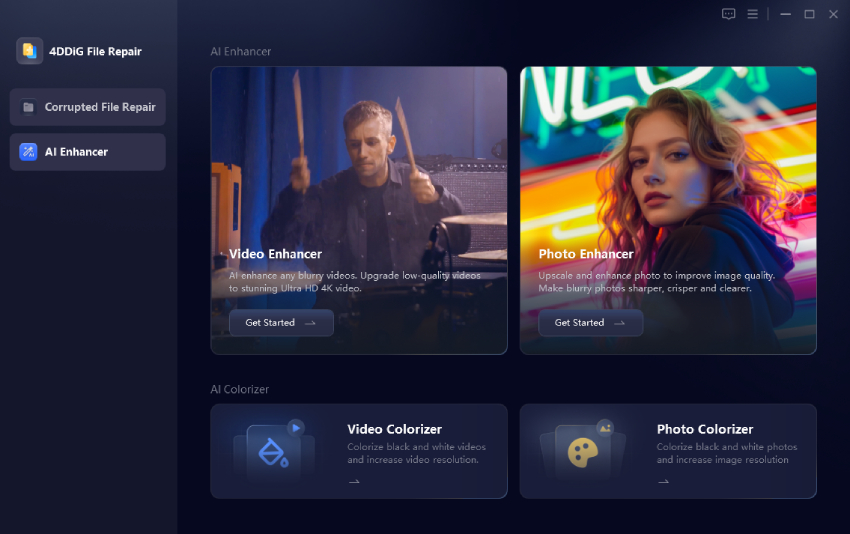
  • Install and launch 4DDiG File Repair on your computer. From the main interface, select “AI Enhancer” and then choose “Video Enhancer.”

    open 4ddig ai video enhancer
  • Click “Add Videos” and select all GIFs you want to enhance. You can also drag the animated GIF directly into the application window.

    add animated gifs to 4ddig
  • After loading the GIF, select an AI model based on its content. Choose the output resolution. If you want to make a GIF higher resolution, select a suitable upscale level based on the source dimensions. Click “Enhance” to begin processing. 4DDiG analyzes the source and applies the selected AI model to improve the animation.

    select ai model and resolution to enhance gifs
  • Preview the enhanced animation before saving it. Check important areas such as text, edges, faces, objects, and fast-moving frames. If the result looks good, click “Save” and choose an output location. Open the exported file and check the entire animation rather than only one frame.

    preview and save enhanced gifs

For very large GIFs, keep an eye on the final file size. Increasing resolution with GIF quality enhancer 4K multiplies the amount of image data that must be stored across all frames.

FAQs About GIF Upscale

Q1: Can GIFs Be Upscaled?

Yes. A GIF can be enlarged by increasing the resolution of each frame. However, simple resizing only adds pixels through interpolation and does not recreate lost detail.

AI enhancement can produce better results by analyzing the content of each frame and reconstructing additional visual information. The final quality still depends heavily on the original GIF.

Q2: Is There a Way to Make a High-Quality GIF?

Start with the highest-quality source available and avoid repeatedly converting the animation. When creating the GIF, use sufficient frame resolution, avoid excessive GIF compression, and keep important details large enough to survive GIF’s limited color palette.

For an existing blurry animation, an AI GIF enhancer can improve the source before you export the final GIF.

Q3: How to Fix Blurry GIFs?

First, determine whether the GIF is blurry because of its original resolution or because a platform resized it during upload. If the original file is low-resolution, use a GIF upscaler to enlarge and enhance its frames.

For simple resizing, tools such as Ezgif can work. For more advanced quality improvement, an AI tool such as 4DDiG Video Enhancer can upscale the animation while applying additional enhancement.

⚡ Conclusion

A GIF upscaler can increase animation resolution, but simple resizing does not automatically restore lost detail. Ezgif and ArtPlayer are useful for straightforward enlargement, while Waifu2x suits illustrated animations and Cloudinary fits automated workflows.

For more advanced enhancement, 4DDiG Video Enhancer can upscale GIF content while reducing noise and improving visible details, making it a strong choice for blurry or low-resolution animations.

FREE DOWNLOAD

Secure Download

FREE DOWNLOAD

Secure Download

William Bollson (senior editor)

William Bollson, the editor-in-chief of 4DDiG, devotes to providing the best solutions for Windows and Mac related issues, including data recovery, repair, error fixes.

(Click to rate this post)

You rated 4.5 ( participated)