How to Convert SWF to Animated GIF with 5 Best Tools

5 mins read

Updated on 2026-08-10 16:22:18 to Video Tips

SWF files were once widely used for Flash animations, games, and interactive web content, but modern browsers no longer support them. Converting SWF to animated GIF makes sharing and viewing animations much easier across websites, messaging apps, and social media. If you need to convert Shockwave Flash to gif, this complete guide reviews five reliable tools and compares their strengths to help you choose the right solution.

Part 1. 5 Top Tools To Convert SWF To Animated GIF

Whether you prefer a browser-based converter or professional desktop software, several tools can convert Flash animations into high-quality GIFs. The following options were selected based on conversion quality, ease of use, supported SWF formats, and overall reliability.

1. Using SWF To Animated GIF Converter Online Free (No Installation)

Online converters are ideal for occasional conversions because they work directly in your browser without requiring software installation. They are convenient for small files and quick tasks, although advanced customization options are usually limited.

Convertio is one of the most popular online tools for converting SWF to GIF tasks. Its biggest advantage is excellent compatibility with many older Flash files, including numerous Flash 8 projects. The service operates entirely online, making it a practical SWF to animated GIF converter online free for users who only need occasional conversions.

convertio swf to gif converter
  • Pros
  • Cons
    • Good Flash 8 SWF file compatibility
    • No installation needed
    • Supports cloud imports from Google Drive and Dropbox
    • Clean interface suitable for beginners
    • Free users have upload size limits
    • Limited animation quality and frame settings

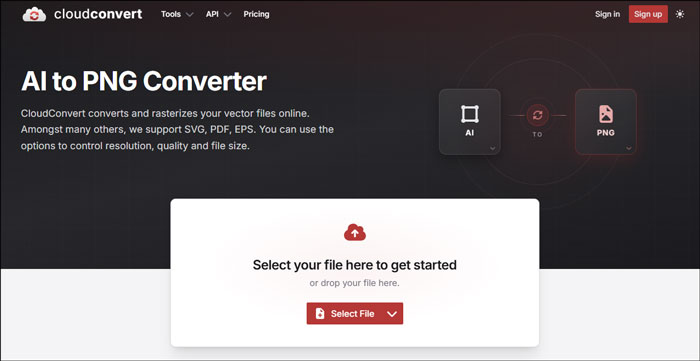
CloudConvert is a professional cloud conversion platform supporting hundreds of file formats. Its strongest advantage is the ability to customize conversion parameters before processing. Users can adjust resolution, frame rate, and other settings to produce a better-quality animated GIF than many basic online converters.

cloudconvert swf to gif converter
  • Pros
  • Cons
    • Customizable output settings for higher-quality GIFs.
    • Secure cloud processing with automatic file deletion.
    • Imports files from local storage and cloud services.
    • Consistent conversion quality for supported SWF files.
    • Free conversion minutes are limited
    • Large Flash files require longer upload times

InVideo offers a simple online conversion tool aimed at creators who frequently prepare content for social media. Besides converting Flash animations, it integrates with a broader online editing platform, making it convenient for users who plan to edit or publish the resulting GIF immediately after conversion to websites or social media.

invideo swf to gif converter
  • Pros
  • Cons
    • Straightforward browser-based workflow.
    • Integrates with InVideo’s online editing platform.
    • Suitable for preparing GIFs for social media.
    • Modern interface that’s easy to navigate.
    • Fewer advanced conversion settings than dedicated converters.
    • Some editing features require an InVideo account.

2. Using Professional SWF To GIF Converter Software (Powerful | High-Quality | Safe)

Desktop software is generally the better option when you need higher image quality, large batch conversions, or advanced customization. Since processing occurs locally, these programs also avoid internet upload limitations and provide greater control over the final animation.

Tool 4. Amazing Flash To GIF Converter

Amazing Flash to GIF Converter is dedicated software built specifically for converting Flash animations into animated GIFs. Unlike general-purpose online converters, it offers detailed control over frame rate, image size, playback speed, and animation quality. For users who regularly convert Flash animations to GIFs and wanna professional quality, it remains one of the most capable desktop solutions.

amazing flash to gif converter
  • Pros
  • Cons
    • Dedicated Flash-to-GIF converter
    • Detailed frame rate and playback customization
    • High-quality animated GIF output
    • Processes conversions locally without uploading files
    • Better suited for large or complex SWF animations
    • Requires software installation
    • Dated interface
    • Windows only

Tool 5. Adobe Flash Professional

Adobe Flash Professional (now Adobe Animate) was created to develop Flash animations, making it one of the most accurate tools for exporting existing SWF projects.

Instead of simply converting files, it allows users to edit timelines, adjust animations, and export optimized GIFs with precise control over frames and visual quality. Best for professional designers and animators working with original Flash projects.

adobe flash professional
  • Pros
  • Cons
    • Native Flash projects editing environment
    • Excellent compatibility with complex Flash animations
    • Allows timeline editing before GIF export
    • Produces highly accurate animation output with precise frame timing and quality
    • Requires significant learning for beginners.
    • Subscription costs may not be practical for occasional users.
    • Older SWF projects may require compatibility adjustments.

Part 2. How To Convert SWF To GIF Using Amazing Flash To GIF Converter & Convertio?

After choosing a suitable converter, the actual conversion process is usually straightforward. The following tutorials demonstrate one desktop solution for maximum quality and one browser-based solution for quick online conversions, allowing you to choose the workflow that best fits your needs.

1. Using Amazing Flash To GIF Converter

Amazing Flash to GIF Converter is ideal when you need precise control over the output quality. Since the software processes files locally, it avoids upload limitations and provides options for adjusting frame rate, animation size, playback speed, and other settings before exporting the final GIF. It’s one of the most reliable ways to convert Flash to an animated GIF while preserving animation quality.

  • Install and launch Amazing Flash to GIF Converter.

  • Click "Import” button from the top menu bar and select the SWF animation you wanna convert.

    import swf files to amazing flash to gif converter
  • Configure the output settings, including frame rate, image size, playback speed, etc.

  • Select the destination folder and click “Convert”.

    amazing convert swf to animated gif

2. Using Convertio

If you only need to convert a few files, Convertio provides one of the quickest browser-based workflows. Everything happens online, so you don’t need to install software or configure complicated settings.

It’s a convenient choice for users who want to convert SWF to animated GIF online for free from any computer with an internet connection.

  • Open the Convertio SWF to GIF Converter webpage and click “Choose Files”.

  • Upload your SWF file.

  • Click “Convert” then wait for the conversion to finish and download the animated GIF.

⚡ Part 3. How To Fix SWF Not Opening Or Converting Issues

Have you come across such an situation where you tried several converter but the SWF still won’t open or keeps failing during conversion. This is a common frustration, especially with older Flash files that have been sitting in archives for years.

In most cases the problem isn’t the converter itself. The SWF file is often damaged or corrupted. Amid this, repairing the SWF first is usually the fastest way to get it working again. 4DDiG Video Repair is designed for exactly these situations. It can repair corrupted, damaged, or distorted SWF files and many other video formats in batch, with a high success rate.

Its AI-assisted engine reconstructs the damaged data while keeping the highest possible quality, and it includes a preview function so you can check the result before saving.

Steps To Repair Corrupted SWF Videos with 4DDiG

  • Install and launch 4DDiG File Repair, then click "Video Repair" from the left menu and tap on the "Add Videos" button to import the damaged SWF video files.

    FREE DOWNLOAD

    Secure Download

    FREE DOWNLOAD

    Secure Download

    add corruoted swf videos to 4ddig
  • Click “Repair All” after adding all the SWF videos and wait for the repair process to complete.

    4ddig repair all swf videos
  • Check and preview the repaired videos via the "Preview" button. If you are satisfied with the results, export the repaired files by clicking “Save”.

    save repaired swf videos in preferred format

Part 4. Best Settings For A High-Quality Animated GIF

The quality of your animated GIF depends not only on the converter but also on the export settings you choose. Adjusting a few key parameters can significantly improve image clarity while keeping the file size manageable.

Recommended GIF Export Settings

Setting Recommended Value
Resolution Keep the original resolution or scale proportionally
Frame Rate 15 to 24 FPS for smooth animation
Color Depth 256 colors
Loop Setting Infinite loop for continuous playback
Dithering Enable for smoother color transitions
Compression Moderate to balance quality and file size
Aspect Ratio Maintain the original ratio to avoid distortion
Note:

If your converted GIF appears blurry, pixelated, or lacks detail, 4DDiG Video Enhancer can improve the visual quality by using AI to upscale blurry GIFs and videos to resolutions of up to 8K, while enhancing sharpness and overall clarity.

FAQs About SWF To Animated GIF

Q1: How to make a Flash 8 movie into a GIF?

You can use tools such as Convertio, Amazing Flash to GIF Converter, or Adobe Flash Professional. For older Flash 8 projects, Convertio is known for supporting many legacy SWF files, while Adobe Flash Professional provides the most control over the export process.

Q2: Does the GIF keep sound from the SWF?

No. GIF files only support animated images. Any audio contained in the original SWF animation is removed during conversion.

Q3: Why can’t I play my SWF file anymore?

Modern browsers no longer support Adobe Flash Player. You can use Ruffle, dedicated SWF players, Adobe Animate, or convert the file into a more widely supported format such as GIF or MP4.

Q4: What to do if the converted GIF looks blurry, distorted, or has poor color quality?

Try increasing the export resolution, selecting a higher frame rate, enabling dithering, and maintaining the original aspect ratio. If the source video itself has quality issues, 4DDiG Video Enhancer can use AI to sharpen and upscale the animation before or after conversion.

Conclusion

Choosing the right tool makes it much easier to convert SWF to animated GIF while preserving smooth animation and good image quality. Online converters work well for occasional tasks, while desktop software offers greater control over advanced settings.

If your SWF file won’t open or fails during conversion because it has become corrupted, 4DDiG File Repair Software helps repair damaged files before converting them successfully.

William Bollson (senior editor)

William Bollson, the editor-in-chief of 4DDiG, devotes to providing the best solutions for Windows and Mac related issues, including data recovery, repair, error fixes.

(Click to rate this post)

You rated 4.5 ( participated)