5 Best Free FLV to MP3 Converters (Online & Free) | Convert Flash Video Fast

5 mins read

Updated on 2026-07-02 12:06:25 to Video Tips

Many old video downloads, archived tutorials, screen recordings, and Flash-based media files are still stored in FLV format. While FLV is no longer widely supported on modern devices, MP3 remains one of the most compatible audio formats available. If you’re looking for a reliable FLV to MP3 converter, several free tools can extract audio from FLV files in just a few clicks.

This guide reviews the best online and offline options, compares their features, and explains how to convert FLV to MP3. It also shows what to do if the converted audio becomes corrupted.

Free FLV to MP3 Converter Comparison Table (2026)

  • Tool
  • Online/Offline
  • Speed
  • File Size Limit
  • Output Quality
  • Best For
  • CloudConvert
  • Online
  • Fast
  • Depends on the plan
  • Up to 320 kbps
  • Quality-focused conversions
  • Zamzar
  • Online
  • Moderate
  • Limited on the free plan
  • Good
  • Simple one-time conversions
  • FreeConvert
  • Online
  • Fast
  • Generous free limits
  • Customizable
  • Advanced settings
  • VLC Media Player
  • Offline
  • Fast
  • No practical limit
  • Good
  • Privacy-conscious users
  • FFmpeg
  • Offline
  • Very Fast
  • No limit
  • Excellent
  • Batch processing and power users

Best 3 Must-Try Flash Video to MP3 Converters Online

Reliable online converters like CloudConvert, ZamZar, and more can make this process straightforward for you.

CloudConvert MP3 Converter

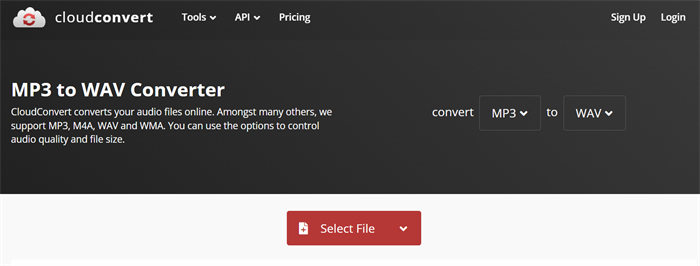
cloudconvert flv to mp3 converter

CloudConvert has built a strong reputation among users who need reliable file conversions without installing software. As a professional-grade flash video to MP3 converter online, it supports hundreds of formats while providing advanced control over output settings.

Unlike many web-based converters that only offer basic functionality, CloudConvert lets users customize bitrate, audio quality, and metadata before converting files.

  • Pros
  • Cons
    • Supports over 200 file formats.
    • Allows custom MP3 bitrate settings.
    • Clean interface with no confusing menus.
    • Can import files from Google Drive, Dropbox, and URLs.
    • Uses cloud processing for fast conversions.
    • Maintains excellent audio quality.
    • Free conversion credits are limited.
    • Large files may consume credits quickly.
    • Requires internet connectivity.

Steps To Convert FLV To MP3 Using CloudConvert

  • Open the CloudConvert FLV to MP3 page and click “Select File” to upload your FLV file.

  • Choose “MP3” as the output format and click “Convert”.

  • Download the converted MP3 file.

Zamzar FLV To MP3 Converter

zamzar flv to mp3 converter

Zamzar has been serving online file conversion users for years and remains one of the easiest tools for people who simply want to convert from FLV to MP3 without dealing with technical settings. The platform focuses on simplicity, making it ideal for occasional users who value convenience over customization.

  • Pros
  • Cons
    • Extremely beginner-friendly interface.
    • No software installation required.
    • Supports direct file uploads from local storage.
    • Fast setup process.
    • Email notification option available.
    • Trusted conversion service with long-standing reputation.
    • Limited free upload size.
    • Fewer customization options.
    • Conversion speed may vary during peak hours.

Steps To Convert FLV To MP3 Using Zamzar

  • Visit Zamzar’s FLV to MP3 page and click “Choose Files” to upload your FLV file.

  • Select MP3 as the output format and click “Convert Now”.

  • Wait for processing to complete, then download the MP3 file.

FreeConvert FLV To MP3 Converter

freeconvert flv to mp3 converter

FreeConvert combines ease of use with advanced controls, making it one of the most versatile tools to convert FLV into MP3 online. Users can adjust audio codecs, bitrate, volume levels, and trimming options before conversion.

These additional settings make it a great choice for users who want more control without switching to desktop software.

  • Pros
  • Cons
    • Generous free conversion limits.
    • Supports advanced audio customization.
    • Cloud-based processing.
    • Drag-and-drop file upload.
    • Allows trimming before conversion.
    • Supports high-quality MP3 exports.
    • Advertisements appear on some pages.
    • Large files may process more slowly.
    • Requires stable internet access.

Steps To Convert FLV To MP3 Using FreeConvert

  • Open FreeConvert’s FLV to MP3 converter, then click “Choose Files" and upload the FLV video.

  • Select MP3 as the target format and adjust optional audio settings, then convert.

  • Download the finished MP3.

Is Online FLV To MP3 Conversion Safe?

Yes, online conversion is generally safe when you use reputable services. Here are a few important considerations:

  • Choose established platforms with transparent privacy policies.
  • Avoid websites that force suspicious software downloads.
  • Delete uploaded files after conversion when possible.
  • Use offline tools for sensitive or confidential recordings.

For everyday audio extraction tasks, trusted platforms like CloudConvert, Zamzar, and FreeConvert provide a safe way to use an FLV to MP3 converter online without significant security concerns.

Top 2 Best Free FLV To MP3 Converters Offline

If you are looking for an offline converter, here are the top 2 options, including VLC.

VLC Media Player

vlc convert save feature

Most people know VLC as a media player, but it also includes surprisingly capable conversion tools. For users who prefer not to upload files online, VLC offers a free and practical way to convert Flash video to MP3 directly on their computer. Since all processing happens locally, it provides additional privacy while eliminating file size restrictions.

  • Pros
  • Cons
    • Completely free and open-source.
    • No file upload required.
    • Supports many media formats.
    • Available on Windows, Mac, and Linux.
    • No advertisements.
    • Handles large files efficiently.
    • Interface feels dated.
    • Limited advanced audio editing.
    • Conversion settings may confuse beginners.

Steps To Convert FLV To MP3 With VLC

  • Open VLC Media Player, then click “Media" and choose “Convert/Save”.

  • Add the FLV file by clicking “Add”.

  • Choose the file under the "Open Media" section and click "Convert/Save," then choose "Convert".

  • Select an output location in the browse window and click “Save”.

  • In the convert window, under "Settings", click “Convert”, and choose "Audio-MP3”

    vlc convert flv to mp3
  • Choose your desired audio codecs and presets, then click "Save" to complete the conversion.

FFmpeg

FFmpeg is a powerful command-line multimedia framework used by developers, media professionals, and advanced users worldwide. It delivers exceptional speed and flexibility when handling audio and video files. If you frequently process multiple files, FFmpeg may be the best free FLV to MP3 converter available.

  • Pros
  • Cons
    • Extremely fast processing.
    • Supports batch conversion.
    • No file size restrictions.
    • Excellent audio quality preservation.
    • Free and open-source.
    • Works across multiple operating systems.
    • Command-line interface only.
    • Learning curve for beginners.
    • Requires manual installation.

Steps To Convert FLV To MP3 Using FFmpeg

  • Install FFmpeg.

  • Open Command Prompt or Terminal.

  • Navigate to the FLV file location.

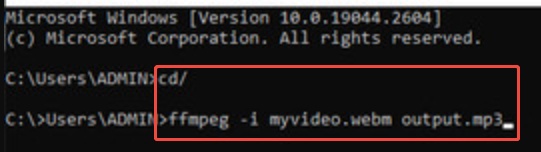
  • Run: “ffmpeg -i input.flv output.mp3

  • Wait for the conversion to finish.

  • Access the new MP3 file.

⚡ What if the converted MP3 File Is Corrupted Or Won't Play

Sometimes the conversion finishes successfully, but the resulting MP3 file has problems: it won't play, skips sections, produces noise, or is partially corrupted. This can be caused by interrupted conversions, damaged original FLV files, storage issues, or transfer errors.In such cases, you can try the following solutions:

  • Re-convert the original FLV file using a different tool (such as VLC or FFmpeg) with a lower bitrate or different settings.
  • Repair the damaged MP3 with a dedicated audio repair tool.

Recommended Repair Tool: 4DDiG Audio Repair

4DDiG Audio Repair is a user-friendly tool designed to fix corrupted audio files. It supports common formats including MP3, WAV, AAC, and M4A.

Key Features:

  • AI-powered repair engine that analyzes and reconstructs damaged audio data
  • Batch repair (fix multiple files at once)
  • Simple, clean interface with preview function before saving
  • Fix heavily damaged audio files in high success rate
  • No advanced technical knowledge required
FREE DOWNLOAD

Secure Download

FREE DOWNLOAD

Secure Download

Steps To Repair Corrupted MP3 Files Using 4DDiG Audio Repair

  • Launch 4DDiG File Repair and click “More Repair Tools” then select “Audio Repair”.

    select 4ddig audio repair
  • Click “Add Audio” to add your problem MP3 audio files that aren’t playing.

  • Start the MP3 repair process by clicking “Repair All”

    repair all corrupted mp3 files
  • Preview repaired audio files by clicking the “Preview” button.

    preview repaired mp3 files
  • Tap the triangle icon and select an output audio format (MP3, WAV, etc.). Then save repaired files to your desired location by clicking the “Save” button.

    select output audio format and save repaired audio

People Also Ask About FLV To MP3

What Are The Best Free FLV To MP3 Converters?

The most reliable options include CloudConvert, Zamzar, FreeConvert, VLC Media Player, and FFmpeg. Each serves different needs, from quick browser-based conversions to professional offline processing.

Can I Convert FLV To Other Audio Formats?

Yes. Most conversion tools support additional formats such as WAV, AAC, OGG, M4A, and FLAC. Many users choose these formats when they need higher audio quality or specific device compatibility.

Can I Use VLC To Convert To MP3?

Absolutely. VLC includes a built-in conversion feature that allows users to extract audio from video files and save it as an MP3. It's one of the easiest offline methods for converting flash video to MP3 tasks.

Does FLV To MP3 Reduce Quality?

The answer depends on the original file and selected bitrate. MP3 uses lossy compression, so some quality loss can occur. However, choosing a high bitrate such as 256 kbps or 320 kbps usually preserves audio quality well enough for most listeners.

Conclusion

Finding the right FLV to MP3 converter depends on your priorities. CloudConvert, Zamzar, and FreeConvert offer convenient online solutions, while VLC and FFmpeg provide greater privacy and control offline.

Whether you need to convert from FLV to MP3 occasionally or process multiple files regularly, these tools deliver reliable results. If your converted audio becomes damaged or unplayable, 4DDiG Audio Repair is an effective solution for restoring corrupted MP3 files and getting your audio back in working condition.

FREE DOWNLOAD

Secure Download

FREE DOWNLOAD

Secure Download

William Bollson (senior editor)

William Bollson, the editor-in-chief of 4DDiG, devotes to providing the best solutions for Windows and Mac related issues, including data recovery, repair, error fixes.

(Click to rate this post)

You rated 4.5 ( participated)