4 Free & Easy Ways to Convert VOB to MP4 in High Quality

5 mins read

Updated on 2026-10-14 11:42:03 to Video Tips

Old DVD files often come in VOB format, which many modern devices refuse to play, edit, upload, or share. Fortunately, you can convert VOB to MP4 for free using VLC, Handbrake, online converter, or FFmpeg quickly and keep the picture clear using free tools.

This guide shows those four straightforward ways to convert VOB files to MP4 so you can watch them on phones, computers, or TVs without extra hassle. Also, we will take you through how to keep the best possible video quality during conversion.

Part 1. Can You Convert VOB Files to MP4?

Yes, you can convert VOB files to MP4 easily. VOB is the standard format stored on DVDs, while MP4 works on almost every device and app today. Free software and online tools handle the change well and preserve most of the original quality when you choose the right settings. The process is simple for everyday users and does not require paid software.

Now that you know the conversion is possible, the next section helps you pick the method that fits your situation best.

Part 2. What Is the Easiest Way to Convert VOB to MP4

The easiest way to convert VOB to MP4 depends on how many files you have and whether you want to install anything. Some people prefer a free desktop app for better control, while others like a quick online option. The table below compares the main free methods so you can see which one matches your needs for large files, batch work, and quality.

Method Best For Free Large VOB Batch Quality Control Difficulty
VLC Quick single conversion ✓ ✓ Limited Basic Easy
HandBrake High-quality results ✓ ✓ ✓ Excellent Medium
Online Converter Small files / no install ✓ Limited Limited Basic Easiest
FFmpeg Advanced/batch conversion ✓ ✓ ✓ Excellent Hard

Most people find VLC or Handbrake the most practical starting points when they want to convert VOB to MP4 free and keep good picture quality.

Part 3. 4 Ways to Convert VOB to MP4 for Free in High Quality [Step-by-Step]

You now know the main options. Below are four practical ways to convert VOB to MP4 without paying and with solid results. Each method includes clear steps so you can follow along easily. Choose the one that matches your skill level and file size.

Way 1. Convert VOB to MP4 Using VLC

VLC is free, already popular, and works well for single files. It keeps quality decent when you pick the right profile. The conversion usually finishes quickly. VLC is a simple app to convert VOB to MP4 for everyday use.

  • Download and install VLC Media Player if you do not have it yet.

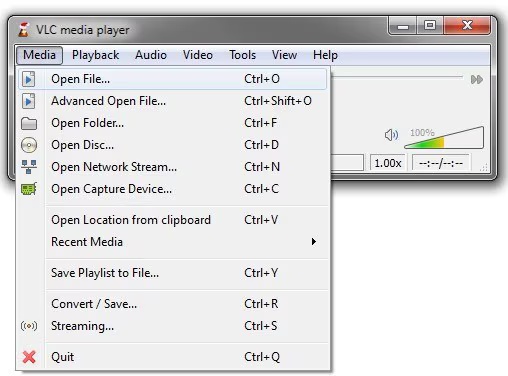
  • Open VLC, click Media from the top menu, then choose Convert / Save.

  • In the pop-up Open Media dialog, click Add and select your VOB file and hit the bottom Convert / Save button.

    add vob files to vlc
  • In the Profile list, pick an MP4 option such as "Video -- H.264 + MP3 (MP4)".

    vlc convert vob files to mp4
  • Choose a destination folder and file name, then click Start.

Way 2. Transcode VOB to MP4 Using Handbrake

HandBrake is one of the best free tools when you want better quality control. Many people treat it as a reliable HandBrake VOB to MP4 converter. HandBrake handles most files well and gives clearer results than basic conversion. It also supports larger files without much trouble.

  • Install HandBrake from the official site.

  • Open the program and click Open Source. Select your VOB file or the VIDEO_TS folder.

  • Under Preset, choose a good quality option like "Fast 1080p30" or "HQ 1080p30 Surround".

    handbrake convert vob files to mp4
  • Make sure the format is set to MP4.

  • Click Browse to pick the output location and name.

  • Press Start Encode to commence encoding the VOB file to MP4.

    handbrake start encode vob to mp4

Way 3. Using Online VOB to MP4 Converter Free Tools

If you prefer not to install software, free online converters work for smaller files. They are the fastest option when you just need a quick change. Online tools are convenient, but they often limit file size. For larger files, a desktop program works better.

2 Top VOB Format to MP4 Converters Online Free

Tool 1. CloudConvert VOB to MP4 Converter

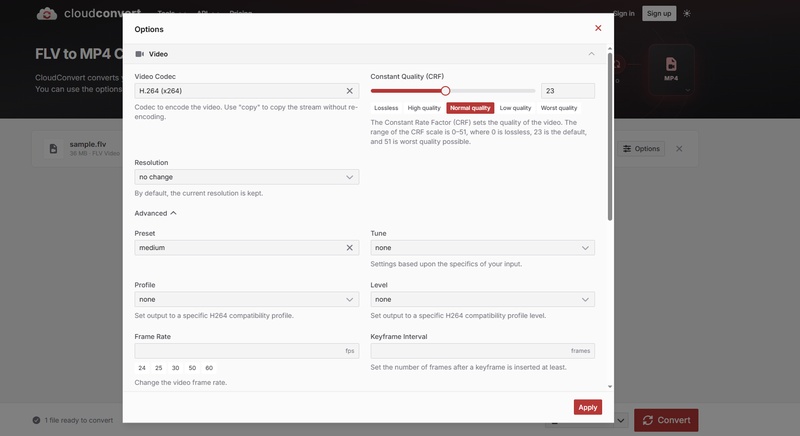
CloudConvert is a clean and reliable online tool for turning VOB files into MP4. It lets you adjust basic settings like resolution, quality, and codec so the output stays clear. The free plan covers a limited number of conversions each day and works best with small to medium-sized files. You can also pull files directly from Google Drive or Dropbox.

cloudconvert vob to mp4 converter online free

Tool 2. FreeConvert VOB to MP4 Converter

FreeConvert offers a simple way to convert VOB to MP4 without installing anything. Free users can upload files up to 1GB and convert several at once. It includes optional advanced settings for video and audio, keeps the process secure, and automatically deletes files after a few hours.

freeconvert vob to mp4 converter

Steps to Convert VOB Format to MP4 Online Free (with FreeConvert)

  • Open one of the sites above.

  • Click Choose Files or the upload button and choose your VOB file.

  • Confirm that the output format is set to MP4.

  • When using FreeConvert, you can also customize the Advaned Settings below to reset video codec, resolution, etc.

    freeconvert vob to mp4 converter advanced settings
  • Click Convert and wait for the process to finish.

  • Download the finished MP4 file.

Way 4. Batch Convert VOB Files to MP4 with FFmpeg

When you have many files, FFmpeg lets you batch convert VOB to MP4 from the command line. It is free, powerful, and keeps quality high if you use good settings. FFmpeg gives excellent control and works well when you need to convert large VOB files to MP4 or process many files at once. It takes a bit more practice than the other methods, but the results are usually very clean.

  • Download FFmpeg and add it to your system path.

  • Open Command Prompt (Windows) or Terminal (Mac/Linux).

  • Go to the folder that contains your VOB files.

  • Type a command like this for one file: ffmpeg -i input.vob -c:v libx264 -crf 18 -c:a aac -b:a 192k output.mp4

  • For several files, create a simple loop or batch script that runs the same command on each VOB.

  • Press Enter and wait for the conversion to finish.

Bonus: How to Improve Video Quality After Converting VOB to MP4

Even with careful settings, some VOB files from old DVDs can look a bit soft or noisy after conversion. If your new MP4 still feels blurry or lacks detail, a dedicated enhancer can help restore clarity.

One reliable option is 4DDiG Video Enhancer. It uses AI to upscale video resolution to 4K (up to 8K), sharpen blurry footage, reduce noise, and improve color and contrast. It offers different models for general videos, faces, or anime-style content, so the results stay natural. The tool is easy to use and works well for ordinary users who just want cleaner-looking videos without complicated editing.

FREE DOWNLOAD

Secure Download

FREE DOWNLOAD

Secure Download

How to Enhance a Blurry MP4 Converted from VOB

  • Download and open 4DDiG Video Enhancer and go to the AI Enhancer or Video Enhancer section and add your MP4 file.

    open 4ddig ai video enhancer
  • Click Add Videos and import the MP4 files you convert from VOB.

    add converted mp4 videos to 4ddig
  • Choose a suitable AI model and set the upscale level, such as 2x or 4x. Prefer the quality option if available:

    a) General Model for most everyday videos.

    b) Face Model for footage where people are the main subject.

    c) Anime Model for animated content.

    set ai model and resolution level to enhance
  • Click Enhance and wait for the process to finish. Once enhanced, preview the result, then save the improved video.

    preview and save enhanced videos

FAQs about VOB to MP4 Conversion

Q1: How to convert VOB to MP4 without losing quality?

Use free tools like HandBrake or VLC with high-quality presets (for example, a lower CRF value or "HQ" setting in HandBrake). Avoid heavy compression. After conversion, an enhancer like 4DDiG Video Enhancer can further improve sharpness if needed.

Q2: Can VLC convert vob to MP4?

Yes. Open VLC, go to Media > Convert/Save, add the VOB file, choose an MP4 profile, and start the conversion. It is simple and works for most single files.

Q3: What software can I use to convert VOB files to MP4?

Popular free options include VLC Media Player, HandBrake, FFmpeg for batch work, and online tools such as CloudConvert or FreeConvert. For better quality control on larger files, HandBrake is often the most practical choice.

Conclusion

Converting old DVD files no longer has to be difficult. With the four free methods in this guide: VLC, HandBrake, online converters, and FFmpeg, you can convert VOB to MP4 easily while keeping good quality. Choose the method that fits your needs, whether you want a quick one-file conversion or batch processing for many files.

If the finished MP4 still looks a little soft, try 4DDiG Video Enhancer to sharpen details and boost clarity. With these free tools and a simple enhancement step, your videos will play smoothly on almost any device.

FREE DOWNLOAD

Secure Download

FREE DOWNLOAD

Secure Download

William Bollson (senior editor)

William Bollson, the editor-in-chief of 4DDiG, devotes to providing the best solutions for Windows and Mac related issues, including data recovery, repair, error fixes.

(Click to rate this post)

You rated 4.5 ( participated)