5 Best M4A to MP4 Converts You Should Never Miss in 2026

5 mins read

Updated on 2026-06-25 20:58:23 to Video Tips

Are you frustrated because your high quality voice recordings won't upload to TikTok or play on your car’s infotainment system? This is a common hurdle with Apple’s M4A format. However, when you learn how to convert m4a to mp4, you unlock universal compatibility across all platforms without sacrificing a single decibel of audio fidelity. This guide covers the best tools available this year to transform your audio into social ready video files.

m4a to mp4 converter

Comparison of the Top M4A to MP4 Converters in 2026

Choosing the right M4A to MP4 converter free tool depends on your needs such as speed, quality, and ease of use. Below is a comparison of the most popular options.

  • Tool
  • Platform
  • Support Formats
  • Best For
  • Difficulty
  • FreeConvert
  • Web
  • 1500+
  • Large Files (up to 1GB)
  • Easy
  • Zamzar
  • Web / Desktop
  • 1100+
  • Simplicity & Trust
  • Very Easy
  • Kapwing
  • Web
  • Popular Video/Audio
  • Creative Creators
  • Moderate
  • Clideo
  • Web / iOS
  • Common Multimedia
  • Mobile Users
  • Very Easy
  • Apowersoft
  • Web + Launcher
  • All Common + 4K/HEVC
  • Power Users
  • Easy
  • AnyMP4
  • Web
  • 300+
  • Watermark free exports
  • Easy

Making the right choice depends on your specific priorities:

  • If you have huge files: FreeConvert is your winner with its massive 1GB limit.
  • If you want clean, professional video: AnyMP4 is the way to go because it doesn't add watermarks.
  • If you are a content creator: Kapwing is the best choice for its AI powered waveforms and subtitle tools.
  • If you value speed and 4K quality: Apowersoft's hybrid launcher provides the best technical performance for high end formats.

6 Best M4A to MP4 Converters in 2026

Converting M4A files to MP4 has become essential for better compatibility across platforms like YouTube, TikTok, and mobile editors. Here are the 6 most reliable tools to help you quickly and easily convert M4A to MP4 files without losing quality.

1. FreeConvert Online M4A to MP4 Converter

freeconvert m4a to mp4 converter

FreeConvert stands out as a powerhouse for users handling substantial media files without wanting to install local software. It offers a massive 1GB file limit for free users, which is significantly higher than most web based competitors. The platform balances simplicity with professional grade "Advanced Settings," allowing users to fine tune technical aspects like video codecs and frame rates.

  • Pros
  • Cons
    • Supports up to 1GB files with efficient batch processing.
    • Offers rich customization: bitrate, trimming, volume, and subtitles.
    • High security with auto-deletion and 256-bit encryption.
    • Easy cloud uploads from Google Drive and Dropbox.
    • Excellent audio quality with minimal loss.
    • Slower speeds possible during peak hours on free plan.
    • Advanced options have a slight learning curve.
    • Requires stable internet for large batches.

Steps to Convert M4A to MP4 Online in FreeConvert:

  • Open FreeConvert in your browser and click "Choose Files" to upload your M4A file. You also import files directly from Dropbox or Google Drive.

  • Before clicking "Convert", open "Advanced Options" by clicking the gear icon. Here, you can adjust extra settings for the output file. For example, you may be able to choose a background color for the video and apply audio fade in or fade out effects.

    freeconvert m4a to mp4 converter advanced options
  • Now click "Convert" to start the process. After the conversion is complete, download your new MP4 file.

    freeconvert convert m4a to mp4 online

2. ZamZar

zamzar m4a to mp4 converter

ZamZar M4A to MP4 Online Converter remains a veteran favorite, known for its clean, distraction free interface and its unique "Add Background" feature. Since M4A is an audio format, ZamZar automatically wraps the audio in a black background so it is instantly compatible with video centric platforms like YouTube or Facebook. Furthermore, ZamZar appeals to the eco conscious researcher by planting a tree for every 10,000 files converted, making it a "green" choice for digital workflows.

  • Pros
  • Cons
    • Super simple three-step process with 1,200+ format support.
    • Email notifications for hands-off conversions.
    • Unique ability to add background images for video output.
    • Long-established reliable service with eco-friendly approach.
    • Fast for small files.
    • Strict 5MB free file size limit.
    • Email delivery adds minor delay.
    • Limited fine-tuning controls.

3. Kapwing

kapwing m4a to mp4 converter

Kapwing is more than a converter. It is a collaborative multimedia editor. It is the go to tool for creators who need to transform an M4A podcast or voice note into a polished video. It provides advanced features like "Smart Cut," AI driven background removal, and waveforms that visualize your audio. Kapwing’s cloud based workspace allows multiple team members to edit the same project simultaneously, making it ideal for professional social media teams.

  • Pros
  • Cons
    • Built-in editor for adding visuals, text, and subtitles.
    • Social media-ready exports with templates and sizing tools.
    • AI features like auto-subtitles for quick creation.
    • Fully browser-based and cross-device friendly.
    • High-quality creator-focused output.
    • Watermarks on free exports.
    • File size and duration limits in free tier.
    • More suited for video projects than bulk audio.

4. Clideo M4A Converter

clideo m4a to mp4 converter

Clideo focuses on "one click" efficiency. It is designed for users who want a fast, secure, and no nonsense conversion without navigating through dozens of menus. The interface is highly optimized for mobile browsers, making it the best choice for converting M4A files directly on a smartphone. Clideo’s primary strength lies in its "Super Easy" philosophy. It handles the technical codec mapping behind the scenes, so the user doesn't have to.

  • Pros
  • Cons
    • Clean, intuitive interface on mobile and desktop.
    • Fast, high-fidelity conversions with no installation.
    • Strong privacy protection.
    • Extra tools for merging and compressing.
    • Consistent and reliable performance.
    • Speed depends on internet connection.
    • Limited advanced customization.
    • Some restrictions on free tier.

5. Apowersoft Free Online Video Converter

apowersoft free online video converter

Apowersoft bridges the gap between web tools and desktop apps. While it operates in the browser, it uses a small "launcher" to deliver unlimited conversion speeds and bypass typical browser file size restrictions. It remains popular for its wide range of output presets, covering everything from 144p to 1080p HD. It is particularly useful for users who need to convert M4A files for specific mobile devices, such as the latest iPhone or Galaxy models.

  • Pros
  • Cons
    • Simple drag-and-drop with wide format support.
    • Basic editing and compression during conversion.
    • Quick processing for daily use.
    • Lightweight launcher option for better uploads.
    • Straightforward for occasional needs.
    • May require launcher for full functionality.
    • File size limits on free version.
    • Basic control over conversion parameters.

6. AnyMP4 Video Converter

anymp4 video converter

AnyMP4 distinguishes itself in 2026 by offering a completely watermark free experience for free users, a rarity in the current market. It supports a massive library of over 300 formats, allowing for precise control over resolution (up to 1080p) and bitrates. For users who need a clean, professional output without paying a subscription, AnyMP4 provides the most reliable "what you see is what you get" service.

  • Pros
  • Cons
    • Desktop software with hardware-accelerated fast batch conversion.
    • Built-in editor with trimming, effects, and device presets.
    • Superior 4K/HD quality retention.
    • One-time purchase for unlimited watermark-free use.
    • Extensive format and customization options.
    • Requires installation and local space.
    • Trial version has strict output limits.
    • Heavier setup than online tools.

Steps to Convert:

  • Open the program and go to the “MV” (Music Video Maker) tab. Click “+ Add” and choose your M4A image.

    add m4a image to anymp4
  • Go to the “Settings” and find “Audio Track”. Turn off “Keep original audio track” because the image has no sound. Then turn on “Background Music” and click the “+” button to add your M4A audio file.

    anymp4 video converter audio track settings
  • Go to the “Export” tab. Select MP4 as the output format. Choose 1080p resolution for good quality. Make sure GPU acceleration is turned on if available.

    anymp4 convert m4a to mp4 video
  • Finally, click “Start Export” and wait for the MP4 video to be created.

⚡ What to Do If the Converted MP4 Won't Play?

Sometimes, converting an M4A file to MP4 does not always give the expected result. You may face problems like the video not opening, freezing during playback, missing sound, or showing error messages. These issues usually happen because of file corruption, incomplete conversion, or damaged video data. In such cases, 4DDiG Video Repair can help repair and restore your converted MP4 files quickly.

4DDiG Video Repair uses AI powered technology to fix damaged videos and improve video quality. It can repair videos that are corrupted, blurry, choppy, frozen, or completely unplayable.

Why 4DDiG Video Repair is Different

Many tools can fix simple errors, but 4DDiG Video Repair uses advanced AI to do much more. Here are the features that make it stand out:

  • AI powered repair for corrupted, unplayable, or damaged videos
  • Fixes playback issues like no sound, freezing, flickering, and audio and video desync errors
  • Repairs MP4, MOV, AVI, MKV, M4V, and many other formats
  • Batch repair support for multiple videos at once
  • Works with videos from SD cards, USB drives, HDDs, drones, and cameras
  • AI video enhancement to improve video quality up to 8K resolution
  • Preview repaired videos before saving
FREE DOWNLOAD

Secure Download

FREE DOWNLOAD

Secure Download

Steps to fix your MP4 using 4DDiG Video Repair:

You don't need to be a tech expert to use 4DDiG Video Repair. Just follow these four easy steps:

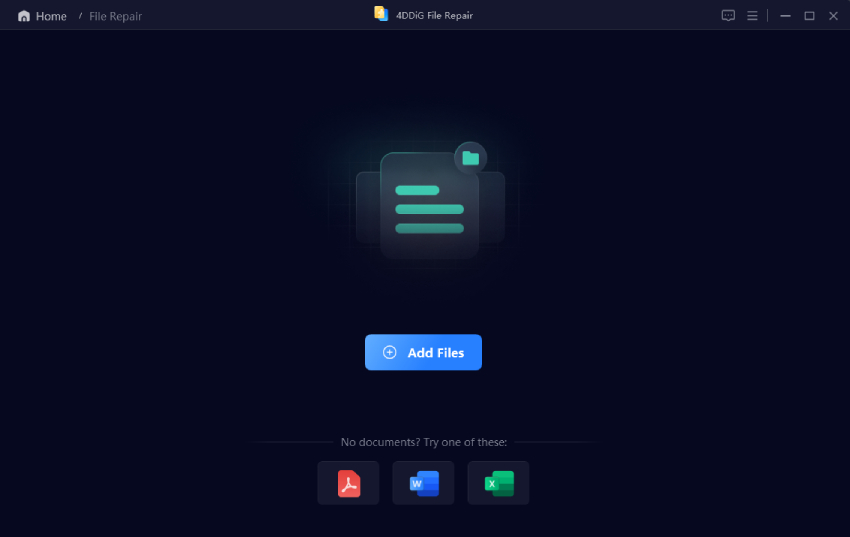
  • Open the software and go to the "Video Repair" section. Click the Add Videos button to upload your corrupted MP4 files.

    add corrupted m4p to 4ddig
  • Once your files are listed, click on the "Repair All" button. The tool will quickly scan and fix the errors in your files.

  • When the repair is finished, click "Preview." Watch the video to make sure the picture is clear and the sound is perfectly synced.

  • If the video looks good, pick your favorite format (like MP4 or MOV) and click "Save All." Your fixed video is now ready to watch on any device!

    save your repaired videos in preferred format

Conclusion

Finding the right converter makes it easier to convert m4a to mp4 video without losing quality or wasting time. Online tools like FreeConvert and Clideo are great for quick tasks, while AnyMP4 is better for advanced users. If your converted MP4 becomes corrupted or cannot play, 4DDiG Video Repair provides an effective solution to restore your videos. With the right approach, converting audio becomes simple, fast, and error free.

FREE DOWNLOAD

Secure Download

FREE DOWNLOAD

Secure Download

William Bollson (senior editor)

William Bollson, the editor-in-chief of 4DDiG, devotes to providing the best solutions for Windows and Mac related issues, including data recovery, repair, error fixes.

(Click to rate this post)

You rated 4.5 ( participated)