SWF File Format: What Is an SWF File and How to Open, Recover It

5 mins read

Updated on 2026-07-22 15:56:10 to Wiki

If you've downloaded an old animation, game, or interactive webpage, you may wonder what is an SWF file and whether it still works today. Although Adobe Flash has been discontinued, many SWF files still exist and can be opened with compatible tools.

This complete guide explains the SWF file format, its common uses, whether it is still supported, how to open it on different devices, and how to recover deleted SWF files.

what is an swf file

What Is an SWF File?

SWF is one of the most recognizable file formats from the early days of interactive web content. Before HTML5 became the standard, many online games, educational applications, advertisements, and animations relied on SWF files. Understanding how this format works helps you choose the right software to view or recover these files today.

An SWF (Small Web Format) file is a multimedia file format originally developed by Macromedia and later acquired by Adobe. It is primarily used to deliver vector graphics, animations, interactive content, audio, and video through Adobe Flash Player.

If you want to know a SWF file format, think of it as a package that contains multimedia elements and programming code designed to run Flash-based applications. As SWF files use vector graphics, they can often maintain good visual quality while keeping file sizes relatively small.

What Is the SWF File Format Used For?

Before Flash reached its end of life, SWF files were widely used across the internet for interactive media. Common uses included:

Online Flash games

Many browser games released in the 2000s were distributed as SWF files.

Animated websites

Designers used SWF animations for website intros, banners, menus, and navigation.

Educational content

Schools and training organizations created interactive learning modules using Flash technology.

Advertisements

Animated online advertisements frequently relied on SWF files because of their small size.

Business presentations

Some companies distributed interactive presentations and product demonstrations as SWF files.

What Are the Features of SWF Files?

Although Flash is no longer widely used, SWF files introduced several capabilities that were advanced for their time.

Vector-based graphics

SWF files use vector images that remain sharp at different screen sizes without significant quality loss.

Compact file sizes

Efficient compression allows multimedia content to load quickly over slower internet connections.

Supports animation

Developers could create smooth timeline-based animations with relatively small files.

Interactive functionality

SWF supports buttons, forms, menus, and scripting through ActionScript.

Embedded multimedia

Audio, video, images, and animation can all exist within a single file.

Cross-platform playback

As long as Adobe Flash Player was installed, the same SWF file could run on different operating systems.

Is SWF Still Supported?

Many users discover old SWF files and wonder why they no longer open in modern web browsers. The answer lies in the retirement of Adobe Flash.

Adobe Flash Player officially reached end of life (EOL) in December 2020. Adobe stopped distributing Flash Player, and security updates also ended at that time. Since Flash contained numerous security vulnerabilities, browser developers gradually removed built-in support.

Today:

  • Adobe Flash Player is officially discontinued.
  • Modern browsers no longer support Flash content by default.
  • Google Chrome removed Flash support.
  • Microsoft Edge no longer runs Flash content.
  • Mozilla Firefox discontinued Flash.
  • Apple Safari also removed Flash compatibility.

This means double-clicking an SWF file or opening it in a modern browser usually won't work. Fortunately, several third-party players and Flash Emulators still allow you to open SWF files safely without relying on the discontinued Flash Player.

Tip:

Tip: Avoid downloading unofficial Flash Player installers from unknown websites, as many are bundled with malware. Instead, use reputable SWF players or Flash emulators listed below.

How to Open an SWF File on Windows/Mac/iOS/Android?

Although browsers no longer support Flash, several dedicated applications can still play SWF files on different operating systems. The best choice depends on the device you're using and whether you only need playback or additional features.

SWF Player Comparison

  • Platform
  • Recommended Tool
  • Best For
  • Pricing
  • Windows
  • SWF File Player
  • Opening standalone SWF files
  • Free
  • Windows
  • Vidmore Player
  • Playing multiple media formats including SWF
  • Paid (Free Trial)
  • Mac
  • VLC Media Player
  • Basic playback and media compatibility
  • Free
  • Mac
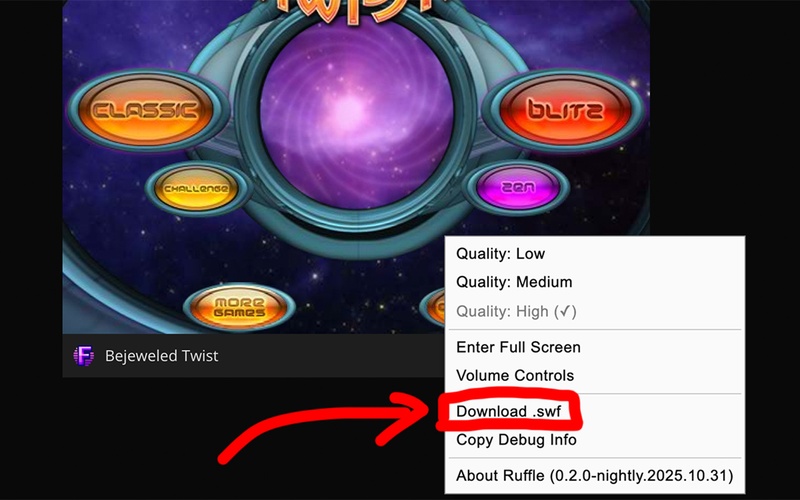
  • Ruffle
  • Flash emulation for legacy SWF content
  • Free & Open Source
  • iOS
  • Puffin Browser
  • Viewing Flash websites and SWF content
  • Free/Premium
  • iOS
  • Photon Flash Player
  • Running Flash content inside browser
  • Paid
  • Android
  • SWF Player – Flash File Viewer
  • Playing local SWF files
  • Free
  • Android
  • Smart SWF Player
  • Viewing animations and Flash media
  • Free

SWF Players for Windows

When on Windows OS, you may find different ways to open SWF files, including the following:

SWF File Player

If you want to play SWF files, SWF File Player is one of the easiest solutions. It is specifically built for opening standalone SWF files without unnecessary features.

Key Features:

  • Lightweight interface
  • Designed specifically for SWF playback
  • Supports local Flash files
  • Simple drag-and-drop operation
  • Free to use

Vidmore Player

Vidmore Player is a modern multimedia player that supports a wide variety of audio and video formats while also handling many SWF files.

Key Features:

  • High-quality playback
  • Supports numerous multimedia formats
  • Hardware acceleration
  • Smooth HD video playback
  • User-friendly interface

SWF Players for Mac

MacOS also has some software options to work with SWF files, including:

VLC Media Player

VLC is a trusted media player that supports many multimedia formats. While compatibility depends on the specific SWF file, VLC can successfully play some Flash content.

Key Features:

  • Free and open source
  • Supports hundreds of media formats
  • Cross-platform compatibility
  • Frequent updates
  • Lightweight installation

Ruffle

Ruffle is an open-source Flash emulator specifically developed to preserve Flash content after Adobe Flash Player was discontinued. So, it helps users to view SWF files.

Key Features:

  • Modern Flash emulator
  • No Flash Player installation required
  • Better security
  • Works on macOS and Windows
  • Actively maintained

SWF Players for iOS

iPad and iPhone users are often worried about SWF file opening issues, but here are the two apps that you can use with no problems:

Puffin Browser

Puffin Browser processes Flash content using cloud servers, allowing many older Flash websites and SWF files to continue working on iPhones and iPads.

Key Features:

  • Cloud-based Flash support
  • Easy browsing
  • Secure connection
  • Supports interactive content

Photon Flash Player

Photon Flash Player is another browser designed to provide Flash compatibility for iOS users.

Key Features:

  • Flash browsing mode
  • Adjustable streaming quality
  • Supports older Flash content
  • User-friendly controls

SWF Players for Android

Working with SWF files will never be an issue on Android devices as long as you have the right apps:

SWF Player – Flash File Viewer

This Android application focuses on opening locally stored SWF files.

Key Features:

  • Local SWF playback
  • Lightweight app
  • Easy file browsing
  • Supports animations

Smart SWF Player

Smart SWF Player provides another option for viewing Flash animations stored on Android devices.

Key Features:

  • Supports Flash animations
  • Quick loading
  • Simple interface
  • Local storage support

⚡ How to Recover Deleted SWF Files?

SWF files may be accidentally deleted while cleaning old folders, formatting storage devices, or transferring files between computers. If that happens, stop using the affected drive immediately to reduce the risk of overwriting the deleted data.

Fortunately, as long as the deleted sectors have not been overwritten, you can recover the deleted SWF files in minutes.

Method 1: Recover Lost SWF Files with Data Recovery Software

Available for both Windows and Mac, 4DDiG Data Recovery can recover lost or deleted SWF files from hard drives, SSDs, USB flash drives, SD cards, memory cards, and other external storage devices. It can restore files lost due to accidental deletion, formatting, partition loss, virus attacks, or system crashes.

Besides SWF files, 4DDiG also supports thousands of formats like SVG, WMF, ENC, EPS, etc. You can preview recoverable files before recovery to verify their content and select the files you need.

FREE DOWNLOAD

Secure Download

FREE DOWNLOAD

Secure Download

Below are the steps to recover your SWF files:

  • Download and install 4DDiG. Launch the software and select the drive where the SWF file was stored.

    launch 4ddig and enter interface
  • 4DDiG will scan your drive, and you must wait for the scan to complete. Use the file type filter or search for ".swf" to locate the missing files more quickly.

    click type to see all files 4ddig
  • Preview the recoverable SWF files to verify they are the ones you need. Click "Recover" and save the files to a different drive instead of the original location.

    preview and recover the files
  • Choose your desired location to save the recoverable files and click "Save Now".

    save the recoverable files
Tip:

Avoid saving the recoverable files onto the same drive where your SWF files were deleted, as this may cause data overwriting.

Method 2: Recover SWF Files from Backup

If you regularly back up your computer, restoring from a backup is often faster than performing a full recovery scan.

Recover SWF Files from Windows File History

File History automatically stores previous versions of files if it has been enabled before data loss occurred. If you have this feature enabled, you only need to run SWF files after you restore them.

  • Go to “Control Panel > System and Security > File History”.

    open file history via control panel
  • Choose an available File History version and browse for the deleted SWF file.

  • Click "Restore," and the lost SWF file will be back in its original location.

    recover files from file history tool

Restore SWF Files from Mac Time Machine

Time Machine provides built-in backup functionality for macOS users.

  • Connect your Time Machine backup drive and open the folder where the SWF file was previously stored.

  • Launch "Time Machine" from the "menu bar" and browse through available backups.

    recover deleted files via mac time machine tool
  • Select the deleted SWF file and click "Restore" to recover it.

Note:

These methods only work if backups were created before the file was deleted.

Conclusion

Understanding an SWF file helps you work with legacy Flash content more effectively. Although Adobe Flash Player is no longer supported, you can still open many SWF files using dedicated players such as SWF File Player, VLC, or Ruffle across different platforms.

If your SWF files are accidentally deleted, 4DDiG provides an efficient way to scan your storage device and recover valuable Flash files before they are permanently overwritten.

FREE DOWNLOAD

Secure Download

FREE DOWNLOAD

Secure Download

William Bollson (senior editor)

William Bollson, the editor-in-chief of 4DDiG, devotes to providing the best solutions for Windows and Mac related issues, including data recovery, repair, error fixes.

(Click to rate this post)

You rated 4.5 ( participated)