How to Convert SWF to MP3: 4 Easy Ways to Extract Audio from SWF

5 mins read

Updated on 2026-10-19 19:09:12 to Audio Repair Solutions

Want to convert SWF to MP3 but don't know how to extract the audio? SWF files often contain music, sound effects, or voice recordings that modern media players cannot access directly. Fortunately, you can extract their audio using online converters or FFmpeg. This guide explains four practical conversion methods, compares the best tools, and shows how to repair damaged MP3 files after extraction.

Can You Convert SWF to MP3?

Yes, you can convert SWF to MP3 using online conversion tools or desktop utilities such as FFmpeg, provided the SWF file contains accessible audio.

SWF (Shockwave Flash) is an older multimedia format commonly used for animations, interactive websites, games, and educational content. Although Adobe Flash Player is discontinued, many archived SWF files still contain valuable audio.

Converting SWF files to MP3 allows you to:

  • Extract background music, narration, and sound effects.
  • Play audio on smartphones, computers, and MP3 players.
  • Preserve audio from older Flash animations.
  • Share sound recordings without requiring Flash-compatible software.

However, not every SWF file contains extractable audio. Some files generate sound through scripts or load audio from external resources, which may require additional processing.

tips icon Tips

You can also select an SWF decompiler to extract MP3 audio resources from the Flash game files.

Method 1. Convert SWF to MP3 Online for Free

Using an online SWF to MP3 converter is one of the easiest ways to extract audio without installing software. Several websites support SWF files and offer simple conversion interfaces.

3 Best Free Online SWF to MP3 Converters

1. CloudConvert SWF to MP3 Converter

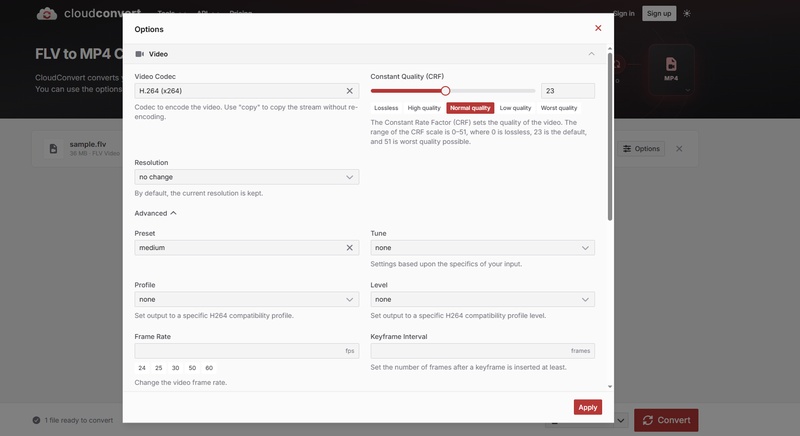
CloudConvert is a browser-based conversion platform that supports SWF-to-MP3 conversion. Its straightforward interface makes it suitable for beginners who want to extract audio without installing additional applications.

  • Pros
  • Cons
    • Easy-to-use interface.
    • No software installation required.
    • Supports numerous audio and video formats.
    • Accessible through modern web browsers.
    • Requires an internet connection.
    • Free usage is subject to conversion limits.
    • Complex or interactive SWF files may not convert correctly.

CloudConvert is a convenient shockwave flash file converter for straightforward audio extraction.

2. FreeConvert SWF to MP3 Converter

FreeConvert offers browser-based SWF audio extraction with optional audio settings. Users can upload files from their devices or supported cloud storage services.

  • Pros
  • Cons
    • Supports batch conversion.
    • Offers volume adjustment and audio trimming.
    • Supports cloud storage uploads.
    • Provides optional audio codec settings.
    • Free usage has restrictions.
    • Uploading large files may take time.
    • Requires uploading files to an external server.

FreeConvert is particularly useful when you need more control over the resulting audio file.

3. Convertio SWF to MP3 Online Converter

Convertio is another accessible online conversion tool that can extract audio from Flash files. It supports various output settings, including bitrate, audio channels, and sample rate.

  • Pros
  • Cons
    • Simple drag-and-drop interface.
    • Supports multiple input sources.
    • Allows audio quality customization.
    • Works without Adobe Flash Player.
    • Free conversions have usage limits.
    • Requires a stable internet connection.
    • Certain SWF files may not process successfully.

Convertio is a useful choice when you want to adjust the quality or size of the extracted MP3 file.

How to Convert SWF to MP3 Online Free with CloudConvert

If you're looking for SWF to MP3 free online conversion, CloudConvert offers a simple process.

  • Open the CloudConvert SWF to MP3 converter in your browser.

  • Click Select File and upload the SWF file from your computer.

  • Make sure SWF is selected as the input format and MP3 as the output format.

  • Click Convert and wait for the website to process your file.

  • Once conversion finishes, click Download to save the MP3 file.

tips icon Tip

If the conversion fails, try FreeConvert or Convertio. Different converters may handle SWF audio streams differently.

Method 2. Extract and Convert Audio from SWF to MP3 with FFmpeg

If you prefer offline conversion, FFmpeg is a powerful alternative. It is a free command-line utility that can extract audio streams from supported multimedia files.

Unlike online tools, FFmpeg processes files locally, making it useful for users who prefer not to upload their recordings.

How to Convert SWF to MP3 Using FFmpeg

  • Download FFmpeg from its official website and install it on your computer.

    ffmpeg download
  • Open Command Prompt on Windows or Terminal on macOS.

  • Navigate to the folder containing your SWF file using the cd command.

  • Enter the following command: ffmpeg -i input.swf -vn -codec:a libmp3lame -b:a 192k output.mp3

  • Replace input.swf with your actual filename.

  • Press Enter and wait for FFmpeg to finish processing.

  • Open the output folder and play output.mp3 to verify the extracted audio.

In this command, -vn disables video output, while -b:a 192k sets the audio bitrate to 192 kbps.

important icon Important

FFmpeg cannot decode every SWF variation. If the file uses unsupported Flash features, external audio resources, or script-generated sound, extraction may fail.

Bonus: How to Repair Corrupted MP3 Files After SWF Conversion

Sometimes, an SWF file convert to MP3 process finishes successfully, but the extracted audio won't play or contains unexpected distortion. This can happen when the original audio stream is damaged, the conversion is interrupted, or the resulting file contains invalid audio data.

If you experience these problems, 4DDiG Audio Repair can help restore damaged MP3 files.

Why Choose 4DDiG Audio Repair?

4DDiG Audio Repair is a dedicated audio repair solution designed to fix corrupted, unplayable, and damaged audio files on Windows and Mac.

Its key features include:

  • Advanced audio repair: Analyzes damaged audio files and attempts to restore playable sound.

  • Multiple format support: Repairs MP3, M4A, AAC, WAV, FLAC, and other supported audio formats.

  • Batch repair: Processes several damaged audio files simultaneously, saving time.

  • Audio distortion repair: Helps address crackling, popping, unexpected noise, and playback interruptions caused by file damage.

  • Preview before saving: Allows you to listen to repaired audio before exporting it.

  • Beginner-friendly operation: Automates the repair process without requiring complicated audio editing skills.

These features are particularly helpful when you need to recover multiple damaged audio recordings or extracted soundtracks.

FREE DOWNLOAD

Secure Download

FREE DOWNLOAD

Secure Download

How to Repair Corrupted MP3 Files Using 4DDiG Audio Repair

Follow these steps to restore your damaged MP3 files:

  • Access 4DDiG Audio Repair

    Install and launch the 4DDiG File Repair software. Navigate to More Repair Tools > Audio Repair.

    open 4ddig audio repair
  • Import the Corrupted MP3 Files

    Click Add Files and select the damaged MP3 files you want to repair.

    add corrupted mp3 files to 4ddig
  • Start Repairing the Audio

    Click Repair All to begin the repair process. The software will analyze your imported files and attempt to correct detected audio corruption.

    start repairing mp3 files
  • Preview and Play the Repaired Audio

    After the process finishes, click Preview to listen to the repaired files. Check whether the audio plays correctly and whether the original problems have been resolved.

    preview and play repaired mp3 audio
  • Save the Repaired MP3 Files

    Click Save or Save All, choose MP3 as the output format if prompted, and select a destination folder to export the repaired audio.

    save repaired mp3 in preferred format

FAQs About SWF to MP3 Conversion

1. Can I extract audio from SWF online without installing software?

Yes. You can extract audio from SWF online using CloudConvert, FreeConvert, or Convertio. Upload your SWF file, select MP3 as the output format, and download the converted audio. However, successful extraction depends on how the original SWF stores its audio.

2. How do I convert SWF to MP3 without losing quality?

Choose a high-quality output setting, such as 192 or 320 kbps, when available. Remember that MP3 uses lossy compression, so conversion cannot improve the original audio quality. If your SWF contains an MP3 stream, direct extraction without re-encoding may preserve it better.

3. Why does my converted MP3 file have no sound?

Your SWF file may not contain an embedded audio stream, or its sound may be generated through scripts or loaded externally. Try another converter and verify that the original file actually contains audio before attempting repairs.

Conclusion

Learning how to convert SWF to MP3 is straightforward with CloudConvert, FreeConvert, Convertio, or FFmpeg. Online converters are convenient for beginners, while FFmpeg offers offline processing and additional control.

If your extracted MP3 becomes corrupted, distorted, or unplayable, 4DDiG Audio Repair provides a practical repair solution. Its batch processing, automated repair, and audio preview features can help restore damaged recordings.

FREE DOWNLOAD

Secure Download

FREE DOWNLOAD

Secure Download

William Bollson (senior editor)

William Bollson, the editor-in-chief of 4DDiG, devotes to providing the best solutions for Windows and Mac related issues, including data recovery, repair, error fixes.

(Click to rate this post)

You rated 4.5 ( participated)