AI Remove Unwanted Objects from Photo: Full Guide 2026
Unwanted objects can easily ruin a perfect photo, whether it’s a stranger in the background, random clutter, text, or distracting items. In the past, fixing this required advanced editing skills, but today AI has made the process fast and simple for everyone. With modern tools, you can now remove unwanted objects from photos free or with minimal effort while keeping the image looking natural.
This article explains how to use AI to remove unwanted object s from photo and helps you choose the best tools for perfect, natural looking results.
Part 1. How AI Object Removal Works Today?
AI object removal is a modern photo editing approach that removes unwanted elements while keeping the image realistic and complete. Unlike traditional editing, which often leaves blur marks or visible patches, an AI object remover understands the image and reconstructs the background as if the object were never there.
AI object removal means using artificial intelligence to remove unwanted items from photos without leaving any traces. The goal is not just to erase something, but to make the photo look complete and untouched. This is why many people now prefer to remove objects online using AI powered tools instead of manual editing.
How Does AI Object Removal Work?
AI object removal usually follows three core steps:
- Object Detection (Image Segmentation): The AI scans the image and identifies the object’s edges using color, texture, and shape.
- Mask Creation: An inpainting mask is created to mark the exact area that needs to be removed.
- Background Reconstruction (Inpainting): AI fills the empty area using textures, colors, and patterns from the surrounding image so everything blends naturally.
Because the AI understands context, the final image looks clean even when viewed closely.
What Types of Objects Can AI Remove?
Modern AI object removers can handle many unwanted elements, including:
- People and photobombers (remove person from photo online free)
- Text and captions, such as dates or subtitles
- Watermarks and logos, both simple and complex
- Random objects like trash, poles, wires, signs, or clutter
- Shadows and reflections that affect image quality
- Emojis, stickers, and overlays added on social media photos
Why AI Object Removal Is So Effective Today
Today’s tools understand context. Instead of simply covering an area, the AI studies the entire image to know what should appear in the background. This makes results look natural, even when viewed closely.
Best of all, this technology is now easy to access. Anyone can remove object online, use a mobile app, or choose desktop software to clean up photos in seconds, no professional editing skills needed.
⚡ Part 2. Top Tools & Apps to AI Remove Unwanted Objects from Photos (N Picks)
Several powerful image editing tools have emerged to help users seamlessly remove unwanted elements from their photos. Each offers unique strengths for different editing needs.
1Photoroom
Photoroom is a well known AI tool that helps users quickly remove unwanted objects from photos, particularly for product and e-commerce images. It lets you remove unwanted objects from images in just a few swipes using its AI photo erase. You upload a photo, brush over the object, and the AI replaces it with a natural looking background. It works both online and as a mobile app.
Best for: Product photographers, real estate agents, and social media content creators
- Pros
- Cons
-
- Very easy to use (no editing skills needed)
- Fast AI object removal in seconds
- Free version available
- Great for product and e-commerce photos
- Works on desktop and mobile
-
- Free exports may include a watermark
- Limited advanced control for complex edits
- Best features require a paid plan
2 Cleanup.pictures
Cleanup.pictures is a popular choice if you want to remove unwanted objects from photos online free. It uses AI “inpainting” to erase things like people, text, logos, date stamps, and small background clutter. The free plan allows unlimited edits, but exports are limited to 720p resolution, which is still good for quick social posts and basic use.
Best for: Real estate photos, portrait cleanup, and removing date stamps from photographs
- Pros
- Cons
-
- Works online (no installation)
- Free plan allows unlimited edits (with resolution limit)
- Has an API option for developers/automation
- Available on desktop and mobile
-
- Free exports are limited to 720p
- Complex backgrounds may need a few tries
- High resolution output requires Pro plan
34DDiG AI Photo Enhancer
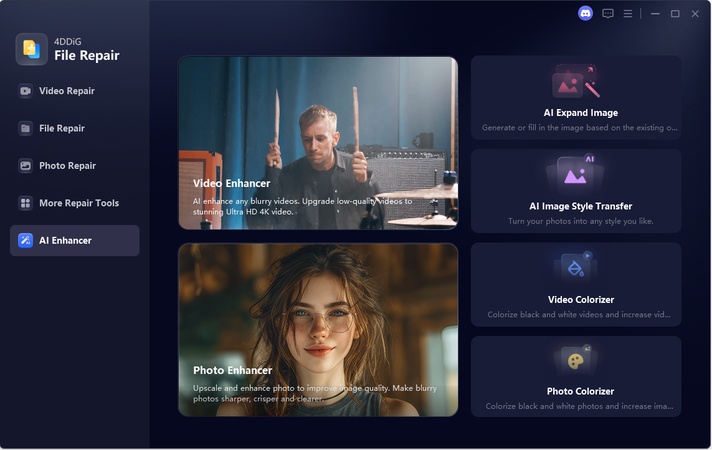
4DDiG AI Photo Enhancer is a powerful desktop solution that uses advanced AI to remove unwanted objects from photos while keeping details sharp. Its AI Expand Image feature allows you to erase unwanted objects, repair missing or cropped areas, and extend backgrounds naturally. The AI analyzes colors, lighting, and textures to generate realistic results that blend perfectly with the original photo. It’s fast, beginner friendly, and delivers professional looking results in just a few clicks.
Best for: Restoring old photos, improving low resolution images, and professional photo editing.
- Pros
- Cons
-
- No quality loss after removing or filling areas
- Easy to use, beginner friendly interface
- Smart AI blends new content naturally
- Supports both inpainting and outpainting
- Fast processing with accurate results
-
- Requires English prompts
- Advanced features need software installation
How to Use 4DDiG AI Expand Image
-
Open the software and go to "AI Enhancer," then choose "AI Expand Image" from the left sidebar.
FREE DOWNLOADSecure Download
-
Click "Add an image to expand" or drag and drop a JPG/JPEG image.
-
Click “Generate” and the AI analyzes the image and fills or expands it with natural textures and colors. Click "Export," choose a folder, and save your enhanced image.
Remove the left white t-shirt with black flower print and the dark
brown bag hanging on it, keep only the right white t-shirt with red
flower print and the light brown bag, seamless background inpainting,
clean composition
Why We Recommend It: This feature works for both outpainting (extending images) and inpainting (filling missing parts), making photo editing fast and beginner-friendly.
4Pixelcut
Pixelcut is an online and mobile editor that works as an app to quickly remove unwanted objects from photo projects. Using its Magic Eraser (AI inpainting), Pixelcut automatically replaces the selected area with a natural looking background. It supports HD downloads, has a clean interface, and is trusted by millions of creators, influencers, and e-commerce sellers.
Best for: Online sellers, social media managers, and digital artists
- Pros
- Cons
-
- Very easy to use, beginner friendly
- Free HD downloads with no watermark
- Works online and on iOS/Android apps
- Great results for people, clutter, and product photos
-
- Advanced features require a paid plan
- Less manual control for complex edits
- Internet connection required
5SnapEdit
SnapEdit is an easy-to-use remove unwanted objects from photos app available on web, iOS, and Android. It automatically detects and removes unnecessary objects in your images with just one tap. You can also manually brush areas for more control. SnapEdit uses generative AI to seamlessly fill in removed areas, preserving image quality.
Best for: Users who want to remove unwanted objects from photos iPhone quickly for editing, social media posts, and real estate photography
- Pros
- Cons
-
- Works on web, iOS, and Android
- Automatic object detection with manual adjustment
- Fast processing with natural results
- Free trial available
-
- The free version has usage limits
- Complex backgrounds may need manual touch ups
6Remove Unwanted Object from Photo in Photoshop
Adobe Photoshop is one of the most powerful tools for removing unwanted objects and remove people from photos using AI. Features like the Remove Tool, Content-Aware Fill, and Generative Fill can erase objects and rebuild the background naturally. You can remove people, wires, text, or other distractions with a few brush strokes. While it takes some practice, the results are highly professional.
Best For: Professional photographers, designers, and users who want precise, high quality object removal, especially for complex images or commercial use.
- Pros
- Cons
-
- Very high-quality and realistic results
- Advanced AI tools for complex backgrounds
- Full control for detailed editing
-
- Paid subscription required
- Steeper learning curve for beginners
Steps to remove objects in Photoshop:
Photoshop makes it easy to remove unwanted objects using Generative Fill. Follow these steps:
-
Open your image in Photoshop. Use the "Lasso Tool (L)" and draw a rough outline around the object you want to remove. The selection does not need to be perfect.
Right click on the selection and choose “Fill”.
-
In the pop-up window, choose “Content-Aware” from the Contents tab.
-
Click “OK” and then you can remove selected object from the image.
That’s it. The object is removed on a new layer, so you can edit or undo changes at any time. This method is fast, beginner friendly, and gives clean, natural looking results.
7Magic Eraser (MagicStudio)
Magic Eraser is a web based tool and a free app to remove unwanted objects from photo tasks without signup. You simply upload an image, brush over the area you want to remove, click erase, and download the clean photo. It also supports bulk editing, making it useful for handling multiple images at once.
Best for: Real estate listings, e-commerce products, and social media content
- Pros
- Cons
-
- Free to use, no account needed
- Supports many image formats
- Bulk edit up to 50 photos
- Simple brush based editing
-
- Needs multiple tries for complex objects
- Internet connection required
Part 3. Which Option Is Best for You?
Choosing between various tools to remove unwanted objects from photos depends on several key factors. The table below offers a direct comparison to help you select the right solution for your specific needs.
FAQs
Q1: How do I remove unwanted objects from photos on my iPhone?
You can use apps like SnapEdit, Pixelcut, or browser based tools. For the best quality, desktop AI tools offer more accurate results.
Q2: Can I remove unwanted objects from photos for free?
Yes. Tools like Cleanup.pictures and Magic Eraser offer free versions, but resolution may be limited.
Q3: Is AI object removal safe?
Yes, especially desktop tools that process images locally. 4DDiG AI Photo Enhancer offers strong privacy protection.
Conclusion
AI tools have completely changed photo editing. Today, anyone can AI remove unwanted objects from photos with just a few clicks, no skills required. While free apps are great for quick fixes, they often compromise quality. However, if you want high quality results without detail loss, 4DDiG AI Photo Enhancer stands out as the best all around solution in 2026. Its intelligent AI reconstruction, privacy safe desktop processing, and superior output make it the top recommendation for serious users.
Secure Download
Secure Download
ChatGPT
Perplexity
Grok