How to Fix GPU Failed with Error Code 0x887A0006?
Are you facing random crashes or a frozen screen while gaming, and seeing GPU failed with error code 0x887a0006 appear on your screen? This problem can stop your game suddenly and ruin the whole experience, especially in games like NBA 2K25.
Many players also see the message 0x887a0006 DXGI_ERROR_DEVICE_HUNG and are not sure what it means or how to fix it. In this article, we’ll show you simple and proven fixes that work in 2026, even if you are not very technical. Follow the steps, and you’ll be able to play smoothly again without crashes.
Part 1: What is “GPU Failed with Error Code 0x887A0006”?
Before fixing the issue, it helps to know what this error really means. When you see GPU Failed with Error Code 0x887A0006, it means your graphics card stopped responding while the game was running. Windows detects this as a DirectX failure and shows it as DXGI_ERROR_DEVICE_HUNG.
Simply put, the game sends heavy or unstable commands to the GPU, and the system forces the game to close to protect your hardware. This is why many players face sudden crashes in demanding games like NBA 2K25.
Common Causes of Error Code 0x887A0006
Here are the most common reasons why error code 0x887a0006 happens:
- GPU overclocking issues: Overclocked GPUs can become unstable and crash under load.
- High in-game graphics settings: Ultra settings can push the GPU beyond safe limits.
- Driver problems: Outdated, corrupted, or recently updated drivers often trigger crashes.
- DirectX 12 instability: Some systems run better on DX11, causing DX12 to fail.
- Game file corruption: Missing or broken game files can overload the GPU.
- System overheating: High temperatures can force the GPU to stop responding.
Because of these issues, many users report 2K25 GPU failed with error code 0x887a0006, along with the message 0x887a0006 the GPU will not respond to more commands.
Part 2: How to Fix “GPU Failed with Error Code 0x887A0006”?
If this error keeps crashing your game, don’t worry. The fixes below are practical, beginner-friendly, and proven to work for error code 0x887a0006. Each method explains how it helps, then walks you through clear steps you can follow with confidence.
Fix 1: Disable GPU Overclocking
Overclocking pushes your GPU beyond its safe limits. While it may boost performance, it often causes instability during long gaming sessions, leading to crashes and error code 0x887a0006, especially in GPU-heavy games like NBA 2K25.
-
Open your GPU tuning tool (MSI Afterburner, NVIDIA Control Panel, or AMD Adrenalin). Look for Core Clock, Memory Clock, or Performance Tuning options.
-
Click Reset, Default, or turn off overclocking mode.
-
Save the settings and close the program. Restart your PC to fully apply the changes. Then, launch the game and test stability.
Fix 2: Lower In-Game Graphics Settings
Running games on ultra or high settings can overload your GPU, especially during intense scenes. Lowering graphics settings reduces GPU stress and helps prevent error code 0x887a0006 from appearing mid-game.
-
Open the game and go to Settings or Graphics. Change overall graphics quality to Medium or Low.
-
Turn off advanced features like Ray Tracing, Shadows, Anti-Aliasing, and V-Sync.
-
Lower resolution slightly if crashes still happen. And save changes and fully restart the game.
Fix 3: Repair Game Files
Damaged or missing game files can send incorrect commands to your GPU, causing it to stop responding. Repairing these files ensures the game runs as intended and reduces crashes related to error code 0x887a0006.
Epic Games:
-
Open Epic Games Launcher and go to Library. Find the affected game and click the three dots next to it.
-
Select Verify from the menu, and wait for the launcher to scan and repair files.
-
After that, restart the launcher and relaunch the game to verify if the error has been solved.
Steam:
-
Open Steam and go to Library. Right-click the game and choose Properties.
-
Click Installed Files and select Verify integrity of game files.
Wait until the process finishes, then restart Steam.
Fix 4: Run the Game in DX11 Mode Instead of DX12
DirectX 12 offers better visuals, but it can be unstable on some systems. Switching to DirectX 11 improves compatibility and often fixes crashes caused by error code 0x887a0006.
-
Open the game launcher or in-game settings. Look for Graphics API, Advanced Settings, or Launch Options.
-
Change the API from DirectX 12 to DirectX 11.
-
Save the settings and close the game. Then, restart the game and check if crashes stop.
Fix 5: Roll Back the Recent Graphics Driver Update
New GPU drivers sometimes conflict with certain games. If crashes started after an update, rolling back to a stable version can quickly resolve error code 0x887a0006.
-
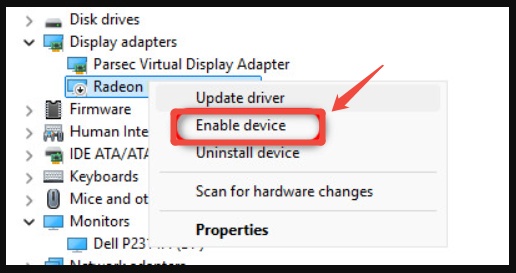
Press Windows + X and select Device Manager. Expand Display adapters.
-
Right-click your GPU and choose Properties.
-
Open the Driver tab. Then, click Roll Back Driver.
Remember save your changes, and then restart your PC and test the game again.
Fix 6: Reinstall Your GPU Drivers
If driver files are corrupted, simple updates may not help. A clean reinstall removes broken files and restores GPU stability, making it one of the most effective fixes for error code 0x887a0006.
-
Open Device Manager and expand Display adapters. Right-click your GPU and select Uninstall device.
-
Check Delete the driver software for this device if available.
-
Restart your computer. Download the latest stable driver from NVIDIA or AMD’s official website to install the driver and restart again.
Bonus: Reclaim Disk Space & Make Games Run Smoother with One Click
If your system drive is crowded with old data or unused partitions, your PC can slow down in ways you don’t expect. Low disk space can affect virtual memory, game loading, and overall system stability, which may make GPU-related crashes more likely. A simple way to clean things up is using 4DDiG Partition Manager, especially its Disk Wipe feature.
This tool helps you completely remove unwanted partitions or drives, freeing up space and giving your system more room to breathe, without complex manual work.
-
Install and launch the software on your PC. If you want to wipe a partition on an external drive, connect it first. Then, in the left menu, click Toolkit and choose Data Erase to start.
FREE DOWNLOADSecure Download
-
Look at the list of disks and partitions and select the one you want to wipe. Once selected, click Continue to move to the next step.
-
Double-check that you have picked the correct disk or partition. When you are sure, click Sure to begin wiping.
-
The wiping process may take a few minutes. Do not unplug the disk or close the program while it’s running to avoid damage. Once the wipe is finished, click Finish. Your disk or partition is now cleared and ready for use.
More FAQs about Error Code 0x887a0006
1. How to fix a GPU error?
GPU errors usually happen when your graphics card cannot handle certain tasks. You can fix them by updating or reinstalling GPU drivers, lowering in-game graphics settings, disabling overclocking, or running the game in DX11 mode instead of DX12. Repairing game files can also help.
2. Why does 2K25 keep crashing my GPU?
NBA 2K25 is a demanding game, and crashes often occur if your GPU is overloaded, overclocked, or has outdated drivers. High graphics settings, corrupted game files, or DirectX 12 issues can also make the GPU stop responding, causing error code 0x887a0006.
3. What is error code 0x887a0006 on NBA 2K25?
This error means your GPU stopped responding to commands sent by the game. It’s displayed as DXGI_ERROR_DEVICE_HUNG and usually happens due to driver problems, high graphics load, overclocking, or corrupted game files. Following the fixes above can resolve it.
Conclusion
Seeing GPU failed with error code 0x887a0006 can be annoying, but it can be fixed with simple steps. You can try turning off GPU overclocking, lowering graphics settings, repairing game files, using DX11, or updating/reinstalling drivers. Another easy way to improve performance is freeing up disk space.
4DDiG Partition Manager can help you safely wipe old or unused partitions, making more room for your system and games. Following these steps will help your GPU work smoothly and reduce crashes, so you can enjoy playing without seeing this error again.
Secure Download
ChatGPT
Perplexity
Grok