How to Fix Rufus ISO Image Extraction Failure on Windows 11/10?
If you've ever tried to create a bootable USB using Rufus and encountered an ISO image extraction failure, you know how frustrating it can be. This error stops the USB creation process, leaving you stuck with no bootable media. Many Windows 11 and 10 users face this issue due to corrupted ISO files, faulty USB drives, or outdated Rufus versions.
Understanding why Rufus fails to extract ISO images and how to fix it can save you time and stress. In this guide, we'll cover all possible causes of Rufus ISO image extraction failure and provide easy steps to successfully create bootable USB with Rufus. Let's get started.
1. What Is Rufus ISO Image Extraction?
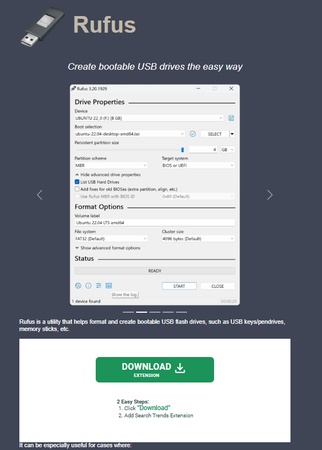
Rufus is a free, lightweight, and powerful Windows tool that allows users to create bootable USB drives quickly and efficiently. It is widely used by IT professionals and tech enthusiasts because of its speed, simplicity, and reliability. With Rufus, you can:
-
Convert ISO files into bootable USB drives for Windows, Linux, and other operating systems.
-
Format USB drives quickly in FAT32, NTFS, exFAT, or UDF file systems.
-
Support both UEFI and BIOS boot modes, making it compatible with almost any modern or older system.
-
Create secure bootable drives for OS installation, system repair, or emergency recovery.
Thanks to its portable version, Rufus flash drive creation doesn't require installation, making it convenient for users on multiple PCs.
🚩 What Rufus ISO Image Extraction Actually Does?
When you use Rufus to create a bootable USB from an ISO file, it performs a process called ISO image extraction. This step is crucial because the ISO is essentially a compressed archive containing all the operating system files. During extraction, Rufus:
Unpacks all the files from the ISO image onto the USB drive.
-
Prepares the USB drive's file system and partition scheme for booting.
-
Configures the boot sector so that the system recognizes the USB as a bootable device.
Without extraction, the USB would simply contain a single ISO file that cannot be booted, making it impossible to install or repair an operating system.
2. Main Causes of Rufus ISO Image Extraction Failure
Experiencing a Rufus ISO image extraction failure can be frustrating, especially when you need to create a bootable USB quickly. Understanding the main causes of this error helps in applying the right fix. Here are the most common reasons:
- Corrupted or Incomplete ISO File: If the ISO file you downloaded is corrupted or not fully downloaded, Rufus cannot extract its contents properly. This often happens with unofficial or interrupted downloads. Always download ISO files from official sources and verify their checksums if available.
- Faulty USB Drive: A damaged or low-quality USB drive can cause extraction errors. Issues like bad sectors or inconsistent data transfer may prevent Rufus from writing files correctly, resulting in failure.
- Insufficient Permissions: Rufus requires administrator privileges to perform certain system-level operations, such as writing boot configuration and modifying partition tables. Running Rufus without proper permissions can lead to ISO extraction failure.
- USB Port Issues: Some USB ports, especially older or low-speed ones, may cause intermittent connection problems. Faulty USB ports can interrupt the ISO extraction process, leading to failure.
- Interference from Security Software: Sometimes, antivirus or security software may block Rufus from accessing or writing files to the USB drive. This interference can trigger extraction failures.
By identifying the cause, you can choose the most appropriate fix to resolve the rufus iso image extraction failure and successfully create a bootable USB.
3. How to Fix Rufus Error ISO Image Extraction Failure?
If you get an extraction failure while using Rufus, here are five effective fixes you can try, each addressing a common cause.
Fix 1: Change the USB Port
Sometimes the problem isn't Rufus or the ISO, it's the USB port. Using an unstable or incompatible port (or a hub) can lead to failed data transfer when Rufus tries to extract the ISO.
-
Unplug your USB flash drive from its current port. And plug it directly into a different port on your computer. Preferably, use a port on the motherboard (rear ports), not a front-panel port or a USB hub.
Launch Rufus again and attempt to create the bootable USB.
Fix 2: Run Rufus as Administrator
Rufus needs elevated permissions to write boot sectors, modify partitions and perform low-level disk operations. Running it without admin privileges can cause failures when writing files or configuring the bootable USB.
-
Locate the Rufus executable file on your PC (e.g. Rufus.exe).
-
Right-click it and choose "Run as administrator" from the context menu. Confirm any User Account Control (UAC) prompt.
-
With admin privileges enabled, select your ISO and USB drive in Rufus and attempt to create the bootable USB again.
Fix 3: Re-download ISO from the Official Source
If the ISO file is corrupted, incomplete, or otherwise damaged, Rufus cannot properly extract it, causing the "ISO image extraction failure".
-
Delete the existing ISO file from your computer (to avoid accidentally reusing a corrupted file).
-
Visit the official Microsoft website and download the ISO again. Make sure the download completes successfully without interruption.
-
Open Rufus, select this freshly downloaded ISO, and try creating the bootable USB again.
You may also like: Complete Windows 11 25h2 ISO Download Guide (2026)
Fix 4: Reformat the USB Drive Properly
A USB with existing data, bad sectors, unsupported file system, or residual partitions may interfere with Rufus. Formatting ensures a clean slate and helps avoid write-protection or compatibility issues.
Insert the USB drive into your PC.
-
Open Windows File Explorer (or Disk Management) > locate the USB drive.
-
Right-click the USB drive > choose Format > select a suitable file system (e.g. NTFS for large Windows ISOs; or FAT32/exFAT if required). Confirm and allow formatting.
-
Once formatting completes, open Rufus again, select the ISO + formatted USB drive, and start the creation process.
Fix 5: Update Rufus to the Latest Version (or Try Another Version)
Compatibility issues between older Rufus versions and newer ISO formats or boot requirements can cause extraction failures. Updating ensures best compatibility. In some edge cases, downgrading to a known stable version may also help.
-
Visit the official Rufus website to download the latest version.
Close any running instance of Rufus.
Run the new executable (preferably as administrator).
-
Select your ISO and USB drive, and attempt to create the bootable drive anew.
If extraction still fails with the newest version, try downloading an older stable build of Rufus, sometimes regressions or bugs in new releases cause issues.
Rufus Alternative: How to Create Windows 11/10 Bootable USB?
If you've tried everything with Rufus and still get the dreaded ISO image extraction failure, don't worry, there's a reliable alternative: 4DDiG Partition Manager. This tool simplifies creating a Windows bootable USB and handles most technical steps automatically, making it perfect for beginners and professionals alike.
Why Choose 4DDiG Partition Manager Over Rufus?
- Automatic ISO Download: No need to manually hunt for ISO files, 4DDiG downloads the latest Windows ISO for you.
- User-Friendly Interface: Clean, intuitive design guides you through every step.
- One-Click Bootable USB Creation: Formats the USB, copies files, and configures boot settings automatically.
- Versatile Disk Management Tools: Beyond bootable USBs, you can manage partitions, clone disks, repair drives, and migrate OS.
- Higher Success Rate: Eliminates common errors like ISO extraction failure, corrupted USB, or permission issues.
Using 4DDiG is like having a safety net, it works even when Rufus fails. Follow these easy steps to create a bootable USB without stress:
-
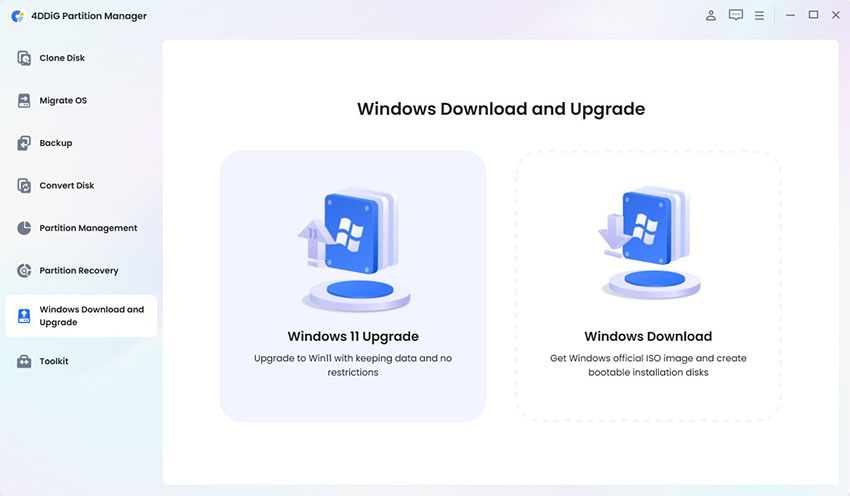
First, install 4DDiG Partition Manager on your computer and launch it. Then, connect a USB flash drive or CD/DVD that you want to make bootable. In the left menu, click Windows download and upgrade, then select Windows download.
FREE DOWNLOADSecure Download
-
Next, choose the Windows version and language of your system. After that, select the connected disk and click Start to continue.
-
Be aware that creating a bootable disk will completely wipe all data on the selected drive. To prevent any loss of important files, please back up your data in advance or ensure that the chosen device contains nothing you need to keep.
-
The program will now create the bootable disk. This may take a few minutes depending on the size of the ISO and the speed of the USB drive. Once finished, click Finish.
More FAQs about Rufus ISO Image Extraction Failure
1. How to use Rufus to create a bootable USB?
To make a bootable USB with Rufus, first insert a USB flash drive and choose your ISO file under "Boot selection." Pick the correct partition type for your system. Then click "Start" to create the USB. Here is a complete guide: How to Use Rufus to Create Bootable USB, Install Windows, Format & More.
2. How to extract files from an ISO image?
If you just want to see the files inside an ISO, you can extract them without making a bootable USB. On Windows, right-click the ISO and choose "Mount." Then copy the files from the virtual drive to your folder. You can also use tools like 7-Zip, WinRAR, or PowerISO to extract the files directly. This is useful when you need only some files from the ISO.
3. How to make a bootable USB from ISO?
To create a bootable USB from an ISO, you need software like Rufus or 4DDiG Partition Manager. Insert your USB drive, select the ISO file, and allow the software to format the USB. It will then copy all the files and make the USB ready to boot. After this, you can use the USB to install or fix Windows on any PC.
Conclusion
Rufus ISO image extraction failure can be annoying, but most problems can be fixed by simple steps like changing the USB port, re-downloading the ISO, running Rufus as administrator, formatting the USB, or updating Rufus. If these steps do not work, a good Rufus alternative is 4DDiG Partition Manager.
It makes creating Windows 11 or 10 bootable USB drives easy and fast. With its simple interface and automatic handling of ISO files, 4DDiG ensures your USB is ready to install or repair Windows without any errors. It is a reliable tool for everyone.
Secure Download
💡 Summarize with AI:
You May Also Like
- Home >>
- Windows Fix >>
- How to Fix Rufus ISO Image Extraction Failure on Windows 11/10?
ChatGPT
Perplexity
Grok