How to Merge PDF Files into One with 6 Best PDF Mergers

5 mins read

Updated on 2026-07-10 10:28:30 to File Tips

Need to merge multiple PDF files into one clean document? Whether you're organizing reports, combining notes, or preparing contracts, joining PDFs saves time and keeps everything professional. In this guide, you'll find the easiest free PDF merger tools, step-by-step instructions for popular options, and tips to avoid common problems like file corruption. Let's get your documents sorted quickly and hassle-free.

How to Merge PDF Files Online for Free with 6 Tools

Merging PDFs doesn't have to be complicated or expensive. Plenty of reliable online PDF combiner tools let you combine PDF files free in just a few clicks. Here are six popular options, each with real strengths and limitations based on how they actually perform.

1. iLovePDF --- Easiest PDF combiner for fast and reliable combining

ilovepdf merge pdf files

iLovePDF offers a clean web interface where users upload multiple PDFs, drag them into any order, and combine them instantly. The tool supports direct imports from Google Drive and Dropbox, preserves original formatting and image quality, and completes merges in seconds even with moderately large files. It also provides options to compress the final document right after merging.

  • Pros
  • Cons
    • Drag-and-drop reordering works smoothly with instant visual feedback.
    • Processes merges under 10 seconds for files under 50MB.
    • Integrates directly with Google Drive and Dropbox for fast imports.
    • Maintains full original resolution and text formatting in output.
    • Includes built-in compression option immediately after merging.
    • Free tier limits daily merges and adds watermarks on heavy usage.
    • Requires internet connection and does not support fully offline work.
    • Premium subscription appears frequently during extended sessions.

2. SmallPDF --- Secure for effortless PDF merging

smallpdf online pdf merger

SmallPDF focuses on security with TLS encryption and lets users upload PDFs, preview pages side-by-side, rearrange them freely, and download the combined result. The platform maintains high visual quality and works well across different browsers and devices. It also offers quick access to other editing tools on the same merged file.

  • Pros
  • Cons
    • Uses industry-standard TLS encryption to protect uploaded files.
    • Provides real-time side-by-side page previews during reordering.
    • Delivers consistent high-resolution output without quality loss.
    • Works smoothly on both desktop and mobile browsers.
    • Allows immediate further edits like compression on the merged file.
    • Free plan restricts users to only a few merges per day.
    • Forces account creation for saving merge history.
    • Slower processing times when handling very large file sets.

3. PDF24 Tools --- 100% free, unlimited, and no registration required

pdf24 pdf merger online

PDF24 Tools runs completely in the browser with no sign-up needed. Users simply drop files into the interface, reorder pages visually, click merge, and download the result. The service imposes no file quantity or size limits on basic merges and keeps all processing transparent without hidden steps.

  • Pros
  • Cons
    • Allows unlimited merges with no daily caps or file limits.
    • Requires absolutely no account registration or login.
    • Provides clear visual thumbnails for easy page reordering.
    • Preserves exact original fonts, layouts, and image quality.
    • Offers a full suite of other free PDF tools on the same site.
    • Basic interface lacks advanced customization options.
    • No built-in cloud storage integration for file imports.
    • Desktop app version needed for more complex repeated workflows.

4. PDFgear --- Private local merging with no uploads

pdfgear pdf merger online

PDFgear processes many merge tasks directly on your device instead of sending files to the cloud. The desktop version supports drag-and-drop, page range selection, and custom ordering while keeping everything offline. It handles both small and large PDFs without adding watermarks or reducing quality.

  • Pros
  • Cons
    • Performs merges locally on your device for maximum privacy.
    • Supports unlimited files and pages without any restrictions.
    • Maintains 100% original quality with no watermarks added.
    • Works offline after downloading the free desktop app.
    • Includes precise page range selection during merging.
    • Requires downloading and installing the desktop application.
    • Online web version has fewer advanced controls.
    • Initial setup takes longer than pure browser tools.

5. Jotform --- Fast drag-and-drop PDF merging with zero hassle

jotform pdf merger online

Jotform's PDF merge tool uses a simple builder interface where you drag files, rearrange them instantly, and generate the combined document. It works especially well for users already familiar with form tools and completes merges with minimal clicks while preserving document structure.

  • Pros
  • Cons
    • Extremely fast drag-and-drop interface with instant reordering.
    • Requires zero account creation for basic merge tasks.
    • Produces clean output that preserves original layouts.
    • Integrates smoothly with other Jotform document features.
    • Completes merges in under 30 seconds for standard files.
    • Less specialized for heavy or complex PDF workflows.
    • Limited advanced options compared to dedicated PDF tools.
    • Performance can vary depending on browser and connection.

6. Combine PDF --- Simple and quick online PDF merger

combine pdf online pdf combiner

Combine PDF focuses exclusively on joining files. Users upload up to 20 PDFs at once, reorder them with simple controls, and download the single combined document. The tool keeps the process minimal with no extra features to distract from the core task.

  • Pros
  • Cons
    • Supports quick upload of up to 20 files simultaneously.
    • Uses straightforward controls for fast reordering.
    • Requires no software installation or account signup.
    • Delivers results with preserved original formatting.
    • Loads and processes files faster than many feature-heavy tools.
    • Lacks integration with cloud storage services.
    • Offers no additional editing tools after merging.
    • Basic design provides limited customization choices.

These targeted options make how to combine PDF files accessible for different needs and priorities.

How to Merge PDFs Without Adobe Acrobat (using iLovePDF)

If you want a reliable way to merge PDFs without paying for Adobe Acrobat, iLovePDF is one of the most popular and straightforward choices. It works right in your browser and handles how to combine multiple PDFs into one efficiently for both simple and slightly more complex jobs.

Here's exactly how to do it:

  • Go to the iLovePDF Merge PDF page and click "Select PDF files." Choose the documents you want to combine from your computer, Google Drive, or Dropbox.

  • Once uploaded, drag the files to rearrange them in the exact order you need. You can also use the sorting buttons if preferred.

  • Click the "Merge PDF" button. The tool processes everything quickly and shows a preview of the combined file.

    ilovepdf merge multiple pdfs into one
  • Download the new single PDF to your device. You can also save it directly to cloud storage

    ilovepdf download merged pdf

The whole process usually takes under a minute. iLovePDF keeps the original quality and formatting intact in most cases. For frequent use, their desktop app offers even smoother performance without browser limits.

This approach gives you a free, effective PDF merger alternative that most people find more than enough for daily document tasks. If your files are sensitive, always review the tool's privacy policy before uploading.

How to Merge Multiple PDFs into One Using Adobe Acrobat

For users who already have access to Adobe Acrobat or need advanced features for professional work, the built-in tools provide precise control over how to merge multiple PDFs into one. While free online PDF combiner options work well for quick tasks, Acrobat shines when handling large batches, custom page selections, or detailed document management.

Here's how to combine files using Adobe Acrobat:

  • Open Adobe Acrobat and go to Tools > Combine Files (or File > Create > Combine Files on some versions).

    adobe acrobat combine files
  • Click Add Files and select multiple PDFs you want to merge. You can also drag and drop files directly into the window or add currently open files.

    adobe add multiple files to merge into one pdf
  • Arrange the files by dragging thumbnails into your preferred order. Delete any unwanted pages or files at this stage.

  • Click Combine in the upper right. Acrobat will process the files and open the new merged PDF document.

    adobe acrobat combine pdf files
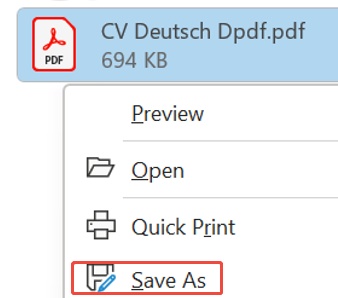
  • Review the result, then go to File > Save As to name and save your combined PDF.

This method gives excellent control over the final document structure and quality. It works especially well for business or legal documents where precision matters.

⚡ How to Fix the PDF Files Corrupted During Merging

Even with reliable tools, PDF merger processes can sometimes result in corrupted PDF files that won't open, show blank pages, or display errors. When this happens, a specialized repair tool becomes essential to recover your important content quickly.

4DDiG File Repair stands out as a powerful solution. It repairs various PDF corruption issues such as files that won't open, blank pages, unreadable content, or distorted elements. Key advantages include batch repair of multiple PDFs, support for PDF versions 1.0 to 1.7, recovery of text, images, tables, and hyperlinks, plus a simple three-step process with preview before saving. It handles document repair effectively without requiring technical expertise.

FREE DOWNLOAD

Secure Download

FREE DOWNLOAD

Secure Download

Steps to repair corrupted PDF files using 4DDiG File Repair:

  • Download and install 4DDiG File Repair. Open the program and select the File Repair tab, then click Add Files to import your corrupted PDFs (you can upload hundreds of files at once).

    add corrupted pdf files to 4ddig
  • Click Repair All to start the repair process. The software scans and fixes issues automatically.

    repair all corrupted pdfs
  • Preview the repaired files to check the restored content, then save them to a new location on your computer.

    preview and save repaired pdfs

Conclusion

Mastering how to comebine and merge PDF files free makes document management much easier. Whether using online PDF combiner tools like iLovePDF or desktop software, you now have flexible options. For corrupted files after merging, give 4DDiG File Repair a shot to restore your PDFs quickly and reliably. Keep your workflow smooth and professional.

FREE DOWNLOAD

Secure Download

FREE DOWNLOAD

Secure Download

William Bollson (senior editor)

William Bollson, the editor-in-chief of 4DDiG, devotes to providing the best solutions for Windows and Mac related issues, including data recovery, repair, error fixes.

(Click to rate this post)

You rated 4.5 ( participated)