ChatGPT Add Files Is Unavailable? How to Fix ChatGPT Can't Upload Files

5 mins read

Updated on 2026-10-13 16:37:18 to File Tips

Seeing “Add files is unavailable” in ChatGPT or the upload button greyed out ot missing usually means file upload is temporarily restricted by the chat mode, browser session, account limits, file size, or a service issue.

In most cases, you can restore uploads without changing your file. This guide explains why the problem happens and walks you through six practical fixes, starting with the fastest options before moving to browser and service checks.

Part 1. Why Does ChatGPT Say "Add Files Is Unavailable"?

When ChatGPT says “Add files is unavailable,” it means the upload feature is temporarily disabled and the current chat cannot accept attachments at that moment. The Add Files button may be missing, grayed out, or fail to respond.

This message is common among both free and paid users. If you are wondering why Add Files is unavailable in ChatGPT, common causes include:

  • The current chat or GPT mode has a temporary upload issue.
  • Browser cache, cookies, or extensions are interfering with ChatGPT.
  • The file exceeds ChatGPT’s upload size or usage limits.
  • You have reached a temporary file upload quota.
  • ChatGPT is experiencing a server-side file upload problem.

Understanding these reasons helps you pick the right fix instead of trying random solutions.

Part 2. How to Fix the "ChatGPT Add Files Is Unavailable" Error (6 Proven Ways)

Most cases of ChatGPT add files is unavailable can be solved with a few quick checks. Try the methods below in order, they start with the simplest solutions that work for many people.

Fix 1. Switch to Another GPT Mode

File uploads only work with certain models. If you are currently using a limited mode, the add-files option stays disabled. Amid this, switch to another available ChatGPT mode and try the upload again.

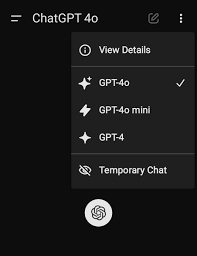
  • At the top of the chat window, click the model name.

  • Select a full model such as GPT-5.5.

    switch chatgpt model to enable add files
  • Wait a moment or refresh the page.

  • Check whether the paperclip or “+” icon is now clickable.

If Add Files is disabled for ChatGPT only in one specific mode, you can continue your task in the mode where attachments are available.

Fix 2. Start a New Chat and Add Files Again

If changing modes does not help, open a fresh conversation. A single chat can occasionally behave incorrectly because of a temporary session or conversation-state problem. Starting over is especially useful when the attachment button worked earlier but suddenly became unavailable after a long conversation.

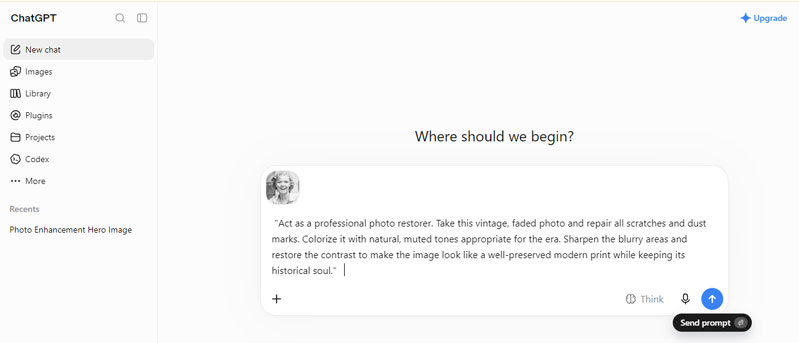
  • Click “New chat” in the left sidebar.

  • Choose a supported model if needed.

  • Tap on the attachment or Add Files button.

    chatgpt add files button
  • Select the same file that failed before.

This is also a useful test when you encounter an unknown error occurred ChatGPT file upload message.

Fix 3. Use the ChatGPT App Instead of Web Version

If uploads fail repeatedly in your browser, try the official ChatGPT desktop or mobile app. This method helps separate a browser-specific problem from an account or server issue. Users have reported cases where a feature failed in one environment but worked in another.

  • Open the ChatGPT mobile app (iOS or Android) or the desktop app.

  • Log in with the same account.

  • Start a new conversation and look for the upload button.

    chatgpt mobile app add files botton
  • If it works, you can continue using the app or return to the web version later.

Many users report that the app restores file uploads when the browser version stays stuck.

Fix 4. Clear ChatGPT Caches Cookies, Refresh, and Log In Again

When the upload button is visible but unresponsive, browser data is worth checking next. Cached website files and saved cookies normally make websites load faster, but outdated session data can sometimes cause interface problems. Some ChatGPT users have reported that clearing cache and cookies restored features that were behaving incorrectly.

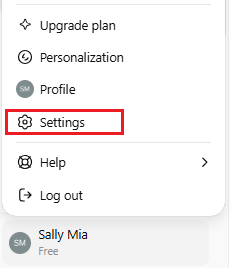
  • Click the three-dot menu in the upper-right corner and select Settings.

  • Open Privacy and security and then select Delete browsing data.

  • Select Cookies and other site data and Cached images and files.

    clear chatgpt cache to enable add files button
  • Delete the data.

  • Reopen ChatGPT and sign in again.

  • Start a new chat and retry the upload.

This process removes temporary files that can block the upload tool and fixes many cases of chatgpt file upload not working.

Fix 5. Reduce Files Size

ChatGPT has clear size limits. Files that are too large can trigger the “unavailable” message before the upload even begins. OpenAI currently sets a hard limit of 512 MB per uploaded file. Text and document files are also limited to 2 million tokens. CSV and spreadsheet files are generally limited to around 50 MB, depending on row size, and images are limited to 20 MB each.

  • Right-click the file and check its size under Properties on Windows or Get Info on macOS.

  • Compare the file with the relevant ChatGPT upload limit.

  • If it is too large, compress the file or split it into smaller parts.

  • For a large PDF, remove unnecessary pages or export selected pages as a new PDF.

  • For a large spreadsheet, delete unused sheets, rows, images, or embedded objects.

  • Upload the smaller version again.

Tips:

You can also to compress various files’ size via an online file compressor.

Fix 6. Check Whether ChatGPT File Upload Is Down

Occasionally, the problem is on OpenAI’s side rather than yours. OpenAI maintains a public status page that reports incidents affecting ChatGPT services, including file uploads. File upload disruptions have occurred before, including incidents where the File Uploads component was listed as affected.

  • Visit the official OpenAI Status page (status.openai.com).

  • Look for any reports under ChatGPT and find File uploads.

    check chatgpt file uploads status
  • If an outage or degradation is listed, wait until the status returns to normal and try again.

⚡ Part 3. What If ChatGPT Can't Upload Files Due to File Corruption

Sometimes the six fixes above still do not work because the file itself is damaged. A corrupted document, PDF, spreadsheet, or ZIP file can cause ChatGPT to reject the upload or show the “Add files is unavailable” message. In these cases, repairing the file first is often the only way to proceed.

A reliable tool for this job is 4DDiG File Repair. It is designed to fix a wide range of corrupted files so you can successfully upload them to ChatGPT afterward. The software supports common document types that people frequently share with ChatGPT, including Word, Excel, PowerPoint, PDF, ZIP, and more.

What 4DDiG File Repair Can Achieve

  • High success rate in repairing files that will not open, appear blank, show garbled content,a nd other more issues
  • Repairs PDF, Word, Excel, PowerPoint, ZIP, RAR, EPUB, and Adobe files.
  • Supports batch repair for multiple damaged files at once.
  • Preview the repaired file before saving to make sure the content looks correct
  • Fast and straightforward process that does not require technical skills
  • Works on both Windows and Mac
FREE DOWNLOAD

Secure Download

FREE DOWNLOAD

Secure Download

How to Repair a File Before Uploading It to ChatGPT

  • Download and install 4DDiG File Repair. Open the program, select File Repair, and click Add Files to import the damaged document.

    add corrupted files to 4ddig
  • Click Repair All. The software will scan the selected files and attempt to repair the detected corruption.

    repair corrupted files before uploading to chatgpt
  • Once the process finishes, click Preview to check the result. If the document opens and its content looks normal, save the repaired version to your computer.

    preview and save repaired files

FAQs about ChatGPT Add Files Unavailable Issue

Q1: Why can't I upload files to ChatGPT?

Common causes include upload limits, browser problems, unsupported chat modes, oversized files, temporary service issues, or file corruption. If you can't upload files to ChatGPT, try a new chat and test another file first.

Q2: Is ChatGPT down for uploading files?

Not always. Sometimes OpenAI experiences temporary issues with the file upload service. The best way to check is to visit the official OpenAI Status page. If no outage is listed, the problem is more likely on your side (browser, model, or file).

Q3: How many files can you upload to ChatGPT?

OpenAI currently allows up to 80 file uploads every three hours for eligible users. Free users are generally limited to 3 uploads per day. Limits may change during peak periods.

Q4: How long until I can upload files to ChatGPT again?

If the issue is a temporary glitch or rate limit, it often clears within a few minutes to a couple of hours. Starting a new chat or switching models can restore access immediately in many cases. If it is a broader outage, it may take longer until OpenAI resolves it.

Q5: Can I upload a PDF file to ChatGPT or upload files for free?

Yes. ChatGPT supports PDF uploads, and Free users can upload files with stricter usage limits. The general maximum file size is currently 512 MB per file.

Q6: What is the size to upload ZIP files to ChatGPT?

Individual files, including ZIP archives, are generally limited to 512 MB. Spreadsheets and some other formats may have lower limits. If your ZIP file is larger, compress it further or split the contents before uploading.

Q7: Can you upload files to ChatGPT without an account?

No. You need to be logged in to an account to use the file upload feature. Without an account you can only use the basic text chat in limited ways.

Conclusion

Running into the “ChatGPT Add Files Is Unavailable” error can be frustrating, especially when you need to share documents quickly. In most cases the problem is temporary and can be fixed by switching models, starting a new chat, clearing browser data, reducing file size, or checking OpenAI’s service status.

When the issue continues even after these steps, the file itself may be corrupted. In that situation, repairing it with a tool like 4DDiG File Repair often allows the upload to succeed. By following the methods in this guide, you should be able to restore the file upload feature and get back to productive conversations with ChatGPT.

FREE DOWNLOAD

Secure Download

FREE DOWNLOAD

Secure Download

William Bollson (senior editor)

William Bollson, the editor-in-chief of 4DDiG, devotes to providing the best solutions for Windows and Mac related issues, including data recovery, repair, error fixes.

(Click to rate this post)

You rated 4.5 ( participated)