MXf File Repair: Fix Damaged or Corrupted MXF Files (3 Picks)

5 mins read

Updated on 2026-10-13 16:37:23 to Video Tips

MXF files are common in professional video work, such as professional cameras, broadcasting, and post-production, but they can become unplayable after a crash or bad transfer. When this happens, you need a reliable way to repair damaged MXF file issues before you lose important footage. This guide explains the format, the main causes of corruption, and three practical MXF file repair tools that can help restore your videos.

Part 1. What Is a MXF and How Do I Open It

An MXF file is a professional video container format. It stands for Material Exchange Format and was created for broadcast and film production. Unlike everyday MP4 files, an MXF can hold video, multiple audio tracks, timecode, and detailed metadata in one package. Cameras from Sony, Panasonic, and Canon often record in this format.

How to Open MXF Video Files on Mac and Windows

The easiest option is to open the file with professional editing software that supports the codec stored inside the MXF container. Adobe Premiere, for example, supports multiple MXF-based formats used by professional camera and editing workflows.

You can generally try:

  • Adobe Premiere Pro for professional editing and playback.
  • DaVinci Resolve for editing and color-grading workflows.
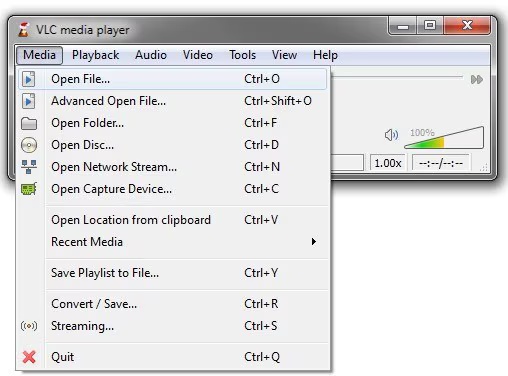
  • VLC Media Player for basic playback of supported MXF codecs.
  • FFmpeg or FFplay if you are comfortable using command-line tools.

If an MXF video refuses to open in several compatible programs, freezes during playback, shows a black screen, or produces missing audio or video, the issue may go beyond player compatibility. The file itself could be incomplete or damaged and may require an MXF repair tool instead of another media player.

Before repairing anything, however, it helps to understand what can damage an MXF file in the first place.

Part 2. Why Do MXF Files Become Corrupted and Damaged?

MXF files are more complex than consumer formats, so certain events can damage their internal structure. The video and audio data often remain intact, but the header or index information is missing or broken. This makes the file unplayable even though the content is still there.

Common causes include:

  • Interrupted recording when the camera loses power or the battery dies mid-clip
  • Incomplete file transfers from cards or drives that get disconnected
  • Software crashes while importing, editing, or exporting the file
  • Faulty memory cards or storage devices with bad sectors
  • Improper ejection of cards during recording or copy operations
  • Sudden system shutdowns or power cuts on the computer

These issues are frequent on set and during post-production. The good news is that many damaged files can still be recovered with the right MXF repair tool.

Part 2. 3 Best M4A File Repair Software & Tools in 2026

When you need to repair corrupt mxf files, three options stand out for different situations. Each has clear strengths depending on whether you prefer desktop software, an online service, or a free command-line approach.

1. 4DDiG Video Repair

4DDiG Video Repair is a desktop repair program for Windows and macOS that supports MXF alongside MP4, MOV, AVI, MKV, MTS, and other common video formats. It is especially useful when several camera files are damaged or when you prefer a visual interface instead of command-line repair.

As an MXF file repair tool, it can handle videos that fail to open, become unplayable, show a black screen, or display other corruption-related problems.

FREE DOWNLOAD

Secure Download

FREE DOWNLOAD

Secure Download

Main Features of 4DDiG Video Repair

  • Repair MP4, MXF, along with many other professional and common video formats
  • Offers multiple output video format: MP4, MOV, MKV, AVI, and the original
  • Batch processing for multiple files at once
  • Preview repaired videos before you save them
  • Works with files from cameras, drones, SD cards, USD drives, and other storage devices
  • Includes a repair history for accessing previously repaired files.
  • Additional: AI enhancement that can upscale resolution up to 8K
  • Pros
  • Cons
    • Suitable for repairing multiple MXF files at once.
    • High success repair rate with both basic and advanced repair mode
    • Supports multiple input and output video formats
    • Preview is available before saving repaired videos.
    • Works locally, so large footage does not need to be uploaded to a website.
    • Simple interface suitable for non-technical users
    • Strong batch and preview options
    • Extra AI tools for quality improvement
    • Paid software after the trial
    • Requires software installation.

Best for: Users who need a straightforward way to repair damaged MXF files, especially large files or multiple clips.

2. Restore.Media MXF File Repair Online

Restore.Media is a browser-based service that specializes in repairing video files, including MXF from various cameras. You upload the damaged file, choose the camera or a generic MXF option, and the system attempts an automatic repair. You can preview the result for free and only pay if you want to download the fixed file. For complex MXF cases, engineers can also handle the file manually.

restore media video repair tool online
  • Pros
  • Cons
    • No software installation required
    • Free preview so you see results first
    • Specialized handling for professional camera formats
    • Option for manual engineer review on difficult files
    • Requires uploading your footage
    • Require registration
    • Payment is needed for the final download
    • Large files may take longer to process

Best for: One-off corrupt MXF file repair when you do not want to install desktop software.

3. Using FFmpeg

FFmpeg is a free, open-source command-line tool that many professionals already use for video processing. It can remux or re-encode an MXF file to rebuild its container and indexes. This approach works well for certain header or indexing problems and costs nothing.

ffmpeg video repair
  • Pros
  • Cons
    • Completely free and open source
    • Highly flexible for technical users
    • Can handle batch operations with scripts
    • No upload required; everything stays local
    • Requires comfort with command-line commands
    • Not every corruption type can be fixed this way
    • No graphical interface or preview button

These three options cover most MXF video repair needs. Desktop software such as 4DDiG offers the easiest guided experience for many users, while the online service and FFmpeg provide useful alternatives depending on your workflow and technical comfort level.

Note:

FFmpeg can also convert MXF file to MP4

Part 3. How to Repair Corrupted M4A Files (Step-by-Step)

Once you understand the causes, the next step is to repair MXF files with a method that matches your skills and needs. Below are clear guides for the three tools covered earlier. Start with the one that feels most practical for you.

1. Batch Repair MXF Files with 4DDiG Video Repair

4DDiG Video Repair makes it straightforward to fix one or many damaged MXF videos on Windows or Mac. The process supports batch work and lets you check results before saving.

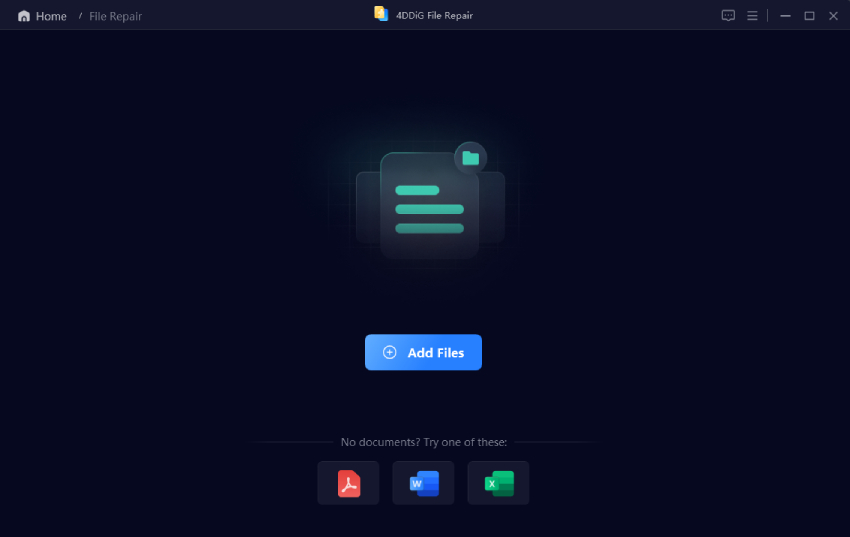
  • Download and install 4DDiG Video Repair. Open the program, select Video Repair from the left menu, and click Add Videos to import one or more damaged MXF files. Or, you can drag and drop them in directly.

    FREE DOWNLOAD

    Secure Download

    FREE DOWNLOAD

    Secure Download

    add corrupted mxf videos to 4ddig
  • Click Repair All to start the batch process. Wait while the tool analyzes and fixes the files.

    repair all corrupted mxf files
  • After repair finishes, click Preview to play each video and confirm it works. You can also check the optional AI Report for detected issues.

    preview repaired mxf video files
  • Click the triangle next to Save or Save All, pick an output format (such as Original, MP4, MOV, or MKV), then save the repaired files to your computer.

    select output format and save repaired mxf videos

2. Repair MXF Files Online Free with Restore.Media

Restore.Media works entirely in your browser and is helpful when you prefer not to install software. You can preview results at no cost before deciding to download.

  • Go to restore.media and create a free account.

  • Choose the camera model that recorded the file, or select Generic MXF file if the exact model is not listed.

    restore media tell camera mode
  • Create a recovery task with any name you like.

  • Upload the corrupted MXF file. In some cases the service may ask for a sample (a working file from the same camera and settings).

  • Let the tool process the file. When finished, review the free preview.

  • If the result looks good, pay only for the download of the repaired version. For difficult MXF cases, you can request manual help from their engineers.

3. Repair Damaged MXF Files with FFmpeg

FFmpeg is free and powerful, but it requires basic command-line knowledge. It often helps with container or index problems by remuxing the streams.

  • Install FFmpeg on your computer if you do not already have it.

  • Open a terminal or command prompt and navigate to the folder that contains your damaged file.

  • Try a simple remux first (this copies the streams without re-encoding): ffmpeg -i input.mxf -c copy output.mxf

  • If that does not work, try a more aggressive option that discards corrupt data: ffmpeg -err_detect aggressive -fflags discardcorrupt -i input.mxf -c copy output.mxf

  • Test the new file in a media player or editor. If needed, re-encode to another format such as MP4.

FFmpeg is free and keeps files local, yet it may not succeed with heavily damaged headers or complex MXF structures. In those cases a dedicated mxf file repair tool usually gives better results.

Conclusion

Corrupted MXF files can interrupt professional workflows, but recovery is often possible with the right approach. Understanding the format, recognizing common causes, and choosing suitable tools give you a clear path forward.

Whether you prefer a guided desktop program, an online service, or a free command-line option, effective corrupted MXF file repair is within reach.

For most users who want a simple, reliable process with batch support and preview options, 4DDiG Video Repair stands out as a practical choice that can restore playable footage quickly and with minimal hassle.

FREE DOWNLOAD

Secure Download

FREE DOWNLOAD

Secure Download

William Bollson (senior editor)

William Bollson, the editor-in-chief of 4DDiG, devotes to providing the best solutions for Windows and Mac related issues, including data recovery, repair, error fixes.

(Click to rate this post)

You rated 4.5 ( participated)