How to Convert MXF to MP4: N Best Converters 2026

5 mins read

Updated on 2026-07-10 10:28:30 to Video Tips

Professional cameras from Canon, Sony, and Panasonic often record videos in the MXF format. While MXF files deliver excellent quality, they may not play smoothly on standard devices or import easily into some editing programs. That is why many users want to convert MXF to MP4 for better compatibility, smaller file sizes, and easier sharing. This article explains the best conversion methods, compares online tools, and shows how to repair damaged videos if conversion fails.

convert mxf to mp4

Quick Answer: What Is the Best Way to Convert MXF to MP4?

There are several ways to convert MXF videos, but the best option depends on your file size and workflow. Some tools are perfect for quick conversions, while others preserve maximum video quality or support batch processing.

The following table summarizes the best methods based on common user scenarios in 2026:

  • User Need
  • Best Method
  • Key Advantage
  • Quick & Free
  • VLC Media Player
  • No installation required for most users.
  • High Quality & Batch
  • Handbrake
  • Excellent control over H.264/H.265 codecs.
  • Professional Workflow
  • Adobe Media Encoder
  • Seamless integration with Premiere Pro.
  • No Installation
  • Online Converters
  • Perfect for mobile or one off tasks.

How to Convert MXF to MP4 (Step by Step)

Professional MXF recordings can be converted using free desktop software, professional editing tools, or browser based services. Below are the most reliable methods depending on your needs.

Method 1: Convert MXF File to MP4 in VLC

VLC is more than just a media player. It is a versatile MXF file converter that most users already have installed. While it lacks advanced batch features, it is perfect for a quick, "no frills" conversion of a single clip. It uses the H.264 codec to ensure your output remains compatible with almost every modern smartphone, tablet, and television.

Steps to convert using VLC:

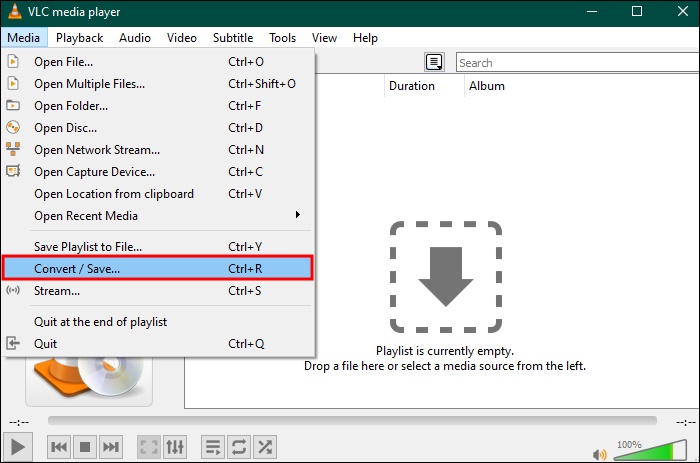
  • Launch VLC Media Player, click the "Media" menu, and choose "Convert/Save" from the dropdown.

  • Click "Add" to browse and select your MXF file. Once added, click the "Convert / Save" button at the bottom.

    add mxf file to vlc
  • In the Settings section, find the "Profile" dropdown and select "Video - H.264 + MP3 (MP4)".

  • Click "Browse" next to the Destination file to choose where to save your new video.

    vlc convert mxf to mp4
  • Press "Start" to begin the encoding process.

Method 2: Batch Convert MXF to High Quality MP4 with Handbrake

If you have a folder full of footage from a day of shooting, you need to batch convert MXF to MP4 to save time. Handbrake is an open source powerhouse that offers deep customization for bitrates and resolutions. It is widely considered the best free desktop option for maintaining the visual fidelity of professional grade MXF wrappers while shrinking the footprint.

Steps to batch convert with Handbrake:

  • Open HandBrake and click "Source" to select the "MXF" file you want to convert.

    handbrake add video source
  • Click "Browse" to choose the output location, then set the format to "MP4" File.

    handbrake convert mxf to mp4
  • Click "Start" to begin converting MXF to MP4. After processing, your MP4 file will be ready.

Method 3: Convert MXF File to MP4 in Adobe Media Encoder

For those working in a creative professional environment, the MXF to MP4 converter of choice is usually Adobe Media Encoder. It integrates seamlessly with Premiere Pro and After Effects, allowing you to export directly into an MP4 container. It offers the most robust presets, ensuring that metadata and high dynamic range (HDR) data are preserved during the transition.

Steps for Adobe Media Encoder:

  • Open Adobe Media Encoder from the Start menu.

  • Click the "+" (Add Source) button to import one or more MXF files.

    add mxf file to adobe media encoder
  • Set the format to H.264 (MP4) and choose a suitable preset. If H.264 MP4 is unavailable, select any preset with an MP4 container.

    adobe media encoder convert mxf to mp4
  • Adjust settings if needed, such as audio codec, bitrate, or resolution.

  • Choose the output destination folder for the converted file.

  • Click "Start Queue", then press the play button to begin encoding. Once finished, locate your exported MP4 file.

    adobe media encoder start queue

Method 4: Using Online Free MXF to MP4 Converters

When you are away from your main editing suite, a cloud based MXF to MP4 converter is a lifesaver. These platforms handle the processing on their servers, saving your local CPU from heavy lifting. They are perfect for small clips that need to be sent via email or uploaded to a quick preview gallery for clients.

Steps:

  • Visit a reputable online converter like FreeConvert.

    freeconvert mxf to mp4 converter
  • Click "Choose Files" to upload your MXF from your computer or cloud storage.

  • Ensure the output format is set to "MP4" and check the "High Quality" options if available.

    freeconvert convert mxf to mp4
  • Click "Convert" and wait for the cloud server to process your video.

  • Download the finished MP4 file directly to your device once it’s ready.

3 Best Online Free MXF to MP4 Converters for High Quality Output in 2026

If you want to convert MXF file to MP4 online free, the following three tools are the top performers in 2026. They balance speed with output quality effectively.

1. FreeConvert

freeconvert mxf to mp4 converter

FreeConvert MXF File to MP4 Converter is a powerful solution for converting MXF files to MP4s without installing local software. It is particularly notable for its generous 1GB file size limit, which accommodates larger professional video clips. The platform provides extensive control over video and audio codecs, subtitle embedding, and trimming. Its focus on accessibility and privacy makes it a top tier choice for quick, high quality web based conversions.

  • Pros
  • Cons
    • Supports files up to 1GB for free unregistered users.
    • It supports over 1,500 file formats, including image, video, audio, and document conversion
    • Provides options for both hardcoded and soft subtitles.
    • Built in audio effects including fade ins, fade outs, and volume adjustments.
    • The interface contains prominent advertisement placements.
    • Files are automatically deleted after a few hours.
    • Advanced settings must be toggled manually for each file.

2. CloudConvert

cloudconvert mxf to mp4 converter

CloudConvert MXF to MP4 Converter offers a highly secure and versatile environment for media conversion, supporting over 200 different formats. Since 2012, it has refined its engine to ensure font faithful and color accurate outputs. Its integration of both open source and vendor specific engines allows for superior quality control. For professionals who require high security and API connectivity, this tool provides a robust, certified infrastructure to efficiently manage sensitive video assets.

  • Pros
  • Cons
    • Audited ISO 27001 information security certification.
    • Full API integration for automated production workflows.
    • Custom vendor engine selection for specific file types.
    • Preserves metadata during the conversion process.
    • The free plan allows up to 25 minutes of video conversion per day.
    • Lacks a dedicated subtitle file upload field.
    • No specific audio normalization or deinterlacing filters.

3. Online-Convert

online convert mxf to mp4 converter

Online-Convert MXF to MP4 Converter is a feature rich utility designed for users who require precise technical control over their video output. It distinguishes itself by allowing users to set specific target file sizes and bitrates up to 100,000 kbps. The inclusion of professional filters like deinterlacing and audio normalization ensures that the final MP4 meets broadcast or streaming standards. It remains a staple for technical users seeking granular customization.

  • Pros
  • Cons
    • Target specific output file size in Megabytes.
    • Supports high motion video with 120 FPS presets.
    • Includes professional deinterlacing and audio normalization tools.
    • Allows bitrate customization up to 100,000 kbps.
    • Maximum batch limit of 30 files per session.
    • The visual interface is cluttered with navigational elements.
    • Requires manual input of timestamps for video cutting.

Comparison Table: 3 Best Online Free MXF to MP4 Converters (2026)

  • Feature
  • FreeConvert
  • CloudConvert
  • Online-Convert
  • Free Daily Limit
  • 20 Conversion Minutes
  • 25 Conversion Credits
  • 16 Credits (Trial/Daily)
  • Max File Size (Free)
  • 1 GB
  • 1 GB
  • ~100 MB
  • High-Quality Features
  • CPU/GPU based encoding, advanced codec settings, and file merging.
  • Customizable resolution, quality controls, and subtitle integration.
  • Extensive presets (4K, HD), detailed bitrate/frame rate control.
  • Processing Limits
  • Max 5 mins per file (Free)
  • Max 5 mins per file (Free)
  • Max 10 mins per file (Free)
  • Batch Conversion
  • Supports up to 20 files per day.
  • Supports 5 concurrent tasks.
  • Batch processing available (Limited).
  • Security
  • 256-bit SSL encryption; 2-hour auto deletion.
  • 256-bit SSL encryption; customizable deletion.
  • SSL encryption; 24-hour auto deletion.

What If Your MXF or Converted MP4 File Is Corrupted?

Sometimes, the problem isn't the conversion itself. Your MXF footage or converted MP4 file may become corrupted during recording, file transfer, editing, or conversion. As a result, the video may not play, freeze, appear blurry, show a black screen, lose audio, or display playback error codes. Instead of recording the footage again, you can repair the damaged file.

One of the most reliable choices is 4DDiG Video Repair. This software stands out because it uses AI driven algorithms to reconstruct missing headers and repair frame level corruption that standard players cannot handle. Unlike generic repair tools, 4DDiG can fix "unplayable" videos from professional cameras and even enhance the resolution of the recovered footage.

Key Features of 4DDiG Video Repair

  • Repairs corrupted, unplayable, and damaged videos.
  • Fixes playback errors, black video screens, freezing, no audio issues, and more.
  • Supports MXF, MP4, MOV, AVI, MKV, and many other formats.
  • Batch repairs multiple videos at once.
  • Works with videos from cameras, drones, phones, and storage devices.
  • Preview repaired videos before saving.
  • High repair success rate for severely damaged files
FREE DOWNLOAD

Secure Download

FREE DOWNLOAD

Secure Download

Steps to fix corrupted MXF or MP4 files with 4DDiG:

Repairing damaged videos with 4DDiG Video Repair only takes a few steps.

  • Add the Corrupted Videos

    Open 4DDiG Video Repair and select "Video Repair" from the left panel. Click "Add Videos" to import one or more corrupted MXF or MP4 files.

    add unplayable mxf mp4 videos to 4ddig
  • Start Batch Repair

    Click "Repair All" to automatically scan and repair all selected videos at once.

    repair all unplayable videos
  • Preview the Results

    After the repair is complete, click "Preview" to verify that each video plays correctly.

    preview repaired mxf mp4 videos
  • Save the Repaired Videos

    Click the arrow next to "Save" or "Save All", choose your preferred output format (MP4, MOV, AVI, or Original), and save the repaired videos to your computer.

    save repaired videos in preferred format

FAQs about MXF to MP4

Q1: What are MXF files?

MXF (Material Exchange Format) is a professional "container" format designed to store digital video, audio, and metadata in a single file. It was designed by the SMPTE to make it easier to exchange data between different platforms and cameras. It often contains multiple metadata tracks and high bitrate video. That is why it is used by broadcasters but isn't widely supported by consumer apps.

Q2: Is MXF higher quality than MP4?

Generally, yes. MXF files are usually uncompressed or use "Intra frame" compression, which holds more data. However, MP4 uses "interframe" compression, which is much more efficient for viewing and distribution while maintaining excellent perceived quality.

Q3: How to use VLC to convert MXF to MP4?

Go to Media, then choose Convert/Save, add your file, select the MP4 profile, and hit Start. It is the easiest way to handle a quick conversion without buying new software.

Conclusion

Converting professional footage shouldn't be a headache. Whether you use a desktop tool to convert MXF to MP4 like Handbrake for bulk tasks or a web based tool for convenience, the goal is to keep your quality high and your file sizes manageable. Always remember to back up your original footage before starting.

If your original or converted video is damaged, 4DDiG Video Repair offers an efficient way to restore playback, repair multiple files at once, and recover high quality videos without restarting the conversion process.

FREE DOWNLOAD

Secure Download

FREE DOWNLOAD

Secure Download

William Bollson (senior editor)

William Bollson, the editor-in-chief of 4DDiG, devotes to providing the best solutions for Windows and Mac related issues, including data recovery, repair, error fixes.

(Click to rate this post)

You rated 4.5 ( participated)