Best MTS to MP4 Converters for 2026 | 5 Picks

5 mins read

Updated on 2026-07-10 10:28:31 to Video Tips

MTS videos recorded with Sony, Panasonic, Canon, and other AVCHD camcorders often deliver excellent image quality, but they can be difficult to play, edit, or upload because many modern devices don’t fully support the format.

An .MTS file stores high-definition video in the AVCHD transport stream format, and converting it to MP4 improves compatibility without sacrificing quality. Our guide reviews the best MTS to MP4 converter tools available in 2026 and helps you choose the right one for your workflow.

How To Choose The Right MTS To MP4 Converter In 2026?

Not every converter performs the same. Some prioritize speed, while others focus on preserving video quality or supporting batch conversion. Before selecting a tool, consider the following factors to make sure it matches your needs.

When comparing an MTS to MP4 converter, pay attention to these criteria:

  • Output Quality: The converter should preserve the original resolution, bitrate, and frame rate whenever possible.
  • Batch Conversion: Useful if you need to convert multiple camcorder videos at once.
  • Conversion Speed: Hardware acceleration or optimized encoding can significantly reduce processing time.
  • Supported Platforms: Make sure the software works on Windows, macOS, or Linux if needed.
  • Ease of Use: Beginners generally benefit from a graphical interface, while advanced users may prefer command-line tools.
  • Supported Codecs: H.264 and H.265 support provide better compatibility with modern devices.
  • Privacy: Desktop converters keep your videos local, while online tools require uploading files.
  • File Size Limits: Some online converters restrict the size of videos you can upload.

Best MTS To MP4 Converter Online Free In 2026 – 5 Top Picks

There isn’t a single converter that’s perfect for everyone. Some users want a beginner friendly interface, while others need advanced encoding options or browser based convenience. The following tools to transport stream to MP4 have been selected based on conversion quality, ease of use, reliability, and overall performance.

1. HandBrake

HandBrake is one of the most trusted open-source video converters available today. Although it supports many video formats, it performs particularly well when converting AVCHD recordings from camcorders into MP4. During testing, it consistently produced high-quality output while offering detailed control over encoding settings. It’s an excellent choice for users who want a reliable MTS to MP4 converter free without paying for premium software.

Steps

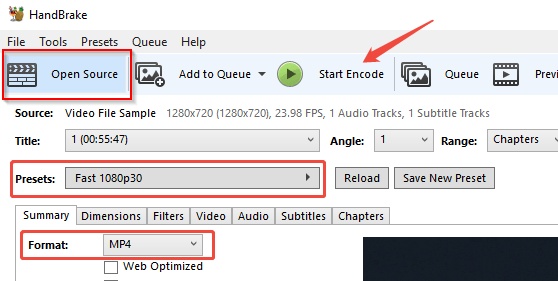
  • Download and install HandBrake. Launch the program, then click "Open Source" or “Source” to open your MTS video.

    handbrake open mts video
  • In the summary tab, choose "MP4" from the format dropdown and click "Browse" from the bottom right to choose the destination folder for the converted MP4 file.

    handbrake convert mts to mp4
  • Click “Start Encode” to begin the conversion and wait for it to complete.

  • Pros
  • Cons
    • Completely free MTS converter and open-source.
    • Produces excellent video quality with H.264 and H.265 encoding.
    • Supports batch encoding through queue management.
    • Offers advanced compression settings for file size optimization.
    • Available for Windows, macOS, and Linux.
    • Interface may feel overwhelming for beginners.
    • Doesn’t provide built-in video editing tools.
    • Some advanced settings require encoding knowledge.

2. VLC Media Player

Most people know VLC as a media player, but it also includes a capable video conversion feature. During testing, VLC handled standard MTS recordings smoothly and converted them into MP4 with minimal configuration. While it doesn’t provide the same level of encoding customization as HandBrake, it’s a convenient option for users who already have VLC installed and only need occasional conversions.

Steps

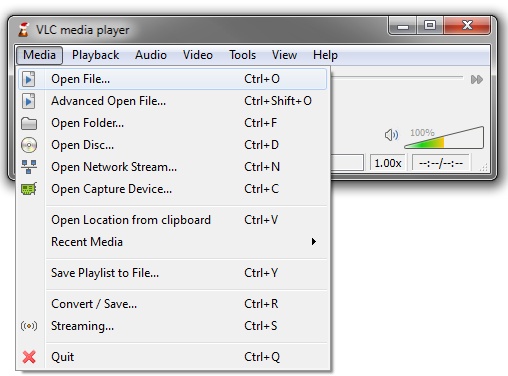
  • Open VLC and click "Media," then choose "Convert/Save". Click the "Add" button to open your MTS video.

    add mts to vlc for converting to mp4
  • In the profile dorpdown select “Video - H.264 + MP3 (MP4)” and click “Start”.

    vlc convert mts to mp4
  • Pros
  • Cons
    • Free with no advertisements.
    • No additional software required if VLC is already installed.
    • Supports a wide range of video formats.
    • Simple conversion process.
    • Available on Windows, macOS, and Linux.
    • Limited encoding customization.
    • Batch conversion isn’t as convenient as dedicated converters.
    • Conversion speed varies depending on hardware.

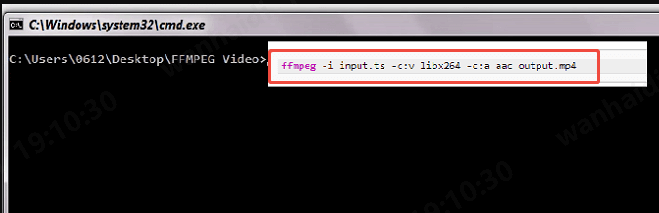
3. FFmpeg

ffmpeg convert videos

FFmpeg is a command-line multimedia framework trusted by developers, video editors, and broadcast professionals. It offers exceptional speed and precise control over video encoding, making it ideal for users who frequently convert MTS to MP4 with FFmpeg or automate large conversion tasks. Although the learning curve is steeper than graphical applications, its flexibility is difficult to match.

Steps

  • Install FFmpeg, then open Command Prompt or Terminal.

  • Navigate to the folder containing the MTS file, then run: “ffmpeg -i input.MTS output.MP4

  • Wait for the conversion to finish, then play the converted MP4.

  • Pros
  • Cons
    • Extremely fast conversion performance.
    • Preserves excellent video quality.
    • Supports scripting and automation.
    • Handles virtually every video codec and format.
    • Ideal for bulk converting MTs to MP4 tasks.
    • No graphical interface.
    • Requires familiarity with command-line commands.
    • Beginners may find setup challenging.

4. CloudConvert MTS to MP4 Video Converter Online Free

CloudConvert is a browser-based file conversion service that supports hundreds of file formats, including AVCHD videos. During testing, it handled standard MTS files smoothly and provided consistent MP4 output without requiring software installation. It’s especially useful when you’re working on a computer where installing applications isn’t possible or when you only need to convert MTS to MP4 occasionally.

Steps

  • Visit the CloudConvert MTS to MP4 converter. Click Select File and upload your MTS video.

    cloudconvert mts to mp4 converter
  • Adjust optional settings if needed and click “Convert”.

  • Wait for the conversion to complete, then download the MP4 file.

  • Pros
  • Cons
    • No software installation required.
    • Supports customizable video settings such as resolution, codec, and bitrate.
    • Works on Windows, macOS, Linux, and mobile browsers.
    • Integrates with cloud storage services like Google Drive and Dropbox.
    • Produces reliable conversion quality for most AVCHD videos.
    • Upload and download times depend on your internet connection.
    • Free usage is subject to daily conversion limits.
    • Large camcorder videos may take longer to process.

5. ZamZar MTS to MP4 Converter Online

ZamZar has been providing online file conversion services for many years and remains a popular option for users who prefer a simple interface. In testing, it converted standard MTS recordings without difficulty and required very little setup. The service is well suited to occasional users who want a quick MTS file to MP4 conversion without learning advanced encoding settings.

Steps

  • Open the ZamZar MTS to MP4 converter and click “Choose Files” to upload your MTS file.

    zamzar mts to mp4 converter online
  • Select “MP4” as the output format and click “Convert Now”.

  • Wait for processing, then download the converted video after it is converted.

  • Pros
  • Cons
    • Beginner-friendly interface.
    • Supports many document, image, audio, and video formats.
    • Doesn’t require software installation.
    • Conversion process is straightforward.
    • Accessible from any modern web browser.
    • Free version limits file size to 50MB.
    • Uploading large MTS videos can be slow.
    • Fewer encoding customization options than desktop software.

⚡ Bonus: What If Your MTS Or Converted MP4 File Is Corrupted?

Converting a video doesn’t always solve every problem. Sometimes the original MTS recording is already damaged because of an interrupted recording, failing SD card, or transfer error.

In other cases, the converted MP4 may become unplayable due to software crashes or storage issues during the conversion process.

If your videos freeze, display a black screen, lose audio, or refuse to open, repairing them before converting again is often the most effective approach. If you’re dealing with damaged camcorder footage, 4DDiG Video Repair is a practical solution. It supports both original MTS recordings and converted MP4 files, making it useful whether the corruption occurred before or after conversion.

Why Many Users Prefer 4DDiG Video Repair?

  • Repairs corrupted MTS, MP4, MOV, AVI, MKV, M4V, and many other video formats.
  • Fixes common playback problems, including black screens, freezing, missing audio, video stuttering, pixelation, and synchronization errors.
  • Uses AI-powered repair technology to rebuild damaged video structures while preserving the original quality whenever possible.
  • Supports batch repair, allowing multiple damaged MTS and MP4 files to be repaired in one session.
  • Includes a built-in preview feature, so you can verify repaired videos before saving them.
  • Repairs videos damaged by interrupted transfers, storage device failures, unexpected shutdowns, malware, and recording interruptions.
  • Beginner-friendly interface that requires no advanced technical knowledge.
FREE DOWNLOAD

Secure Download

FREE DOWNLOAD

Secure Download

Steps To Repair Multiple MTS And MP4 Files Using 4DDiG Video Repair

  • Install and launch 4DDiG File Repair. Select “Video Repair” from the home screen and click “Add Videos” to import one or more damaged MTS or MP4 files.

    add problem mts mp4 to 4ddig
  • Click “Repair All” and wait until the software scans and repairs the problem MTS or MP4 videos.

    4ddig repair all mts mp4 videos
  • Preview the repaired MTS or MP4 videos by clicking the “Preview” button against each video.

    4ddig preview repaired mts mp4 videos
  • Save the repaired videos to your preferred location with the “Save” button.

    export repaired videos in preferred format

Conclusion

Choosing the right MTS to MP4 converter depends on your workflow and technical experience. HandBrake offers the best balance of quality and customization, VLC is ideal for quick conversions, FFmpeg excels at automation, and CloudConvert and ZamZar provide convenient browser-based options.

If your original MTS recordings or converted MP4 videos become corrupted, 4DDiG Video Repair is a reliable solution for restoring damaged files before you continue editing, sharing, or archiving your footage.

FREE DOWNLOAD

Secure Download

FREE DOWNLOAD

Secure Download

William Bollson (senior editor)

William Bollson, the editor-in-chief of 4DDiG, devotes to providing the best solutions for Windows and Mac related issues, including data recovery, repair, error fixes.

(Click to rate this post)

You rated 4.5 ( participated)