How to Enhance Sora AI Video Quality Free with Three Sora 2 Video Ehancers

5 mins read

Updated on 2026-10-23 14:58:47 to Video Tips

Sora can create visually impressive AI videos, but downloaded clips may still look soft, blurry, noisy, or less detailed on larger screens. If you want sharper footage for YouTube, social media, or professional editing, AI enhancement can help. This guide explains why quality drops, shows how to enhance Sora AI video quality with three practical Sora 2 video enhancers and upscale saved clips toward cinematic 4K or 8K.

Part 1. Why Does My Sora AI Video Look Low Quality?

Sora and Sora 2 videos often start with solid ideas but fall short in final polish. Several common factors explain the soft or grainy look.

  • Resolution limits: Many generated clips stay at 720p or 1080p, so they lack the sharpness needed for big screens.
  • Compression artifacts: Export and sharing add noise, blur, and pixelation.

  • Detail loss: Faces, textures, and backgrounds can appear soft because AI generation prioritizes motion over fine detail.

  • Lighting and color issues: Some scenes look flat or washed out after processing.

These problems are normal for AI-generated footage. The good news is that a dedicated sora video enhancer can fix most of them quickly and bring the clips closer to cinematic quality.

book icon Note

You can explore other more AI video generators to find a better Sora AI alternative to generate higher quality videos

Part 2. Top Three Must-Try Sora 2 Video Enhancers in 2026

Once you understand the quality issues, the next step is choosing the right tool. Here are three strong options that stand out for improving Sora footage in 2026. We start with the most recommended choice.

1. 4DDiG AI Video Enhancer

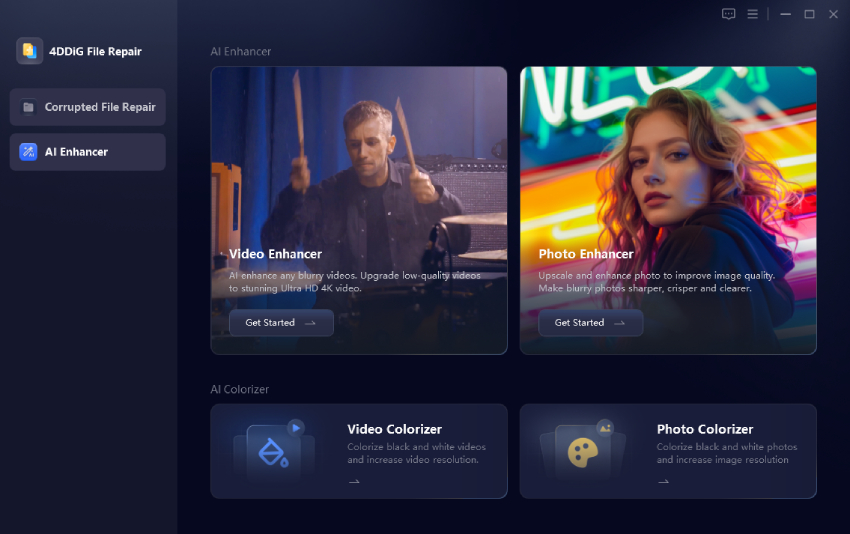
If you want reliable results with minimal effort, 4DDiG AI Video Enhancer is the top pick. It acts as a complete sora 2 video enhancer that upscales videos, sharpens details, and reduces noise. The new Cloud Enhancement feature processes files faster and delivers cleaner output, making it ideal for both beginners and regular creators.

4ddig ai video enhancer interface

Key Strengths of 4DDiG AI Video Enhancer

  • AI-powered video upscaling to 4K and up to 8K
  • Cloud Enhancement for faster processing and improved results
  • Multiple models for general, anime, face, and colorization tasks
  • AI sharpening videos to refine soft edges and textures
  • Noise and compression artifact reduction
  • Color, brightness, and contrast enhancement
  • Restore old videos and colorize black-and-white videos
  • Batch processing for multiple videos
  • Preview support before saving the finished result
  • Pros
  • Cons
    • Consistent high-quality output
    • Unique Cloud Enhancement for faster processing and better results
    • Four tailored AI models that handle different video types
    • All-in-one capabilities: upscale, sharpen, restore old or damaged clips, and colorize
    • Excellent clarity and natural-looking details
    • Beginner-friendly interface that still delivers professional-grade quality
    • Full features require a paid plan after trial
    • Full features require a paid plan after trial
    • Full features require a paid plan after trial
    • Full features require a paid plan after trial
    • Full features require a paid plan after trial
    • Full features require a paid plan after trial

2. Wink Sora 2 Video Enhancer

Wink provides a dedicated online enhancement workflow for Sora footage. It can upscale lower-resolution clips toward 4K or 8K, restore details, reduce visible noise, and improve clarity without requiring a traditional desktop editor.

Its Regular modes include HD, Ultra HD, and AI UHD, while Scenario modes provide options for different types of footage. That makes Wink a practical choice when you want fast results through a browser and do not need the broader desktop workflow offered by 4DDiG.

wink sora 2 video enhancer
  • Pros
  • Cons
    • Batch upload support
    • Multiple enhancement modes (HD, Ultra HD, AI UHD)
    • Offers 4K and 8K enhancement options.
    • Easy browser-based workflow
    • Free access with usage limits
    • Online processing depends on upload speed and network stability.
    • Free usage and exports depend on the usage available to your Wink account.
    • Results may vary with very long videos.

3. HitPaw Online Sora Video Enhancer Free

HitPaw Sora 2 Video Upscaler provides a free online option for users who want to try sora video enhancer free features first. It upscales Sora 2 videos toward 4K or 8K, recovers textures, and reduces artifacts. This tool suits casual users and those testing quality improvements before committing to desktop software.

hitpaw sora 2 video upscaler
  • Pros
  • Cons
    • No installation needed
    • Supports AI-based 4K and 8K upscaling.
    • One-click processing
    • Detail recovery and noise reduction
    • Supports common video formats
    • File size and resolution limits on the free plan
    • Processing speed depends on internet connection
    • Some advanced usage may depend on the selected pricing plan.

Part 3. How to Enhance Sora AI Video Quality to Cinematic 4K/8K in One Click

Ready to turn your soft Sora clips into sharp cinematic footage? 4DDiG AI Video Enhancer makes the process simple and effective. With its Cloud Enhancement feature and specialized AI models, you can upscale to 4K (or higher) while cleaning noise and restoring details---all without adding a watermark. Follow these straightforward steps to how to enhance sora ai video quality without watermark.

Steps to enhance sora 2 video quality without watermark using 4DDiG

  • Download and install 4DDiG File Repair on your Windows or Mac computer. Launch the program and go to AI Enhancer > Video Enhancer from the left sidebar.

    open 4ddig ai video enhancer
  • Click Add Videos and select the Sora video you want to improve. You can also drag and drop the file directly into the program.

  • add sora videos to 4ddig

  • Select an AI model that matches your footage (General Denoise for most videos, Face for portraits, or Anime if needed). Then choose the desired upscale level (2x or 4x) for 4K or 8K quality.

    select ai model and upscale level to enhance sora videos
  • Click "Enhance" and let the tool process the video. When it finishes, preview the improved frames. If you like the result, click "Save" to export the clean, high-quality file to your computer.

    preview and save enhanced sora videos

FAQs about Enhancing Sora 2 Video Quality

Q1: How to enhance Sora AI video quality free?

You can start with free trials or limited online tools. Wink and HitPaw both offer free usage quotas that let you test how to enhance sora ai video quality free. For better and more consistent results, download the free trial of 4DDiG AI Video Enhancer---it lets you process several clips before deciding on a full plan.

Q2: Is there any Sora 2 video enhancer without watermark?

Yes. 4DDiG AI Video Enhancer exports clean files with no watermark when you save the enhanced video. Many users also report that Wink and HitPaw can deliver sora 2 video enhancer without watermark results within their free or paid limits, though quality and speed may differ.

⚡ Conclusion

Learning how to enhance Sora AI video quality is mainly about improving detail without overprocessing the original footage. A reliable Sora 2 video enhancer can reduce blur, noise, and compression while upscaling videos for larger screens.

For users who want more control over 4K or 8K enhancement, AI models, previewing, and batch processing, 4DDiG AI Video Enhancer is a practical all-in-one choice.

FREE DOWNLOAD

Secure Download

FREE DOWNLOAD

Secure Download

William Bollson (senior editor)

William Bollson, the editor-in-chief of 4DDiG, devotes to providing the best solutions for Windows and Mac related issues, including data recovery, repair, error fixes.

(Click to rate this post)

You rated 4.5 ( participated)