How to Convert MKV to MP4 Using VLC for Free

5 mins read

Updated on 2026-07-10 10:28:30 to Video Tips

MKV files are great for storing high-quality videos, multiple audio tracks, and subtitles, but they don’t always play smoothly on phones, smart TVs, gaming consoles, or some video editing software. Fortunately, how to convert mkv to mp4 using VLC is much simpler than many people expect.

VLC can convert or remux MKV files into MP4 for free, often without noticeable quality loss while preserving subtitles when configured correctly. We will walk you through every method, from basic conversion to batch processing and subtitle support.

How to Convert Single MKV to MP4 Using VLC (Basic Conversion)

You can use VLC on both computers and Android devices for this conversion, and we will elaborate on that here.

Convert MKV to MP4 in VLC on Windows/Mac

If you only need to convert one video, VLC’s built-in conversion tool is the easiest place to start. It allows you to re-encode an MKV file into the widely supported MP4 format using just a few clicks.

This method works well for videos that won’t play on certain devices or applications and is suitable for both Windows and macOS users looking to convert mkv to mp4 using vlc without installing additional software.

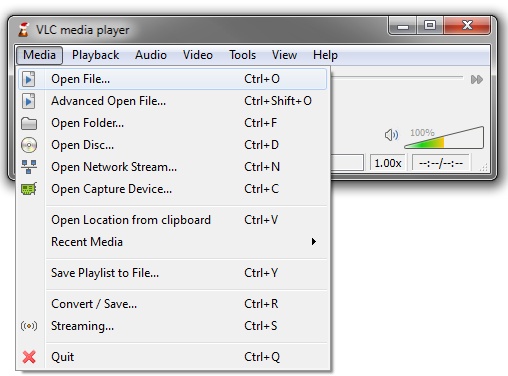
  • Open VLC Media Player, then click “Media” to choose “Convert / Save” (Windows) or “File” then “Convert / Stream” (Mac).

  • Click “Add” and select the MKV file, then click "Convert / Save”.

    add mkv files to vlc
  • Under Profile, select “Video - H.264 + MP3 (MP4)” then choose a destination folder and file name, then click “Start” and wait for the conversion to complete.

    vlc convert mkv to mp4

Convert MKV to MP4 in VLC on Android

If you’re away from your computer, VLC for Android can also convert certain MKV videos into MP4, although the available options are more limited than the desktop version.

It’s a convenient solution for quick conversions directly on your phone, especially when you need to share or upload a video without transferring it to another device first.

Note that it does not have conversion features supported on Android, but when you record a video playing on VLC, it is saved as MP4.

  • Install and open VLC for Android and play your MKV video.

  • Tap the screen and hit "Record," then VLC will save the recorded video as an MP4 file.

Note:

VLC for iPhone and iPad currently does not support direct MKV-to-MP4 conversion. If you’re using iOS, convert the file on a Windows PC or Mac first before transferring it back to your device.

How to Remux MKV to MP4 Losslessly without Re-Encoding (Copy Mode)

When the video and audio codecs inside the MKV container are already compatible with MP4, you don’t have to re-encode the entire video. Instead, you can remux it, which simply changes the container while keeping the original video and audio streams intact.

This approach is significantly faster than full conversion and avoids quality loss because the media itself isn’t reprocessed.

  • Open VLC and select “Media” then “Convert / Save”.

  • Add the MKV file by clicking "Add," then click “Convert / Save”.

  • Create or edit an MP4 profile and choose the "H.264 + MP3 (Mp4)" profile.

  • Under the “Video Codec” and “Audio Codec” tabs, choose “Keep Original Video Track” and “Keep Original Audio Track” (Copy Mode), then click “Save”.

    vlc keep original video track
  • Click “Browse” and choose the destination for the MP4 file, then click “Start”.

Conversion Time:

Usually 10 seconds to 2 minutes, depending mainly on file size, because the video isn’t re-encoded.

Note:

VLC for Android does not support lossless remuxing (Copy Mode). This feature is available only in the desktop version.

How to Batch Convert Multiple MKV Files to MP4 in VLC?

If you have an entire folder of MKV videos, converting them one by one quickly becomes repetitive. VLC on Windows supports batch processing through playlists or command-line options, allowing you to convert multiple files in a single workflow.

While it isn’t as feature-rich as dedicated batch converters, it’s a practical solution for users who already have VLC installed.

  • Place all MKV files in a single folder, then open VLC.

  • Add multiple MKV files to the conversion queue by clicking "Media," then "Convert / Save," and then "Add”.

  • Choose the “Video - H.264 + MP3 (MP4)” profile and choose the output destination.

  • Start the conversion process and wait for all files to finish converting.

Conversion Time:

Depending on file size and your computer’s performance, expect approximately 1–5 minutes per video when re-encoding.

Note:

VLC on macOS and Android doesn’t provide the same batch conversion workflow available on Windows.

How to Convert MKV to MP4 in VLC with Subtitles?

One of the biggest advantages of MKV is its support for multiple subtitle tracks. Fortunately, VLC can preserve subtitles during conversion when configured correctly.

Whether you’re working with embedded subtitles or adding external subtitle files, taking a few extra moments to verify the subtitle settings helps ensure they remain available in the exported MP4 instead of disappearing after conversion.

Here is how to convert MKV to MP4 with subtitles in VLC.

Steps

  • Open VLC and navigate to “Media” then “Convert / Save” and add the MKV file by clicking “Add”.

  • If you have an external subtitle file, enable Use a subtitle file and select the .srt file.

    vlc convert mkv to mp4 with subtitles
  • Choose “Convert / Save” and select an MP4 profile.

  • Click the Edit selected profile icon. Go to the Subtitles tab and enable Subtitles and choose Overlay subtitles on the video.

    vlc overlay subtitles on video
  • Start the conversion by clicking "Start" after choosing the destination for the MP4 file.

Conversion Time: Most videos finish converting within 2–15 minutes, depending on resolution, hardware performance, and whether the video is being re-encoded.

⚡ Troubleshooting VLC MKV to MP4 Conversion Issues

Even though VLC is a reliable media player and converter, it’s not unusual to encounter problems during the conversion process. Depending on the source file, codec settings, or VLC version, you may end up with a converted video that has no audio, a black screen, or fails to convert altogether.

The following fixes address the most common issues users experience when using VLC to convert MKV to MP4.

Issue 1: VLC Convert MKV to MP4 No Audio (Video Plays but No Sound)

If your converted MP4 plays normally but has no audio, VLC may have disabled audio encoding during conversion or selected an incompatible codec. This issue is especially common when custom conversion profiles are used or when the original MKV contains multiple audio tracks. Before converting the file again, verify that VLC is configured to encode audio correctly.

You may also like:

How to Fix VLC No Sound Issue

Fix 1: Enable and Configure Audio Codec

  • Open VLC Media Player and go to “Media," then click “Convert / Save”.

  • Add your MKV file and click “Convert / Save”.

  • Select your MP4 profile and click the “wrench (Edit Selected Profile)” icon.

  • Open the “Audio Codec” tab and check “Audio” to enable audio encoding.

  • Choose AAC as the codec and keep a suitable bitrate such as 192 kbps.

  • Save the profile and start the conversion again.

Fix 2: Repair Problem Converted Videos Using 4DDiG Video Repair

Sometimes the problem isn’t VLC’s settings at all. If the conversion was interrupted or the output file became corrupted, simply adjusting codec settings won’t restore missing audio or fix playback problems.

In those situations, a dedicated repair tool is often the quickest solution. 4DDiG Video Repair can repair damaged converted videos suffering from audio loss, black screens, freezing, and other playback issues without requiring you to repeat the entire conversion process.

Unique Features of 4DDiG Video Repair
  • Repairs corrupted MP4, MKV, MOV, AVI, M4V, FLV, and many other video formats.
  • Fixes common conversion issues, including VLC convert mkv to mp4 no audio, black screens, missing video, freezing, stuttering, pixelation, and synchronization problems.
  • Uses AI-powered repair technology to rebuild damaged video structures while preserving the original quality whenever possible.
  • Supports batch repair, allowing multiple converted videos to be repaired simultaneously.
  • Includes a built-in preview feature so you can check repaired videos before exporting them.
  • Repairs videos damaged by interrupted conversions, storage device failures, software crashes, malware, and transfer errors.
  • Beginner-friendly interface with no advanced technical knowledge required.
FREE DOWNLOAD

Secure Download

FREE DOWNLOAD

Secure Download

Steps to Repair Corrupted Converted Videos
  • Install and launch 4DDiG File Repair, then select “Video Repair” and click “Add Videos” to import the damaged MP4 or MKV files.

    add corrupted mp4 mkv files to 4ddig
  • Click “Repair All” and wait while the software repairs the videos.

    repair all corrupted video files
  • Preview the repaired files with the “Preview” button against each video.

    preview repaired videos
  • Choose an output format (MP4, MOV, MKV, AVI, Original) and save them to your preferred location by clicking “Save”.

    save repaired videos in preferred format

Issue 2: VLC Convert MKV to MP4 No Video / Black Screen

If the converted file contains audio but displays only a black screen, the problem usually lies with the selected video codec or the way VLC handled the original video stream. Certain codecs stored inside MKV containers aren’t fully compatible with simple container conversion.

Re-encoding the video using the widely supported H.264 codec generally resolves this issue and improves compatibility across media players and devices.

Fix: Force Video Re-Encoding with H.264

  • Open “Media” then “Convert / Save” in VLC and add your MKV file.

  • Click “Convert / Save” then pick an MP4 profile.

  • Click the “Edit Selected Profile (wrench)” icon and open the “Video Codec” tab.

  • Enable “Video” and choose “H.264” as the codec.

    fix vlc convert mkv to mp4 no video
  • Save the profile and begin the conversion again.

Issue 3: VLC Convert MKV to MP4 Not Working

If VLC convert MKV to MP4 not working continues to appear even after adjusting the settings above, one of the following solutions usually resolves the problem:

  • Update VLC to the latest version: New releases include codec updates and bug fixes that improve conversion reliability.
  • Run VLC as Administrator: On Windows, elevated permissions can resolve file access or destination folder issues.
  • Reset VLC Preferences: Corrupted configuration files may interfere with conversion settings. Restoring default preferences often fixes unexpected behavior.
  • Verify the source MKV file: Test the original video in another media player to ensure it isn’t already corrupted.
  • Choose a different output folder: Permission restrictions or insufficient disk space may prevent VLC from saving the converted video.
  • Disable hardware acceleration temporarily: In some cases, GPU acceleration causes conversion problems with specific video codecs.
  • Restart VLC or your computer: A simple restart can resolve temporary software conflicts.

People Also Ask About VLC Convert MKV to MP4

How Long Does It Take to Convert MKV to MP4 in VLC?

The conversion time depends on the file size, video resolution, your computer’s hardware, and whether VLC is re-encoding or simply remuxing the file. A lossless remux may finish in under a minute, while full H.264 conversion of a large 4K video can take considerably longer.

How to Convert MKV to MP4 in VLC on iPhone?

At the moment, VLC for iPhone and iPad doesn’t support direct MKV-to-MP4 conversion. If you need an MP4 version, convert the file on a Windows PC or Mac using VLC’s desktop version, then transfer the converted MP4 back to your iPhone or iPad using AirDrop, iCloud Drive, or another file transfer method.

Conclusion

Converting MKV to MP4 using VLC is an easy way to improve compatibility with phones, smart TVs, game consoles, and video editing software. Whether you’re performing a standard conversion, remuxing without quality loss, processing multiple files, or preserving subtitles, VLC provides a free and flexible solution.

If the converted video develops problems such as missing audio, black screens, or playback errors, 4DDiG Video Repair offers a safe option to repair damaged video files and restore smooth playback.

FREE DOWNLOAD

Secure Download

FREE DOWNLOAD

Secure Download

William Bollson (senior editor)

William Bollson, the editor-in-chief of 4DDiG, devotes to providing the best solutions for Windows and Mac related issues, including data recovery, repair, error fixes.

(Click to rate this post)

You rated 4.5 ( participated)