Dropbox Files Zero Bytes: Why It Happens and How to Fix It Fast

5 mins read

Updated on 2026-10-13 16:37:18 to File Tips

Finding Dropbox files showing zero bytes can feel alarming. You open a document and find it empty, or Dropbox refuses to upload it. However, a zero-byte label does not always mean the file has lost all its data. It may be an online-only placeholder, an incomplete sync, or a genuinely empty file.

This common issue usually comes from sync problems, incomplete uploads, or temporary glitches. The good news is that most cases are easy to fix. This guide explains why Dropbox files show zero bytes, how to verify the file first, and which fixes are worth trying.

Part 1. What Is a Zero Byte File? Why Are My Dropbox Files Showing Zero Bytes or Empty?

A zero-byte file is simply a file that contains no data. On Dropbox it usually shows a size of 0 KB or 0 bytes, even though the name and icon look normal. Users often notice this after uploading, moving, or opening files on another device.

What Does 0-Byte File Mean on Dropbox

A Dropbox 0 bytes file means the cloud copy or the local version holds no actual content. You might see error messages such as “This file is empty,” “Unable to open,” or the file size listed as 0 B in Finder or File Explorer. Common scenarios include photos that open as blank, documents that will not load, or folders that refuse to sync fully.

Why Does Your File Says Zero Bytes on Dropbox

Common causes of Dropbox zero bytes include:

  • Online-only files: The file is stored in Dropbox but has not been downloaded locally.
  • Interrupted syncing: A network issue, shutdown, or Dropbox error stopped the upload or download.
  • An empty file was synced: The original file was already 0 bytes before Dropbox uploaded it.
  • The file was overwritten: Another device or app synced an incomplete version.
  • File corruption: The file still contains data but cannot be opened correctly.
  • Local Dropbox issues: Finder, File Explorer, or Dropbox integration may fail to display the file properly.

Because the cause can vary, the next step is to confirm whether the file is truly empty before trying to repair or recover it.

Part 2. First Check Whether the Dropbox File Is Really Empty

Before trying any repair methods, confirm that the file is truly empty. Sometimes the desktop app only shows a placeholder while the real content remains safe online.

  • Open a web browser and go to dropbox.com. Sign in with the same account.

  • Locate the file or folder that appears as zero bytes on your computer. Or, go to the left All Files section directly

  • Hover over any column header (e.g., Name or Modified), click the dropdown arrow, and select Size to make sure the Size column is visible.

    dropbox check file size
  • Look at the Size value next to the file.

  • Right-click the file online and choose “Download.” Save it to a new folder on your computer and check the size again.

If the downloaded copy has the expected size, simply replace the local zero-byte version. If it still shows 0 bytes online, move on to the recovery steps in the next section.

⚡ Part 3. How to Fix Dropbox Files Zero Bytes Issues on Mac and Windows (7 Proven Ways)

Once you confirm the file is empty or incomplete, these seven practical methods can help you restore the content. Start with the simplest options and move down the list until the problem is solved. Each step works on both Mac and Windows unless noted otherwise.

Method 1. Make Files/Folder Available Offline (useful for Dropbox zero bytes on Mac)

This is especially useful when Dropbox files show zero bytes on Mac. On macOS 12.3 and later, Dropbox online-only files may appear as 0 bytes because their actual content is still stored in the cloud. Making them available offline downloads the complete file to your Mac.

  • Open Finder and go to your Dropbox folder.

  • Right-click the affected file or folder that shows 0 bytes.

  • Select Make available offline.

    make dropbox file available offline to fix zero bytes issue
  • Wait until the cloud icon changes to a green checkmark.

  • Open the file again.

This step is especially helpful on Mac and when using virtual machines.

Method 2. Download a fresh copy from Dropbox.com

If the file has a normal size on Dropbox.com but appears empty locally, download a separate copy. This helps bypass problems with the local Dropbox folder or an incomplete sync.

  • Open your browser and sign in at dropbox.com.

  • Find the file that shows zero bytes on your computer.

  • Click the three-dot menu next to it and select Download.

    download zero bytes files from dropbox
  • Save the file to a different folder on your computer and check the size.

  • If the new copy is correct, move it back into your Dropbox folder to replace the empty one.

Dropbox treats a downloaded file as a separate local copy, so this is a quick way to test whether the cloud version is still healthy.

Method 3. Repair the File If It Is Corrupted but Not Actually 0 Bytes

Sometimes the file is not truly empty. It has a normal size but still fails to open, appears blank, or triggers an error. In this case, the problem is more likely file corruption than a Dropbox zero bytes issue. For damaged Word, Excel, PowerPoint, PDF, photo, video, or other supported files, you can try 4DDiG File Repair.

Key features of 4DDiG File Repair:

  • Repairs corrupted PDFs, Office files, photos, videos, audio files, and other common formats.
  • Works on files that open blank, show gibberish, refuse to open, and other issues
  • Supports batch repair for multiple damaged files.
  • Offers advanced repair for more seriously corrupted files.
  • Lets you preview repaired files before saving them.
  • Works with files downloaded from Dropbox as well as files stored locally.
FREE DOWNLOAD

Secure Download

FREE DOWNLOAD

Secure Download

Steps to repair corrupted Drop 0-byte files with 4DDiG:

  • Install 4DDiG File Repair program, followed by starting it, and choose “File Repair” > “Add Files” to upload the 0-byte files downloaded from Dropbox to 4DDiG.

    add dropbox zero byte files to 4ddig
  • Kick off the fixing process by clicking the “Repair All” button.

    repair all dropbox zero byte files
  • Once repaired, click “Preview” to check the result. If you are satisfied with the repair results, click “Save All” to export those files and upload them into Dropbox again.

    preview and save repaired files

Method 4. Restore from Version History or Folder Rewind from Dropbox

Dropbox keeps earlier versions of your files. If an empty or damaged version replaced a previously good file, Dropbox Version History may let you restore an earlier copy.

  • Sign in to Dropbox.com.

  • Find the affected file.

  • Click the three-dot menu and open its activity or Version history.

    restore zero byte files from dropbox version history
  • Locate a version created before the problem occurred.

  • Preview it and choose Restore.

Note:

If many files became empty or changed at the same time, Dropbox Rewind may be more convenient because it can roll back multiple changes together. Rewind availability depends on your plan.

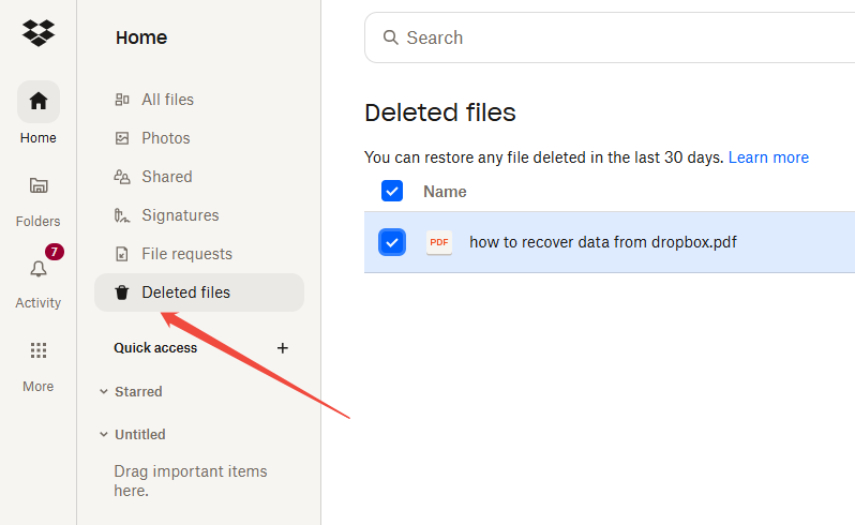
Method 5. Recover from the Deleted files page

If the healthy file was deleted and replaced by an empty version, check the Deleted files page.

  • Sign in to Dropbox.com.

  • Open Deleted files from the left sidebar.

  • Find the missing file or folder.

  • Select it and click Restore.

    restore delete files not showing zero bytes from dropbox
  • Check the restored version before replacing any existing file.

Method 6. Check Dropbox Sync Status and Restart Syncing

An interrupted or paused sync can make local files appear incomplete. If several Dropbox files are showing zero bytes, check the Dropbox desktop app before changing the files themselves.

  • Click the Dropbox icon in the Windows taskbar or Mac menu bar.

  • Check the sync message at the bottom.

  • If syncing is paused, click Resume syncing.

    resyncing files to fix dropbox files zero bytes
  • If Dropbox shows a sync error, open the listed issue and follow the suggested fix.

  • If the status appears stuck, quit Dropbox and reopen the app.

  • Wait until Dropbox reports that your files are up to date.

Dropbox also allows you to right-click a file or folder and select Sync next to prioritize it.

Method 7. Re-enable Dropbox Finder integration (Mac)

If Dropbox files are healthy online but Finder does not display their sync status correctly, the macOS integration may be the problem. On newer Macs, Dropbox uses Apple's File Provider system for deeper Finder integration. Dropbox also notes that another app's Finder extension can sometimes interfere with Dropbox sync icons.

  • Click the Dropbox icon in the Mac menu bar. Open Preferences > Sync.

  • Under Dropbox folder updates, check whether Dropbox is using File Provider. If an update is available, click Get started.

    mac dropbox folder updates status
  • Quit and reopen the Dropbox desktop app.

  • If Finder still does not show Dropbox files or sync icons correctly, go to System Settings > General > Login Items & Extensions > Extensions.

  • Temporarily disable any third-party Finder integration that may conflict with Dropbox.

  • Reopen Finder and check the affected file again.

After Finder integration works normally again, right-click the affected file and select Make available offline if necessary.

Try these methods in order. Most people resolve how to fix zero byte files with the first three steps. Once the file shows the correct size again, keep a local copy as a backup while Dropbox finishes syncing.

Part 4. How to Prevent Dropbox Zero Byte Files in the Future

Once the issue is fixed, a few simple habits can help reduce the chance of seeing Dropbox files zero bytes again.

  • Wait for syncing to finish before shutting down your computer. Closing Dropbox or turning off the device during an upload may leave a file incomplete.
  • Keep important files available offline. If you often work without a stable internet connection, store critical files locally instead of relying only on online-only copies.
  • Avoid editing the same file on several devices at once. Simultaneous changes can create sync conflicts or overwrite a healthy version.
  • Check Dropbox sync status regularly. Resolve paused syncing, connection problems, or account errors as soon as they appear.
  • Keep Dropbox and your operating system updated. Updates can fix compatibility and syncing issues on Windows and Mac.
  • Keep a second backup of important files. Do not use Dropbox as the only copy of valuable documents, photos, or videos.
  • Check file size before uploading important files. If the original file is already 0 bytes, Dropbox will only sync that empty version.

These steps cannot prevent every sync problem, but they can greatly reduce the risk of unexpected empty or incomplete files.

FAQs about Dropbox Files Zero Bytes and Empty Error

Q1: What to do when Dropbox can't upload empty file or folder?

Dropbox normally blocks truly empty files or folders. First check that the file actually contains data on your computer. If it does, try renaming it, moving it to a different folder, or uploading it through the Dropbox website instead of the desktop app. A quick pause-and-resume of syncing can also clear the block.

Q2: Can I recover zero byte Dropbox files?

Yes, in most cases. Start by downloading a fresh copy from dropbox.com or restoring an earlier version from Version History. If the file is corrupted rather than empty, a repair tool such as 4DDiG File Repair can often bring the content back. Deleted files may still be available on the Deleted files page for a limited time.

Conclusion

If you encounter Dropbox files zero bytes, first determine whether the file is actually empty, online-only, corrupted, or affected by sync issues. For files that still have a normal size but cannot open, 4DDiG File Repair can help repair damaged documents, photos, videos, and other supported files. If the file is truly 0 bytes, use Dropbox recovery options or another backup instead.

FREE DOWNLOAD

Secure Download

FREE DOWNLOAD

Secure Download

William Bollson (senior editor)

William Bollson, the editor-in-chief of 4DDiG, devotes to providing the best solutions for Windows and Mac related issues, including data recovery, repair, error fixes.

(Click to rate this post)

You rated 4.5 ( participated)