How to Fix Corrupted Files After Windows 11 KB5089549 Update [Updated]

5 mins read

Updated on 2026-06-08 17:12:15 to Corrupted File Repair

Many Windows 11 users have run into unexpected problems after installing the KB5089549 update. Important files suddenly refuse to open, show corruption errors, or display incorrectly.

If you're dealing with photos, videos, or documents that were working fine before the update, you've come to the right place.

This guide walks you through the most common issues linked to KB5089549 and the best ways to fix corrupted files after the Windows 11 KB5089549 update.

fix corrupted files after windows kb5089549 update

Easy Ways to Repair Corrupted Files After Windows 11 KB5089549 Download

If your files became corrupted or won't open after installing the Windows 11 KB5089549 update, use the table below to quickly find the most suitable solution.

Methods Brief Steps
Repair corrupted files with 4DDiG File Repair Open 4DDiG File Repair, add corrupted files, click Repair All, preview results, and save repaired files to a new location.
Run SFC and DISM commands Open Windows Terminal (Admin), run DISM /Online /Cleanup-Image /RestoreHealth, then run sfc /scannow and restart your PC.
Repair Microsoft Office files Open Word, Excel, or PowerPoint, go to File > Open, select the file, click the arrow beside Open, and choose Open and Repair.
Use System Restore or Previous Versions Open Create a restore point to run System Restore, or right-click the file and choose Properties > Previous Versions to restore an earlier copy.

What is Windows 11 KB5089549?

Windows 11 KB5089549 is the monthly security update released by Microsoft on May 12, 2026. It targets Windows 11 version 24H2 and 25H2 (OS builds 26100.8457 and 26200.8457).

This cumulative update includes important security patches for over 120 vulnerabilities, along with stability improvements and fixes for previous issues, such as certain BitLocker recovery problems.

How to Download and Install Windows 11 KB5089549

There are two common ways to get the update:

  • Via Windows Update (Easiest and Most Recommended Method)

    This is the simplest way for most users. Windows automatically checks for updates and installs them in the background when available.

    Steps:

    • Go to Settings > Windows Update.

    • Click Check for updates.

    • If KB5089549 is available, click Download and install.

      windows update kb5089549
    • Once the download is complete, restart your PC when prompted to finish the installation.

  • Manual KB5089549 Download from Microsoft Update Catalog (For Advanced Users and IT Administrators)

    If the update doesn't appear in Windows Update or you need to install it offline, you can download the standalone package directly from Microsoft.

    Steps:

    • Visit the Microsoft Update Catalog in your web browser. Search for KB5089549.

      kb5089549 download from microsoft update catalog
    • Select the correct version for your system (e.g., Windows 11 version 24H2 or 25H2, x64 or ARM64).

    • Click the Download button next to the matching package.

    • Once the .msu file is downloaded, double-click it to run the installer.

    • Follow the on-screen instructions and restart your computer when the installation is complete.

Although the update is intended to improve system performance, some users have reported Windows 11 KB5089549 issues after installation, particularly involving files, media content, and Office documents. Let's look at these problems in more detail.

Known File Issues After Installing KB5089549

While not every system is affected, several users have reported file-related problems after completing the Windows 11 KB5089549 update. These issues may appear immediately after installation or become noticeable when opening specific file types. Below are the most commonly reported KB5089549 known issues related to file corruption and file accessibility.

Issue 1: Photos and Images Won't Open or Appear Corrupted

Many users find that JPEG, PNG, or other image files suddenly show errors or appear blank, or trigger messages indicating that the file is damaged or unsupported after the update.

Issue 2: Videos Won't Play, Show Artifacts, or Report Format Errors

Video files such as MP4, MOV, AVI, and MKV may fail to play properly in media players, often displaying distortion, audio issues, or "format not supported" messages.

Issue 3: Microsoft Word, Excel, PDF, and PowerPoint Files Fail to Open

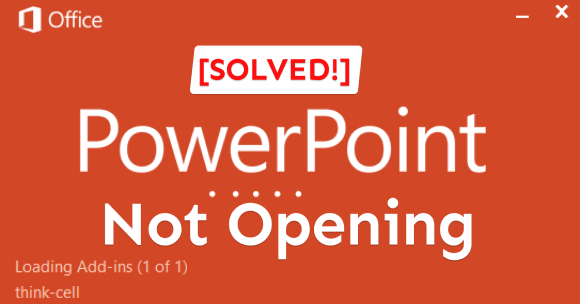
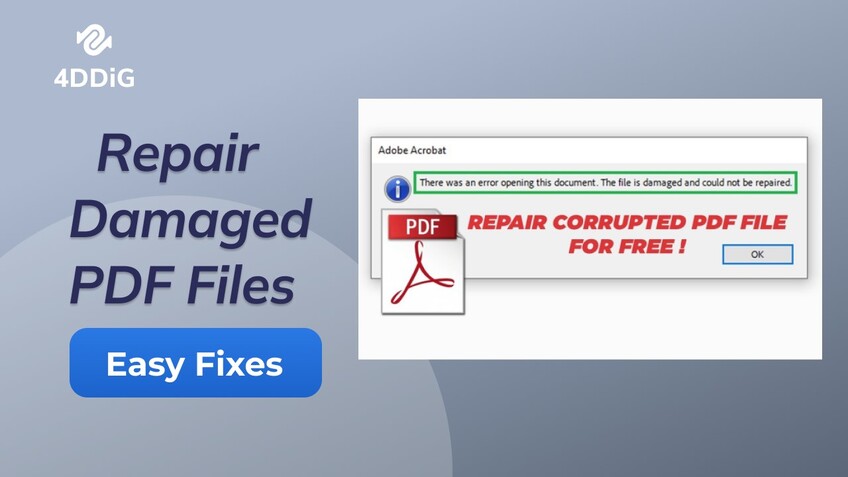
One of the more frustrating reports involves productivity files becoming inaccessible. Some users have encountered situations where Microsoft Word and PowerPoint not opening after Windows Update, while others have experienced similar issues with Excel spreadsheets and PDF documents. Files may refuse to open, crash the application, or display corruption warnings.

Issue 4: ZIP and RAR Archives Become Unreadable

Compressed files can also be affected. ZIP or RAR archives may fail integrity checks, produce extraction errors, or show messages indicating that the archive structure is damaged. In some cases, only specific files within the archive become inaccessible.

Issue 5: File Size Changes or "File Is Corrupted" Errors

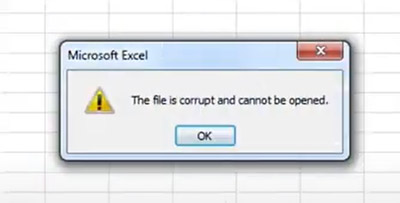
Another commonly reported symptom involves files suddenly displaying unusual file sizes or triggering messages such as "The file is corrupted and cannot be opened", especially in Microsoft Word or Excel. This issue can affect multiple file formats and often raises concerns about potential data loss.

Issue 6: Other Format-Specific File Problems

Additional reports associated with Windows 11 KB5089549 issues include:

  • Audio files that no longer play correctly.
  • Project files from specialized software becoming inaccessible.
  • CAD, design, or editing files showing compatibility errors.
  • Database files failing validation checks.
  • Backup files that cannot be restored successfully.

If you notice any of these symptoms after a KB5089549 download and installation, don't panic. In many cases, the files themselves can still be repaired or recovered using the right troubleshooting methods, which we'll cover in the next section.

⚡ What To Do If Files Corrupted or Not Opening After Windows 11 KB5089549 Update

If your files became inaccessible, display corruption errors, or refuse to open after installing KB5089549, there are several effective troubleshooting methods you can try. Start with file repair solutions first, especially if important photos, videos, documents, or archives appear damaged. Then move on to Windows system repairs and recovery options if the issue persists.

Fix 1. Repair Corrupted Files with 4DDiG File Repair

When files become corrupted after a Windows update, simply reinstalling applications often doesn't solve the problem because the file structure itself may be damaged. In such cases, a professional file repair tool can help restore inaccessible files without requiring technical expertise.

4DDiG File Repair is a comprehensive repair solution designed to fix corrupted photos, videos, audio files, and documents caused by system crashes, Windows updates, storage errors, malware attacks, or unexpected interruptions.

Why Use 4DDiG File Repair?

  • Repair corrupted photos including JPG, JPEG, PNG, RAW, CR3, NEF, and more.
  • Fix damaged videos such as MP4, MOV, AVI, MKV, M4V, and other formats.
  • Repair Word, Excel, PowerPoint, PDF, Adobe files, RAR, and ZIP that won't open.
  • Batch repair multiple corrupted files simultaneously.
  • Preview repaired files before saving.
  • Supports corruption caused by Windows updates, system crashes, and storage issues.
  • User-friendly interface suitable for both beginners and professionals.
FREE DOWNLOAD

Secure Download

FREE DOWNLOAD

Secure Download

Steps to Repair Corrupted Files Using 4DDiG File Repair

Download and install 4DDiG File Repair on your computer first. Open the software and choose the right repair category: Photo Repair, Video Repair, File Repair, or Audio Repair depending on your file types. Here, we will take File Repair for instance.

  • Click "File Repair" from the left menu bar and tap on "Add Files" to upload those documents corrupted or damaged after KB5089549 download.

    add corrupted files to 4ddig
  • Click the "Repair All" button. The tool will analyze and repair the damaged files automatically.

    repair all corrupted files
  • Once the repair is complete, preview the fixed files to ensure quality. You can also find and preview those repaired files from Repair History before exiting the app.

    preview repaired documents
  • Then save them to a new folder or external drive (never save over the originals). For repaired photos, videos, and audio, you can select an output format before saving them.

This method is often the quickest way to recover files that won't open after the Windows 11 KB5089549 update.

Fix 2. Run SFC and DISM Commands

Sometimes the issue isn't with the files themselves but with corrupted Windows system files introduced during or after the update process. Running the built-in System File Checker (SFC) and Deployment Image Servicing and Management (DISM) tools can help repair Windows components that may be causing file access problems.

How to Run SFC and DISM:

  • Right-click the Start button and select Command Prompt (Admin) or Windows Terminal (Admin).

  • Run the following command first: DISM /Online /Cleanup-Image /RestoreHealth (This may take 10–20 minutes).

    run dism commands
  • After it completes, run: sfc /scannow

    sfc scannow command prompt windows 11
  • Restart your computer once both commands finish.

Fix 3. Repair Microsoft Office Files

If Word, Excel, or PowerPoint files won't open after the KB5089549 update, the problem may be related to the Microsoft Office installation rather than the documents themselves. Repairing Office can resolve application-level issues that prevent files from opening correctly.

Steps to Repair Office Documents:

  • Open the Office application (Word, Excel, etc.).

  • Go to File > Open.

  • Browse to the corrupted file, click the small arrow next to the "Open" button, and choose Open and Repair.

    repair microsoft office files to fix kb5089549 file issues
  • Wait for the process to complete and check if the file opens correctly.

Fix 4. Use System Restore or Previous Versions

System Restore allows you to roll back your system to a point before the KB5089549 update was installed, which can resolve file corruption caused by the update process. You can either use System Restore or recover an earlier version of the affected file if File History or restore points were previously enabled.

Option A: Use System Restore:

System Restore returns Windows system settings and configurations to a previous restore point without affecting most personal files.

  • Type Create a restore point in Windows Search and open it. Click System Restore in the pop-up.

    select system restore
  • Select a restore point created before the KB5089549 installation.

  • Click Next and select a restore point created before May 12, 2026 (or before installing the update).

    restore system files and settings to fix kb5089549 file issues

Option B: Restore Previous Versions of Files

If File History or System Protection was enabled before the issue occurred, Windows may have stored earlier versions of your files. Follow the prompts to restore your system.

  • Right-click the corrupted file > select Properties > Previous Versions tab.

  • Select an earlier version created before the KB5089549 update and click Restore or Copy.

These methods can help resolve most file corruption and file accessibility issues reported after the Windows 11 KB5089549 update. If the files remain damaged even after system repairs, using a dedicated repair solution such as 4DDiG File Repair is often the fastest way to recover important data without losing file content.

How to Protect Your Files Before and After Windows 11 KB5089549 Updates

Preventing file corruption is much easier than fixing it afterward. Taking a few simple precautions can reduce the risk of data loss, file corruption, or Microsoft Word and PowerPoint not opening after a Windows update. during future Windows updates like KB5089549.

Here are some practical tips:

  • Back up important files regularly: Before installing any major update, create a full backup of your photos, videos, documents, and other critical data. Tools like 4DDiG Partition Manager make this process quick and reliable.
  • Create a System Restore Point: Manually create a restore point right before running Windows Update.
  • Check EFI Partition Space: KB5089549 and similar updates often require enough free space in the EFI partition. Make sure you have at least 500MB–1GB free.
  • Install updates selectively: If possible, delay feature updates and install security patches only when your important work is backed up.
  • Keep your storage healthy: Run Disk Cleanup and Disk Defragmenter occasionally to maintain good disk performance.
  • Keep f ile r epair s oftware r eady: If you often work with videos, images, PDFs, or Office files, keeping a reliable repair tool such as 4DDiG File Repair can save time.

FAQs

Q1: Which file types are most affected by KB5089549?

There is no official list showing that KB5089549 directly corrupts specific file types. However, users who experience file problems after a Windows update often report issues with photos (JPEG, PNG), videos (MP4, MOV), Microsoft Office files (Word, Excel, PowerPoint), PDFs, and ZIP or RAR archives.

If these files show errors, fail to open, or appear damaged, you can try built-in repair options first, then use a dedicated file repair tool if needed.

Q2: What to do if a file cannot be repaired?

If a file cannot be repaired, try restoring it from a backup, cloud sync history, File History, OneDrive version history, or Previous Versions in Windows. You can also check whether another copy exists on an external drive, email attachment, USB device, or shared folder.

You can also use data recovery software to scan for lost or deleted versions of the file. In severe cases, professional data recovery services may be needed.

Q3: How long does it take to repair corrupted files with 4DDiG File Repair?

The repair time depends on the file size, file type, damage level, and your computer performance. Small photos or documents may only take a short time, while large videos or heavily damaged files may take longer.

In most cases, 4DDiG File Repair is designed to make the process simple: add the corrupted files, start the repair, preview the results, and save the repaired versions.

Q4: Can 4DDiG File Repair recover partially damaged media files?

Yes. 4DDiG File Repair can help repair partially damaged photos and videos, including files that will not open, play incorrectly, show visual glitches, or display format errors. It is especially useful when media files become unreadable after a system crash, failed transfer, storage error, or Windows update problem.

Conlusion

Dealing with corrupted files after the Windows 11 KB5089549 update can be incredibly frustrating, especially when it affects your precious photos, videos, and work documents. Amid this, start with backups, SFC/DISM, Office repair, and Previous Versions. When photos, videos, PDFs, or Office files still will not open, 4DDiG File Repair is a practical tool to repair damaged files and recover usable versions quickly.

FREE DOWNLOAD

Secure Download

FREE DOWNLOAD

Secure Download

William Bollson (senior editor)

William Bollson, the editor-in-chief of 4DDiG, devotes to providing the best solutions for Windows and Mac related issues, including data recovery, repair, error fixes.

(Click to rate this post)

You rated 4.5 ( participated)