6 Best MP4 to AVI Converters in 2026

5 mins read

Updated on 2026-07-10 10:28:31 to Video Tips

Need to convert MP4 to AVI for older devices or specific software? While MP4 is the modern standard, AVI remains useful for legacy compatibility. This guide reviews top MP4 to AVI converters, including both free online options and reliable desktop tools, such as CloudConvert, Handbrake, Any Video Converter, etc. You'll find clear steps, honest pros and cons, and practical advice to make the MP4 file to AVI conversion quick and hassle-free, no matter your setup.

Quick Comparison: Which Is the Best MP4 to AVI Converters

Here's a side-by-side look at popular tools to help you decide fast:

  • Tool Name
  • Type
  • Free or Not
  • Key Advantages
  • Best For
  • CloudConvert
  • Online
  • Free (limits)
  • Browser-based, no install, customizable settings
  • Quick one-off conversions
  • HappyScribe
  • Online
  • Free
  • Simple interface, additional transcription option
  • Beginners & occasional use
  • VLC Media Player
  • Desktop
  • Free
  • Versatile, no quality loss on remux
  • Everyday users
  • HandBrake
  • Desktop
  • Free (open-source)
  • Powerful controls, batch support
  • Quality-focused users
  • Any Video Converter
  • Desktop
  • Free version
  • User-friendly presets, batch processing
  • Windows users
  • FFmpeg
  • CLI/Desktop
  • Free
  • Highest control and quality
  • Advanced users & automation

Best MP4 to AVI Converters Online Free [N Top Picks Tested]

When you just need a fast MP4 to AVI conversion without installing anything, online tools are convenient. Here are the top free picks I tested, complete with steps, pros, cons, and intro notes.

1. CloudConvert Online MP4 to AVI Converter

cloudconvert mp4 to avi converter

CloudConvert is a trustworthy web-based platform that makes format MP4 to AVI straightforward and flexible. You can adjust resolution, quality, and other settings without downloading any software. It works well for users who want reliable results directly from their browser, whether on a computer, tablet, or phone. Many people turn to it for occasional conversions when they prefer to avoid installing programs

  • Pros
  • Cons
    • Works directly in any browser on any device.
    • Supports detailed output settings like video codec and bitrate.
    • Allows cloud storage integrations for easy file access.
    • Processes files quickly with good quality retention.
    • Free account has daily conversion limits.
    • Larger files may take longer depending on server load.
    • Requires stable internet connection.

How to Format MP4 to AVI Online Free with CloudConvert

  • Go to CloudConvert's MP4 to AVI page.

  • Upload your MP4 file by clicking "Select File" or dragging it in.

  • Choose AVI as the output format and adjust any settings if needed.

  • Click "Convert" and wait for the process to finish.

  • Download your new AVI file once ready.

2. HappyScribe MP4 to AVI Converter

happyscribe mp4 to avi converter

HappyScribe provides a clean and user-friendly online solution for MP4 to AVI conversion. Its simple design makes it ideal for beginners, and it includes an optional transcription feature if you need text from your video. The tool handles files efficiently in your browser without any installation, offering a hassle-free way to get the job done quickly and securely.

  • Pros
  • Cons
    • Completely free with no watermarks on basic conversions.
    • Very simple drag-and-drop interface.
    • Supports many video formats beyond just MP4 and AVI.
    • Secure file handling with encryption.
    • Fewer advanced encoding options than desktop tools.
    • Conversion speed depends on your internet.
    • May not suit very large batch jobs.

How to Convert MP4 to AVI Online Free with HappyScribe

  • Visit the HappyScribe MP4 to AVI converter page.

  • Upload your MP4 file by dragging or browsing.

  • Select AVI as the target format.

  • Click Convert and wait for processing.

  • Download the converted AVI file to your device.

3. VLC Media Player

select vlc convert save feature

VLC Media Player is a popular free tool that many already have installed. Beyond playing videos, it serves as a capable MP4 to AVI converter that can often remux files without losing quality. Its wide format support and no-cost nature make it a go-to choice for everyday users who want a versatile desktop solution they can rely on regularly.

  • Pros
  • Cons
    • Completely free and open-source with no limits.
    • Supports batch conversion.
    • Excellent format compatibility.
    • Preserves original quality in many cases.
    • Interface feels a bit dated.
    • Advanced custom settings are limited.
    • Can be slower for large files on older hardware.

How to Change from MP4 to AVI Using VLC

  • Open VLC Media Player. Click Media > Convert/Save.

  • Add your MP4 file and click Convert/Save.

    add mp4 files to vlc
  • Browse the destination and rename the .mp4 to .avi.

    rename mp4 to avi
  • Then from the profile dropdown, click the Gear icon to open the Profile Edition window.

  • In the Profile Edition window, go to Encapsulation, tick the AVI box, and click "Save".

    vlc encapsulation settings choose avi
  • Finally, click "Start" to kick off the conversion.

    vlc convert mp4 to avi

4. Any Video Converter

any video converter

Any Video Converter delivers an approachable desktop experience with helpful presets that simplify convert MP4 to AVI jobs. It works especially well for Windows users who want batch support and basic editing features in one place. The free version covers most common needs, making it a practical choice when you prefer guided options over complex manual settings.

  • Pros
  • Cons
    • Intuitive interface with one-click presets.
    • Supports batch conversions efficiently.
    • Includes basic editing tools.
    • Free version covers most everyday needs.
    • Pro version needed for some advanced features.
    • Occasional ads in the free edition.
    • Output quality can vary with default settings.

How to Convert MP4 Format to AVI in Any Video Converter

  • Click Add Video(s) or simply drag and drop your MP4 file(s) into the program window.

  • At the bottom or right side, find the output format section. Select AVI from the list of video formats.

  • Choose a preset (e.g., "HD AVI" or "Standard AVI") and customize settings like resolution or bitrate if desired.

  • Click Convert and save the AVI file.

5. FFmpeg

FFmpeg is a lightweight, command-line powerhouse favored by advanced users and developers. It provides unmatched precision for MP4 to AVI conversion, allowing everything from simple remuxing to detailed encoding. Though it lacks a graphical interface, its speed, flexibility, and ability to be scripted make it perfect for automation or when you need the highest possible control over your files.

  • Pros
  • Cons
    • Extremely powerful and flexible.
    • No quality loss with stream copy options.
    • Completely free and lightweight.
    • Ideal for automation and batch scripts.
    • Requires learning command-line syntax.
    • No graphical interface by default.
    • Mistakes in commands can lead to errors or poor output.

How to Transfer MP4 to AVI Using FFmpeg

  • Install FFmpeg on your computer.

  • Open a terminal or command prompt.

  • Run the command and wait for completion.

  • Locate the new AVI file in your folder.

⚡ Bonus: How to Repair Corrupted AVI Files After Conversion

Even with the best MP4 to AVI converter, things can sometimes go wrong during the process. A sudden interruption, incompatible settings, or file transfer issues might leave you with a corrupted AVI that won't play properly. If your newly converted file shows errors, freezes, or refuses to open, don't worry, there's a straightforward way to fix it.

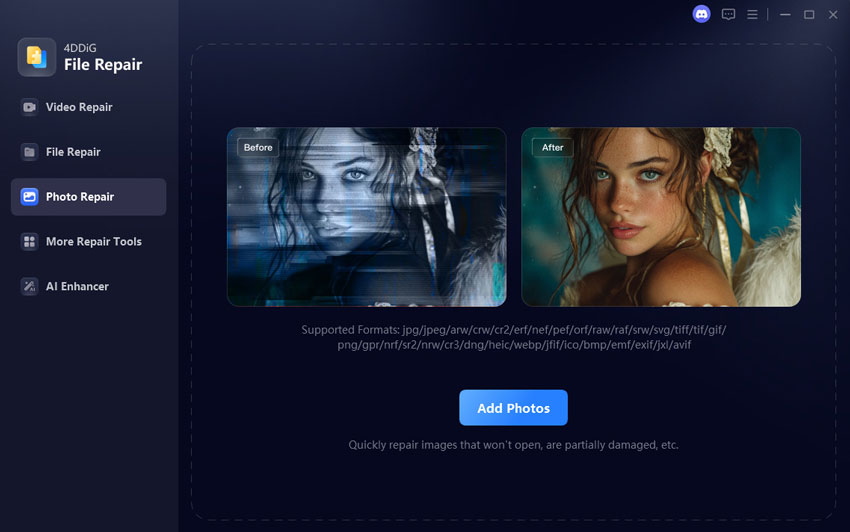
One reliable option is 4DDiG Video Repair. It stands out because it uses advanced algorithms to handle various corruption problems quickly. Key features include batch repair for multiple files, preview before saving, support for many formats like AVI, MP4, MOV, MKV, and more. It works on videos from different devices and storage media, making it more versatile than many basic repair tools.

FREE DOWNLOAD

Secure Download

FREE DOWNLOAD

Secure Download

Steps to repair problem AVI files using 4DDiG Video Repair:

  • Install and open 4DDiG File Repair. Select "Video Repair" from the menu and click "Add Videos" to import your corrupted AVI file (or multiple files for batch repair).

    add corrupted avi files to 4ddig
  • Click "Repair All" to start the fixing process.

    start repairing all avi files
  • Once complete, preview the repaired AVI video to check the results.

    preview the repaired avi files
  • Choose your preferred output format (such as MP4, MOV, MKV) and save the fixed file to your computer.

    save repaired avi files in preferred format

Conclusion

Choosing the right MP4 to AVI converter can make your workflow much smoother, whether you prefer quick online tools or powerful desktop software. From simple conversions to handling tricky cases, the options above cover most needs. If files get corrupted or you run into issues like Excel crashing when opening files from a mapped drive, give 4DDiG Video Repair a try, which offers a handy all-in-one solution for fixing videos, documents, and more.

FREE DOWNLOAD

Secure Download

FREE DOWNLOAD

Secure Download

William Bollson (senior editor)

William Bollson, the editor-in-chief of 4DDiG, devotes to providing the best solutions for Windows and Mac related issues, including data recovery, repair, error fixes.

(Click to rate this post)

You rated 4.5 ( participated)