How to Fix iPhone Videos Blurry on Android [Full Guide]

5 mins read

Updated on 2026-10-23 14:58:47 to Video Tips

Ever sent a clear video from your iPhone only to hear it looks fuzzy on an Android phone? You're not alone. Many people face this everyday problem when sharing clips across devices. The good news is that the issue is usually easy to understand and fix. In this guide, we'll first explain why are iPhone videos blurry on Android, then share practical solutions that actually work.

Part 1. Why Do iPhone Videos Look Bad on Android

It's frustrating when a sharp video you recorded on your iPhone suddenly looks soft or pixelated on an Android device. The problem rarely comes from the camera itself. Instead, it usually happens during the transfer process.

Here are the main reasons videos from iphone to android blurry so often:

1. MMS compression kicks in

When you send a video through the regular Messages app to an Android user, iMessage isn't available. The system falls back to MMS, which has strict size limits. Your high-quality clip gets squeezed down, losing detail and ending up blurry.

2. Different video formats cause trouble

iPhones often record in HEVC (a space-saving format). Many Android phones prefer a more widely supported format. During transfer or playback, the video may get converted or downscaled, which reduces clarity.

3. Messaging apps add extra compression

Apps like WhatsApp or standard text services sometimes shrink videos automatically to save data or speed up sending. This can turn a crisp recording into a soft one by the time it reaches the other phone.

4. Network conditions play a role

Slow or unstable connections can force extra compression so the file sends faster. The result is lower resolution and a blurry final video.

Understanding these causes is the first step. Once you know what goes wrong, you can choose better ways to share videos and keep the original quality intact.

Part 2. 5 Best Ways to Fix iPhone Videos Blurry on Android [Proven by Users]

Now that you know why the quality drops, here are five practical methods that many users rely on to keep videos clear. These simple steps help you avoid heavy compression and deliver better results every time.

1. Send Videos as Files Instead of Media via WhatsApp/Telegram

Messaging apps often compress videos when you attach them the normal way. Sending them as documents or files keeps the original quality. This method works well for how to make iphone videos not blurry on android without extra apps.

For WhatsApp on iPhone:

  • Open the Photos app and select the video.

  • Tap Share, then Save to Files. Choose a folder and save it.

  • Then go to WhatsApp, go to the chat, and tap the + icon.

  • Select Document, Select Choose Photo or Video if the option appears, or choose the video from the Files app.

    send video as files via whatsapp
  • Select the original video and tap Send.

For Telegram:

  • Open the chat and tap the Attach icon next to the message box.

  • Select the video, then tap the three dots and choose Send as File.

  • Finally tap on Send.

2. Transfer Original Videos via Google Drive

For long 4K videos or large files, Google Drive is one of the most reliable answers to how to get high quality videos from iPhone to Android. Google Drive supports video uploads from iPhone and can store videos at their uploaded resolution.

  • Install and open the Google Drive app on your iPhone. Sign in with your Google account.

  • Tap the + icon atht oe bottom righ and choose Upload > Photos and Videos.

    send iphone high quality videos to android via google drive
  • Select the video and wait for the upload to finish (use Wi-Fi for larger files).

  • Tap the three dots next to the video, select Share or Get link, and send the link to the Android user.

  • On the Android phone, open the link in Google Drive or a browser and download the video.

book icon Note

The streaming preview may not always represent the full source quality, so download the file before comparing it with the iPhone version.

3. Send Videos with Keeping High Quality via Email

Email can also work well when the clip is short enough to fit within the attachment limit. Unlike many messaging apps, attaching the actual video file does not require you to select a reduced-resolution messaging version.

For personal Gmail accounts, attachments are limited to 25 MB. If the video exceeds that limit, Gmail can send it through Google Drive instead. This method is therefore best for short clips. For longer 1080p or 4K recordings, use Google Drive directly.

  • Open the Mail app (or Gmail app) on your iPhone.

  • Tap the Compose icon (pencil or new message button) to create a new email.

  • Enter the recipient's email address in the To field.

  • Tap the Attachment icon and choose the video from your Photo Library.

    send iphone videos to android via email
  • If the file is large, select Use Mail Drop when prompted.

    use email drop to send large videos from iphone to android
  • Send the message. The Android user can download the original video from the email or the provided link.

4. Resend the Original Video via RCS

If you originally sent the video as an MMS, RCS may provide a much better iPhone to Android video quality fix. RCS (Rich Communication Services) supports higher-quality media than old MMS, provided both sides have it enabled. If RCS is active on both devices and supported by the carriers, the video arrives with much better quality than traditional text messages.

  • On your iPhone (iOS 18 or later), go to Settings > Apps > Messages.

  • Turn on RCS Messaging.

    turn on mobile rcs messaging
  • Open the Messages app and start a chat with the Android user. You should see "Text Message + RCS" at the bottom.

  • Attach the video from Photos and send it.

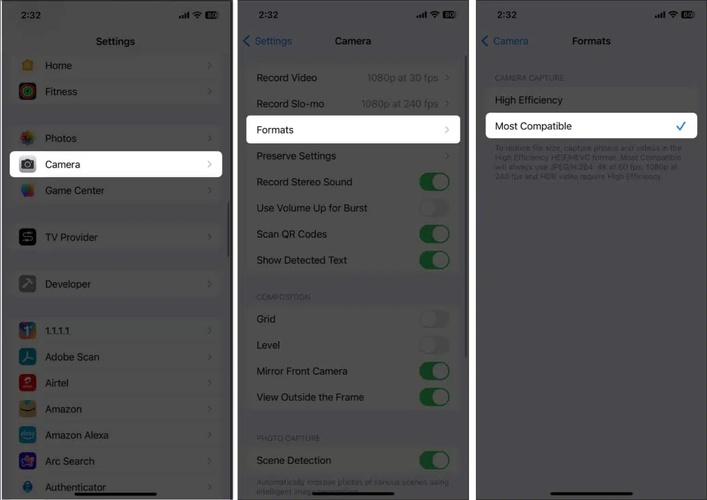
5. Change iPhone Camera Format to Most Compatible MP4

Switching the recording format ahead of time makes new videos more compatible with Android devices. New videos will now use a widely supported format that plays more smoothly on most Android phones. Note that some advanced options like certain 4K modes may become limited.

  • Open Settings on your iPhone.

  • Scroll down and tap Camera, then Formats.

  • Under Camera Capture, select Most Compatible instead of High Efficiency.

    change iphone camera settings to most compatible
  • Once done, you can start recording a new video and send it to the Android phone using one of the methods above.

⚡ Part 3. Advanced Way: Enhance Blurry Videos Sent to Android from iPhone to 4K in One Click

Sometimes a video has already been compressed and looks blurry on the Android side. In these cases, the best solution is to improve the existing file with AI. Amid this, 4DDiG AI Video Enhancer is a practical tool designed for exactly this situation.

It uses advanced AI to sharpen video details, reduce noise, and upscale videos to clearer 4K or up to 8K quality. The software also offers faster processing, so you can get better results in less time without complicated settings. It works well for everyday users who simply want their shared clips to look sharper again.

Key features of 4DDiG AI Video Enhancer:

  • AI-powered enhancement that improves clarity and reduces blur
  • One-click upscaling videos to 4K or 8K resolution
  • Multiple AI models (General, Face, Anime, and Colorize) for different types of footage
  • Noise reduction and video detail sharpening with AI
  • Support batch processing multiple videos at once
  • Features Cloud Enhancement with faster processing and better results
  • Simple three-step process suitable for beginners
  • Support for common video formats
FREE DOWNLOAD

Secure Download

FREE DOWNLOAD

Secure Download

Steps to Fix blurry videos sent to Android from iPhone with 4DDiG

First, transfer the blurry video from the Android phone to your Windows or Mac computer. Then follow these steps:

  • Download and install 4DDiG File Repair on your computer. Launch the program, select AI Enhancer from the left sidebar, and then choose Video Enhancer.

    open ai video enhancer
  • Click Add Videos and import the blurry video that was sent from the iPhone to the Android device. You can also drag and drop the video directly into the program.

    add blurry videos sent to android from iphone to 4ddig
  • Choose a suitable AI model (General Model works for most everyday clips, Face model for portraits, and Anime model for cartoons or animated footage). Meanwhile, adjust the output resolution levels (2x or 4x) if you want 4K.

    reset ai model and resolution level for higher quality
  • Click Enhance and wait for the process to finish. Once done, preview the improved video. If you are happy with the result, click Save and choose a location on your computer.

    preview and save enhanced videos

Conclusion

Dealing with iPhone videos blurry on Android is a common frustration, but it does not have to stay that way. By understanding the causes, mainly compression during transfer and format differences, you can choose better sharing methods such as sending files through WhatsApp or Telegram, using Google Drive, email, RCS, or adjusting your iPhone camera settings.

When a video has already lost quality, tools like 4DDiG AI Video Enhancer offer a convenient way to restore clarity and even upscale the footage. With these practical solutions, you can share clearer, sharper videos across devices and enjoy the results without extra hassle.

FREE DOWNLOAD

Secure Download

FREE DOWNLOAD

Secure Download

William Bollson (senior editor)

William Bollson, the editor-in-chief of 4DDiG, devotes to providing the best solutions for Windows and Mac related issues, including data recovery, repair, error fixes.

(Click to rate this post)

You rated 4.5 ( participated)