Does Google Drive Compress Video? Steps to Keep High Quality

5 mins read

Updated on 2026-10-08 21:41:48 to Video Tips

If your video looks blurry after uploading it to Google Drive, the playback quality may be the reason. Does Google Drive compress video during upload process? Google Drive can store videos at their uploaded resolution, but its built-in player has playback limits.

This complete guide explains why videos may look worse, how to improve them beforehand, and how to upload video to Google Drive while keeping the original file intact.

Part 1. Does Google Drive Compress Video Quality When Uploading?

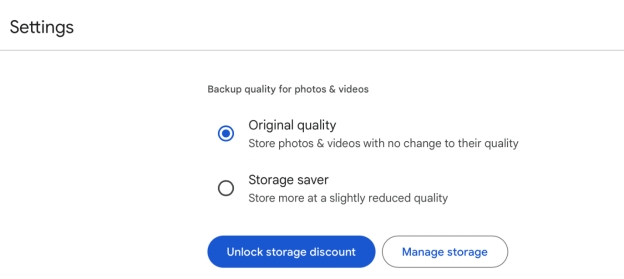
No, Google Drive does not compress or reduce the quality of your original video file when you upload it. It stores the file exactly as you uploaded it (same resolution, size, and quality).

The common confusion comes from the in-browser player. When you play it in the browser, Google uses a separate, lower-quality transcoded stream (capped at 1080p) for smoother playback, with adaptive lower resolutions based on your connection. This preview can look softer or lower quality than the original (especially with 4K or high-bitrate files), but it does not alter the stored file itself.

Part 2. Why Does Your Google Drive Video Look Blurry and Low-Quality?

A blurry Drive video does not always mean the original file was compressed. Several factors can affect how the video appears in the browser. Check these possible causes before replacing or re-uploading your file to stop Google Drive from compressing videos.

The Drive Player Has A Resolution Limit

Google Drive's player supports playback up to 1920 × 1080. A higher-resolution video may therefore look less detailed during online playback.

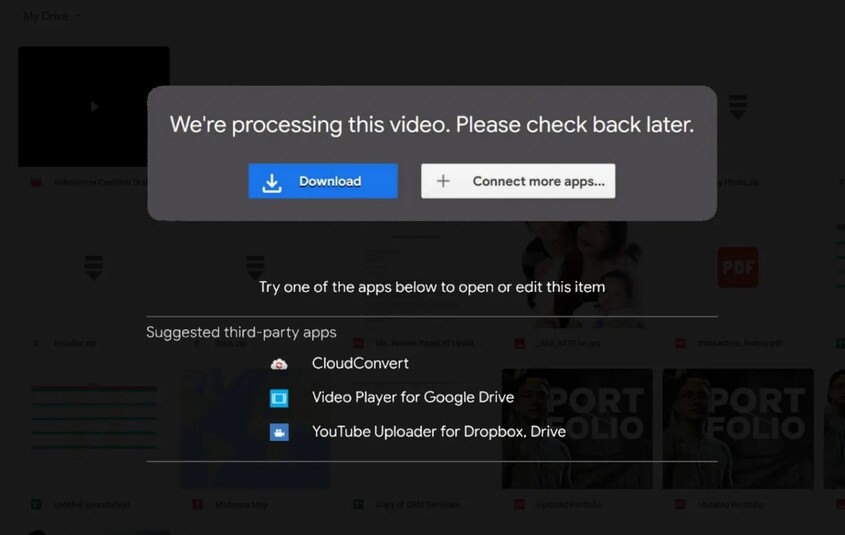
The Video Is Still Processing

New uploads may take time to process before they can play correctly. Large videos can take longer, so immediate playback may not represent the final experience.

Your Internet Connection Is Slow

Google Drive can adjust playback behavior based on connection quality. A slow connection may cause lower-quality playback or buffering.

The Original Video Is Low-Quality

Drive cannot create missing detail from a low-resolution source. A blurry 480p or 720p video can remain blurry after uploading.

Browser Or Device Issues

An outdated browser, extensions, or temporary cache problems can affect video playback. Trying another browser can help identify the issue.

Playback Quality Is Not File Quality

The most important distinction is between playback and the stored file. Downloading the original uploaded file can provide the source quality rather than relying on Drive's browser player.

Part 4. How to Enhance the Video Quality Before Uploading to Google Drive

If your original footage already looks soft, uploading it to Drive will not improve the missing detail. Enhancing the video before uploading gives you a better source file and can make playback at 1080p look clearer.

4DDiG Video Enhancer is useful when the footage needs more than basic resolution changes. It uses AI models to upscale, sharpen, denoise, and improve video clarity before you store the finished file in Drive.

What Make 4DDiG File Repair Stand Out

  • AI upscaling videos to 4K (up to 8K)
  • Provides multiple AI enhancement models: General, Face, Anime, and Colorize model
  • Reduce video noise & compression artifact
  • Sharpening videos with AI to fix blurry footage
  • Restore old videos and B&W footage with natural colors
  • Batch process and enhance multiple videos simultaneously
  • Offers Cloud Enhancement for faster processing and better results
FREE DOWNLOAD

Secure Download

FREE DOWNLOAD

Secure Download

Steps to Enhance Video Before Uploading

  • Launch 4DDiG File Repair and open the "AI Enhancer" section. Select "Video Enhancer" to access the video quality improvement tools.

    open 4ddig video enhancer
  • Click "Add Videos" and select the video you want to improve. You can also drag and drop the video directly into the program.

    add blurry videos to 4ddig
  • Choose an AI model based on your footage. Select the desired output resolution. Click "Enhance" to begin processing. The software analyzes the footage and applies the selected enhancement model.

    a. "General Denoise" works for common footage

    b. "Face" is designed for videos with prominent faces

    c. "Anime" model is designed for animated content.

    select ai model and reset resolution to enhance
  • Preview the enhanced result before exporting it. Compare the details, sharpness, colors, and faces with the original video. If the result looks good, click "Save" and select an output location. You can then upload the enhanced video to Google Drive.

    preview and save enhanced videos

Part 4. How to Upload Videos to Google Drive Without Losing Quality?

The safest approach is to upload the original or enhanced video file directly to Drive. Avoid re-encoding the video unnecessarily before uploading.

Remember that Drive's browser player may show a lower resolution, but this does not necessarily mean the stored file has been reduced, and neither does Google Drive automatically compress videos.

Steps to Upload Video to Google Drive

  • Open Google Drive in your browser and sign in to your Google Account. Click "New" on the left side of the Drive interface. Select "File upload" from the menu that appears.

    upload video to google drive
  • Browse to the folder containing your video. Select the original or enhanced video file and click "Open".

  • Wait for the upload to finish. Keep the browser open until Google Drive confirms that the upload is complete.

  • Locate the uploaded video in Drive and wait if Google Drive displays a processing message. Large videos may need additional time before they are ready for playback.

To verify the original file, download the video from Drive and compare it with the source. Check the resolution, file size, and playback quality rather than judging the file only through Drive's player because you may see Google Drive video quality only at 360p online.

More Tips to Stop Google Drive from Compressing Video

These practices help you avoid confusing playback limitations with actual file compression. They also reduce common problems during uploading and viewing.

  • Upload the original video file: Do not reduce the resolution or bitrate before uploading unless you specifically need a smaller file.
  • Avoid unnecessary re-encoding: Re-encoding can introduce quality loss before Google Drive even receives the video.
  • Use a stable internet connection: A reliable connection helps prevent failed or incomplete uploads.
  • Wait until Drive finishes processing: Newly uploaded videos may not immediately provide their final playback experience.
  • Check downloaded files for original quality: Download the file when you need to verify its stored quality.
  • Keep high-resolution source files separately: Maintain a local backup of important 4K or higher-resolution footage.
  • Avoid judging quality from browser playback: Drive's player supports a maximum playback resolution of 1080p.
  • Use supported video formats when possible: Compatible formats reduce playback and processing problems after uploading.

FAQs About Google Drive Video Compression Issue

Q1: Does Google Drive Compress 4K Video?

Google Drive can store videos at their uploaded resolution, including 4K video. However, its built-in player has a maximum playback resolution of 1920 × 1080. Therefore, a 4K video may not appear as 4K when watched directly in Drive.

If you download the uploaded file, you can access the stored video rather than relying on the browser player's playback resolution.

Q2: Does Google Drive Compress Video When Downloaded?

Google Drive does not normally need to reduce the uploaded video's quality when you download the file. If the downloaded video differs from the original, compare its resolution, bitrate, codec, and file size with the source.

A useful test is to download the same file from Drive and compare both versions locally.

Q3: How to Upload Video to Google Drive Without Compression?

Upload the original video directly through "New" and "File upload". Avoid converting or re-encoding it before uploading unless necessary. Also, wait for Drive to finish processing before judging its playback quality.

If Drive's player looks blurry, download the file and compare it with the original. This helps determine whether the issue is actual file quality or Google Drive video quality settings and playback limitations.

Conclusion

So, does Google Drive compress video? Google Drive can store uploaded videos at their original resolution, but its built-in player supports playback up to 1080p.

A blurry preview does not automatically mean your file was compressed. For better results, enhance low-quality footage before uploading. 4DDiG Video Enhancer can upscale, sharpen, denoise, and improve videos before you store them in Drive.

FREE DOWNLOAD

Secure Download

FREE DOWNLOAD

Secure Download

Ehtsham Ahmed (senior editor)

Ehtsham Ahmed, the content writer for 4DDiG, is dedicated to offering workarounds for Windows Data Recovery, Windows Troubleshooting, iDevices System Repair, etc.

(Click to rate this post)

You rated 4.5 ( participated)