How to Convert DAT Files to MP4 with 4 Free & Fats Tools

5 mins read

Updated on 2026-07-10 10:28:30 to Video Tips

You found old family VCD discs or copied videos from an older DVR, but your computer refuses to play the .DAT files. That’s because DAT files are commonly associated with Video CDs (VCDs) and use the MPEG-1 format that was popular in the 1990s and early 2000s. The easiest solution is to convert the DAT file to MP4, making the videos compatible with Windows, macOS, smartphones, smart TVs, and YouTube.

This guide compares four free methods and shows you which one works best for different situations.

Quick Comparison: Best Way to Convert DAT to MP4

  • Method
  • Difficulty
  • Speed
  • Output Quality
  • Recommended For
  • VLC Media Player
  • Easy
  • Medium
  • Good
  • Quick VCD conversions
  • FFmpeg
  • Advanced
  • Fast
  • Excellent
  • Experienced users and batch conversions
  • Online DAT to MP4 Converter
  • Very Easy
  • Medium
  • Good
  • Occasional conversions without installing software
  • HandBrake
  • Easy
  • Fast
  • Excellent
  • High-quality VCD conversions and customization

How to Convert DAT File to MP4 (Step-by-Step)

Before choosing a conversion method, it’s important to understand what type of DAT file you have. The tools below work best with DAT files extracted from VCDs or SVCDs, which typically contain MPEG-1 video.

If your DAT file comes from a DVR, CCTV recorder, or another proprietary recording system, compatibility may vary, and dedicated software from the device manufacturer may be required.

Convert DAT to MP4 Using VLC

VLC Media Player is much more than a video player. It also includes a built-in media conversion feature capable of converting many common video formats, including VCD DAT files. Since VLC is free, cross-platform, and already installed on many computers, it’s often the quickest way to convert a DAT file to MP4 for free without downloading dedicated conversion software.

  • Open VLC Media Player and click “Media," then choose “Convert / Save”.

    vlc add videos
  • Select the “File” tab and click “Add," and choose the DAT file, then click “Convert / Save”.

  • Select “Video - H.264 + MP3 (MP4)” as the P rofile and choose a destination by clicking "Browse," then click “Start”.

    vlc convert dat video to mp4

Limitations

  • Best suited for VCD DAT files rather than DVR recordings.
  • Limited video editing options.
  • Conversion speed depends on hardware performance.

Change DAT to MP4 Using FFmpeg

If you’re comfortable using command-line tools, FFmpeg offers one of the fastest and highest-quality conversion methods available. It gives you complete control over video encoding settings and supports batch processing, making it ideal for users converting multiple DAT files.

FFmpeg preserves quality while offering extensive customization. This is why it’s widely used by video professionals and advanced users.

  • Install FFmpeg if you haven't installed it already, then open Terminal (macOS/Linux) or Command Prompt (Windows).

    download ffmpeg
  • Navigate to the folder containing the DAT file and run the following command: “ffmpeg -i input.dat output.mp4

  • Wait for the conversion to finish, then open the converted MP4 file.

Limitations

  • Requires familiarity with command-line operations.
  • No graphical interface.
  • Incorrect commands may produce unexpected output.

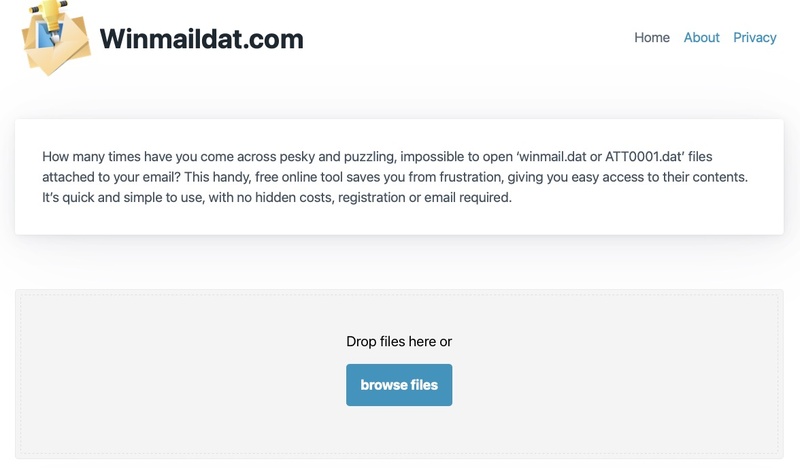
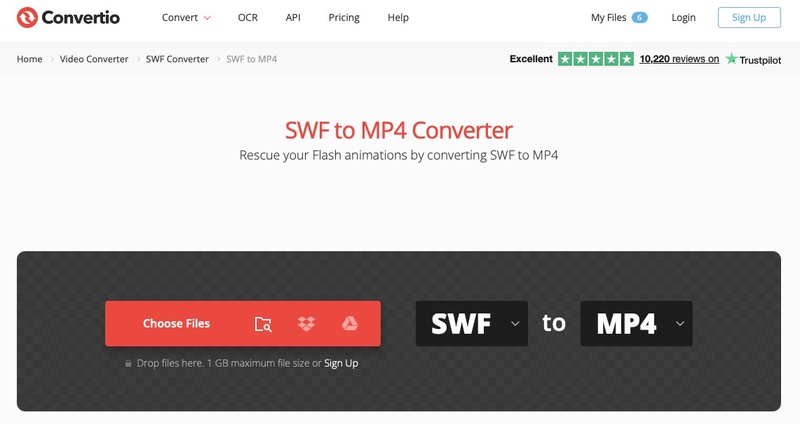
Using an Online DAT to MP4 Converter

If you only need to convert one or two videos, an online converter can be the most convenient option. Browser-based services eliminate the need to install software and work across Windows, macOS, Linux, and even mobile devices.

They are particularly useful when you need to convert a DAT file to MP4 online from a computer where installing applications isn’t possible.

  • apowersoft free online video converter
  • Choose MP4 as the output format, then start the conversion.

  • Wait for processing and download the MP4 video once complete.

Limitations

  • Upload speed depends on internet connection.
  • Large DAT files may exceed the upload limit of 2GB.
  • Privacy may be a concern for sensitive videos.

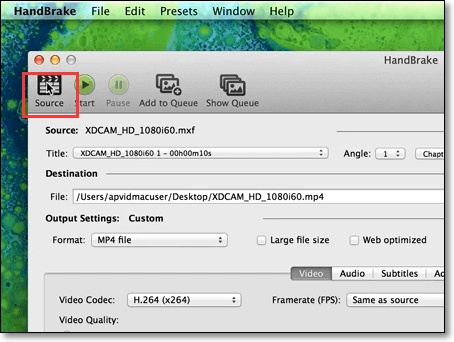
Convert DAT Video to MP4 Using HandBrake

HandBrake is one of the best free video converters available today and remains an excellent DAT to MP4 converter for preserving quality. Unlike simpler conversion tools, it offers detailed encoding settings, allowing you to optimize old VCD footage while reducing file size.

It’s especially suitable for users who want better control over video quality without dealing with command-line software.

Recommended Settings for Old VCD Videos

To maintain quality while avoiding unnecessarily large files, consider these settings:

  • Format: MP4
  • Video Codec: H.264 (x264)
  • Frame Rate: Same as Source
  • Quality: RF 20–22
  • Audio Codec: AAC
  • Resolution: Keep Original

These settings work well for most VCD recordings while creating files that play smoothly on modern devices.

  • Install and launch HandBrake, then click "File" and open the "Dat" video.

  • Click the “Format” option to select MP4 and then set the destination location for the MP4 file in the “Save As” section at the bottom.

    handbrake convert dat video to mp4
  • Click “Start Encode” to begin the conversion and wait for the conversion to complete.

Limitations

  • Some advanced settings may overwhelm beginners.
  • Proprietary DVR DAT files may not be recognized.
  • Initial encoding can take time for large videos.

Why DAT Files Are Problematic?

Although DAT files were once widely used, they have become increasingly difficult to work with on modern devices. The format was primarily introduced for Video CDs (VCDs) in the late 1990s and early 2000s, when CDs were a popular way to distribute movies, home videos, and educational content.

Most VCDs stored video using the MPEG-1 codec inside a DAT container, which worked well with standalone VCD players at the time.

Today, however, most computers, smartphones, and smart TVs are optimized for formats like MP4, MOV, and MKV rather than DAT. As a result, users often encounter compatibility issues when trying to play or edit old DAT videos. Some of the most common challenges include:

  • Limited software support: Many modern media players don’t recognize DAT files automatically, especially if they originate from older VCDs or proprietary DVR systems.
  • Poor compatibility across devices: DAT videos often won’t play on Windows 11, recent versions of macOS, Android phones, iPhones, tablets, or smart TVs without conversion.
  • Editing limitations: Popular video editors generally work much better with MP4 than DAT, making editing difficult unless the file is converted first.
  • Large file sizes: Older encoding methods aren’t as storage-efficient as modern codecs, so DAT files may occupy more space than necessary.
  • Different DAT formats: Not every DAT file contains video. Some are data files used by software applications, while DVR manufacturers may use proprietary DAT formats that standard converters cannot interpret.

Another issue worth considering is the converter itself.

Searching online for free software to convert a DAT file to MP4 often leads to unfamiliar websites that promise instant conversions. Some of these tools include excessive advertisements, redirect users to unrelated pages, reduce video quality significantly, or even distribute potentially unwanted software.

For valuable family recordings or important archived footage, it’s generally safer to use trusted applications such as VLC, HandBrake, or FFmpeg rather than unknown conversion websites.

⚡ How to Fix Problematic and Corrupted DAT Videos

Sometimes the problem isn’t the DAT format itself; the video file may have become corrupted. This can happen because of scratched VCDs, damaged SD cards, failing hard drives, interrupted file transfers, incomplete downloads, or unexpected system shutdowns.

In these situations, simply converting the file won’t solve playback issues. If the original DAT video contains corrupted data, repairing the file first usually provides much better results.

One reliable solution is 4DDiG Video Repair, which is specifically designed to repair damaged video files before or after conversion. Whether you’re dealing with old VCD recordings or videos exported to MP4 that suddenly stop playing, it offers an easy way to recover playable footage.

Key Features of 4DDiG Video Repair

  • Repairs corrupted DAT, MP4, MOV, AVI, MKV, M4V, FLV, and many other video formats.
  • Fixes common video problems such as files that won’t open, black screens, freezing playback, missing audio, pixelation, flickering, and synchronization issues.
  • Uses AI-powered repair technology to analyze damaged video structures and rebuild corrupted data while preserving original quality whenever possible.
  • Supports batch repair, allowing multiple damaged DAT or MP4 videos to be repaired simultaneously.
  • Includes a built-in preview feature, enabling you to check repaired videos before exporting them.
  • Recovers videos damaged by interrupted transfers, storage device failures, camera crashes, malware, and power outages.
  • Simple user interface suitable for beginners as well as experienced users.
FREE DOWNLOAD

Secure Download

FREE DOWNLOAD

Secure Download

Steps to Repair Corrupted DAT Videos Using 4DDiG Video Repair

  • Install and launch “4DDiG File Repair” software, then select Video Repair from the main interface. Click “Add Videos” and import all the corrupted DAT video files to 4DDiG.

    add corrupted dat videos to 4ddig
  • Click the “Repair all” button to begin the repair process for all videos in one go.

    repair all dat videos
  • Wait while the software scans and repairs the files, then preview the repaired videos with the “Preview” button.

    preview repaired dat videos
  • Save the repaired files to your preferred location by clicking “Save” and choosing the location.

    save repaired dat video in preferred format

Conclusion

Converting a DAT file to MP4 is one of the easiest ways to make old VCD recordings and compatible DAT videos usable on modern devices. Whether you choose VLC for quick conversions, FFmpeg for advanced control, an online converter for convenience, or HandBrake for high-quality output, each method has its own advantages.

If your DAT videos are damaged or refuse to play before or after conversion, 4DDiG Video Repair provides a reliable solution for repairing corrupted files and recovering valuable memories before converting them to MP4.

FREE DOWNLOAD

Secure Download

FREE DOWNLOAD

Secure Download

William Bollson (senior editor)

William Bollson, the editor-in-chief of 4DDiG, devotes to providing the best solutions for Windows and Mac related issues, including data recovery, repair, error fixes.

(Click to rate this post)

You rated 4.5 ( participated)