How to Download and Install Xvid Video Codec for Firestick (Full Guide)

5 mins read

Updated on 2026-01-22 20:02:14 to AI Image Tips

If you’ve ever tried playing an Xvid-encoded video on Firestick and hit a playback error, you’re not alone. Many users coming from platforms like PlayStation expect similar codec support, only to find Firestick behaves differently.

This guide explains how the Xvid video codec for Firestick really works, why direct installation isn’t possible, and the correct ways to play Xvid videos smoothly without frustration.

xvid video codec for firestick

Part 1. What Is Xvid Video Codec & Why Firestick Doesn't Support It Natively?

1️⃣ What Does Xvid Codec Mean

Xvid Video Codec is an open-source MPEG-4 video codec designed to compress video files while maintaining good visual quality. It was created as a free alternative to DivX and quickly became popular for AVI video files, especially for movies and TV content distributed online.

The primary purpose of the Xvid codec is efficient video compression. It reduces file size while keeping playback smooth on computers, game consoles, and media players that support MPEG-4 decoding.

Versions like Xvid codec 1.3.5 and Xvid codec 1.3.7 are commonly referenced because they remain widely compatible with legacy video files still circulating today.

2️⃣ Why You Can't Directly Download Xvid Video Codec for Firestick

Here is the truth statement many guides avoid mentioning clearly:

There is no official or working way to download and install the Xvid video codec directly on Firestick.

Firestick runs on Fire OS, a heavily restricted Android-based system. Unlike Windows, macOS, PS4, or PS5, Firestick does not allow system-level codec installations. Firestick only supports a limited set of native codecs, mainly optimized for streaming platforms such as Prime Video and Netflix.

Because of this limitation:

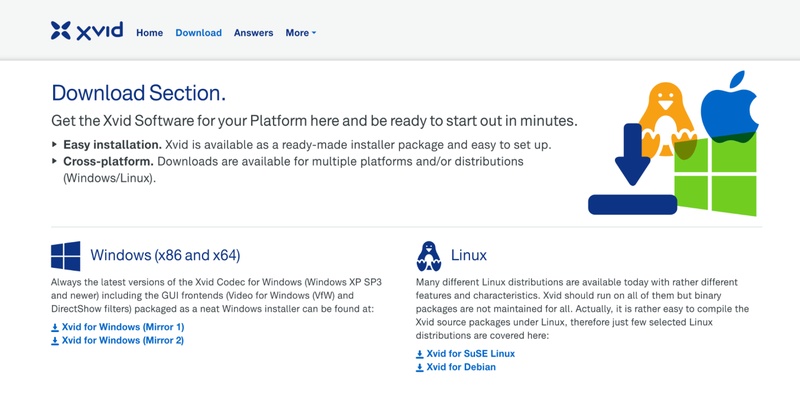
  • You cannot install Xvid codec 1.3.5 or 1.3.7 from www.xvid.com on Firestick
  • APK-based codec installations do not work
  • Firestick blocks system codec registration entirely
Important clarification:

While you cannot install the Xvid video codec for Firestick directly, you can still play Xvid videos by using media players that include built-in Xvid decoding, or by converting Xvid videos into Firestick-supported formats like MP4.

3️⃣ What Video Players Support Xvid on Firestick

The following video players support Firestick Xvid format:

These players decode Xvid internally and do not require a separate codec installation. Here is a quick comparison of Xvid video codec players.

Media Player Xvid Handling Installation Source Key Features Best For User Rating
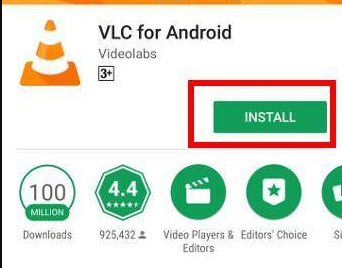
VLC Media Player Built-in Xvid decoder Amazon Appstore Free, open-source, wide-format support Most users 4.5/5
MX Player Built-in Xvid support Amazon Appstore Hardware acceleration, subtitles Performance-focused users 4.3/5
Kodi Internal Xvid decoding Amazon Appstore / Downloader Advanced media library Power users 4.2/5

Part 2. How to Play Xvid Files on Firestick Correctly (Step-by-Step)

If you want to play an Xvid video file on Firestick, you can follow the 2 methods discussed below:

Method 1. Play Xvid Videos on Firestick via VLC Media Player

VLC is the safest and simplest way to handle Xvid video playback on Firestick. It includes its own decoding engine, eliminating the need for external codecs or risky downloads.

Prerequisites Before Installation (Quick Checklist)

  • Check Fire OS version and model

  • Follow basic security precautions

  • Stable internet connection

  • At least 50MB of free storage available

  • Enable “Apps from Unknown Sources” if needed (Go to Settings > My Fire TV > Developer Options > select “Install Unknown Apps” or “Apps from Unknown Sources”)

    enable install unknown apps for firestick

Steps to Install VLC for Xvid Video Playback on Firestick

VLC may not be installed on Firestick yet. So, it is essential to install this video player software on your device first with the following steps:

  • Turn on Firestick and go to the “Search” feature on the Home screen.

  • Type VLC using the on-screen keyboard and choose “VLC for Fire” from the results.

  • Click “Get” or “Download” and wait for installation.

    get vlc media player for firestick
  • Open VLC once installation completes

How to Use VLC with Xvid Video Codec on Firestick

Now that you have VLC installed, follow the steps below to use it for playing your desired Xvid codec videos:

  • Copy the XviD file to a USB drive. Then plug the USB drive into your Firestick's USB port.

  • Launch VLC Media Player on Firestick and choose “Browse” or the folder icon from the menu.

    play xvid files via vlc in firestick
  • Select the USB drive or other sources (network or local storage) and locate your Xvid AVI video file.

  • Click “Play”, and VLC automatically decodes it without needing the Xvid codec download.

Note:

In Step 3, for files on your PC, NAS, or shared drive. Please choose Local Network as source and VLC auto-discovers UPnP/SMB shares; select your server → browse folders → pick the file.

Likewise, if files are in Videos or Downloads on the Firestick itself (rare for large Xvid files), check under Internal Storage.

VLC handles Xvid internally, meaning you don’t need to search for an Xvid video codec for Firestick free download.

Method 2. Convert Xvid to MP4 Files Before Playing on Firestick

If VLC or MX Player still struggles, convert Xvid videos into MP4 ensures maximum compatibility. Firestick supports MP4 natively, making this method extremely reliable. This approach is especially useful for older Xvid files encoded using legacy profiles or uncommon settings.

  • Open your browser and go to FreeConvert XVID to MP4 converter.

  • Click “Choose Files” and upload your Xvic codec video to this tool.

    upload xvid files to freeconvert
  • From the Output section, choose “MP4” and when the conversion is complete, you need to click the "Download" button.

    convert xvid avi files to mp4
  • Transfer the converted file to Firestick and it should play perfectly without needing to download the Xvid video codec for Firestick.

This method avoids codec limitations entirely and works regardless of Xvid codec version (1.3.5 or 1.3.7).

⚡ Part 3. Xvid Files Not Playing on Firestick? Try These Fixes!

Even with the right media player, Xvid files may fail to play if they are damaged, incomplete, or corrupted. This is common with files downloaded from unreliable sources or interrupted transfers. When standard playback methods fail, repairing the video file itself becomes necessary.

Method: Fix Corrupted Xvid Files Using Professional Software Before Playing on Firestick

If your Xvid-encoded videos (e.g., AVI files) refuses to play, freezes mid-playback, or shows audio-only output, the file is likely corrupted. In such cases, repairing the video before transferring it to Firestick is the most effective solution.

4DDiG Video Repair is designed to fix heavily damaged video files encoded with Xvid, including AVI formats commonly used by Xvid video. The repair process is performed on a computer, after which the restored video can be safely transferred to Firestick for smooth playback.

What 4DDiG Video Repair Can Do:

  • Repair heavily damaged Xvid-encoded video files in AVI, MKV, and other container formats
  • Fix common issues like video/audio desync, freezing frames, pixelation, and playback errors
  • Restore corrupted file headers and metadata
  • Handle videos damaged during transfer, download interruptions, or storage failures
  • Batch repair multiple Xvid files simultaneously
  • Advanced Repair mode comes with high repair success rates

Steps to Repair Xvid Video Files Before Firestick Playback

Here is the complete step-by-step guide on how you can repair your Xvid codec video files effortlessly using 4DDiG:

Important note:

Run this tool on your computer (Windows/Mac), repair the files, then transfer the fixed versions to your Firestick (via USB, network, or cloud) for playback.

  • Install 4DDiG File Repair software on your computer, then launch the software and select Video Repair. Add the corrupted Xvid video file by clicking “Add Videos”.

    FREE DOWNLOAD

    Secure Download

    FREE DOWNLOAD

    Secure Download

    add corrupted xvid encoded videos to 4ddig
  • Start the repair process by clicking the "Repair All" button in the bottom right.

  • Click the "Preview” button to see the repair results. If you are satisfied with the repairs, you may click "Save" and choose a location for saving the video.

    preview and save repaired xvid encoded videos

This method is ideal when VLC or Kodi cannot decode damaged Xvid files correctly.

People Also Ask about Xvid Video Codec for Firestick

Q1: Why is the Xvid video codec for Firestick not working?

Because Firestick does not allow system-level codec installations. Xvid must be decoded through compatible media players or video conversion.

Q2: What is the best free Xvid video codec?

Xvid itself is free, but for Firestick, VLC Media Player is the best free solution with built-in Xvid decoding.

Q3: How to get the Xvid video codec?

You can download the Xvid codec for Windows or macOS from www.xvid.com, but not directly for Firestick.

Conclusion

Direct installation of the Xvid video codec for Firestick is not supported, unlike platforms such as PlayStation. However, using media players like VLC or converting Xvid videos ensures reliable playback. When Xvid files are corrupted, repairing them first is essential.

4DDiG Video Repair provides a dependable solution for fixing damaged Xvid videos before transferring them to Firestick, ensuring smooth and frustration-free viewing.

FREE DOWNLOAD

Secure Download

FREE DOWNLOAD

Secure Download

William Bollson (senior editor)

William Bollson, the editor-in-chief of 4DDiG, devotes to providing the best solutions for Windows and Mac related issues, including data recovery, repair, error fixes.

(Click to rate this post)

You rated 4.5 ( participated)