What Is an ORF File? How to Open, Convert, and Recover ORF Photos

5 mins read

Updated on 2026-08-17 18:59:59 to Wiki

If you have transferred photos from an Olympus camera, you may encounter files that Windows or another image viewer cannot open.

What is an ORF file, and why does it behave differently from JPG? ORF is an Olympus RAW image format that stores minimally processed camera data.

This guide explains how to open ORF files on Windows and Mac, convert them to common formats, troubleshoot opening errors, and recover deleted ORF photos.

what is an orf file

What Is an ORF File?

An ORF file is a RAW image file created by Olympus digital cameras. ORF stands for Olympus Raw Format and stores image data captured by the camera sensor before it receives the same processing normally applied to a JPEG. This gives photographers more flexibility when adjusting exposure, white balance, color, and other image properties during editing.

OM System’s documentation identifies ORF as its proprietary RAW format and confirms that OM Workspace can display ORF files.

Unlike JPG files, ORF photos are intended to retain more original camera information for post-processing. Their exact structure and supported features can vary depending on the camera model.

Pros and Cons of ORF Files

ORF files are useful when you want greater control over your photographs, but they also have practical drawbacks.

  • Pros:
  • Cons:
    • More editing flexibility: RAW data provides greater control over exposure, white balance, highlights, shadows, and color adjustments.
    • Less destructive editing: You can make significant adjustments without starting from a heavily compressed JPEG.
    • Higher editing potential: RAW files preserve information that may be lost when a photo is immediately saved as a compressed format.
    • Better for professional workflows: Photographers can process the original camera data before exporting final images.
    • Large file sizes: ORF photos generally require more storage than compressed JPG images.

    • Limited compatibility: Not every image viewer supports every ORF variant.

    • Requires RAW processing: ORF files often need dedicated RAW software before they can be edited or shared normally.

    • Camera-dependent support: A program may support ORF generally but not recognize files from a newer camera model.

How to Open an ORF File?

Because ORF is a RAW format, you need software that supports Olympus RAW images. The safest option is software with current camera support rather than simply changing the .orf extension to another format.

Method 1. Open an ORF File with OM Workspace

OM Workspace is the manufacturer’s desktop software and is a direct choice for viewing and processing Olympus/OM SYSTEM RAW images. OM SYSTEM confirms that the software supports .orf and .ori RAW files.

  • Download and install OM Workspace, then launch the application.

  • Select the folder containing your ORF photos and locate the required .orf file.

  • Double-click the photo to view it and use the available editing controls if you need to adjust the RAW image.

    open an orf file with om workspace
  • Export the finished image to a more widely supported format when necessary.

OM Workspace can also export RAW images to JPEG, making it useful when you need a shareable version of an ORF photo.

Method 2. Open an ORF File in Adobe Photoshop

Photoshop can work with RAW images through Adobe Camera Raw. Adobe regularly updates Camera Raw to add support for newer cameras, so compatibility depends on both your Photoshop/Camera Raw version and the camera that produced the file.

  • Open Adobe Photoshop and click "File" then "Open".

    open an orf file in photoshop
  • Browse to the folder containing the ORF image and select the .orf file.

  • Click "Open," and if Camera Raw recognizes the file, its RAW editing interface will appear.

  • Adjust exposure, white balance, color, or other settings. Click "Open" to bring the processed image into Photoshop.

  • Edit the image as needed and use "File" then "Save As" or "Export" to create a JPG, PNG, or another supported format.

If Photoshop reports that the camera is unsupported, update Adobe Camera Raw or use a newer version of Photoshop.

Method 3. Open an ORF File on Windows with Windows Photos Viewer

Windows may be able to display some camera RAW formats through its imaging support, but compatibility depends on the specific camera model and Windows support available on the computer.

Microsoft’s current Photos documentation confirms that the app handles many image formats, while RAW support can depend on the available system codecs and extensions.

  • Open File Explorer and locate the ORF file, then right-click it.

  • Select "Open with" and choose "Windows Photos Viewer". If Photos recognizes the file, it will display the image.

  • If Windows cannot open it, install the appropriate RAW image support from the Microsoft Store if available for your system. Restart Photos and try opening the ORF file again.

Note:

If Photos still cannot open the image, use OM Workspace or another RAW-compatible application. Camera-specific support is important because an application may recognize older ORF files but not newer camera variants.

Method 4. Open an ORF File on Mac with Apple Preview

Recent macOS versions include system-level support for RAW formats from many camera models. However, RAW compatibility is camera-specific, so an ORF file from one Olympus or OM SYSTEM camera may work while another requires dedicated software. Apple’s current RAW compatibility list covers many Olympus models.

  • Open "Finder" and locate the ORF photo, then right-click the file.

  • Select "Open With" and choose "Preview". If the RAW format is supported, Preview will display the image.

    open file with apple preview
  • If Preview cannot open it, try OM Workspace or another RAW-compatible application.

Apple notes that its system-level RAW support is designed for compatible camera models, so checking model compatibility is important when a file does not open.

Method 5. View an ORF File Online with Photopea

Photopea is a browser-based editor that currently lists ORF among its supported RAW formats. It can open RAW images and provide controls for adjustments such as exposure, color balance, contrast, highlights, and shadows.

  • Open Photopea in your browser and select "File" then "Open".

    view orf files with photopea
  • Choose the ORF file from your computer and wait for Photopea to process the RAW image.

  • Adjust the image if required and export the result to a common format such as JPG.

Note:

Avoid uploading private, confidential, or sensitive photographs to online editors. For personal or professional photos that should remain local, use desktop software instead.

Why Can't I Open an ORF File?

An ORF file may fail to open even when the file itself is valid. Compatibility depends on the software, camera model, file integrity, and how the image was transferred.

The Software Does Not Support ORF Files

Some image viewers or editors may not support Olympus RAW files at all. Try opening the file with a compatible program such as OM Workspace or another current RAW image application.

The Camera Model Is Not Supported

A program may support ORF files but still fail to recognize files from newer Olympus or OM SYSTEM cameras. Update Camera Raw, Lightroom, OM Workspace, or another RAW decoder to its latest version.

The ORF File Was Not Copied Completely

An interrupted transfer from an SD card can leave an incomplete RAW file. Copy the image again from the original memory card using a reliable card reader and avoid disconnecting the card while files are being transferred.

The File Extension Is Incorrect

The .orf extension identifies the file type, but changing the extension does not convert the underlying image. If the file was renamed incorrectly, restore the original extension and try opening it with compatible software.

The ORF File Is Corrupted

A damaged file may fail to open in multiple applications. Corruption can result from interrupted transfers, failing memory cards, storage errors, or improper removal of the card. If another copy or backup exists, use that version first.

How to Convert an ORF File

Converting ORF is useful when you need to share the image with someone who does not have RAW software or when a website only accepts common image formats.

  • Output Format
  • Best For
  • JPG
  • Sharing online, email, social media, and everyday viewing
  • TIFF
  • High-quality editing, printing, and professional workflows
  • PNG
  • Graphics and situations where lossless image storage is useful
  • DNG
  • Long-term RAW workflows and broader RAW-software compatibility

To sum up:

  • JPG is usually the most convenient choice for sharing.
  • TIFF is better when preserving high-quality image data matters.
  • PNG is useful for lossless images but is not generally the first choice for camera RAW conversion.
  • DNG can be useful when you want to retain RAW characteristics in Adobe’s standardized RAW container.

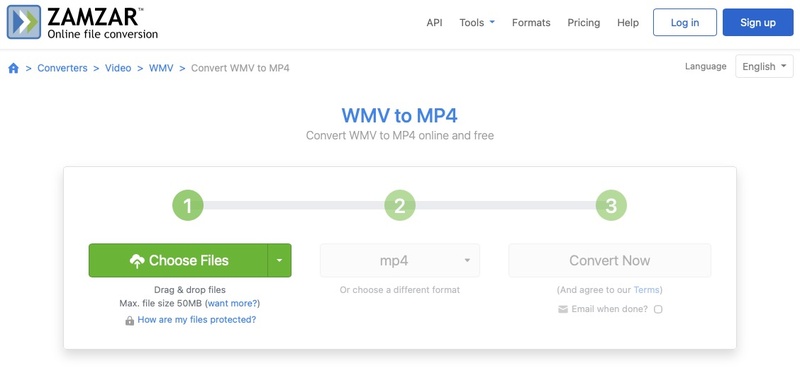
How to Convert an ORF File to JPG with FreeConvert?

FreeConvert supports RAW workflows and can export photos to JPG, TIFF, DNG, and other formats. Here’s how to convert ORF files to JPG:

  • Open FreeConvert and import your ORF photos by clicking "Choose Files".

    Open FreeConvert and import your ORF
  • Select the ORF image you want to convert and open it.

  • Choose the output format you need, and click “Convert”.

  • Wait for the conversion process to complete, then download the converted file.

This approach processes the RAW image before creating the JPG, rather than simply changing the file extension.

How to Recover Deleted or Lost ORF Files?

If important ORF photos were deleted from an SD card or hard drive, recovery should begin before new data overwrites the storage space. To increase the likelihood of recovery:

  • Stop taking new photos or videos. Any new data saved to the SD card may overwrite deleted files, reducing the chances of recovery.

  • Remove the SD card from your camera. Connect it to your PC with a reliable card reader instead of continuing to use the camera.

  • Make sure the computer detects the card properly. Do not format the card if Windows asks you to format it.

If the files are no longer available through normal folders or backups, 4DDiG Photo Recovery can scan the storage device for deleted and lost photographs.

It supports common image formats including PNG, JPG/JPEG, SVG, GIF, BMP, TIFF, and RAW camera files. It can be used with computer drives, memory cards, USB devices, and other supported storage media.

How to Recover ORF Photos with 4DDiG:

  • Connect the SD card to the computer using a reliable card reader. If the photos were stored on an internal or external drive, make sure that drive is recognized by Windows. Install and open 4DDiG. Select the drive or partition where the ORF photos were stored.

    launch 4ddig and enter interface
  • 4DDiG will scan to search for deleted and lost files. Let the scan complete so the software can search the selected storage area thoroughly. Browse the image category or search for .orf to narrow the results. This makes it easier to identify Olympus RAW photos among other recovered files.

    click type to see all files 4ddig
  • Use the preview function to check whether the recovered ORF files contain the expected photographs. Previewing also helps avoid recovering unrelated files. Select the required ORF files and click "Recover".

    preview and recover the files
  • Choose a different drive or another safe storage location as the recovery destination and click "Save Now".

    save the recovered photo  files

Do not recover the files back to the original SD card. Writing new data to the same card can overwrite other deleted photos that have not yet been recovered.

Conclusion

Understanding what an ORF file is makes it easier to choose the right software and recovery method. You can open it with OM Workspace, Photoshop, compatible Windows or Mac software, or Photopea, then convert it to any format when needed.

If important ORF photos are deleted, 4DDiG is a reliable option to scan supported storage devices and recover lost images.

William Bollson (senior editor)

William Bollson, the editor-in-chief of 4DDiG, devotes to providing the best solutions for Windows and Mac related issues, including data recovery, repair, error fixes.

(Click to rate this post)

You rated 4.5 ( participated)