How to Fix GLFW Error 65542 ?
Have you encountered GLFW Error 65542? Your excitement instantly turns to frustration. This error is more common than you think, affecting gamers and developers across Windows and Linux platforms. The good news? This comprehensive guide will walk you through exactly what causes this OpenGL error 65542 and provide proven solutions to get your applications running smoothly again.
1. What is GLFW Error 65542?
GLFW Error 65542, a graphics-related error with message “GLFW error 65542: WGL: The driver does not appear to support OpenGL”, means your graphics driver doesn’t support the OpenGL version required by the application you’re trying to run. GLFW, which stands for Graphics Library Framework, is a lightweight utility library that provides a simple API for creating windows, contexts, and managing input for OpenGL, OpenGL ES, and Vulkan applications.
🌍 Common Causes of GLFW Error 65542
Several factors can trigger the OpenGL error 65542. Identifying which cause applies to your situation will help you choose the most effective solution:
- Outdated or Corrupted Graphics Drivers: This is the most common culprit. When these drivers are outdated, corrupted, or improperly installed, they may not support the OpenGL version your application requires.
- Incorrect GPU Configuration: Many modern computers, particularly laptops, come equipped with dual graphics cards. When your system is configured to use the wrong GPU for OpenGL applications, the GLFW error 65542 can occur.
- Missing or Damaged OpenGL32.dll File: If OpenGL32.dll file becomes corrupted, is missing, or is the wrong version, OpenGL applications cannot run properly. This can result from system file corruption, malware infections, or improper software installations.
- Hardware Limitations: Older graphics hardware may genuinely lack support for the OpenGL version required by modern applications. If your GPU is several generations old, it might not support OpenGL 3.0 or higher.
2. How to Resolve GLFW Error 65542?
After understanding what causes GLFW error 65542, people may ask how do I fix GLFW error 65542 issue. Here, we’ve arranged these fixes from most common to most technical, so you can start with the simplest approaches first.
Fix 1: Update Graphics Driver
Updating your graphics driver is the most effective solution for resolving this error. Here’s how to update your drivers properly:
For NVIDIA Graphics Cards:
-
Open your web browser and navigate to the official NVIDIA Driver Download page.
-
Select your graphics card model from the dropdown menus. Choose your operating system and find the latest driver.
-
Download the recommended driver package. Run the installer and complete the installation.
-
Complete the installation and restart your computer when prompted. This removes old driver files that might cause conflicts.
After updating your drivers, test the application that was giving you the GLFW problem. In most cases, this solution resolves the issue completely. Battlefield 6 black screen issue.
Fix 2: Connect Monitor to the AMD/NVIDIA Graphics Card Output
If you’re using a desktop computer with a dedicated graphics card, your monitor connection method can significantly impact OpenGL functionality. When your monitor is plugged into the motherboard’s video output, your system defaults to using the integrated graphics processor.
Since integrated GPUs typically have limited OpenGL support, this configuration often triggers the Minecraft GLFW error 65542.
-
Shut down your computer completely. Locate the video ports on the back of your computer. The dedicated graphics card ports are typically positioned horizontally in the expansion slots, while motherboard ports are positioned vertically in the upper section.
-
Disconnect your monitor cable from the motherboard port.
-
Connect your monitor cable to one of the ports on your dedicated graphics card. These might be HDMI, DisplayPort, or DVI connections.
Power on your computer and monitor.
After reconnecting your monitor to the correct output, your system will automatically use the dedicated graphics card for all display processing, including OpenGL rendering. This provides much better OpenGL support and should resolve the error in most desktop configurations.
Fix 3: Set the App on High Performance
By default, Windows often assigns the power-efficient integrated GPU to applications to conserve battery life. This can cause the GLFW error 65542 when running OpenGL applications. Here’s how to force your application to use the high-performance dedicated GPU:
-
Right-click on your desktop and select Display settings from the context menu.
-
Scroll down and click on Graphics settings.
-
Click Browse and navigate to the executable file of the application causing the error.
-
Once added, click on the application in the list and select Options. Choose High performance and click Save.
After configuring these settings, restart the application. It should now use your dedicated GPU, which has proper OpenGL support, eliminating the OpenGL error 65542.
Fix 4: Replace OpenGL32.dll Manually
This system file is essential for OpenGL functionality on Windows. Replacing it manually can resolve the error, but this method requires caution as it involves modifying system files.
Only download DLL files from trusted sources like dll-files.com. Downloading DLL files from unverified websites can expose your system to malware.
-
Download the correct version of OpenGL32.dll for your system architecture (32-bit or 64-bit) from a trusted source.
-
Press Windows + E to open File Explorer. Navigate to C:\Windows\System32 to find the dll file. Before replacing, create a backup.
-
Copy the new OpenGL32.dll file into the System32 or Sys folder. You’ll need administrator permissions to do this.
-
Register the new DLL file. Open Command Prompt as administrator and type: regsvr32 OpenGL32.dll
-
Press Enter. You should see a message confirming successful registration. Restart your computer.
After replacing the OpenGL32.dll file, test your application. This solution addresses
glfw error 65542 cases caused by corrupted system files. If the error persists, the issue may be hardware-related or require professional technical support.
⚡ Bonus: Use a DLL Repair Tool to Fix Missing or Corrupted OpenGL32.dll
Manually replacing OpenGL32.dll can resolve GLFW error 65542 in some cases, but it also carries risks if the wrong DLL version is used.
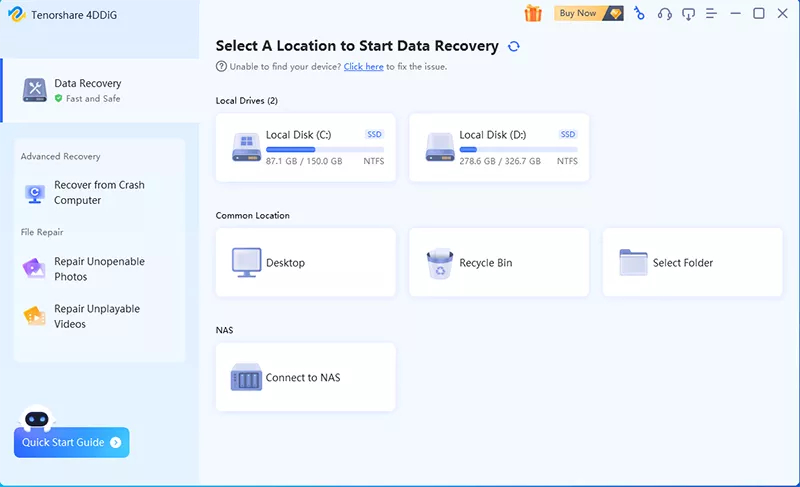
If you prefer a safer and more automated approach, tools like 4DDiG DLL Fixer can help detect and repair missing or damaged DLL files, including OpenGL32.dll, without requiring manual downloads. The tool scans your system for DLL-related issues and restores the correct versions based on your Windows environment.
-
Download and open 4DDiG DLL Fixer on your computer. From the left-hand navigation panel, select DLL Repair, then click Full Scan to begin. The software will perform a comprehensive scan to identify system-related DLL issues.
FREE DOWNLOADSecure Download
-
Once the scan is complete, a list of missing or corrupted system DLL files will be displayed. Click Repair to initiate the automatic repair process for the detected DLL errors.
-
During this process, any missing or damaged DLLs will be replaced with clean, up-to-date versions. When the repair is complete, your system DLL errors will be successfully resolved.
More FAQs about GLFW Error 65542
Q1: How to bypass Minecraft OpenGL error?
First, ensure your graphics drivers are up to date, as outdated drivers are the most common cause. If you’re using a laptop with dual graphics cards, configure Minecraft to use your dedicated GPU through Windows Graphics Settings or your GPU control panel. Additionally, try allocating more RAM to Minecraft through the launcher settings.
Q2: How to fix OpenGL error in Minecraft launcher?
Start by updating both your graphics drivers and the Minecraft launcher to their latest versions. And ensure you have adequate memory allocated. However, the permanent solution is to ensure your system uses a compatible graphics card with proper OpenGL support as described in the fixes above.
Conclusion
Encountering GLFW error 65542 can be frustrating, but as this comprehensive guide demonstrates, the issue is typically resolvable through systematic troubleshooting.Beyond fixing immediate errors, maintaining optimal system performance is crucial for preventing future graphics issues. Tools like 4DDiG DLL Fixer help you maintain a healthy, well-organized system.
Secure Download
ChatGPT
Perplexity
Grok