How to Check RAM on PC for Windows: Step-by-Step Guide

5 mins read

Updated on 2026-03-09 12:05:45 to Windows Fix

RAM (Random Access Memory) is your system's short-term memory. It holds the data your processor needs right now, from open browser tabs to running applications. In this guide, you will learn exactly how to check RAM on Windows by using several built-in Windows tools.

1. How to Check RAM on Windows 10/11?

Windows provides multiple native ways to check PC RAM. Whether you prefer a graphical interface or the command line, the following three methods cover every scenario.

Method 1: Check PC RAM via Windows Settings

The Settings app offers the quickest way to see how much RAM you have in a few clicks.

  • Press Windows + I to open Settings.

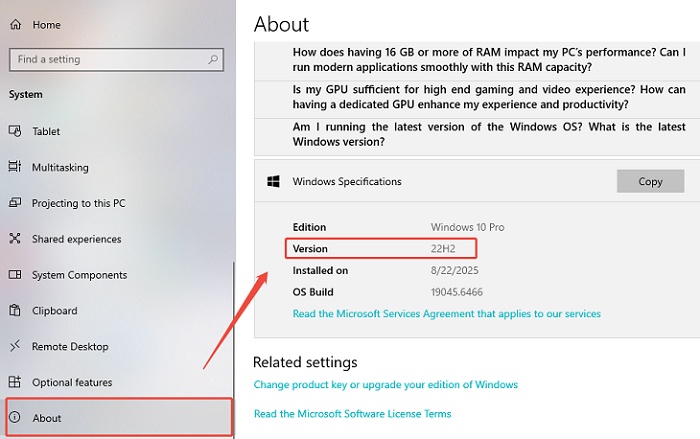
  • Click System, then select About from the left-hand panel.

  • Look for Installed RAM. This shows your total PC memory RAM (e.g., 16.0 GB).

    check pc ram in system settings

This is the fastest method to check computer RAM capacity at a glance.

Method 2: Check PC RAM via Task Manager

Task Manager gives you a clear, real-time graphical view of your total RAM, current usage, speed, and more. It’s the fastest built-in method for most Windows 10/11 users.

  • Press Ctrl + Shift + Esc to open Task Manager instantly.
    Click the Performance tab at the top. In the left sidebar, click Memory. You will instantly see the total RAM capacity is 16 GB:

    check pc ram in task manager

This method updates live, so you can open programs and watch how RAM usage changes in real time.

Method 3: Check PC RAM via System Information

The built-in System Information tool provides a deeper overview, making it ideal when you want to check for RAM on PC with more technical detail.

  • Press Windows + R to open the Run dialog. Type msinfo32 and press Enter.

  • In the System Information window, select System Summary from the left panel.

  • Then, you can check Installed Physical Memory (RAM), Available Physical Memory and available RAM on your PC.

    check pc ram via system information

This method is particularly useful to check available RAM on PC and determine whether background processes are consuming memory unnecessarily.

Method 4: Check PC RAM via Command Prompt

For users comfortable with the terminal, cmd check RAM commands deliver precise, machine-readable results instantly.

  • Press Windows + S, type Command Prompt, and click Run as administrator.

  • To view detailed memory information including speed and type, run:

wmic memorychip get capacity, speed , smbiosmemorytype, formfactor

check ram via cmd
Note:

SMBIOSMemoryType is the raw numerical value reported by Windows. It tells you exactly what generation/type of RAM is installed. If you see 26 in the SMBIOSMemoryType column, it means your RAM is DDR4.

  • You can also use PowerShell as administrator, running command:
    Get-CimInstance Win32_PhysicalMemory | Select-Object DeviceLocator, Manufacturer, @{Name="Capacity(GB)";Expression={[math]::Round($.Capacity/1GB,2)}}, Speed, @{Name="RAM Type";Expression={switch($.SMBIOSMemoryType){0{"Unknown"};20{"DDR"};21{"DDR2"};24{"DDR3"};26{"DDR4"};34{"DDR5"};default{"Other"}}}}

    check ram via powershell

The command prompt approach is the most powerful way to check the RAM, ideal for IT professionals or advanced users. The above are all the methods to check RAM in Windows, and you can also click to check RAM & Memory Usage on Mac.

2. What Kind of RAM Do I Have?

Knowing your total memory is one thing, but understanding what kind of RAM you have is equally important when purchasing upgrades or troubleshooting compatibility. The fastest way to know RAM type is through PowerShell shown above.

Alternatively, you can use the Command Prompt command shown in Method 3 above. The Memory Type value corresponds to a number: 20 = DDR, 21 = DDR2, 24 = DDR3, 26 = DDR4.

⚡ Bonus: Optimize Your Computer Performance with 4DDiG Partition Manager

Optimizing your PC’s performance goes beyond just upgrading hardware, having the right tools to manage your system effectively is equally important. 4DDiG Partition Manager is a powerful all-in-one utility designed to help users manage their computer’s storage and maintain system health with ease.

Key Features of 4DDiG Partition Manager

  • OS Migration: Clone your Windows installation to a new SSD for a speed boost alongside your RAM optimization.
  • Disk Conversion: Convert between MBR and GPT disk formats without data loss.
  • Bypass Windows 11 Requirements: Bypass TPM 2.0, Secure Boot, and other Windows 11 upgrade checks with several clicks.
  • Remove BitLocker: Easily bypass or remove BitLocker encryption on disks/partitions and unlock computers stuck on the BitLocker recovery screen.
FREE DOWNLOAD

Secure Download

More FAQs about RAM

Q1: What is the average lifespan of a RAM?

Under normal operating conditions, RAM sticks typically last 10 years or more. However, factors like power surges, static discharge, or manufacturing defects can shorten its life. It is rare for RAM to fail unless the system suffers physical damage or extreme temperature fluctuations.

Q2: What are the signs of bad RAM?

Common signs include frequent Blue Screen of Death errors, random system crashes or freezes, corrupted files, failure to boot, and distorted graphics. If you notice your PC becoming unstable after adding or reseating memory, running the built-in Windows Memory Diagnostic tool can help identify whether your RAM sticks are the culprit.

Q3: How to Find RAM Speed?

There are several ways to find RAM speed. The most accessible is Task Manager, just go to Performance > Memory. Alternatively, you can also use Command Prompt and PowerShell.

Conclusion

Understanding how to check RAM on your Windows PC is an essential skill for diagnosing slowdowns and planning upgrades. From the quick Settings app view to the detailed Command Prompt commands, so you can know how much RAM do I have, and see its type, monitor live usage.

If your system is struggling despite adequate physical RAM, consider using 4DDiG Partition Manager to optimize your drive partitions and expand virtual memory. Whether you are a casual user or a power user, these tools put full control of your PC memory RAM right at your fingertips.

FREE DOWNLOAD

Secure Download

William Bollson (senior editor)

William Bollson, the editor-in-chief of 4DDiG, devotes to providing the best solutions for Windows and Mac related issues, including data recovery, repair, error fixes.

(Click to rate this post)

You rated 4.5 ( participated)