How to Fix Battlefield 6 Black Screen Issues

5 mins read

Updated on 2025-11-26 17:57:52 to Windows Fix

Battlefield 6 is one of the most exciting first-person shooters of 2025, packed with explosive action, realistic visuals, and massive multiplayer battles. But for many players, the excitement quickly turns into frustration when the Battlefield 6 black screen problem ruins their gameplay.

Some players encounter a black screen on startup, others see it during a match, and many report sudden freezes followed by a crash. The good news? These issues are fixable. This article covers the causes behind the black screen problem, proven fixes, and how to keep your data safe while troubleshooting.

battlefield 6 black screen

What Causes Battlefield 6 Black Screen?

A Battlefield 6 black screen issue can happen at different stages of the game. You might see black screen on startup, launch, even after match. The issue is common and often linked to system compatibility, drivers, or missing game components. Here are the most common reasons behind this issue:

  • Secure Boot or TPM 2.0 Issues
    Battlefield 6 needs certain Windows security features. If Secure Boot or TPM 2.0 is turned off or not supported, the game may fail to start and show a black screen.
  • Outdated or Incompatible Graphics Drivers
    Old or outdated GPU drivers cause most black-screen problems. If your drivers don't support the latest game updates or DirectX, the game may freeze or show a black screen.
  • Missing or Corrupted Game Files
    If important game files are damaged or missing, you may hear sound but see no visuals. Verifying and repairing the files usually fixes this issue.
  • Conflicting Overlays or Background Apps
    Apps like Discord overlay, NVIDIA overlay, MSI Afterburner, or screen recorders can interfere with the game. These conflicts can cause black screens during launch or gameplay.
  • Wrong Monitor, Resolution, or Refresh Rate
    If the game starts in a resolution your monitor doesn't support or opens on the wrong display, it may appear as a black screen even though the game is running.
  • Outdated DirectX or Visual C++ Packages
    Battlefield 6 needs the latest DirectX and Visual C++ redistributables. If these are missing or outdated, the game may fail to render the graphics.
  • Hardware Below Minimum Requirements
    If your PC doesn't meet the minimum system requirements, the game may load partially but fail to display anything.

How to Fix Battlefield 6 Black Screen

A black screen in Battlefield 6 often shows up during launch, or while switching display modes. It may very frustrating, don't worry, try the following proven fixes one at a time.

Fix 1: Config File Edit for Display

If Battlefield 6 loads to a black screen but you still hear audio, it may be using incorrect display settings. Editing the config file forces the game to reset resolution and display mode. This quick change refreshes your graphical configuration and prevents the Battlefield 6 black screen from appearing during startup.

  • Press Win + E to open File Explorer, then go to: Documents\Battlefield 6\Settings.

  • Find the file named "PROFSAVE_profile". Right-click it, select "Open with", and choose Notepad.

    find profsave file
  • Look for the display settings inside the file. Replace them with safe values like these:

    ResolutionWidth: 1920

    ResolutionHeight: 1080

    FullscreenMode: 1

    RefreshRate: 60

  • Click File and then "Save", or press Ctrl + S. Close Notepad and restart Battlefield 6.

This fix works well for display-related problems like Battlefield 6 black screen steam or after switching monitors.

Fix 2: Update Graphics Drivers

Updating your graphics drivers is one of the best ways to stop the Battlefield 6 black screen crash. Make sure your NVIDIA, AMD, or Intel drivers are fully updated to keep the game stable. Driver updates also include patches that improve Battlefield 6 optimization.

  • Press "Win + R" on your keyboard. Type "devmgmt.msc" and press Enter to open "Device Manager".

  • Find "Display adapters" and double-click it. Then right-click your graphics card and choose "Properties".

    choose properties in display adapters
  • Go to the "Driver" tab. Click "Update Driver".

    click update driver
  • Select "Search automatically for updated driver software".

    search automatically for updated driver

Follow any instructions shown on the screen. Then restart your PC and launch the game again. This often fixes issues like Battlefield 6 DirectX error.

Fix 3: Windows Exploit Protection Override

Windows has a security feature called ASLR (Address Space Layout Randomization). It normally helps protect your PC, but sometimes it can conflict with Battlefield 6 or its anti-cheat system. This may lead to black screens or crashes. You can temporarily disable ASLR for the Battlefield 6 file to see if it fixes the issue.

(Note: This reduces security for that file, so you should turn it back on later if it doesn't help.)

  • Type "Windows Security" in the taskbar search box and click the app, and select "App & browser control", then scroll down and click "Exploit protection settings".

    click expolit protection settings
  • Click "Program settings", then choose "Add program to customize" and select "Choose exact file path".

    select choose exact file path
  • Go to the Battlefield 6 installation folder, find bf6event.exe, and open it to add it to the list. After adding the file, restart your computer to apply the change.

Conclusion: This fix can help when Windows security features block Battlefield 6, causing a black screen or crash. If the issue continues, re-enable ASLR for safety and move to the next method.

Fix 4: Enable Secure Boot & Disable PBO/CPB

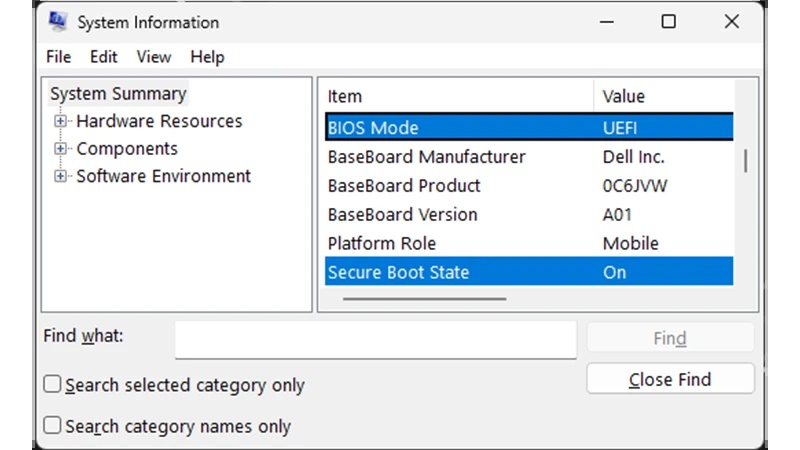
Battlefield 6's latest updates rely on new security checks that require Secure Boot to be enabled. Additionally, AMD processors with PBO (Precision Boost Overdrive) or CPB (Core Performance Boost) can cause instability during launch, resulting in the game freezing or showing a black screen. By enabling Secure Boot and disabling these overclocking features, you ensure full compatibility and eliminate CPU-related crashes.

  • Enable "Secure Boot"

    • Restart your computer. When it starts booting, press the key shown on the screen, such as Del, F2, or F10, to open the BIOS menu.
    • In the BIOS menu, go to Settings, Advanced, or Windows OS Configuration, and turn on "UEFI mode."
    • After enabling UEFI, the Secure Boot option will appear. Select "Secure Boot" and set it to "Enabled."
    enable secure boot
  • Disable "PBO" and "CPB" (AMD CPUs)

    • Restart your PC and press "DEL" or "F2" to enter the BIOS.

    • Open "Advanced", then go to "AMD CBS".

    • Find "Precision Boost Overdrive (PBO)" and set it to "Disabled".

    • Locate "Core Performance Boost (CPB)" and set it to "Disabled". Then save your settings and restart your computer.

      disable pbo and cpb

If you still failed enable them, please check how to fix Battlefield 6 secure boot not enabled.

How to Keep Your Data Safe During Fixing Battlefield 6 Black Screen?

It's important to back up your data before you try advanced solutions like BIOS changes, Anti-Cheat repair, or system-level settings. A wrong step may cause unexpected file loss or system failure. The easiest way to stay safe is by using 4DDiG Partition Manager. It is a beginner-friendly tool that lets you back up important data or files in one click.

4DDiG Partition Manager offers fast, reliable file protection with its one-click backup feature. It helps you save important documents, game files, and system data before making risky changes. The tool is lightweight, easy to use, and includes powerful disk and partition tools that keep your computer stable and safe.

FREE DOWNLOAD

Secure Download

Features of 4DDiG Partition Manager

  • Full disk cloning and partition cloning
  • Migrate Windows OS to SSD or HDD without reinstalling
  • Create WinPE bootable media for system repair
  • Resize, extend, shrink, split, or merge partitions
  • Convert MBR to GPT and GPT to MBR without losing data
  • Install and launch 4DDiG Partition Manager. On the main screen, go to "Backup" and select "File Backup."

    select file backup
  • A new backup task will appear. Choose the files or folders you want to protect, then click "Next." Choose where the backup should be saved, such as an external drive, USB, or another partition. Once done, click "Start."

    choose storage path
  • Wait for the backup to finish. Once completed, your files will be safely stored and ready for restore anytime.

    backup successfully

FAQs About Battlefield 6 Black Screen

1. How to fix Black Ops 6 black screen glitch?

Restart the game, update GPU drivers, disable overlays, verify your game files, and repair anti-cheat services. Most COD black screen issues come from corrupted shader cache or outdated drivers.

2. Why is my game running but my screen is black?

Your display settings may be incorrect, your GPU driver may be outdated, or the game is using an unsupported resolution/refresh rate. Config file edits often fix this.

3. Is the black screen of death fixable?

Yes. Most black screen situations, whether on PC, PS5, or Xbox, are caused by software conflicts and can be fixed using updates, repairs, resets, or security setting adjustments.

Conclusion

A Battlefield 6 black screen issue can be frustrating, whether it appears on startup, launch, or mid-game. Thankfully, the five fixes above solve the majority of black screen crashes on PC, Steam, Xbox, and PS5. Remember to perform updates carefully and modify system settings only after backing up your data. Tools like 4DDiG Partition Manager make the backup process safe and easy, ensuring your files are protected while you troubleshoot. With the right steps, you can enjoy smooth and uninterrupted Battlefield 6 gameplay again.

FREE DOWNLOAD

Secure Download

William Bollson (senior editor)

William Bollson, the editor-in-chief of 4DDiG, devotes to providing the best solutions for Windows and Mac related issues, including data recovery, repair, error fixes.

(Click to rate this post)

You rated 4.5 ( participated)