How to Use Gemini Omni: Full Guide & Prompts for Gemini Video Generation

5 mins read

Updated on 2026-06-09 17:18:38 to Video Tips

Creating AI videos usually requires multiple tools for scripting, image generation, animation, voice synthesis, and editing. Gemini Omni eliminates that fragmented workflow by combining multimodal reasoning and video generation inside a single model.

This guide explains how Gemini Omni works, how to access it, how to generate videos step by step, advanced prompt strategies, pricing, limitations, and methods to upscale generated footage from 720p to 4K.

What is Gemini Omni?

Google designed Gemini Omni as a new multimodal AI model family focused on generation rather than only reasoning.

Unlike traditional AI video tools that depend on separate models for images, text, and animation, Gemini Omni combines multiple media inputs into a single generation pipeline.

gemini omni ai video generator

Gemini Omni Model Family Introduction

According to Google Gemini Omni is an “any-input-to-video” model family capable of understanding text, images, audio, and video simultaneously before generating coherent video outputs.

Gemini Omni combines Gemini’s world knowledge and reasoning capabilities with advanced generative media technology to create videos grounded in real world logic and physics. All generated content includes Google’s SynthID watermarking technology for transparency and AI content identification.

Key characteristics of the Gemini Omni model family include:

  • Native multimodal understanding
  • Text-to-video generation
  • Image-to-video animation
  • Video-to-video transformation
  • Conversational video editing
  • Multi-turn scene consistency
  • Integrated audio generation
  • AI avatar creation
  • Physics-aware motion simulation

Google positions Gemini Omni alongside Veo rather than as a direct replacement. Veo remains focused on professional video generation, while Gemini Omni emphasizes conversational creation and editing workflows.

Gemini Omni Flash Release & Pricing

Google officially introduced Gemini Omni release details during Google I/O 2026.

The first publicly available model is Omni Flash, designed for fast video creation and conversational editing. Google began rolling out access globally through the Gemini App, Google Flow, YouTube Shorts, and YouTube Create.

Current pricing availability includes:

Plan Monthly Price Access
Google AI Plus $7.99/month Gemini Omni Flash
Google AI Pro $19.99/month Gemini Omni Flash
Google AI Ultra $99.99/month Highest generation limits

Gemini Omni price, including API pricing, has not been officially released yet. Consumer access currently relies on Google's subscription plans.

The launch also introduced a new generation workflow often referred to as Veo Omni, because the model incorporates technologies from Google’s Veo video-generation ecosystem while adding Gemini’s reasoning layer.

Core Features & Capabilities of Gemini Omni

Gemini Omni’s biggest advantage is workflow consolidation. Instead of moving assets between multiple AI tools, creators can generate, edit, and refine videos through natural language conversations.

1. Multimodal Input Processing

Users can combine:

  • Text prompts
  • Images
  • Audio clips
  • Existing videos

The model reasons across all inputs before generating a unified output.

gemini omni flash multimodal input processing

Example:

  • Upload a product photo
  • Add narration audio
  • Include a text prompt
  • Generate a complete product advertisement

2. Conversational Video Editing

Traditional AI generators often require complete regeneration. Gemini Omni remembers prior instructions.

Example edits:

  • “Change the background to Tokyo.”
  • “Make the lighting cinematic.”
  • “Replace daytime with sunset.”
  • “Add slow camera movement.”

Character consistency remains largely preserved across edits.

3. Native Audio Generation

Many AI video generators require separate audio tools. Gemini Omni Flash can generate synchronized audio alongside video output.

Capabilities include:

  • Ambient sounds
  • Environmental effects
  • Background audio
  • Scene-aware sound generation

Synchronized audio generation is built directly into the generation pipeline.

4. Physics-Aware Motion

Motion consistency remains one of the largest challenges in generative video. Gemini Omni uses Gemini’s world knowledge and reasoning system to improve:

  • Object interactions
  • Water behavior
  • Lighting consistency
  • Human movement
  • Camera motion

Google specifically highlights a stronger understanding of physical dynamics compared to conventional video generators.

5. AI Avatar Generation

Users can create digital avatars using their own appearance and voice. Google currently restricts certain speech-editing features while conducting additional safety testing.

Advanced Use Cases

  • Animate photos or remix existing footage.
  • Style shifts, background swaps, wardrobe changes, pose/motion transfer.
  • AI Avatars (digital likeness for consistent self-insertion; optional and user-controlled).
  • Templates and inspiration for quick starts.
  • Sync audio/events (e.g., music beats, sound effects).
Note:

Industry Adoption Indicators: Google previously reported that Nano Banana generated more than [50 billion images](#:~:text=The company is,with Nano Banana.) before Gemini Omni’s launch. That scale demonstrates Google's ability to deploy multimodal generation systems at the consumer level.

Every Gemini Omni output contains SynthID watermarking technology to support AI-content identification and verification.

How to Access Gemini Omni Flash?

Access methods depend on platform availability and subscription level.

Most users gain access through Google’s AI subscription ecosystem, while YouTube integrations provide limited free usage.

Method 1. Gemini App (Google AI Plus, Pro, or Ultra)

The Gemini App provides the simplest access route.

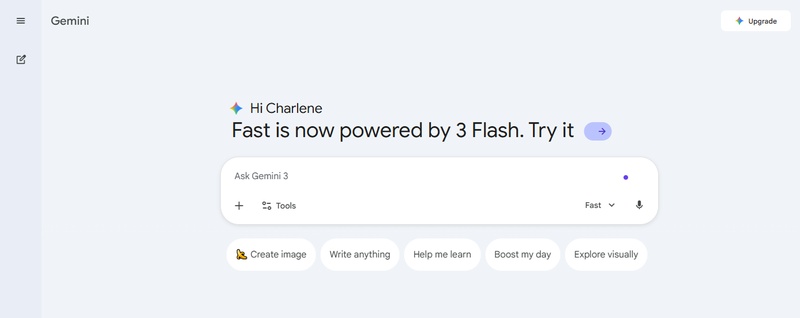
  • Visit Gemini and sign in with a Google account. Upgrade to Google AI Plus, Pro, or Ultra if you are not already subscribed.

  • Open the “model selector” and choose Gemini Omni Flash when available.

    select gemini omni flash model
  • Upload images, video references, or audio files and enter a detailed generation prompt.

  • Generate and refine through follow-up instructions.

Method 2. YouTube Shorts Remix & YouTube Create

Google is rolling out free Gemini Omni functionality directly into creator-focused platforms. You can directly access Omni via YouTube Create and Shorts Remix features.

  • Open the YouTube app, open a Short with the Remix option.

  • Tap the Remix icon choose Reimageine from the pull-up menu. This is the new generative AI feature powered by Gemini Omni.

  • Type a text prompt describing the desired transformation (e.g., “Make it cyberpunk style”). You can also use the dynamic suggested prompts provided by the tool.

    access gemini omni via youtube shorts remix
  • (Optional) Upload reference images.

  • Tap Generate. Afterward, preview, edit if needed, then post as a new Short.

Method 3. Google Flow

Google Flow offers more advanced creative controls. Professional creators frequently prefer Flow because it supports better asset management and iterative production workflows.

  • Open Google Flow page and click “New Project”. Upload media if you want.

    google flow create new project
  • This opens a canvas/workspace optimized for using Google models, including Omni.

  • In the video generation section (usually at the bottom or in the tools menu), select Video. Choose Omni Flash as the model.

    google flow omni flash option

⚡ How to Use Gemini Omni Flash for Video Generation: Step-by-Step

Gemini Omni’s strongest capability is generating videos from mixed media inputs.

Combining images, text, audio, and existing clips often produces significantly better outputs than text-only prompts.

  • Access Gemini App or Google Flow and select “3.5 Flash” from the model menu.

    gemini omni flash
  • Upload 1–5 reference images, a short video clip, or audio for consistency/style.

  • Craft a descriptive prompt. Example: “Create a cinematic product commercial featuring a premium smartwatch on a reflective black surface. Add dramatic lighting, slow camera movement, realistic reflections, and luxury branding aesthetics.”

    gemini omni video generation prompt example
  • Click Generate, and Gemini Omni processes all media inputs and creates the first draft.

  • You can refine the video with conversations. Instead of restarting, use editing prompts:

    • “Make the scene brighter.”
    • “Add a sunset backdrop.”
    • “Increase camera motion.”
    • “Use warmer colors.”
  • Review motion consistency and export the generated video (with SynthID watermark).

Pros and Cons

Gemini Omni Flash comes with its pros and cons.

  • Pros
  • Cons
    • Strong multimodal understanding and real-world physics
    • Highly intuitive conversational editing
    • Fast and creative for short-form content (Shorts, social, prototypes)
    • Consistent characters/scenes across iterations.
    • Physics-aware motion
    • Maximum output ~10 seconds per clip.
    • Consumer maximum quality is 720p
    • Rate/credit limits on paid plans.
    • Occasional inconsistencies in very complex motion or long edit chains.
    • Safety filters (restricted capabilities like speech editing)
    • Limited API availability

One of the largest limitations is video resolution. Current outputs are capped at 720p, which may not meet professional production requirements.

Bonus: How to Enhance Gemini Omni-Generated Videos from 720p to 4K?

Gemini Omni Flash's output is limited to a maximum of 720p resolution. This keeps generation fast and accessible but means native outputs lack the sharpness and detail of true 4K for professional or high-end use.

You can upscale these 720p videos to 4K in one click with dedicated AI tools that recover/enhance details, colors, sharpness, and reduce artifacts for broadcast-ready results.

This is where 4DDiG Video Enhancer can be a game changer with its one-click AI upscaling, converting 720p to 4K videos in only one click. It comes with built-in features like color restoration, noise reduction, and sharpening.

FREE DOWNLOAD

Secure Download

FREE DOWNLOAD

Secure Download

Steps to Upscale Gemini Omni Videos to 4K

  • Download and install 4DDiG File Repair software on your computer, then launch it. Select "AI Enhancer" from the left side, then pick "Video Enhancer".

    select 4ddig video enhancer to upscale omni generated videos
  • Click "Add Videos" to add your Gemini Omni-generated videos to 4DDiG for AI enhancing.

    add omni generated videos to 4ddig
  • Select the "AI Model" according to the video and choose your desired resolution along with the "AI Enhance" option to enhance your Gemini Omni video, and click "Enhance".

    start ai gemini generated video enhancement
  • Compare the results in a side-by-side comparison between Omni and 4DDiG and click "Save" when you are satisfied with the results.

    preview and save enhanced 4k videos

The combination of Gemini Omni generation and AI upscaling often produces substantially better results for social media marketing, product advertisements, and YouTube content.

6 Ready-to-Use Prompts for Gemini Omni Video Generation in Different Use Cases

Prompt quality directly influences output quality. Structured prompts consistently outperform simple one-line instructions.

Ideal Prompt Structure

Use the following framework: Subject + Environment + Camera Movement + Lighting + Style + Action + Audio + Quality Instructions

Formula: “Create [subject] in [environment] with [camera movement], illuminated by [lighting], using [style], performing [action], with [audio], optimized for [platform].”

More Detailed Prompt Structure:

  • Create a [duration/length] [video type/format] video.
  • Use [reference image(s)/video/audio] as [role, e.g., main subject/character/style reference].
  • Scene: [detailed description of subject, action, setting, lighting].
  • Camera: [angle, movement, framing – e.g., slow dolly-in, medium tracking shot].
  • Style & Mood: [visual style, colors, atmosphere].
  • Constraints: [consistency notes, what to avoid, audio/sync].

Prompt 1: Social Media Reel (e.g., Instagram Reels or YouTube Shorts)

Click to Copy & Paste ⬇

Create a 8-second vertical 9:16 energetic social media video. Use the uploaded image as the main character. A young woman dances joyfully in a vibrant city street at sunset, confetti falling around her. Medium tracking shot following her movement, dynamic camera sway. Bright, colorful cinematic style with warm golden tones, high energy, shallow depth of field. Sync motion to upbeat rhythm, no text overlay.

Video Preview Screenshot Video Preview Screenshot

gemini omni social media reel video screenshot

Prompt 2: Product Advertisement

Click to Copy & Paste ⬇

Create a 10-second premium product ad video in 16:9. Use the uploaded image as the main product reference, preserve exact design and colors. The wireless headphones float elegantly in a modern minimalist studio, slowly rotating as soft light beams highlight premium materials. Smooth orbiting camera shot starting close-up then pulling back. Sleek cinematic style, dark background with soft glows, luxury feel. Subtle ambient sound.

gemini omni product advertisement video screenshot

Prompt 3: Storytelling Scene / Narrative Scene

Click to Copy & Paste ⬇

Create a 10-second cinematic storytelling video, one continuous shot. Use the uploaded character image as the protagonist. A lone explorer walks through an ancient misty forest, discovering a glowing artifact. Slow dolly forward from medium to close-up shot, gentle camera movement. Epic fantasy style with volumetric god rays, cool blue-green tones, photorealistic. Mysterious ambient atmosphere.

Video Preview Screenshot Video Preview Screenshot

gemini omni storytelling scene video screenshot

Prompt 4: Scientific / Educational Animation

Click to Copy & Paste ⬇

Create a 9-second clear scientific animation video. Visualize photosynthesis step by step: sunlight hits a leaf, water and CO2 convert to glucose and oxygen. Clean contemporary flat-media style blending minimalist vector shapes with rich organic textures. Static wide shot transitioning to close-up details, smooth animated transitions. Bright educational colors, clear motion, no text.

gemini omni scientific educational animation

Prompt 5: Style Transfer / Creative Remix

Click to Copy & Paste ⬇

Create a 8-second style-shifting video. Use the uploaded photo as the character reference and the uploaded video for motion. Apply the exact pose and walk cycle from the reference video to the character. Start in realistic cinema style, then quickly shift to cyberpunk neon, then claymation, then watercolor painting during the walk. Dynamic tracking shot, maintain character consistency.

Video Preview Screenshot Video Preview Screenshot

gemini omni style transfer video screenshot

Prompt 6: Lifestyle / UGC-Style Ad

Click to Copy & Paste ⬇

Create a 7-second realistic UGC-style video. Use my uploaded selfie as the person. A young man unboxes and tries on new sunglasses by the beach, smiling at camera. Handheld natural camera movement, sunny golden hour lighting. Warm, authentic lifestyle style like iPhone footage, shallow depth of field, joyful mood.

gemini omni ugc style ad video screenshot

Tips for Better Results

  • Use reference images whenever possible.
  • Describe camera movement explicitly.
  • Specify lighting conditions.
  • Define color palette preferences.
  • Maintain a single visual style.
  • Keep characters consistent across prompts.
  • Use iterative editing instead of regenerating.

Gemini Omni Flash vs Seedance 2.0 vs Kling 3.0

Different tools excel in different production scenarios. Here’s a clear side-by-side comparison of the three leading AI video generation tools. Choosing the right platform depends on video quality requirements, editing flexibility, and budget.

Feature Gemini Omni Flash Seedance 2.0 Kling 3.0
Main Strength Multimodal generation High-quality cinematic output Long-form AI video
Video Quality Up to 720p Up to 1080p+ Up to 1080p
Max Length Around 10 seconds Longer clips available Longer clips available
Audio Generation Native Limited Limited
Conversational Editing Excellent Moderate Moderate
Best For Rapid iteration Advertising Storytelling
Pricing Subscription plans Credit-based Credit-based
Limitations 720p cap Less editing flexibility Slower workflow
Use Cases Social content, concepts Commercials Narrative videos

When Should You Use Each Tool?

  • Use Gemini Omni Flash when you want fast, fun, iterative creation inside Google tools. It shines for quick remixes, conversational edits (“make it slower”, “change the background”), social media Shorts, personal content, and when you already use Gemini/YouTube. Ideal for beginners and rapid prototyping.
  • Use Seedance 2.0 when you need strong character consistency, complex motion, and multimodal control. Great for branded content, storytelling with multiple references, marketing videos, or when you want director-style control with images + video + audio. Best all-rounder for many creators.
  • Use Kling 3.0 when visual quality and cinematic polish matter most. Choose it for professional ads, high-resolution output, detailed storytelling, or projects where you need 4K and precise camera/storyboard control. It often wins blind quality tests but can be pricier and less flexible for heavy editing.
Tips:

Start with Gemini Omni Flash (free in YouTube) for quick tests. Move to Seedance 2.0 for reliable creative work, or Kling 3.0 when you need top-tier visuals for client or broadcast use. Many creators combine them, generate concepts in Omni, refine in Seedance or Kling.

FAQs

Q1: How to access Gemini Omni for free?

Use the main YouTube App (Shorts Remix) or YouTube Create App. No subscription needed (18+ users). Update your apps, find a Short with Remix enabled, or start a new project in YouTube Create and select AI/Gemini Omni tools. Limited daily generations apply. Full advanced features require a Google AI paid plan.

Q2: What is the maximum video length?

The current Gemini Omni Flash model output limitation is approximately 10 second s per clip. Seedance 2.0 and Kling 3.0 generate videos in typically 10–15 seconds (with multi-shot support).

All tools work best for short, high-impact clips. For longer videos, generate multiple segments and edit them together.

Conclusion

Google Gemini Omni AI model technology represents Google’s most advanced step toward unified multimodal content creation. Its video generation workflows now support text, images, audio, and video inside a single conversational interface.

For creators who need higher-quality exports, combining Gemini Omni with 4DDiG Video Enhancer provides an efficient path from 720p AI-generated footage to detailed 4K content suitable for professional publishing and marketing campaigns.

FREE DOWNLOAD

Secure Download

FREE DOWNLOAD

Secure Download

William Bollson (senior editor)

William Bollson, the editor-in-chief of 4DDiG, devotes to providing the best solutions for Windows and Mac related issues, including data recovery, repair, error fixes.

(Click to rate this post)

You rated 4.5 ( participated)