How to Convert AV1 to H.264: Best Free Methods & Tools

5 mins read

Updated on 2026-07-10 10:28:30 to Video Tips

AV1 offers excellent compression, but many devices and players still struggle with it. That's why converting AV1 to H.264 remains a practical choice for wide compatibility without sacrificing too much quality. In this guide, you'll learn quick methods, the best free converters like Convertr or Convertio AV1 to H.264 online converter, optimal settings, and even how to fix corrupted files. Whether you're a beginner or looking for efficient workflows, these straightforward options will get your videos playing smoothly everywhere.

Quick Answer: Best Ways to Convert AV1 to H.264

If you're in a hurry to make your AV1 videos compatible with more devices, several reliable free tools can handle the job. The right choice depends on your comfort level with software and how many files you need to process.

Here's a quick comparison:

  • Method
  • Best For
  • Skill Level
  • Handbrake
  • Batch conversions, good quality control
  • Beginner to Intermediate
  • FFmpeg
  • Advanced users, scripting, high customization
  • Intermediate to Advanced
  • Online Converters (CloudConvert, Convertio, etc.)
  • Quick single files, no installation
  • Beginner

HandBrake stands out for most people because of its user-friendly interface and strong support for AV1 to H.264 conversion. FFmpeg gives maximum control but requires commands. Online tools work well for occasional use when you want to avoid downloading anything.

Before You Convert: Recommended H.264 Settings

Taking a moment to choose the right settings before you start converting helps ensure your output video looks great and plays everywhere. H.264 remains one of the most universal codecs, so focusing on broad compatibility makes sense.

Here are recommended values for typical use (adjust based on your source video):

  • Setting
  • Recommended Value
  • Why It Matters
  • Container
  • MP4
  • Best compatibility across devices and platforms
  • Video Codec
  • H.264 (libx264)
  • Universal support
  • Audio Codec
  • AAC
  • Widely supported and efficient
  • Quality Mode
  • Constant Quality (CRF 18-23)
  • Good balance of size and visual quality
  • Preset
  • Medium or Slow
  • Reasonable encoding speed with solid compression
  • Resolution
  • Keep original or downscale to 1080p
  • Matches target playback needs
  • Frame Rate
  • Keep Original
  • Avoids unnecessary changes or judder

Using a CRF value around 20 often delivers excellent results for general viewing. For maximum compatibility with older devices, stick to High Profile, Level 4.1 or lower. These settings help you transcode AV1 to H.264 while keeping file sizes manageable and playback smooth.

Once your settings are dialed in, you're ready to move on to the actual conversion process with the tools mentioned earlier. Each option has its strengths, so pick the one that fits your workflow best.

How to Convert AV1 to H.264 with 3 Best Converters \Step-by-Step\

The three options below cover most needs, from a simple desktop app to command-line power and quick online solutions. Each one handles AV1 to H.264 conversion well, but they differ in ease of use and flexibility.

1. Convert AV1 to H.264 with HandBrake

HandBrake is a free, open-source favorite that makes AV1 to H.264 conversion tasks straightforward with a clear interface and useful presets. It supports batch processing and gives good control over quality without overwhelming beginners.

Step-by-step guide:

  • Download and install HandBrake from the official site (handbrake.fr).

  • Open the program and click Source or Open Source to select your AV1 video file (or a folder for batch).

  • Go to the Video tab, set Video Codec to H.264 (x264).

    handbrake transcode av1 to h264
  • Choose your preset or adjust CRF to 20 from the Quality tab.

  • Under Audio, select AAC codec. Set Container to MP4.

  • Click Browse to choose the destination folder, then hit Start or Start Encode.

  • Pros
  • Cons
    • Completely free and open source
    • Regular updates with strong AV1 support
    • Batch conversion and device presets
    • Good quality control with preview
    • Can be slower on older hardware
    • Initial learning curve for advanced options

2. Convert AV1 to H.264 with FFmpeg

For users who prefer speed and precision, FFmpeg is a powerful command-line tool that excels at encode AV1 to H.264 tasks. It's lightweight and scriptable, making it ideal for advanced workflows or automating multiple files. If you're comfortable with the terminal or want maximum control over every parameter, FFmpeg is hard to beat. It handles AV1 decoding and H.264 encoding efficiently on most systems.

  • Download FFmpeg from the official website and add it to your system PATH.

  • Open Command Prompt or Terminal and navigate to your video folder.

  • Run a command like: ffmpeg -i input.av1.mp4 -c:v libx264 -crf 20 -preset medium -c:a aac output.mp4

  • Adjust CRF (lower = higher quality) or preset as needed.

  • Press Enter and wait for completion.

  • Pros
  • Cons
    • Extremely fast and efficient
    • Highly customizable parameters
    • Lightweight with no GUI overhead
    • Great for batch processing via scripts
    • Command-line only (no visual interface)
    • Requires basic command knowledge

You can create batch files or scripts for repeated use. This method is especially useful when you need to convert AV1 to H.264 in bulk or integrate it into other tools.

3. Using an Online AV1/AV01 to H.264 Converter

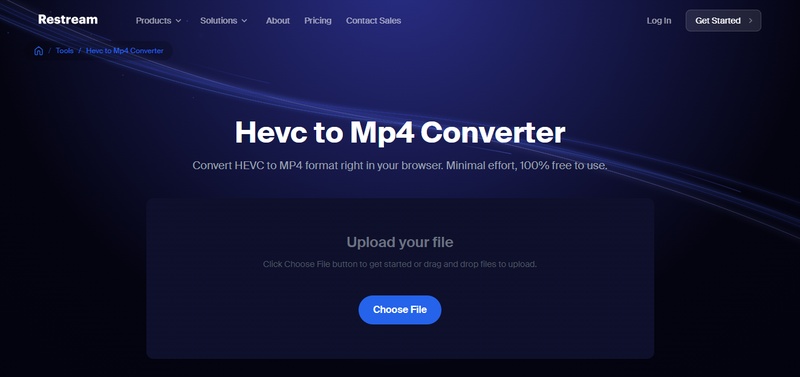
When you don't want to install software, online converters provide a fast no-install solution for occasional AV1 to H.264 converter online needs. Here are three reliable options.

convertr av1 to h264 converter online

Convertr offers a focused and privacy-conscious solution for converting AV1 to H.264 and AV01 files. The platform automatically removes uploaded files after processing, which appeals to users concerned about data security. It provides straightforward options for H.264 output in MP4 containers with decent quality preservation. The interface is minimal and efficient, making it suitable for occasional use. Free access with no watermarks makes it attractive for simple tasks.

rotato video converter

Rotato Video Converter (tools.rotato.app/convert) is a fully browser-based tool that performs AV1 to H.264 conversions directly on your device for maximum privacy. It supports multiple formats and codecs with a clean, modern interface.

convertio av1 to mp4 converter

Convertio stands out as a user-friendly online AV1 to H.264 converter that requires no software installation. Its simple drag-and-drop design makes it accessible even for complete beginners. The tool supports direct imports from cloud services and delivers good conversion speed for standard video files. Free users enjoy basic features without signup, though file size restrictions and daily limits apply. It remains a popular choice for quick, one-off conversions.

Steps to Convert AV1/AV01 to H.264 Using Convertr

  • Visit the Convertr AV1 to H.264 page.

  • Drag and drop your AV1 file (usually in .mp4, .mkv, or .webm container) into the upload area, or click to browse and select the file from your device.

  • Click the Start conversion button to begin the process. The tool will automatically re-encode your AV1 video to H.264 codec inside an MP4 container using high-quality settings (around CRF 23).

  • Wait for the conversion to complete. You'll see a progress bar during processing.

  • Once finished, review the original vs. converted file size, then click Download result to save the new H.264 MP4 file to your device.

  • Pros
  • Cons
    • No installation or registration required
    • Works on any device with a browser
    • Fast for single or small files
    • Support cloud storage imports
    • File size and daily usage limits on free plans
    • Requires stable internet connection
    • Less suitable for large or batch files

What Are AV1 and H.264? AV1 vs H.264 Comparison

Understanding the two codecs helps explain why you might need to convert AV1 to H.264. Both are video compression standards, but they serve different purposes in today's digital world.

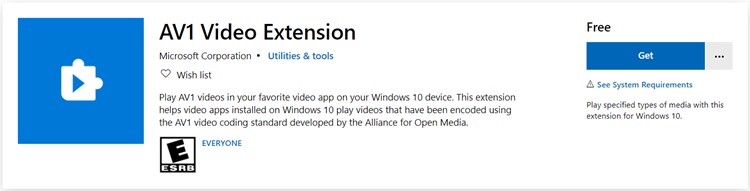
AV1 is a modern, royalty-free codec developed by the Alliance for Open Media. It delivers superior compression, making it popular for streaming services aiming to save bandwidth. To play it on Windows normally, it is highly recommended to install the official Microsoft AV1 Video Extension.

install av1 video extension

H.264 (also known as AVC) is the long-standing industry standard. It offers excellent compatibility across almost all devices, from old smartphones to smart TVs.Here's a clear comparison:

  • Feature
  • AV1
  • H.264
  • Compression Efficiency
  • Excellent (30-50% better)
  • Good
  • File Size
  • Smaller at same quality
  • Larger
  • Compatibility
  • Growing but limited
  • Universal
  • Hardware Support
  • Newer devices only
  • Almost all devices
  • Royalty Fees
  • Free
  • Licensed (but widely used)
  • Best Use Cases
  • Streaming, future-proof archiving
  • Broad playback, social media, legacy devices

AV1 wins in efficiency and future readiness, producing smaller files with great quality. However, H.264 remains the practical choice for universal support. That's why many users still transcode AV1 to H.264 for reliable playback everywhere.

⚡ Bonus: What If AV1 or H.264 Videos Is Corrupted and Won't Open?

After converting your videos from AV1 to H.264, the last thing you want is playback issues or files that suddenly won't open. Whether due to unexpected glitches during encoding, storage problems, or other technical hiccups, a reliable repair solution can quickly get your videos working again.

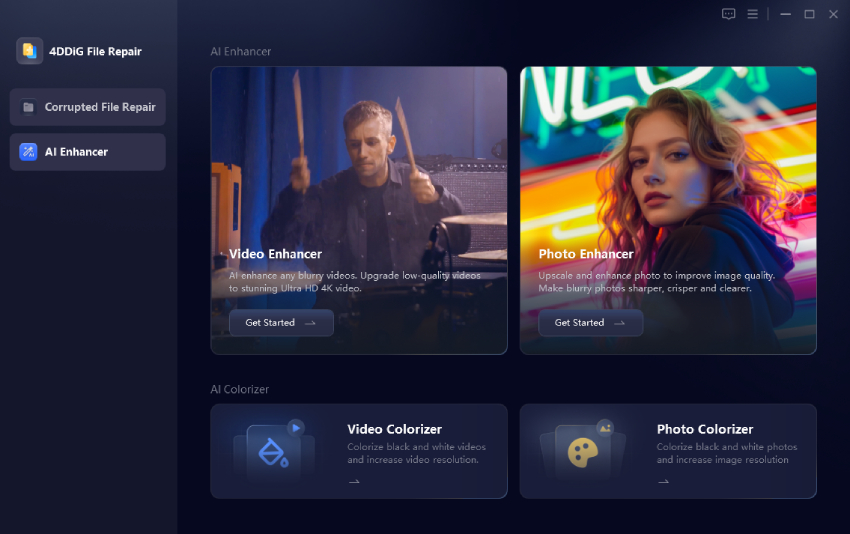
4DDiG Video Repair is an excellent choice for fixing damaged videos. It supports a wide range of formats, including MP4, MKV, MOV, AVI, and files encoded with AV1 or H.264. Key standout features include high success rate, batch repair, quick scanning, and easy one-click fixing. It also repairs videos from various devices and cameras.

FREE DOWNLOAD

Secure Download

FREE DOWNLOAD

Secure Download

Step-by-step guide to repair corrupted videos:

  • Download and install 4DDiG Video Repair from the official site. Launch the program and click "Video Repair" > "Add Videos" to import your corrupted AV1 or H.264 encoded videos.

    add corrupted av1 h264 encoded videos to 4ddig
  • Click "Repair All" to start the fixing process.

    repair all corrupted av1 h264 encoded videos
  • Preview the repaired video to check it if plays as normal.

    preview repaired videos
  • Then choose an output video format, including MP4, MOV, AVI, MKV, or Original for exporting the repaired videos and save them to a new location.

    save repaired videos in preferred format

Conclusion

Converting AV1 to H.264 is the most practical way to ensure your videos play smoothly across all devices. Whether you use HandBrake, FFmpeg, or an online AV1 to H.264 converter, the right settings and tools make the process quick and effective. For corrupted files, 4DDiG Video Repair offers reliable recovery.

FREE DOWNLOAD

Secure Download

FREE DOWNLOAD

Secure Download

William Bollson (senior editor)

William Bollson, the editor-in-chief of 4DDiG, devotes to providing the best solutions for Windows and Mac related issues, including data recovery, repair, error fixes.

(Click to rate this post)

You rated 4.5 ( participated)