Stellar Blade Fatal Error: Complete Fix Guide
Have you encountered Stellar Blade fatal error ? These frustrating errors leave players unable to continue their adventure. Whether you're experiencing crashes at startup, during gameplay, or after specific in-game actions, understanding the root causes and implementing the right fixes can restore your gaming experience. This guide will walk you through everything you from identifying what triggers these crashes to applying proven solutions that have helped thousands of players get back into the action seamlessly.
1. What Does Stellar Blade Fatal Error Mean?
A Stellar Blade ue4 fatal error is a critical crash that occurs when the game encounters an unrecoverable problem that forces it to shut down immediately. When Stellar Blade experiences a fatal error, it's typically the Unreal Engine 4 (UE4) reporti.ng that something has gone catastrophically wrong.
Common Causes of Stellar Blade Fatal Error
Understanding the root causes behind Stellar Blade fatal error crash is essential for implementing effective solutions. Here are the most common culprits:
- Corrupted Game Files: When Stellar Blade tries to access these corrupted files during gameplay, the engine encounters data it cannot parse, resulting in a fatal error crash.
- Graphics Driver Incompatibility: Outdated, corrupted, or overly recent graphics drivers can cause severe compatibility issues with Stellar Blade's rendering engine. This is especially common after major Windows updates or when using beta/experimental GPU drivers.
- Insufficient System Resources: If your system doesn't meet the minimum requirements or if other applications are consuming significant RAM, CPU, or VRAM, the game may run out of resources during intensive scenes, causing fatal errors.
- Overclocking Instability: If you've overclocked your CPU or GPU beyond stable limits, the system might experience computational errors during the complex calculations required by Stellar Blade.
- Missing or Outdated Runtime Libraries: If Visual C++ Redistributable packages and DirectX components are missing, outdated, or corrupted, the game will fail to initialize certain systems, resulting in fatal errors.
- Conflicting Software: Background applications can interfere with Stellar Blade's execution. These conflicts might cause the game to crash when it tries to access resources that other software has locked or when overlay injections cause rendering issues.
3. How to Fix Stellar Blade Fatal Error?
Now that you understand what causes Stellar Blade fatal error issues, let's explore proven solutions that have successfully resolved these crashes for countless players. Apply these fixes in order, testing the game after each solution to determine which one resolves your specific issue.
Fix 1: Delete Binaries & Config Files
Corrupted binaries and configuration files are among the most common causes of Stellar Blade fatal error crash. By deleting these files, you can eliminate configuration conflicts and corrupted temporary data that might be causing crashes.
-
Close Stellar Blade completely, ensuring no game processes are running in Task Manager.
-
Navigate to your Stellar Blade installation directory. Locate the Binaries folder and delete it entirely.
-
Next, press Windows + R to open the Run dialog, type %localappdata% and press Enter. Navigate to the Stellar Blade folder and delete the Config folder.
-
Launch Stellar Blade through your game launcher. The game will automatically regenerate the deleted files with default, uncorrupted versions.
Fix 2: Verify Game Files
Game file verification is one of the most reliable methods for fixing errors caused by corrupted or missing installation files. This process checks your game installation against the original files and automatically replaces any damaged or absent files.
-
Open the Steam client and navigate to your Library.
-
Right-click on Stellar Blade in your games list and select Properties. Click on the Installed Files tab.
-
Select Verify integrity of game files and wait for the process to complete. Steam will scan all game files and automatically download replacements for any corrupted or missing files.
After verification completes, launch the game to check if the Stellar Blade fatal error has been resolved. Actually, this method also works for Easy Anti Cheat error 30005.
Fix 3: Adjust Vulkan/OpenGL Present Method to "Prefer Native"
Graphics API presentation methods can significantly impact game stability. Adjusting the Vulkan or OpenGL present method settings can resolve rendering-related issues by ensuring your GPU communicates properly with the game engine.
-
Right-click on your desktop and select NVIDIA Control Panel or AMD Radeon Settings.
-
For NVIDIA: Navigate to Manage 3D Settings > Program Settings tab. Click Add and browse to select the Stellar Blade executable file (StellarBlade.exe).
-
Scroll down in the settings list to find Vulkan/OpenGL present method. Change the setting to Prefer native.
-
Click Apply to save your changes. Then, launch Stellar Blade and test if the crashes have been eliminated.
The Prefer native option forces the graphics driver to use a more direct rendering path, reducing potential conflicts between the game's rendering engine and your GPU driver. This can prevent crashes caused by incompatibilities in how frames are presented to your display.
Fix 4: Reduce the Maximum FPS for Stellar Blade
Uncapped or excessively high frame rates can cause instability in Unreal Engine 4 games like Stellar Blade. By limiting the maximum FPS, you can reduce GPU stress and prevent crashes caused by the engine trying to render frames faster than it can handle physics calculations and game logic.
-
Launch Stellar Blade and access the Settings or Options menu.
-
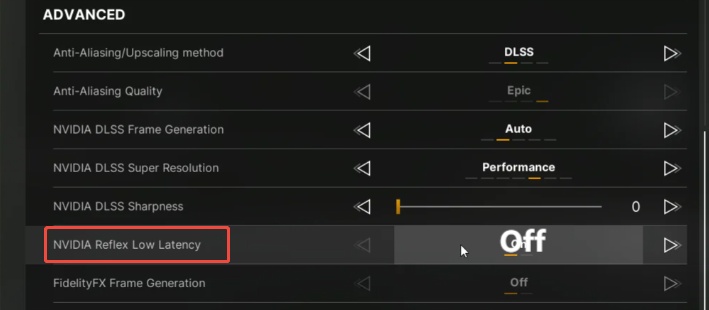
Navigate to Graphics or Display settings. Look for Max FPS. Set the frame rate limit to more lower FPS or enable V-Sync to cap frames at your monitor's refresh rate.
Limiting FPS helps prevent Stellar Blade fatal error crashes by reducing GPU load, preventing frame-pacing issues, and ensuring the game engine's physics and rendering remain synchronized.
Fix 5: Revert Your Graphics Driver
Sometimes the latest graphics drivers introduce bugs or compatibility issues that cause Stellar Blade fatal error crash. Rolling back to a previous stable driver version can resolve these crashes if they started occurring after a recent driver update.
For NVIDIA Graphics Cards:
-
Press Windows + X and select Device Manager. Expand Display adapters and right-click on your NVIDIA graphics card.
-
Select Properties, then click the Driver tab. Click Roll Back Driver if the option is available.
If rollback isn't available, visit NVIDIA's driver download page, select your GPU model, and download a driver version from 2-3 months ago. Use DDU (Display Driver Uninstaller) to completely remove current drivers before installing the older version.
Fix 6: Update Microsoft Visual C++ Redistributable
Stellar Blade, like most Unreal Engine 4 games, relies heavily on Microsoft Visual C++ Redistributable packages. Missing or corrupted versions can cause Stellar Blade fatal error crashes because the game cannot access essential runtime libraries.
Before installing new versions, it's recommended to uninstall existing Visual C++ packages. Press Windows + R, type “appwiz.cpl ” and press Enter. Uninstall each one (both x86 and x64 versions).
-
Restart your computer after uninstalling. Visit the official Microsoft Visual C++ Redistributable download page.
-
Download and install both the x64 and x86 versions (even on 64-bit systems, some games require both).
-
Restart your computer again and launch Stellar Blade to test stability.
This comprehensive reinstallation ensures all runtime dependencies are present and uncorrupted, which often resolves fatal error that occur during game initialization or when specific game features try to load.
⚡ Extra Tip: Recover Lost Partitions to Fix Potential Issues Affecting Stellar Blade
While the fixes above address software-related causes of Stellar Blade fatal errors,corrupted or lost disk partitions, bad sector can prevent games from loading properly, cause data corruption, or trigger seemingly random crashes.
4DDiG Partition Manager offers a powerful Partition Recovery function that can restore lost or damaged partitions that may contain your game installations, save files, or critical system files. This professional-grade tool ensures your storage infrastructure remains healthy, providing a stable foundation for gaming and preventing crashes caused by underlying disk issues.
Key Features of 4DDiG Partition Manager:
- Resize/Extend Partitions: Optimize disk space allocation without data loss, ensuring adequate space for game installations and updates.
- Migrate OS to SSD: Transfer Windows and all programs including Stellar Blade to a faster SSD for improved loading times and reduced crashes.
- Clone Disk: Create complete backups of your gaming drive before making changes or upgrading hardware.
-
Download and install 4DDiG Partition Manager. Launch the program, you'll see a clean interface displaying. Select "Partition Recovery," then choose the disk containing the partition you wish to recover and click "Quick Scan" to begin.
FREE DOWNLOADSecure Download
-
The full scan process may take some time, so please be patient. You can stop the scan anytime by clicking the "Stop" button once the partition you're looking for is found.
-
Select the partition(s) you want to recover. Please note that this action will overwrite the existing partition(s), so ensure you confirm whether you want to proceed. After that, click "Sure" and then hit "Start Recovery" to continue.
-
Once the partition has been successfully restored, click "Finish" to complete the process.
By recovering lost partitions and maintaining healthy storage with 4DDiG Partition Manager, you eliminate disk-related issues that could contribute to Stellar Blade fatal error crashes.
Conclusion
Resolving Stellar Blade fatal error issues requires a systematic approach to identify and eliminate the underlying causes. The six solutions presented in this guide address the most common triggers for UE4 fatal errors in Stellar Blade. Remember to apply these fixes methodically, testing the game after each solution to determine which one resolves your specific crash. Beyond addressing immediate software issues, maintaining the health of your storage infrastructure with tools like 4DDiG Partition Manager ensures a stable foundation for gaming.
Secure Download
ChatGPT
Perplexity
Grok