How to Fix Easy Anti Cheat Error 30005?
Have you run into Easy Anti Cheat error 30005 while trying to start your game? It can be very frustrating when you're ready to play, but this error suddenly pops up and stops everything. Many players face this issue, and it usually happens without warning, making the whole situation even more stressful. The good news is that you can fix it.
This guide will walk you through simple steps to help you understand what the error means and how to solve it. By the end, you'll know exactly what to do so you can get back to gaming without any trouble. Now, let's dive In.
1. What Does Easy Anti Cheat Error 30005 Mean?
Easy Anti Cheat Error 30005 appears when the Easy Anti-Cheat service cannot start or load one of its required files. EAC is the tool that checks your system for cheats before a game launches. When something blocks it, the game refuses to open and shows this error. So, this error basically means EAC could not start its service the way it should.
Common Variants of Easy Anti Cheat Error 30005
You might see different versions of this error depending on what exactly failed. Here are the most common ones:
- Easy anti cheat error 30005 startservice failed with 1275: This happens when Windows blocks the EAC driver due to security settings like Memory Integrity or Core Isolation.
- Easy anti cheat error 30005 createservice failed with 32: This means EAC could not create or update its required service because another program or setting is interfering.
- Easy anti cheat error 30005 startservice failed with 1450: This version usually appears when the system does not have enough resources or the EAC service is restricted.
2. Main Causes of Easy Anti Cheat Error 30005
There are several reasons why error 30005 appears, and most of them are related to how Windows handles drivers, permissions, or game files. Below are the most common causes explained in a simple way.
- Memory Integrity Blocking the EAC Driver: Windows has a security feature called Memory Integrity. When it's turned on, it may block older or unsigned drivers, including the EasyAntiCheat.sys file, which leads to error 30005.
- Corrupted or Missing EasyAntiCheat.sys File: If the main EAC driver file becomes damaged, deleted, or quarantined by antivirus software, the service cannot start properly.
- Damaged or Incomplete Game Files: If your game files are broken or incomplete, EAC won't be able to validate them, and the system will stop the launch process.
- Easy Anti-Cheat Service Not Running: Sometimes the service is disabled, stuck, or not set to run at startup. When EAC cannot load its service, you'll see error 30005 instantly.
- Third-Party Antivirus Blocking EAC: Some antivirus programs mistakenly flag Easy Anti-Cheat as a threat and block its driver or service from loading.
- System Conflicts or Low System Resources: Background tasks, outdated drivers, or lack of resources can prevent the EAC service from launching correctly.
3. How to Fix Easy Anti Cheat Error 30005?

If you're seeing error 30005 with EAC, try the following fixes in order, many players regain full game access after one or two.
Fix 1: Turn Off Core Isolation / Memory Integrity
Windows' security feature sometimes blocks EAC's driver. Disabling it often resolves "StartService failed with 1275."
-
Press Windows + S, search for "Windows Security" and open it. On the left side, click "Device Security."
-
Under Device Security, click "Core isolation details." Then, turn off the toggle under "Memory integrity."
-
Restart your PC, and launch the game again to check if error 30005 persists.
If this fixes the problem, some users prefer turning Memory Integrity back on after game launch.
Fix 2: Delete EasyAntiCheat.sys File (Force Rebuild)
The .sys file may get corrupted, causing Easy Anti-Cheat to fail. Deleting it forces the game to recreate a fresh driver file.
-
Close your game launcher and exit any related processes (EAC, Steam/Epic, etc.).
-
Open File Explorer and navigate to the EAC folder, usually:
C:\Program Files (x86)\EasyAntiCheat, or inside your game's install folder under an EasyAntiCheat subfolder.
-
Locate the file named EasyAntiCheat.sys (or similar) and delete that file.
-
Restart your PC. Then launch the game, EAC should auto-rebuild the file.
If deletion fails (file locked), reboot and make sure no EAC/game processes are running before trying again.
Fix 3: Verify Game Files via Game Launcher
Broken or missing game files can trigger error 30005 because EAC needs correct game data to load. Verifying files repairs the installation.
-
Open Steam and go to Library. Right-click your game > Properties.
-
Go to Installed Files (or "Local Files") > click "Verify Integrity of Game Files."
Wait for Steam to check and repair any files. Once done, relaunch the game and see if error 30005 is gone. For other launchers (Epic, etc.), look for a similar "Verify / Repair" option.
Fix 4: Repair Easy Anti-Cheat Service
If EAC's own installation or service setup is broken, repairing it can fix startup error 30005.
-
Navigate to your game's installation folder > open the EasyAntiCheat subfolder.
-
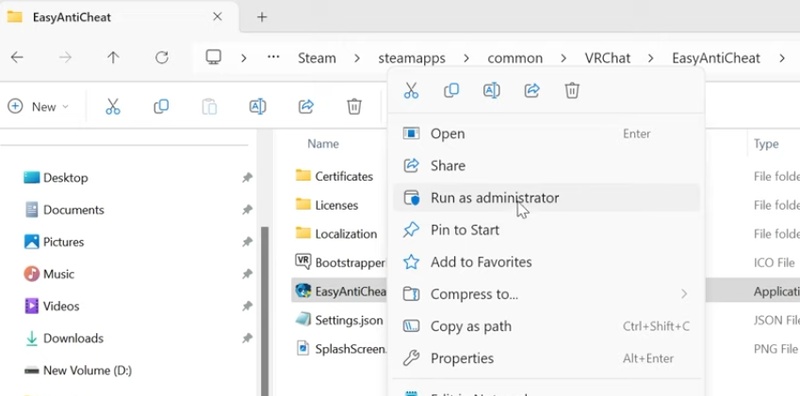
Find and right-click EasyAntiCheat_Setup.exe (or equivalent EAC setup file). Choose "Run as Administrator."
-
In the setup window, click "Repair Service" or "Install / Reinstall" (depending on your options).
After the process completes, restart your PC and try launching the game again. This re-establishes EAC's service and corrects missing or corrupted service entries.
Fix 5: Configure Easy Anti-Cheat to Run at System Startup
If EAC service isn't starting automatically, games may trigger 30005 when they try to start it manually. Ensuring EAC is ready before launching the game can help.
-
Press Windows + R, type services.msc, and press Enter to open the Services manager.
-
Scroll to find "Easy Anti-Cheat" (or similar) in the list.
-
Double-click it > in "Startup type" dropdown, select Automatic (or "Manual," depending on preference).
-
Click Start if the service isn't already running. Then click Apply, OK. Restart your PC. Launch your game to test.
Fix 6: Disable Third-Party Antivirus / Firewall Temporarily
Many third-party antivirus or security tools mistakenly block EAC, treating it like a threat. Temporarily disabling them, or whitelisting EAC, often resolves error 30005.
-
Open your antivirus / firewall program. Temporarily disable real-time protection / shield / firewall (or any "game protection" mode).
-
Add your game folder and the EAC folder (e.g. EasyAntiCheat) to the program's exclusion / whitelist list.
Restart your PC, then launch the game.
If the game works now, you found the cause. After verifying success, re-enable antivirus protection and keep the exclusions to stay safe.
Bonus: How to Improve Gaming Performance with 4DDiG Partition Manager?
If your computer is slow, games take longer to load, or you keep getting errors, cleaning and organizing your storage can help a lot. 4DDiG Partition Manager is a tool that makes it easy to manage your drives. One of its best features is the Wipe Disk function, which removes old files, corrupted data, and leftovers that can cause problems.
A clean disk helps games install faster, improves system speed, and reduces errors like driver issues or Easy Anti-Cheat problems. Using 4DDiG gives you a fresh start and a smoother gaming experience.
Why 4DDiG Partition Manager is Useful
- Removes corrupted or hidden files that can cause errors.
- Speeds up game load times with a clean disk.
- Easy to use, even for beginners.
- Safe and fast operations, so your disk is not damaged.
- All-in-one tool for wiping, formatting, resizing, cloning, and migrating your system.
This makes it perfect if you want to fix persistent game errors or set up a clean disk for better performance.
-
Install 4DDiG on your computer and open the program. If you want to wipe a partition on an external hard drive, connect it to your PC. In the left menu, click Toolkit, then select Data Erase to start.
FREE DOWNLOADSecure Download
-
Select the disk or partition you want to wipe. After confirming your choice, click Continue. Make sure you have selected the correct disk or partition. Click Sure to start the wiping process.
-
The process will take some time. Do not unplug the disk or close the program during wiping to avoid any damage. Once the wipe finishes, click Finish. Your disk is now clean and ready for reinstalling Windows, games, or other data.
More FAQs about Easy Anti Cheat Error 30005
1. What is error code 30005 in Apex?
Error 30005 in Apex Legends happens when Easy Anti-Cheat cannot start properly. This can be caused by corrupted EAC files, blocked drivers, antivirus programs, or Windows security settings like Memory Integrity. Using the fixes above, like repairing EAC or verifying game files, usually solves this problem.
2. How to fix Fortnite error 30005?
In Fortnite, error 30005 occurs for similar reasons. You can fix it by turning off Memory Integrity, repairing the Easy Anti-Cheat service, checking Fortnite game files in the Epic Games Launcher, or temporarily turning off antivirus software.
Conclusion
Easy anti cheat error code 30005 can stop you from playing, but most of the time it can be fixed with the steps above. Turning off Memory Integrity, repairing EAC, checking game files, and managing antivirus usually works.
If problems continue, using 4DDiG Partition Manager's Wipe Disk feature is a good choice. It cleans your disk, removes corrupted files, and gives your computer a fresh start, helping your games run better and reducing future errors.
Secure Download
ChatGPT
Perplexity
Grok