How to Fix Avowed Fatal Error in 6 Ways?
Launched Avowed, watched the loading screen for a few seconds, and then a fatal error crashes everything to desktop? You're not alone. The great news is that the Avowed fatal error is fixable. This guide walks you through the meaning of this fatal error, and the fixes in the exact order that makes sense starting with the safest and fastest solutions, and only moving to deeper system changes if needed.
1. What Does Avowed Fatal Error Mean?
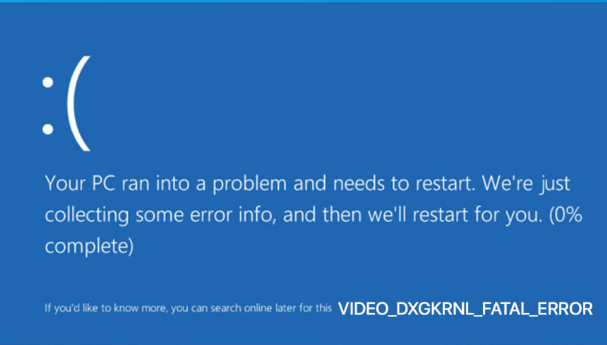
Avowed fatal error indicates that something critical went wrong, and the game chose to shut down instead of continuing in an unstable state. The fatal error meaning here is not that your PC is broken but that Avowed couldn’t safely continue running with the current configuration.
Many players see messages similar to “the UE-Alabama game has crashed”. This points to Unreal Engine detecting a failure related to rendering, memory access, or driver communication. The key takeaway: fatal errors are usually environment problems, not permanent game defects.
2. Why Avowed Fatal Error Appears?
Understanding what causes a fatal error helps prevent it from happening again. Common reasons include:
- Graphics features pushing hardware limits: Options like ray tracing, DLSS, or low-latency modes can destabilize certain GPU-driver combinations.
- Driver and engine mismatch: New GPU drivers sometimes conflict with how the game currently communicates with Unreal Engine, triggering the Avowed fatal error Alabama crash signature.
- DirectX incompatibility: Some systems struggle with DirectX 12 in Avowed, especially on older CPUs or mixed hardware setups.
- Corrupted configuration files or shaders: These can form after updates, crashes, or forced shutdowns.
- Outdated BIOS or firmware: Less common, but critical especially on newer GPUs and motherboards.
⚡ 3. How to Fix an Avowed Fatal Error?
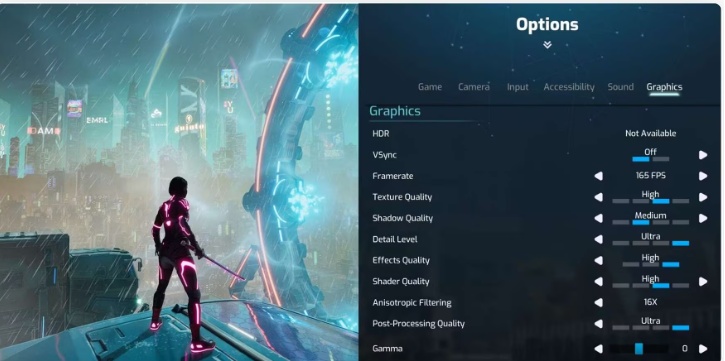
Fix 1: Disable NVIDIA Reflex Low Latency and V-Sync
NVIDIA Reflex and V-Sync both control frame timing. When combined with Unreal Engine’s internal frame management, they can cause synchronization conflicts that trigger Avowed fatal errors.
-
First launch Avowed, and select Settings from the main menu, and open the Graphics section.
-
Scroll through the graphics options to locate NVIDIA Reflex Low Latency and change its value to Off.
-
Continue scrolling to find V-Sync, Set V-Sync to Off. Click Apply to confirm the changes.
-
Exit Avowed completely to ensure the settings are saved. Then, relaunch the game and test stability during gameplay
Disabling NVIDIA Reflex and V-Sync removes overlapping frame-timing controls between the GPU driver and Unreal Engine, allowing Avowed to manage frame delivery more consistently and reducing the likelihood of fatal error crashes.
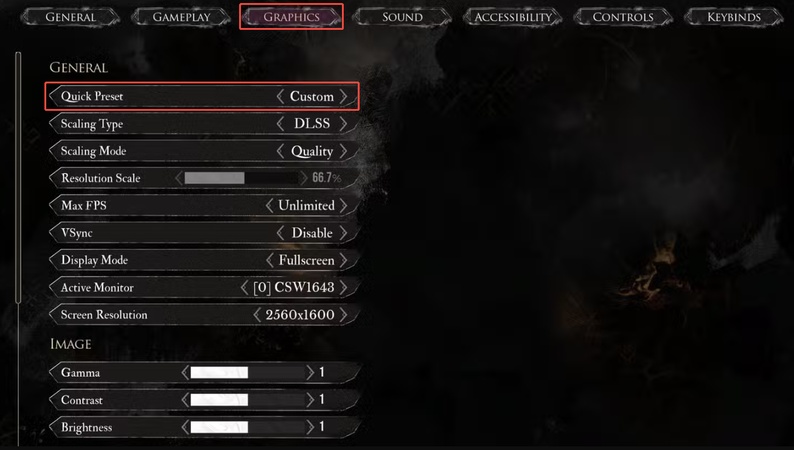
Fix 2: Disable Ray Tracing and Deep Learning Super Sampling(DLSS)
Ray Tracing and DLSS significantly increase GPU workload and memory usage. In Avowed, these features can introduce instability on certain hardware configurations, especially during scene transitions, lighting-heavy areas, or when loading saves.
-
Open Settings in Avowed and navigate to Graphics. Scroll down to the Advanced Graphics section.
-
Locate Ray Tracing. Next, change the setting to Off.
-
Then, find Deep Learning Super Sampling (DLSS) and s et DLSS to Off, or switch the rendering mode to Native Resolution.
-
Click Apply to save the changes. Exit the game completely, then relaunch Avowed.
You may notice a small reduction in visual fidelity. However, GPU load will decrease significantly, which often results in much better stability especially on mid-range or older graphics cards. If crashes continue after this change, proceed to next method.
Fix 3: Switch to DirectX 11 Mode
If Avowed continues to crash after adjusting graphics settings, the issue may lie in how the game interacts with DirectX 12. While newer, DirectX 12 can be less stable on certain hardware and driver combinations. DirectX 11 offers a more mature and predictable rendering path for Unreal Engine games.
-
Close Avowed completely if it is currently running. Open Steam and go to your Library.
-
Right-click on Avowed and select Properties. In the General tab, locate the Launch Options field. Enter the following command exactly as shown: -dx11.
-
Close the Properties window to save the change. Then, launch Avowed normally from Steam.
This method also works for engine error 0x887A0006, here’s a complete guide: How to Fix GPU Failed with Error Code 0x887A0006?
Fix 4: Update Your Windows
Updating Windows is one of the simplest and most effective fixes for Avowed fatal errors, as newer updates often include stability improvements, DirectX fixes, and compatibility patches for game. The fast and safe way to update is with 4DDiG Partition Manager's "Quick Install Windows" feature. Below are the steps:
-
Download and open 4DDiG Partition Manager. Locate and click on the Quick Install Windows section under the “Windows download and upgrade” menu.
FREE DOWNLOADSecure Download
-
On the next screen, choose your desired Windows version. And choose your inserted USB flash drive, partition style and other options. Carefully review the summary of your selections. Click Start to begin the process.
Note:
Please select the Windows version that matches your current installation for a repair upgrade. And stick with the recommended GPT for modern UEFI-based systems, only switch to MBR if your computer uses Legacy BIOS mode.
-
A confirmation popup will appear, warning that the USB drive will be formatted and all data on it will be erased. Click Sure to proceed.
-
The tool will now download the official Windows ISO and install Windows. Once finished, your Windows already be installed.
Fix 5: Reinstall the Graphics Driver
A damaged or partially updated graphics driver can cause Unreal Engine to fail during rendering, leading to repeated Avowed fatal errors. A clean reinstallation ensures all corrupted profiles and cached components are removed.
-
Close Avowed and all running applications. Press Windows + X and select Device Manager.
-
Expand Display adapters, and right-click your graphics card and choose Uninstall device.
-
Restart your PC to complete the removal process. After reboot, download the latest stable driver directly from NVIDIA official website or AMD official website.
-
Install the driver using default or recommended settings. Restart your PC again once installation completes. Then, launch Avowed and test stability
Fix 6: Update Your BIOS
If Avowed still crashes after all previous fixes, the issue may be caused by firmware-level incompatibility between your motherboard and newer hardware. An outdated BIOS can struggle to properly initialize modern GPUs, CPUs, or memory configurations, leading to Unreal Engine fatal errors.
BIOS updates carry risk if done incorrectly. Always back up your system before proceeding and follow only the manufacturer’s official instructions.
-
Identify your motherboard model. Press Windows + R, type “msinfo32,” and note the motherboard name.
-
Visit the official support website of your motherboard manufacturer (ASUS, MSI, Gigabyte, or ASRock). Navigate to the BIOS / Firmware section for your exact model.
-
Download the latest stable BIOS version. Then, carefully follow the manufacturer’s update instructions.
-
After updating, restart the system and load default BIOS settings and launch Avowed to test stability.
BIOS updates improve hardware compatibility, memory handling, and PCIe communication. On newer systems, outdated firmware can cause low-level instability that surfaces as fatal errors in Unreal Engine games like Avowed.
Conclusion
The Avowed fatal error may look serious, but in most cases it’s caused by fixable configuration or compatibility issues. By adjusting graphics settings, switching DirectX versions, and ensuring your system environment is stable, you can usually stop Avowed crashes for good.
If the problem persists after trying the standard fixes, a repair installation of Windows is one of the most reliable ways to refresh critical system files without losing your apps, games, or personal data. 4DDiG Partition Manager makes this process remarkably straightforward with its Quick Install Windows feature. With few clicks, you can boast a brand new and healthy system.
Secure Download
ChatGPT
Perplexity
Grok