How to Fix Duet Night Abyss UE4 Fatal Error?

5 mins read

Updated on 2026-01-21 19:11:29 to Windows Fix

Have you encountered the dreaded Duet Night Abyss UE4 fatal error? This technical hiccup has left countless players unable to access the game, turning excitement into disappointment. But don't worry, this comprehensive guide will walk you through multiple proven solutions to resolve this issue and get you back into the game. From simple network tweaks to advanced system repairs, we've compiled the most effective fixes that have helped players worldwide overcome this obstacle.

1. What Does Duet Night Abyss UE4 Fatal Error Mean?

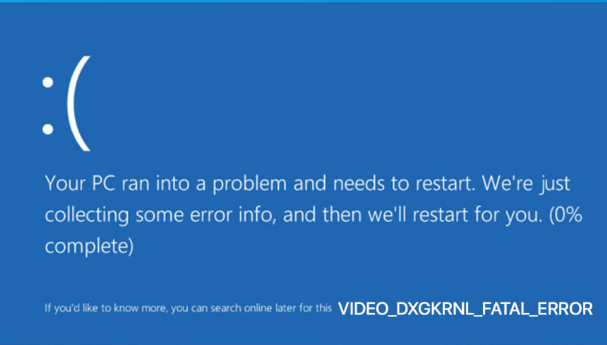
The Duet Night Abyss UE4 fatal error specifically relates to Unreal Engine 4 (UE4), the powerful game engine that Duet Night Abyss is built upon. When this fatal error occurs, it indicates that the launcher has encountered an unexpected problem that it cannot recover from automatically, effectively blocking your access to the game.

duet night abyss ue4 fatal error

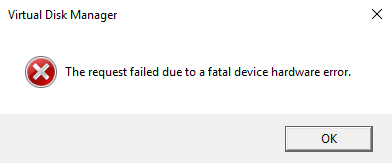
This type of error manifests as a pop-up message when you attempt to launch the game, usually displaying technical details about the failure. The error prevents the game client from initializing, leaving you staring at an error dialog instead of the game's beautiful interface.

Common Causes of Duet Night Abyss Launcher Fatal Error

Identifying the root cause is crucial for finding the right solution. Here are the most common culprits behind this frustrating issue:

  • Network Connectivity Problems: The launcher requires consistent communication with game servers, and any disruption caused by unstable connection can result in a fatal error.
  • Corrupted Game Files: Missing or damaged files within the game installation directory can prevent the launcher from loading properly.
  • Outdated Windows System: Running an outdated version of Windows can lead to compatibility issues with the game's launcher.
  • System File Corruption: Corrupted Windows system files can interfere with the launcher's operation. These critical system components need to be intact for applications to run smoothly.
  • Regional Restrictions or Network Limitations: Some users experience this error due to regional access restrictions or firewall configurations that block the launcher's connection to game servers.
  • Launcher Configuration Issues: Sometimes the launcher's own configuration files become corrupted or misconfigured, leading to startup failures.

In the next section, we'll explore multiple solutions that address these various causes, helping you identify and implement the fix that works for your specific situation.

⚡ 2. How to Resolve Duet Night Abyss UE4 Fatal Error?
Try these fixes in order, as they progress from simple to more advanced troubleshooting methods. Each solution has helped numerous players successfully resolve the issue.

1Restart Internet Connection

Network connectivity issues are one of the most common causes of the launcher fatal error. A simple connection reset can often resolve authentication and server communication problems.

  • Close the Duet Night Abyss launcher completely. Make sure to end the process through Task Manager if it's still running in the background (press Ctrl + Shift + Esc, find the launcher process, right-click, and select End Task).

  • Next, restart your router and modem. Unplug both devices from power, wait for 30 seconds, then plug them back in. Allow them to fully restart and establish a connection.

    restart router
  • Restart you PC and connect your WiFi. Wait for your connection to stabilize and show as connected in your system tray. After that, launch Duet Night Abyss again and check if the error persists.

This simple fix resolves the issue for many users, particularly those experiencing temporary network glitches or connection timeouts.

2Launch Duet Night Abyss via Game Folder

Bypassing the launcher by running the game executable directly can sometimes circumvent launcher-specific errors while the underlying files remain intact.

  • Navigate to your Duet Night Abyss installation folder. The default location is typically C:\Program Files (x86)\Duet Night Abyss.

    run the game via game folder

If the game launches successfully, you can create a desktop shortcut to this executable for easier access in the future.

3Offline Boot Launcher then Reconnect Internet to Start

This clever workaround addresses authentication and server connection issues by initializing the launcher offline before establishing an online connection.

  • Disconnect from the internet completely. Launch the Duet Night Abyss launcher while offline. It should start without attempting to connect to the authentication servers.

  • Once the launcher interface appears, reconnect to the internet immediately and click Start after the internet becoming stable.

This method has proven effective for users experiencing server communication timeouts or authentication errors that trigger the Duet Night Abyss launcher fatal error message.

4Use a VPN

Regional restrictions, ISP-level blocking, or network routing issues can prevent the launcher from connecting properly. A VPN can resolve these connectivity problems.

  • Choose a reputable VPN service and connect to a VPN server. For Duet Night Abyss, try connecting to a server in a major region, as these typically have stable connections to game servers.

  • Wait for the VPN to establish a secure connection. Next, launch this game.

    connect to vpn

If the game launches successfully, you may need to use the VPN each time you play, or try different server locations to find one that works consistently. And this fix also work for Epic Games download speed slow.

5Update Your Windows

An outdated Windows system can cause compatibility issues with Unreal Engine 4 applications. Keeping your system updated ensures you have all necessary components and fixes for smooth gaming.

For users experiencing persistent system issues or wanting a faster, more comprehensive update solution, 4DDig Partition Manager offers a streamlined approach to reinstalling or upgrading Windows while preserving your important data.

Key Features of 4DDig Partition Manager:

  • Comprehensive Disk Management: Resize, merge, split, create, delete, and format partitions with ease
  • System Migration: Clone entire systems or migrate Windows to SSD/HDD without reinstallation
  • Recovery Options: Recover deleted or lost partitions and repair boot issues
  • Bypass Windows 11 Upgrade Requirements: Allows users to install or upgrade to Windows 11 on unsupported hardware by bypassing certain system checks, such as TPM, Secure Boot, or CPU requirements.
  • Download and install 4DDiG Partition Manager via official website. Launch the application after installation completes. In the main interface, locate to Windows Download and Upgrade section and click on the Quick Install Windows option.

    FREE DOWNLOAD

    Secure Download

    quick install windows
  • On the next screen, choose the Windows version you want to install, connected hard drive, as well as other information. Then, check everything and click Start.

    click start to install
  • The Windows installation process may take some time. Please wait patiently until the installation is completed.

    quick install successfully

This tool ensures a smoother, safer Windows installation process compared to manual methods. Its comprehensive disk management capabilities also help optimize your system for better gaming performance overall.

6Run SFC Scan to Fix Corrupted Windows Files

Corrupted Windows system files can interfere with the launcher's operation. The System File Checker (SFC) is a built-in Windows utility that scans and repairs these critical files.

  • Open Command Prompt as administrator. Type the following command and press Enter: DISM /Online /Cleanup-Image /RestoreHealth.

    run dism command
  • Wait for the DISM scan to complete. Once DISM completes, run the SFC scan. Type the following command and press Enter: sfc /scannow. Allow the scan to complete without interruption.

    run sfc scan
  • If the tool reports that it repaired files, restart your computer to apply the changes. After restarting, launch the game to check if the fatal error is resolved.

This method addresses system-level corruption that can prevent applications from running properly.

Conclusion

The Duet Night Abyss UE4 fatal error can be frustrating, but as we've explored, multiple effective solutions exist to resolve this issue. From simple network resets to comprehensive Windows updates, these six proven fixes address the various root causes of the launcher error.

For users facing persistent system issues or wanting to ensure optimal performance, 4DDig Partition Manager's Quick Install Windows feature can be a good choice. Remember to keep your system updated and maintain good digital hygiene to prevent similar issues in the future. Happy gaming!

FREE DOWNLOAD

Secure Download

William Bollson (senior editor)

William Bollson, the editor-in-chief of 4DDiG, devotes to providing the best solutions for Windows and Mac related issues, including data recovery, repair, error fixes.

(Click to rate this post)

You rated 4.5 ( participated)