Complete Guide to STATUS_STACK_BUFFER_OVERRUN Error
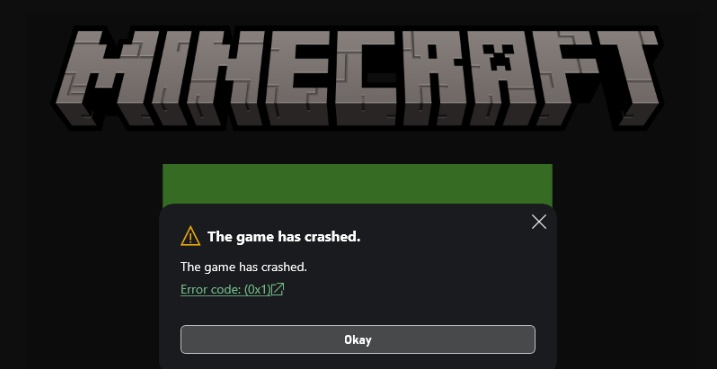
Getting the error code: STATUS_STACK_BUFFER_OVERRUN can be alarming, especially when it suddenly crashes your browser or favorite apps. Users often report this error while browsing websites, watching videos in Youtube, or launching games.
This guide explains what the error means, why it occurs, and how to fix it safely and efficiently. We’ll walk through proven solutions step by step and help you protect your data before making system changes.
1. What Does Error Code: Status Stack Overrun Mean?
The STATUS_STACK_BUFFER_OVERRUN error is a Windows security exception that occurs when a program writes more data to a memory stack buffer than it is allowed to hold.
When Windows detects this abnormal behavior or believes the application has crossed a memory safety boundary, it immediately terminates the process to prevent potential system damage or malicious exploitation. This is why the error often appears suddenly and forcefully closes browsers or games without warning.
2. What Causes Error Code: Status Stack Overrun?
While the message may look technical, the root cause is usually related to software conflicts, corrupted cache data, or security protections being triggered incorrectly.
- Corrupted browser cache or cookies: Damaged temporary files can cause browsers to behave unpredictably and trigger memory errors.
- Incompatible browser extensions: Extensions that inject scripts into web pages can interfere with memory allocation.
- Hardware-enforced stack protection conflicts: Windows security features may incorrectly flag legitimate applications.
- Outdated or buggy browser versions: Older builds may contain unresolved memory-handling bugs.
- Compatibility mode issues: Running modern apps in legacy compatibility mode can break memory handling.
3. How to Resolve Error Code: Status Stack Overrun?
Before applying fixes, it’s best to start with straightforward methods and move toward more advanced solutions if needed. The methods below are the most effective to fix stack buffer overruns.
Fix 1: Disable Compatibility Mode & Hardware-enforced Stack Protection
Sometimes, Windows security features can mistakenly block safe applications. Disabling compatibility mode and adjusting hardware-enforced stack protection can prevent false memory violation detections that trigger the STATUS_STACK_BUFFER_OVERRUN error.
Open Task Manager and close all instances of your browser.
-
Right-click the browser icon and go to "Properties", then open the "Compatibility" tab and uncheck the "Run this program in compatibility mode" option, then click "Apply”.
-
Now disable Hardware-enforced Stack Protection by opening the "Windows Security" app and going to "App & Browser Control." Click "Exploit protection settings" and choose "Program settings".
-
Then look if your browser is listed. Select the exe and then choose “Edit” and locate the “Hardware-enforced Stack Protection” section. Turn ON “Override system settings ”, set Hardware-enforced Stack Protection to Off for that program and click Apply
Note:
If the browser exe is not listed, select "Add Program to Customize" and then "Add program by name" to add your browser.
-
The "Enforce for all models instead of only compatibility mode" must be unchecked, and the "Audit Only" must be checked. Click “Apply” to save the changes.
This fix resolves many false-positive memory violations caused by overaggressive security enforcement.
Fix 2: Run the Browser as Administrator
Permission restrictions can sometimes interfere with how browsers access memory and system resources. Running the browser with administrator privileges helps eliminate access limitations that may cause unexpected crashes or trigger the overrun error.
Close your browser completely in Task Manager.
-
Right-click the browser icon and select “Run as administrator”.
-
Visit the site that previously triggered the error to check if you have fixed the error.
Fix 3: Change the Browser's Executable File Name
Occasionally, Windows security mechanisms or cached system rules incorrectly flag a browser's executable file. Renaming the executable forces Windows to treat it as a new instance, which can bypass misidentified security restrictions.
-
Navigate to the browser installation folder (e.g., C:\Program Files\Microsoft\Edge\Application).
-
Right-click the browser exe and rename it. For example, msedge.exe to something like msedge1.exe.
Double-click the renamed file to launch the browser.
This method works when security tools mistakenly flag the original executable.
⚡ Safety First: Create a Quick Backup Before Clearing Cache
Before deleting cache files, or modifying system behavior, backing up important data ensures nothing is lost. 4DDiG Windows Backup provides a fast and reliable way to protect your files before troubleshooting system or browser issues. Its backup options include system backup, along with incremental backups. The one-click restore functionality makes it very convenient.
-
Download and install 4DDiG Windows Backup software on your computer. Now, connect an external hard drive and launch the software. Click “Create a backup task” to begin.
FREE DOWNLOADSecure Download
-
Check all partitions that you want to back up and click the "Folder" icon below to choose where you want to save the backup,
-
Then, click "Start Backup", then confirm by clicking "Confirm" in the pop-up.
-
Now, you just need to wait as 4DDiG automatically completes your backup.
Fix 4: Clear Browser Cache and Cookies
Browsers accumulate cache files and cookies that can become corrupted. These damaged files may cause repeated loading failures or abnormal memory behavior, making cache and cookie cleanup is a critical step in resolving STATUS_STACK_BUFFER_OVERRUN errors.
-
Open your browser and go to "Settings", then choose "Privacy & Security”.
-
Click “Delete Browsing Data” and make sure that “Cache” and “Cookies” options are checked. Set the time option to “All Time” and click “Delete Data”.
Clearing the cache removes damaged files that silently trigger memory exceptions.
✔ You may also like: How to Clear Cache on Computer
Fix 5: Turn off Extensions
Browser extensions run background scripts that interact directly with web pages and memory allocation. If one extension behaves improperly or conflicts with system security, it can trigger stack buffer overrun errors, making temporary extension disabling an effective diagnostic step.
-
Open the browser “Extensions” page and disable all extensions.
-
Restart the browser and re-enable extensions one by one to identify the culprit by visiting the same website.
-
Once you find the problematic extension, you can remove it and replace it with an alternative.
This helps isolate problematic add-ons without uninstalling everything permanently. If you encounter “this video can not be played” error, this fix also works.
Fix 6: Update Your Browser
Outdated browser versions may contain unresolved bugs or compatibility issues. Installing the latest browser updates ensures improved memory handling, security patches, and better stability that can prevent errors from recurring.
-
Open your browser, "Settings", and go to "About”.
Check for updates and install any updates if available.
-
Restart the browser after the update and check if the issue is fixed.
Keeping your browser updated ensures compatibility with modern system security features.
Conclusion
The error code: STATUS_STACK_BUFFER_OVERRUN is a Windows security response designed to protect your system, not a sign of permanent damage. In most cases, the error is caused by browser cache corruption, incompatible extensions, outdated software, or overly strict security settings.
By following the fixes in this guide, starting with compatibility adjustments and ending with browser updates, you can resolve the issue safely and effectively. Before making changes, tools like 4DDiG Windows Backup provide an extra layer of protection, ensuring your data stays.
Secure Download
ChatGPT
Perplexity
Grok