Minecraft Error Code 0x1: Causes, Meaning, and How to Fix It

5 mins read

Updated on 2026-01-19 16:46:13 to Windows Fix

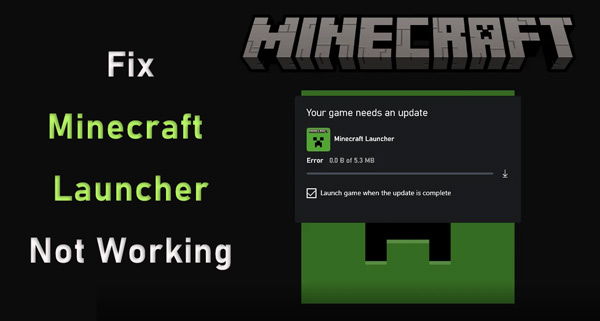
Minecraft error code 0x1 is a common yet frustrating issue that prevents many players from launching the game. Whether you're playing the vanilla version, or launching the game via the Microsoft Store, this error can cause crashes, prevent the game from running, and potentially damage your saved data.

Don’t be panic. This article will explain the causes of this error, provide step-by-step solutions to fix it, and offer tips to your data safe, all while safeguarding your game progress.

1. What Does Minecraft Error Code 0x1 Mean?

Minecraft Error Code 0x1 means that the Minecraft Launcher failed to start the game due to permission conflicts, corrupted game files, blocked folder access, or Windows-related issues. In most cases, the Minecraft launcher error code 0x1 appears when the launcher cannot properly access the .minecraft directory or required system resources. Simply put, it means Minecraft was blocked or interrupted before it could fully launch.

minecraft error code 0x1

2. How to Fix Minecraft Error Code 0x1?

Fix 1: Restart PC after Logging out of the Xbox App and Browser

Sometimes, Minecraft fails because account authentication processes are stuck in the background. Logging out refreshes Microsoft services tied to the launcher can fix it fastly.

  • Close the Minecraft Launcher completely.

  • Open the Xbox App and click “Profile” and choose “sign out”.

    sign out xbox
  • Restart your PC by clicking "Start Menu" then choosing "Restart" in "Power Options."

  • Log back into your account to launch Minecraft again to check if the error is resolved.

This fix clears authentication conflicts that silently block the launcher, then try the following methods.

Fix 2: Run Minecraft.exe as an Administrator

Minecraft sometimes fails to launch because it lacks sufficient system permissions. Running the executable as an administrator grants full access to the required folders and services. This fix is particularly useful if the launcher crashes instantly or shows the Minecraft launcher crashing error code 0x1 without loading.

  • Navigate to the Minecraft installation folder on your PC.

  • Right-click Minecraft.exe and select “Run as administrator”. If prompted, click “Yes”.

Administrator privileges often resolve access-related crashes. If the error returns after restarting, permanent permission blocks may be involved.

⚡ Pro Tip: Backup Your Minecraft Worlds Before Deleting Game Files

Before deleting or reinstalling Minecraft, protecting your worlds is critical. Minecraft worlds are stored locally and can be permanently lost if removed accidentally. Using 4DDiG Windows Backup ensures your saves remain safe even if troubleshooting goes wrong.

It allows you to back up Minecraft worlds automatically or manually with full folder-level control. It backs up your complete Minecraft worlds with 1 click and allows selective backups as well. With 4DDiG, you can prevent data loss during reinstalling and cleanup with a beginner-friendly interface.

  • Download and install 4DDiG Windows Backup software on your PC. Connect your external hard drive to your PC and launch the software. Now, launch the software and click “Create a Backup Task.”

    FREE DOWNLOAD

    Secure Download

    choose create a backup task
  • Select the disk or partition you want to back up that contains your Minecraft files, configure the storage path, then click "Start Backup" and press "Confirm" to start.”

    confirm start backup
  • Wait for the backup to complete successfully, and then you may disconnect your drive.

    backup successfully

Backing up your worlds ensures peace of mind. Even if fixes require file deletion, your progress remains protected.

Fix 3: Delete Minecraft Game Files

Corrupted game files are one of the most common causes of Minecraft error code 0x1. Deleting them forces the launcher to regenerate clean files. This does not delete your worlds if backed up correctly.

  • Press “Win + R”, type “%localappdata%", then press "Enter”.

  • Locate the “MinecraftInstaller” folder and right-click and delete it.

  • Restart your PC and open the Minecraft Launcher to re-download files.

This fix removes corrupted data that blocks startup, and it can also be used for fixing Roblox error code 277. Always ensure your saves are backed up before performing this step.

Fix 4: Update Your Windows

Outdated Windows components can break compatibility with the Minecraft Launcher. Missing updates often cause system-level errors. Keeping Windows updated ensures proper runtime libraries and security compatibility.

  • Open “Settings” and go to “Windows Update”.

  • Click “Check for updates," then install all available updates and restart your PC.

    check windows update

Updating Windows resolves hidden compatibility issues. Many launcher crashes disappear immediately after system updates.

Fix 5: Allow Minecraft Launcher Access to .minecraft Folder via Windows Defender Ransomware Protection.

Windows Defender may block Minecraft from accessing its own files. This is a common cause confirmed by community reports. Controlled Folder Access can silently prevent file creation, triggering Minecraft launcher error code 0x1.

  • Open “Windows Security” inside the “Settings” on your computer and go to “Virus & threat protection”.

  • Click “Manage Ransomware protection” and toggle the switch to allow controlled folder access using the “Allow an app through Controlled folder access” option.

    manage ransomware protection
  • Add Minecraft Launcher and confirm the changes.

Once access is restored, Minecraft can read and write the required files normally. This fix resolves many unexplained launcher crashes.

Fix 6: Reinstall Minecraft Launcher from the Microsoft Store

If all else fails, reinstalling the launcher ensures a clean installation free from corrupted dependencies. This method is especially effective for Minecraft launcher crashing error code 0x1 linked to Store-related issues.

  • Open “Settings" and go to "Apps", then click "Installed apps”. Locate “Minecraft Launcher” and click Uninstall.

  • Restart your PC and open the Microsoft Store. Search for “Minecraft Launcher” and click download it. Launch it after installing.

    download minecraft

A fresh installation resets broken components. Combined with backups, this fix safely restores launcher functionality. You may also like: How to Recover Deleted Minecraft Worlds on Windows/PS4/Mobile?

More FAQs about Minecraft Error Code 0x1

1. How to solve Minecraft error code 1?

Minecraft error code 1 is usually resolved by addressing launcher, system, or configuration conflicts rather than reinstalling the game blindly. Start by restarting your PC after signing out of the Xbox app and any Microsoft browsers, then run the Minecraft launcher as an administrator.

2. What does error code 1 mean in MC?

In Minecraft, error code 1 is a general launcher failure that indicates the game could not start correctly due to a system-level conflict. It does not point to one single cause but instead signals issues such as corrupted game files, permission restrictions, blocked folder access, outdated Windows components, or launcher authentication problems.

3. Is exit code 1 a memory issue?

Exit code 1 is not strictly a memory issue, although insufficient memory can sometimes trigger it. In most cases, the error is caused by blocked folder permissions, security software interference, corrupted game files, or problems with the Minecraft launcher itself.

Conclusion

Minecraft error code 0x1 can be frustrating, but it is rarely permanent. Most cases are caused by permission conflicts, blocked folders, corrupted files, or outdated Windows components. By following the fixes above, especially backing up your data with 4DDiG Windows Backup, you can safely troubleshoot without risking your Minecraft worlds.

Always protect your saves before making system changes, and you’ll be back to building and exploring in no time.

FREE DOWNLOAD

Secure Download

William Bollson (senior editor)

William Bollson, the editor-in-chief of 4DDiG, devotes to providing the best solutions for Windows and Mac related issues, including data recovery, repair, error fixes.

(Click to rate this post)

You rated 4.5 ( participated)