Windows Start Menu Not Working? 8 Effective Ways to Fix It

5 mins read

Updated on 2026-05-26 14:56:13 to Windows Fix

A Windows start menu not working issue can block access to applications, settings, search, and system controls immediately after startup or Windows updates. Corrupted system files, broken Start Menu processes, failed updates, and damaged user profiles are some of the most common causes behind Start Menu failures.

In this guide we will go through different ways to fix it are restoring Start Menu functionality, repairing Windows components, and recovering files if troubleshooting causes accidental data loss.

windows start menu not working

Why Is the Windows Start Menu Not Working?

Broken system services, corrupted Windows components, and failed updates commonly trigger Start Menu failures across Windows 10 and Windows 11 systems. Identifying the exact cause helps determine whether a simple restart or deeper system repair is required. Common reasons behind start menu problems include:

Corrupted System Files

Damaged Windows system files can interrupt Start Menu services and prevent the interface from loading properly. This frequently affects users facing Windows start menu not opening issues after updates or abrupt shutdowns.

Failed Windows Updates

Incomplete or corrupted Windows updates sometimes break Start Menu dependencies and user-interface components. Many Windows 11 start menu not working reports appear immediately after cumulative updates.

Windows Explorer Malfunction

The Start Menu depends heavily on Windows Explorer processes for interface rendering and navigation. Frozen Explorer tasks can cause the Windows start button not working problem.

Corrupted User Profile

Damaged user profiles may prevent Windows from loading Start Menu configurations correctly. Missing profile data can also trigger the Windows start icon not working behavior.

Background Software Conflicts

Third-party optimization tools, antivirus software, and shell customization utilities sometimes interfere with Start Menu services and startup processes.

Broken Start Menu Services

Specific Windows services such as SearchHost.exe and StartMenuExperienceHost.exe control Start Menu responsiveness. Crashes in these services often result in Windows start key not working problems.

Registry Corruption

Corrupted registry entries affecting shell services or startup configurations can disable Start Menu functionality completely.

How to Fix Windows Start Button Not Working?

Restarting core Windows services, repairing corrupted files, and rebuilding Start Menu components are the most effective solutions for Windows start bar not working issues. The methods below move from simple fixes to advanced recovery procedures for persistent Start Menu failures.

Method 1: Restart Your Computer

Restarting Windows refreshes background services, reloads user-interface components, and clears temporary startup conflicts. Minor Windows start button does not work problems often disappear after a clean reboot cycle.

  • Press “Ctrl + Alt + Delete” on your keyboard and click the “Power” icon in the bottom-right corner.

  • Select “Restart” and wait for Windows to reboot completely.

  • After logging back in, test whether the Start Menu works normally.

Method 2: Restart Windows Explorer

Restarting Windows Explorer reloads the desktop shell, taskbar, and Start Menu interface instantly. Using the Process tab inside Task Manager helps recover frozen shell components without restarting the entire PC.

  • Press the "Ctrl + Shift + Esc" button combination on your keyboard to open the Task Manager.

  • Now, choose “More Details” from the bottom and go to “Processes”.

  • Locate “Windows Explorer” and select “Restart” after right-clicking it.

    restart windows explorer in task manager processes

Method 3: Restart the Start Menu Process

Restarting StartMenuExperienceHost.exe refreshes core Start Menu functionality directly from the Details tab of Task Manager. Reloading this process often resolves Windows start menu not working errors caused by crashed background services.

  • Press “Ctrl + Shift + Esc” to open Task Manager and click the "Details" tab on the left.

  • Locate the process named “StartMenuExperienceHost.exe” and right-click this process.

  • Select "End task," and Windows will automatically restart the process after a few seconds.

    end startmenuexperiencehost exe

Method 4: Run SFC and DISM Commands

SFC and DISM utilities scan and repair damaged Windows system files automatically. Repairing corrupted operating system components is especially effective for Windows 10 start menu stopped working scenarios after interrupted updates.

  • Press "Ctrl + Shift + Esc" to open Task Manager, then click “File” and choose “Run new task.”

  • Choose "Create this task with administrative privileges," and type "PowerShell," then hit the "Enter" key.

  • Type “sfc /scannow” in PowerShell and run it. Wait for the scan to complete. The tool will automatically repair corrupted system files if possible.

    run sfc and dcim command
  • After SFC finishes, type the following command: “DISM /Online /Cleanup-Image /RestoreHealth” and press “Enter”.

  • Wait for the repair process to be completed. DISM downloads healthy system files from Windows Update and repairs damaged Windows images. Restart your computer after both scans are finished.

Method 5: Re-register the Start Menu Using PowerShell

PowerShell re-registration rebuilds broken Start Menu packages and restores missing application dependencies. Rebuilding Windows app registration can fix severe Windows start menu not opening behavior caused by corrupted package data.

  • Press “Win + R” to open Run and type “powershell” then choose “OK.”

  • Run the following command in Powershell: “Get-AppXPackage -AllUsers | Foreach {Add-AppxPackage -DisableDevelopmentMode -Register “$($_.InstallLocation)\AppXManifest.xml”}”

  • Wait for the process to complete. This command re-registers built-in Windows apps, including Start Menu components. Restart your computer and test the Start Menu again.

Method 6: Boot Windows in Safe Mode

Safe Mode loads Windows with minimal drivers and startup services only. Reduced background activity helps isolate third-party conflicts responsible for Windows start menu not working problems.

  • Press “Windows + I” to open Settings and go to "System," then choose “Recovery.”

  • Under “Advanced startup,” click “Restart now.”

  • After the reboot, select "Troubleshoot," then pick “Advanced options” and go to "Startup Settings."

  • Choose “Restart” then press “4” or “F4” to enter Safe Mode.

    enable safe mode on startup settings
  • Once Windows loads, test the Start Menu and restart the PC normally to exit Safe Mode.

Method 7: Update Windows Version

Installing stable Windows updates can patch known Start Menu bugs, service crashes, and interface compatibility issues. Microsoft regularly releases fixes targeting the Windows 10 start menu not working and Windows 11 shell instability.

  • Press “Windows + I” to open Settings and go to “Windows Update.”

    update windows to the latest version

    Click “Check for updates” to download and install all available updates.

  • Restart the computer if prompted, and after the update finishes, test the Start Menu again.

Method 8: Reset This PC

Resetting Windows reinstalls system components while optionally preserving personal files. This solution repairs deep corruption affecting Start Menu services, shell infrastructure, and damaged Windows packages.

  • Press “Windows + I” to open Settings and go to “System” then “Recovery.”

  • Under “Recovery options,” click “Reset PC.”

  • Choose one of the following options: "Keep my files" or “Remove everything”.

    keep files while resetting this pc
  • Follow the on-screen instructions, then confirm the reset process and wait for Windows to reinstall.

  • After setup completes, test the Start Menu.

⚡ What If You Lost Files While Fixing the Start Menu?

Advanced repairs such as Windows reset, update rollback, Safe Mode troubleshooting, or profile recreation can sometimes make files temporarily inaccessible or accidentally deleted.

Missing files may still exist inside previous user profiles, temporary system folders, or unallocated storage sectors. So, in such events, you must stop using the drive so that you do not accidentally overwrite the data.

4DDiG data recovery scans storage devices for deleted, hidden or formatted files after Windows repair operations, failed updates, or system corruption events. In more serious cases, 4DDiG can also perform deep scans to recover data from corrupted partitions or inaccessible drive to bring back files that appear permanently lost.

FREE DOWNLOAD

Secure Download

FREE DOWNLOAD

Secure Download

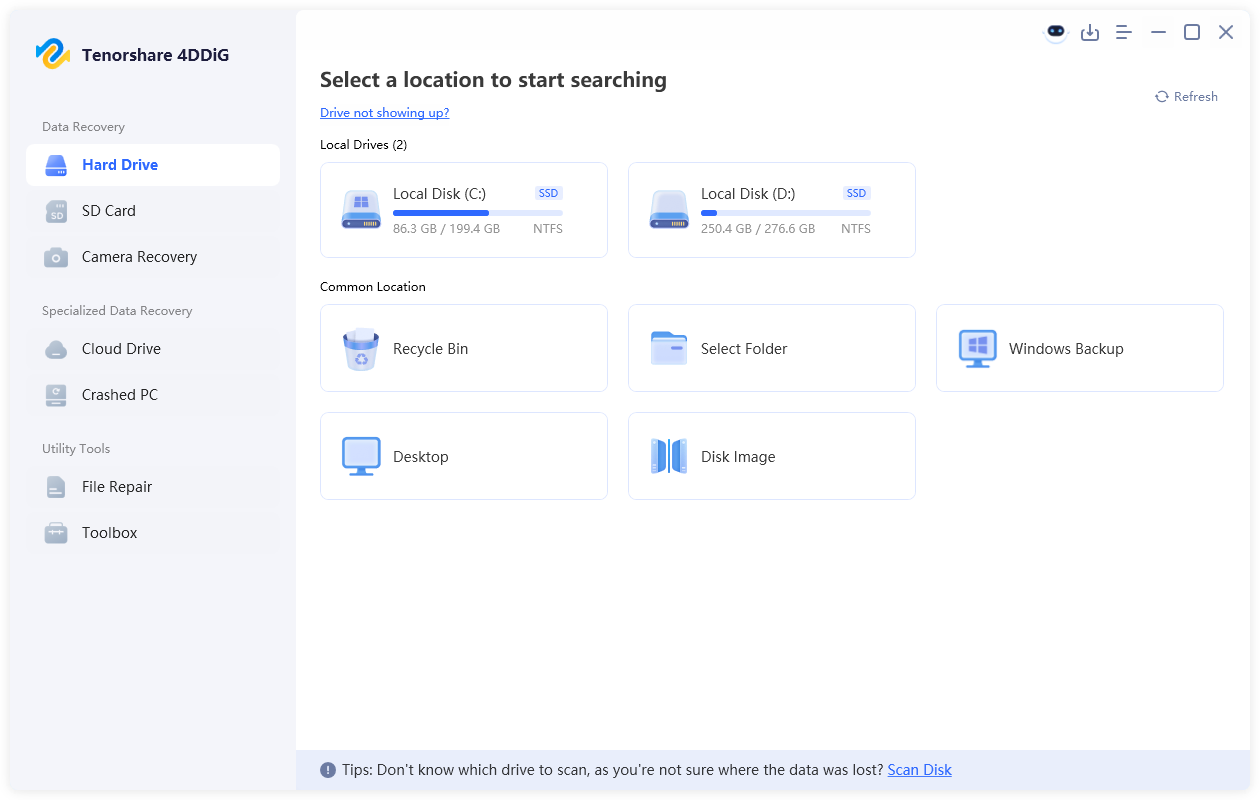
  • Make sure that your drive is connected to your PC when you launch 4DDiG. Click the drive to begin scanning it automatically.

    launch 4ddig and enter interface
  • While 4DDiG scans your drive from where you lost files while fixing the Start menu, you can use the “Filters” feature to quickly find the files you wish to recover.

    click type to see all files 4ddig
  • After scanning is complete, click the available files to check their previews. Click the “Recover” button to restore the files from your drive that faced the Start menu issue.

    preview and recover the files
  • Finally, click the "Save Now" button after choosing the location to save your recovered files. This way, you can restore files that were lost when fixing the Start menu, without opening issues.

    save the recoverable files

How to Prevent Start Menu Problems?

Stable updates, clean system maintenance, and controlled startup environments significantly reduce recurring Start Menu failures. Preventive maintenance helps avoid future Windows start key not working and shell-related instability.

Keep Windows Updated

Installing the latest Windows updates can fix Start Menu stability issues, known bugs, and even security vulnerabilities. However, delaying optional feature updates briefly allows Microsoft to patch early-release bugs affecting shell performance.

Avoid Forced Shutdowns

Unexpected shutdowns during updates or system processes can corrupt Windows shell files and Start Menu dependencies.

Create Restore Points Regularly

System Restore points provide rollback protection before major updates, driver installations, or registry modifications.

Limit Unnecessary Startup Programs

Reducing startup overload improves shell responsiveness and decreases conflicts affecting Start Menu services.

Scan for Malware Periodically

Malware infections sometimes modify registry entries and Windows shell configurations linked to Start Menu functionality.

Maintain Sufficient Storage Space

Low SSD or HDD storage can interrupt update installations and damage temporary system processes required by the Start Menu.

Use Reliable System Optimization Tools

Unsafe registry cleaners and aggressive optimization software can damage shell components and trigger Windows start icon problems.

Keep Device Drivers Updated

Updated graphics and chipset drivers improve Windows shell stability and overall user-interface responsiveness.

Conclusion

A Windows start menu not working issue commonly originates from corrupted system files, broken shell services, failed Windows updates, or damaged user profiles. Restarting Explorer processes, repairing Windows components, updating the operating system, and resetting Windows resolve most Start Menu failures across Windows 10 and Windows 11 systems.

If troubleshooting procedures cause accidental file loss or inaccessible user data, 4DDiG Recovery provides reliable scanning and restoration features for recovering important files safely from damaged or unstable Windows environments.

FREE DOWNLOAD

Secure Download

FREE DOWNLOAD

Secure Download

William Bollson (senior editor)

William Bollson, the editor-in-chief of 4DDiG, devotes to providing the best solutions for Windows and Mac related issues, including data recovery, repair, error fixes.

(Click to rate this post)

You rated 4.5 ( participated)