How to Merge Two Unallocated Partitions in Windows 11/10

5 mins read

Updated on 2026-07-22 15:56:11 to Windows Fix

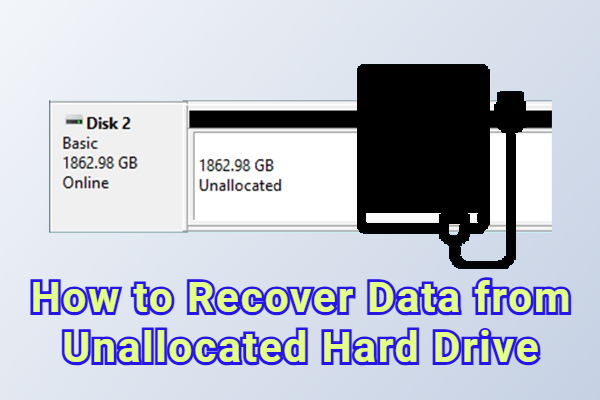
You boot up Disk Management and two gray blocks, labeled "Unallocated," perched on either side of your C drive like they're afraid of one another. You right click on one, expecting to see a "merge" option. Nothing. That gray space is just stuck there, doing nothing for you.

The positive side is that this is something you can fix! Two free spaces can definitely be joined to form a single large partition, despite there being another drive between them. It's just a couple more steps that Windows doesn't mention out of the box. This guide will show how to combine unallocated disk space irrespective of the way it was partitioned initially.

1. Why Do I Have Two Separate Unallocated Spaces?

Here are some universal factors that lead to such a cluttered drive. Knowing the reason why this occurred will help you to correct it much quicker.

  • A Data Partition is Between the Two Spaces: This is the most usual cause of this problem. Perhaps you have optimized your C drive and created a new D drive for your games or personal photos etc. You subsequently deleted another partition or shrunk another volume. Now your D drive is in the middle of two empty spaces.
  • A Recovery, EFI, MSR, or OEM Partition is in the Way:Sometimes the barrier is not the drive letter that you created yourself. It may be a partition in the system that was hidden by Windows or computer manufacturer. These partitions don't have a standard drive letter (C or D) and they are easy to overlook.
  • A Dual-Boot System was Removed: In case you ever tried Linux or installed a second version of windows on another partition of your hard disk, then you were forced to partition your disk. Later when you removed that second operating system, it left behind an empty block of space.

2. Can You Merge Two Unallocated Partitions?

Yes, but only when the two unallocated spaces are next to each other on the same drive. Windows will not merge unallocated space across a gap.

The problem is not the merging itself, but getting the two spaces next to each other in the first place. That is where most people are stuck, and that is what we will address next.

⚡ 3. How to Merge Unallocated Disk Space?

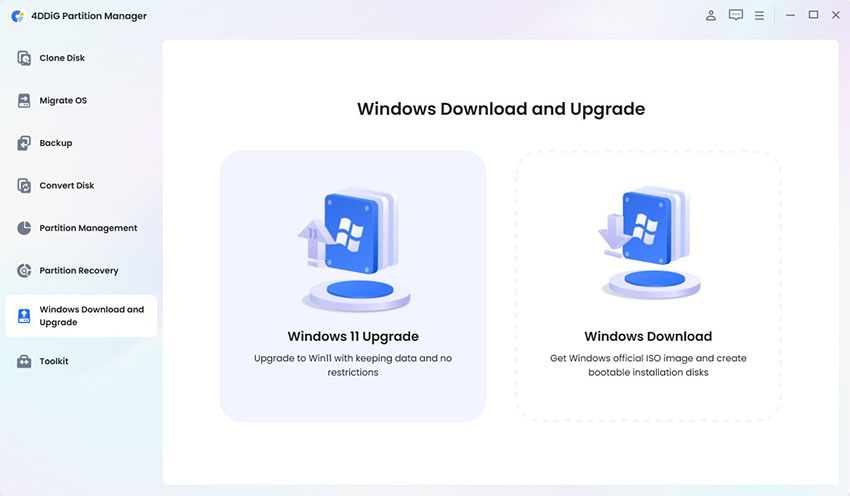
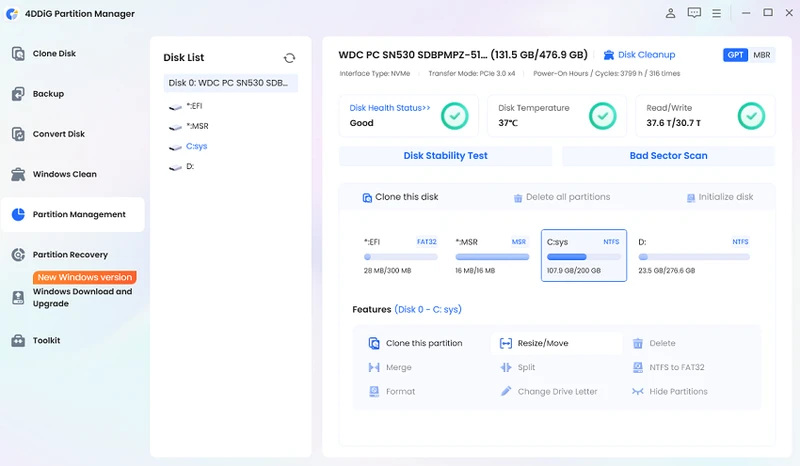
Windows' own Disk Management applet is somewhat limited in this area. It can move a partition into an unallocated space adjacent to it, but cannot move a partition out of the way to fill a gap. To do that, you need a tool designed for that. 4DDiG Partition Manager can do this resize and move job without wiping any data on the drive.

Situation 1: Move the Middle Partition to Combine Two Unallocated Spaces

If the data partition (e.g a D drive) is stuck between two unallocated spaces, the solution is to move that partition over so both gaps end up next to each other. Here's the basic flow using4DDiG Partition Manager:

move the middle partition
  • Install and launch 4DDiG Partition Manager. Choose the partition located in between the two unallocated spaces and select the Resize/Move option from your tool.

    FREE DOWNLOAD

    Secure Download

    locate middle partition and click move partition
  • Drag the slider to move the partition, until the partition is pushed all the way to one edge of the drive.

    move middle partition
  • After that, click OK and allow the tool to complete the partition move.

The two unallocated spaces will be adjacent to each other, creating a single continuous space. You can create a new volume or extend partition into the unallocated space.

Situation 2: Add Both Unallocated Spaces to the Partition in Between

Sometimes you don't need a larger unallocated block; you just want a larger partition that's already between the two gaps. If this is the case, do not take the moving step at all.

expand middle partition
  • Click the partition in the middle (the partition you want to expand). Click Resize/Move Partition once more.

  • Drag the left edge of slider to the unallocated space on the left, and drag the right edge to the unallocated space on the right. You can also enter a specified partition size in GB.

    drag the slider to left drag the slider to right
  • Check the new size and confirm the change. Click OK to start the process.

The middle partition now takes up both unallocated spaces at once, and resultingly, there is one larger partition, rather than unallocated space.

More FAQs

1. Does Disk Management allow to move unallocated space?

Not directly. Disk Management can only extend a partition to adjacent unallocated space, but it doesn't provide any partition moving feature or close the gap between two unallocated spaces.

2. Can two partitions be combined in windows 11 using the cmd?

It is very possible to use the Windows command line utility, DiskPart, to extend a volume into adjacent unallocated space with the Extend command. However, like Disk Management, it cannot rearrange the partitions to align gaps. You would still need to use another tool to close the gap before using the extend command of Diskpart.

3. Is it possible to merge the C and D partitions?

Yes, but at the same time it will wipe everything on D drive as it will be converted to unallocated space before it is added to C drive, so back up anything important on D first. Resizing the drive rather than merging is the safer way if you want to keep both drives and their data preserved.

Conclusion

Two unallocated spaces separated on the same drive isn't a dead end, it just requires one more move before Windows will consider it as one single unallocated space. It does not matter whether the gap is a leftover recovery partition, an old dual-boot setup, or a partition you shrunk at different times, the fix is the same: bring the two spaces together, then merge, extend or create as needed.

When you have the spaces touching, Disk Management or DiskPart can complete the task, but neither can be used to move a partition to get you there. This is where 4DDiG Partition Manager comes in; it lets you resize or slide over the partitions safely without losing any of your files so that the drive layout makes perfect sense once again.

FREE DOWNLOAD

Secure Download

William Bollson (senior editor)

William Bollson, the editor-in-chief of 4DDiG, devotes to providing the best solutions for Windows and Mac related issues, including data recovery, repair, error fixes.

(Click to rate this post)

You rated 4.5 ( participated)