How to Recover Data from a Failed Hard Drive in 3 Ways

5 mins read

Updated on 2026-05-20 16:38:23 to Hard Drive

Trying to recover data from failed hard drive devices can feel stressful, especially when important files suddenly become inaccessible. A failed hard drive may stop responding, disappear from File Explorer, make unusual noises, or trigger system crashes.

In many cases data recovery is still possible if the drive has not suffered severe physical damage. Here you will go through the common signs of hard drive failure, why it happens, and the safest ways to recover lost files using recovery software, backup methods, and system repair tools.

how to recover data from a failed hard drive

What are the Signs of a Failed Hard Drive?

A failed hard drive is a storage device that can no longer properly read, write, or access stored data. Sometimes the failure happens gradually with warning signs, while other times the drive stops working suddenly. Identifying the symptoms early can improve the chances of successful recovery. Here are the most common signs of hard drive failure.

signs of a failed hard drive
  • The drive does not appear in File Explorer or Disk Management
  • Files suddenly disappear or become corrupted
  • Frequent system freezing or blue screen errors
  • Clicking, grinding, or buzzing sounds from the drive
  • Extremely slow file access or transfer speeds
  • The computer fails to boot properly
  • “Drive not accessible” or “You need to format the disk” messages appear
  • SMART warnings about disk health
  • Random crashes while opening files or folders
  • External hard drives disconnect repeatedly

Some failures are caused by logical issues such as corrupted file systems, while others involve physical hardware damage. If the drive is still detected by the system, there is often a good chance to recover data from a failed hard drive before the condition worsens.

Hard Drive Failed: Why Does It Happen?

Hard drives can fail for many different reasons. Some problems develop over time due to wear and aging, while others happen unexpectedly because of accidents or system errors. Understanding the cause helps determine the safest recovery approach. Common reasons for hard drive failure include:

  • Physical damage from drops, shocks, or vibration
  • Power surges or sudden power loss
  • Corrupted file systems or partition errors
  • Malware or virus attacks
  • Bad sectors are developing on the disk
  • Overheating caused by poor ventilation
  • Improper drive removal during file transfers
  • Failed firmware or controller issues

External hard drives may also fail because of faulty USB cables, damaged ports, or unstable power delivery.

Before assuming the drive is permanently damaged, try connecting it to another computer, changing the USB cable, or using a different USB port. If the drive still cannot be accessed, using professional recovery software directly is usually the safest next step.

⚡ How to Recover Data from a Failed Hard Drive?

You can often restore lost files using professional recovery software when the drive is still detectable by the computer. One option is 4DDiG Hard Drive Recovery, which is designed to handle data loss from failed, corrupted, formatted, or inaccessible drives.

The software scans storage sectors directly and reconstructs files even when the file system is damaged. It can help retrieve common file types such as documents, photos, videos, and other important data from problematic drives.

It also allows you to preview files before saving them, so you can confirm what you are recovering and choose only the data you need.

FREE DOWNLOAD

Secure Download

FREE DOWNLOAD

Secure Download

  • Connect the failed hard drive to your computer. For external drives, use a stable USB connection. For internal drives, use a SATA-to-USB adapter or a secondary drive slot. Then launch 4DDiG and select the drive from the device list.

    launch 4ddig and enter interface
  • The scan will start automatically. The software will detect deleted, corrupted, or inaccessible files. You can view recovered categories such as documents, photos, videos, and archives during the scanning process, and refine results using the Filters option.

    click type to see all files 4ddig
  • Once the scan is complete, preview the detected files to check their integrity before recovery. Then select the files you need and click “Recover.”

    preview and recover the files
  • Save the recovered files to a different drive and click “Save Now” to avoid overwriting recoverable data.

    save the recoverable files

Once recovery is complete, back up the restored files immediately.

Other Ways to Recover Data from a Failed Hard Drive

If recovery software alone does not fully solve the problem, there are several additional recovery methods worth trying.

Restore Files from Backup

If you previously created backups using Windows Backup, File History, or cloud storage, restoring files may be the fastest solution.

  • Open “Settings” and go to “Update & Security.”

  • Select “Backup” then click “More Options."

  • Choose “Restore files from a current backup.”

  • Browse available backup versions and select the files or folders you want to restore.

  • Save them to a safe location.

This method works best when the hard drive failure only affects the original storage device while backups remain intact.

Run CHKDSK for Logical Errors

If the failure is caused by file system corruption or bad sectors, the CHKDSK utility may repair logical errors and temporarily restore access to files.

  • Connect the failed drive to your computer.

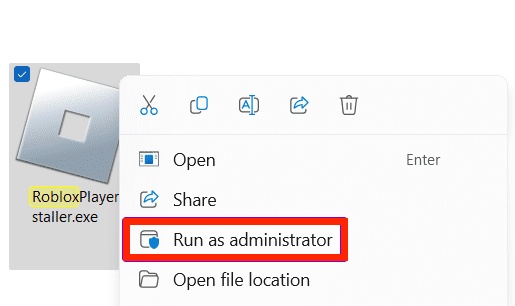
  • Search "CMD" in Windows Search and right-click "Command Prompt" then choose "Run as Administrator."

  • Type the following command: “chkdsk X: /f /r” and replace “X” with the actual drive letter.

    run the chkdsk prompt
  • Press Enter and wait for the scan to complete.

The /f parameter repairs file system errors, while /r scans for bad sectors and attempts data recovery from damaged areas. Depending on the drive size and condition, the process may take a long time. If CHKDSK reports severe errors or the drive makes unusual noises during the scan, stop using the drive immediately to prevent further damage.

When DIY Data Recovery Is Not Recommended?

When a hard drive shows signs of serious failure, DIY recovery attempts can do more harm than good. In some situations, continuing to power on the drive may permanently reduce the chances of successful recovery.

Here are common signs of physical damage where professional recovery is recommended.

  • Loud clicking, grinding, or beeping noises
  • A burnt smell is coming from the drive
  • The drive does not spin at all
  • Severe overheating within minutes
  • Water or liquid damage
  • Fire or impact damage
  • BIOS cannot detect the drive at all
  • Repeated disconnecting during recovery attempts

In these situations, avoid opening the drive yourself. Hard drives contain sensitive internal components that require cleanroom conditions for safe repair.

If you encounter any of the above signs, stop using the drive immediately and contact a professional data recovery service. Experts can clone the disk and recover data in a controlled environment without causing additional damage.

Tips to Prevent Hard Drive Failure and Data Loss

Although some hardware failures are unavoidable, many cases of data loss can be prevented with proper storage habits and regular maintenance. Here are some practical prevention tips.

  • Back up important files regularly
  • Use surge protectors to prevent electrical damage
  • Avoid disconnecting drives during file transfers
  • Keep external drives away from drops and vibration
  • Monitor drive health using SMART tools
  • Maintain proper ventilation to reduce overheating
  • Replace aging hard drives before failure occurs
  • Scan for malware regularly
  • Avoid filling the drive completely
  • Store critical files in multiple locations

For users working with valuable data, maintaining both local and cloud backups provides additional protection against unexpected hardware failure.

Conclusion

Recovering data from a failed hard drive is often possible if the drive is still detectable and has no severe physical damage. Stopping further use of the drive and choosing the right recovery method can help improve the chances of successful recovery.

Tools like 4DDiG Data Recovery may help restore files from corrupted, formatted, or inaccessible drives, while regular backups remain the best way to prevent future data loss.

FREE DOWNLOAD

Secure Download

FREE DOWNLOAD

Secure Download

William Bollson (senior editor)

William Bollson, the editor-in-chief of 4DDiG, devotes to providing the best solutions for Windows and Mac related issues, including data recovery, repair, error fixes.

(Click to rate this post)

You rated 4.5 ( participated)