Elden Ring Not Launching on PC? Try These Proven Fixes

5 mins read

Updated on 2026-07-22 15:56:11 to Windows Fix

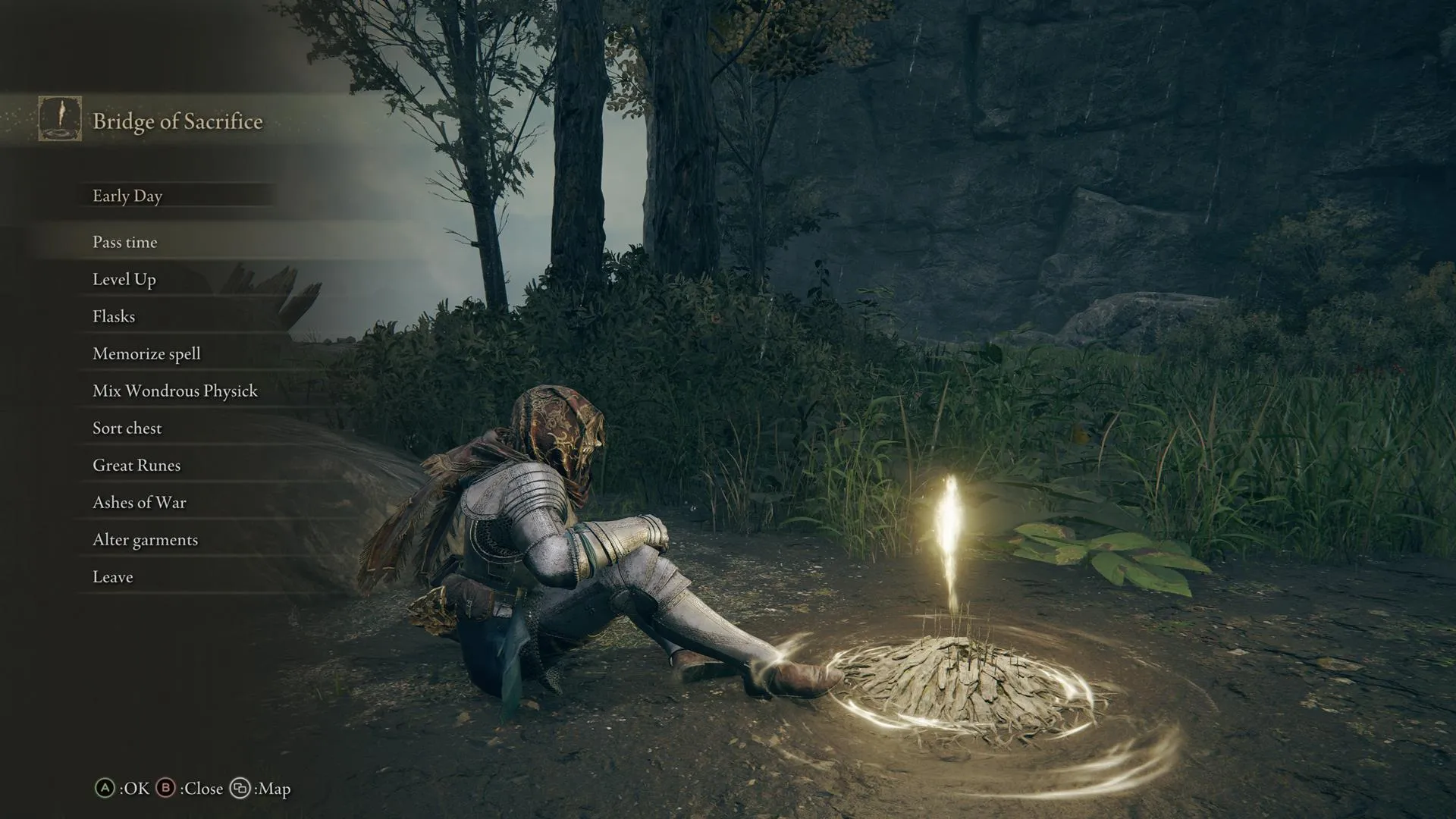
Elden Ring not launching when you click the Play button on Steam? It can be really frustrating, especially when you're ready to jump into the game. Sometimes the game doesn't open at all, gets stuck on a white or black screen, crashes on startup, or shows an Easy Anti-Cheat error. The problem can happen for several reasons, so it isn't always easy to figure out what's wrong.

But don’t worry at all as you don't have to try random fixes. In this guide, we'll explain why Elden Ring won't launch and show you simple, proven solutions that can help you get back into the game quickly.

1. Why Does Elden Ring Not Launching?

If Elden Ring won't launch on your PC, there isn't always a single cause. The issue can be related to the game files, Steam, Windows, Easy Anti-Cheat, or even third-party software running in the background. Below are the most common reasons why this problem happens.

  • Corrupted or Missing Game Files: If some of the game's files are missing or damaged, Elden Ring may fail to launch or crash during startup. This can happen after an interrupted update, an unexpected system shutdown, or file corruption on your storage drive.
  • Outdated Graphics Drivers: Your graphics driver allows Windows and your GPU to communicate with the game. If it's outdated or corrupted, Elden Ring may get stuck on a black screen, white screen, or fail to launch altogether.
  • Windows Defender Firewall or Antivirus Blocking the Game: Sometimes Windows Defender Firewall or third-party antivirus software mistakenly blocks Elden Ring or Easy Anti-Cheat. When this happens, the game may not be able to launch correctly.
  • Conflicting USB Devices and Peripherals: Connected devices such as racing wheels, flight sticks, VR headsets, USB hubs, or multiple controllers can sometimes interfere with Elden Ring during startup, preventing it from launching.
  • Incompatible or Outdated Mods: If you're using mods, they may no longer work after a game update. Players experiencing elden ring convergence mod not launching or elden ring convergence not launching often find that an outdated or incompatible mod is causing the problem.

2. How to Fix Elden Ring Not Launching?

Fix 1: Verify the Integrity of Elden Ring Game Files

Corrupted or missing game files are one of the most common reasons Elden Ring won't launch. Steam has a built-in tool that scans your game files and automatically replaces any that are damaged or missing.

  • Open Steam and go to your Library, right-click Elden Ring, and select Properties.

  • From the left menu, click Installed Files.

  • Now, click on Verify integrity of game files and wait for Steam to scan and repair the game files. This may take a few minutes.

    verify integrity of game files
  • Once the process is complete, restart Steam and launch Elden Ring again.

If corrupted files were causing the problem, the game should now launch normally.

Fix 2: Disable Compatibility Mode for Steam

Running Steam in Compatibility Mode can sometimes cause launch issues with newer games, especially on Windows 10 and Windows 11. Disabling this setting allows Steam to run using your current version of Windows.

  • First of all, completely close Steam. Right-click the Steam shortcut and select Properties.

  • Open the Compatibility tab, and uncheck Run this program in compatibility mode for if it's enabled.

  • Now, uncheck Run this program as an administrator unless you specifically need it.

    disable compatibility mode for steam
  • Click Apply and then OK. After that, reopen Steam and try launching Elden Ring.

If you've enabled compatibility mode for eldenring.exe, repeat these steps for the game's executable file as well.

Fix 3: Disconnect Conflicting USB Devices and Peripherals

Some USB devices can interfere with Elden Ring during startup. Racing wheels, flight sticks, VR headsets, and even multiple controllers have been reported to prevent the game from launching correctly.

  • Exit Steam completely. Unplug all non-essential USB devices, including:

  • Leave only your keyboard and mouse connected.

  • Restart your computer. Open Steam and launch Elden Ring.

If the game opens successfully, reconnect your devices one at a time until you find the one causing the conflict.

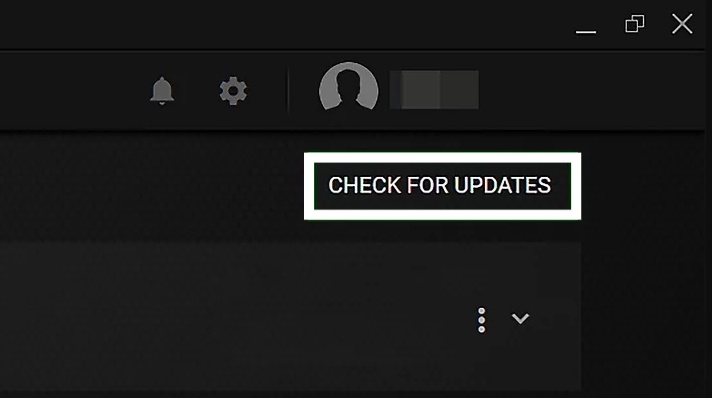
Fix 4: Update the Epic Games Launcher

Installing the latest version of Epic Games Launcher ensures any outdated background services are updated.

  • Open the Epic Games Launcher and click your profile icon in the top-right corner.

  • Now, select Settings, and click “Restart and Update” button.

    update epic game launcher
  • Restart your computer after the update finishes.

  • Launch Steam and check whether Elden Ring opens properly.

Fix 5: Allow Elden Ring through Windows Defender Firewall

Windows Defender Firewall may occasionally block Elden Ring or Easy Anti-Cheat from accessing the internet. Allowing both through the firewall can help resolve startup issues caused by blocked connections.

  • Press Windows + S, type Windows Defender Firewall, and open it.

  • Click Allow an app or feature through Windows Defender Firewall from the left panel.

  • Now click on Change settings and look for Elden Ring and Steam in the list. Make sure both Private and Public checkboxes are enabled.

    elden ring through firewall
  • If Elden Ring isn't listed, click Allow another app, browse to the game's installation folder, and add eldenring.exe manually.

  • Click OK, then restart your PC and launch the game again.

If a third-party antivirus is installed, you may also need to add Elden Ring and Easy Anti-Cheat to its exception list.

Fix 6: Roll Back Windows Preview Updates

If Elden Ring not launching started immediately after installing a Windows Preview update, the update may be causing compatibility issues. Rolling back the latest Preview update can help restore normal game performance until Microsoft releases a permanent fix.

  • Press Windows + I to open Settings.

  • Now go to Windows Update > Update history, scroll down and click Go back.

    roll back windows
  • Find the most recent Preview Update or the update installed before the issue started.

  • Select the update and click Uninstall. Follow the on-screen instructions to complete the process.

Once the process is completed, restart your computer and try launching Elden Ring again.

⚡ Bonus: Maximize Gaming Performance by Clearing System Bottlenecks

Even if you've fixed the main issue, Elden Ring may still take longer to launch or feel less responsive if your Windows system is cluttered with temporary files, old update data, browser caches, and other unnecessary files.

Cleaning them up can help Windows run more efficiently and may improve game startup performance. One simple way to do this is by using the Windows Clean feature in 4DDiG Partition Manager, which scans your computer for unnecessary files and safely removes them to free up disk space.

  • Install and launch 4DDiG Partition Manager on your PC. From the left navigation panel, click Windows Clean. Choose the types of junk files you want to remove, then click Start Scan to begin scanning your system.

    FREE DOWNLOAD

    Secure Download

    windows clean
  • Once the scan is complete, it will display a list of junk files. The files that are safe to remove are selected automatically, but you can expand each category and review or change the selection if needed.

    select items to clean
  • After reviewing the results, click Clean and confirm the action when prompted. The software will begin removing the selected junk files and freeing up storage space.

    confirm to clean
  • When the cleanup process is finished, you'll see how much disk space has been recovered. Restart your PC and launch Elden Ring again to check if the game starts more smoothly.

    clean successfully

If your system drive was running low on free space or filled with unnecessary files, cleaning it can reduce system bottlenecks and give Windows more room to manage game files efficiently.

Conclusion

Elden ring not launching can be frustrating, but in most cases, the issue can be fixed with a few simple troubleshooting steps. Start by verifying your game files, checking Easy Anti-Cheat, disabling compatibility mode, reviewing your firewall settings, and uninstalling any problematic Windows updates.

If your PC is also running low on storage or filled with unnecessary files, using 4DDiG Partition Manager to clean junk files can help Windows run more smoothly and improve overall gaming performance. Work through the solutions one by one, and you'll have a good chance of getting Elden Ring back up and running without having to reinstall the game.

FREE DOWNLOAD

Secure Download

William Bollson (senior editor)

William Bollson, the editor-in-chief of 4DDiG, devotes to providing the best solutions for Windows and Mac related issues, including data recovery, repair, error fixes.

(Click to rate this post)

You rated 4.5 ( participated)