How to Fix Grey Screen on Windows 11 [9 Proven Ways]

5 mins read

Updated on 2026-09-04 10:10:41 to Windows Fix

A grey screen on Windows 11 usually means the system is running, but the desktop, graphics driver, or display output is not loading correctly. You may see a completely grey screen, a grey screen with a movable cursor, or the problem may appear only after a Windows update.

This guide explains how to fix grey screen on Windows 11, along with the common causes behind the problem.

how to fix grey screen on windows 11

Why Is My Windows 11 Screen Grey?

A Windows 11 grey screen can appear for different reasons. The symptoms can also help narrow down the cause.

Possible Cause What You May Notice
🖥 Graphics driver crash The screen suddenly turns grey while Windows is still running
📁 Windows Explorer stops responding Grey screen with a movable mouse cursor
🔄 Recent Windows update The grey screen starts after installing an update
⚠ Driver incompatibility The issue appears after updating or changing the graphics driver
🧩 Third-party software conflict Safe Mode works, but a normal startup shows a grey screen
🔌 Display connection or output issue Grey screen appears after connecting a monitor or changing displays
📄 Corrupted Windows files The grey screen keeps returning or Windows cannot load normally

Microsoft explains that similar blank-screen problems with a cursor can be caused by a stalled Windows process or driver issue. Problems that appear after an update may also be related to incompatible drivers or an incomplete update.

How to Fix Grey Screen on Windows 11/10?

If your PC is stuck on a grey screen, try the following methods in order.

Fix 1. Restart the Graphics Driver

Restarting the graphics driver is one of the quickest ways to fix a temporary grey screen. It is especially useful when the display suddenly turns grey while the computer is still running.

Press:

Windows + Ctrl + Shift + B

The screen may blink or briefly go black, and you may hear a beep. Windows then resets the graphics driver without requiring you to close your open apps.

Continue using the PC if the desktop returns, and check whether the problem happens again. A recurring grey screen may indicate that the graphics driver needs to be updated or rolled back.

Fix 2. Restart Windows Explorer

Try this method if the screen is grey but you can still move the mouse or open Task Manager. In this situation, Windows may be running normally while the desktop interface has failed to load.

  • Press Ctrl + Shift + Esc to open Task Manager.

  • Find "Windows Explorer" under the Processes tab.

    restart windows explorer in task manager processes
  • Right-click it and select "Restart".

If Windows Explorer is not listed:

  • In Task Manager, select "Run new task".

    run new task in task manager
  • Type explorer.exe.

  • Click "OK" or press Enter.

Your desktop, taskbar, and icons should reload if Windows Explorer was causing the problem.

Fix 3. Check the Display and External Devices

A grey screen is not always caused by Windows itself. An incorrect display mode, loose cable, external monitor, or connected peripheral can interfere with the display and, in more severe cases, cause a PC to turn on with no display or beeps.

Try these checks:

  • Disconnect unnecessary USB devices and external monitors.

  • Reconnect HDMI, DisplayPort, or other display cables.

  • Try another display cable or monitor if available.

  • Press Windows + P, press P again, and then press Enter to switch between display modes.

  • If you use a laptop with an external display, disconnect the monitor and restart the laptop.

If the screen works normally after disconnecting an external device, reconnect the devices one at a time to identify the source of the problem.

Fix 4. Update or Roll Back the Graphics Driver

A corrupted or incompatible display driver can cause Windows 11 to show a grey, blank or pink screen. The right action depends on when the problem started.

If the grey screen appeared unexpectedly, try updating the driver:

  • Right-click "Start" and select "Device Manager".

  • Expand "Display adapters".

  • Right-click your graphics card and select "Update driver".

    update graphics driver
  • Select "Search automatically for drivers".

    search automatically for drivers graphics driver
  • Restart the computer after the update.

You can also check the official NVIDIA, AMD, or Intel software for a driver designed for your GPU.

However, the newest driver is not always the solution. If the problem started immediately after a graphics driver update, rolling it back may work better:

  • Open "Device Manager > Display adapters".

  • Double-click your graphics card to open the "Driver" tab.

  • Select "Roll Back Driver" if the option is available.

    roll back the graphics driver
  • Restart Windows.

Microsoft recommends updating or rolling back the graphics driver when troubleshooting display problems. A rollback is particularly useful when the issue begins after a recent driver change.

Fix 5. Boot Windows 11 into Safe Mode

Safe Mode is useful when Windows 11 is stuck on a grey screen every time it starts. It loads Windows with a limited set of drivers and services, which can help determine whether a graphics driver, startup program, or third-party service is causing the problem.

If you cannot reach the desktop, you can enter the Windows Recovery Environment (WinRE):

  • Turn on your PC.

  • When Windows begins loading, press and hold the power button to shut it down.

  • Repeat this process two or three times until Windows enters recovery mode.

  • Select "Troubleshoot > Advanced options > Startup Settings > Restart".

    click restart under startup settings
  • After the PC restarts, press F5 to start "Safe Mode with Networking".

    enable safe mode with networking

Once you enter Safe Mode, check whether the grey screen disappears. If Windows works normally there, focus on recently installed drivers, startup programs, third-party applications, or Windows updates.

Fix 6. Uninstall the Latest Windows Update

Try this method when you encounter a Windows 11 grey screen after update issue. If the computer worked normally before the update, removing the latest update can help determine whether it triggered the problem.

If you can still access Windows:

  • Open "Settings".

  • Go to "Windows Update > Update history".

  • Select "Uninstall updates".

    click the uninstall updates from settings
  • Find the most recent update that was installed before the grey screen started.

  • Select "Uninstall" and follow the prompts.

  • Restart your PC.

If you cannot reach the desktop, uninstall the update through WinRE:

  • Enter the Windows Recovery Environment.

  • Select "Troubleshoot > Advanced options > Uninstall Updates".

    select uninstall updates under winre
  • Choose the appropriate update removal option.

  • Follow the on-screen instructions.

Fix 7. Perform a Clean Boot

A clean boot is worth trying if Safe Mode works normally but the grey screen returns during a regular Windows startup. This pattern can indicate that a third-party app or background service is interfering with Windows.

  • Press Windows + R.

  • Type msconfig and press Enter.

    open system configuration
  • Open the "Services" tab.

  • Select "Hide all Microsoft services".

  • Click "Disable all".

    check hide all microsoft services
  • Open the "Startup" tab and select "Open Task Manager".

    click open task manager
  • Disable non-essential startup apps, then restart the computer.

If the grey screen disappears, re-enable the disabled services and startup items gradually until you identify the conflicting software.

Do not leave the computer permanently configured for clean boot troubleshooting. After identifying the problem, restore your normal startup configuration.

Fix 8. Repair Windows System Files with DISM and SFC

Damaged Windows components or system files can prevent the desktop from loading correctly. If the previous fixes did not work, use DISM and System File Checker to repair Windows.

Open "Windows Terminal (Admin)" or "Command Prompt (Admin)".

First, run:

DISM.exe /Online /Cleanup-Image /RestoreHealth

Wait for the command to complete. Then run:

sfc /scannow

enter the prompt in the window

System File Checker scans protected Windows system files and attempts to replace corrupted files.

Restart the PC after both scans finish and check whether Windows loads normally.

Fix 9. Use Startup Repair or System Restore

If you have tried the methods above and Windows still boots to a grey screen, use the recovery tools available in WinRE.

Option 1: Run Startup Repair

Startup Repair is designed for problems that prevent Windows from starting correctly.

  • Enter the Windows Recovery Environment.

  • Select "Troubleshoot > Advanced options > Startup Repair".

    run startup repair under winre
  • Select your account if prompted.

  • Allow Windows to diagnose and repair the startup problem.

Startup Repair can address problems such as damaged system files, boot configuration errors, incompatible drivers, and certain registry errors.

Option 2: Use System Restore

If the grey screen started recently, System Restore can return system files, drivers, settings, and installed programs to an earlier state without removing your personal files.

  • Enter WinRE.

  • Select "Troubleshoot > Advanced options > System Restore".

    choose system restore under winre
  • Select a restore point created before the grey screen appeared.

  • Review the affected programs.

  • Start the restore process.

If none of these options work, Windows also provides Reset and reinstallation options. Microsoft recommends backing up important data before using official recovery methods that may remove files.

How to Recover Data If Windows 11 Is Stuck on a Grey Screen?

If Windows remains stuck on a grey screen and you cannot access the desktop, be careful before resetting or reinstalling the operating system. Some recovery operations can remove personal files, apps, or settings, especially when you need to recover files after a Windows 11 update.

In this situation, prefessional recovery software like 4DDiG Data Recovery can help recover inaccessible or lost files from a Windows PC that cannot boot normally. It supports photos, videos, documents, and other common file types from HDDs, SSDs, and other storage devices.

FREE DOWNLOAD

Secure Download

FREE DOWNLOAD

Secure Download

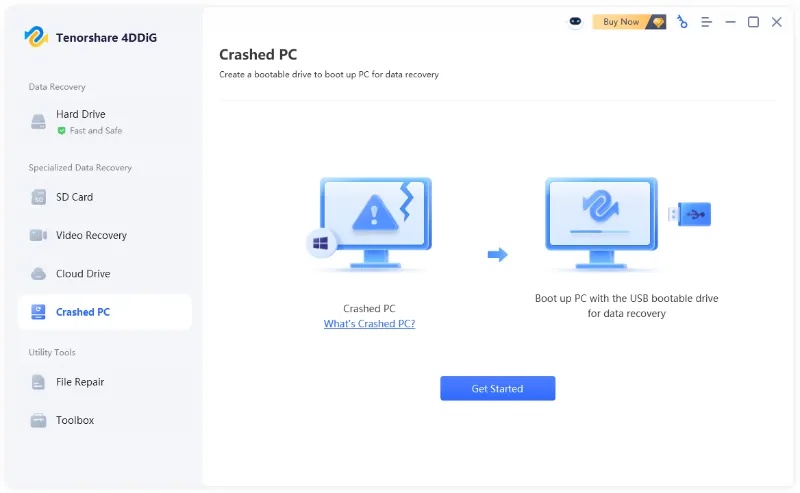
Its Crashed PC Recovery feature is especially useful when a grey screen or other startup problem prevents you from accessing your files through Windows.

The general process is:

  • On another working Windows PC, install and launch 4DDiG. Select "Crashed PC" from the left menu and click "Get Started" to prepare recovery media for the grey screen Windows.

    choose crashed pc feature in 4ddig
  • Connect a USB drive to the working PC, select it in 4DDiG, and click "Create Now." The USB drive will be formatted, so make sure it does not contain any important files.

    select usb drive to create a bootable drive
  • Wait while 4DDiG downloads the required firmware and creates the bootable USB drive. Keep the internet connection stable and leave the USB drive connected until the process is complete.

    4ddig creating the bootable drive
  • Once done, connect the bootable USB drive to the PC that stuck on the grey screen. Enter BIOS/UEFI, set the USB drive as the boot device, and restart the computer to boot from it instead of the affected Windows installation.

    4ddig bootable drive created successfully
  • After the grey-screen PC boots from the USB drive, enter the 4DDiG recovery environment. Select the drive that contains your inaccessible files and start scanning it for recoverable data.

    4ddig advanced scan
  • Once the scan is complete, browse or preview the found files and select the files you want to restore. Click "Recover" and save the recovered files to a safe location before you reset or reinstall Windows 11.

    4ddig recover files

FAQs About Windows 11 Grey Screen

Why is my Windows 11 screen grey but the mouse still works?

A grey screen with a movable cursor often means Windows is still running but a Windows process or graphics component is not loading correctly. Try Windows + Ctrl + Shift + B to restart the graphics driver. If that does not work, open Task Manager and restart Windows Explorer.

Why did my screen turn grey after a Windows 11 update?

A grey screen after a Windows 11 update is often related to a graphics driver conflict or an incompatible recent update. Try updating or rolling back the graphics driver first. If the issue started immediately after the update, you can also uninstall the recent update through Settings or WinRE.

Can a graphics driver cause a grey screen?

Yes. A crashed, corrupted, or incompatible graphics driver can cause display problems such as grey, black, or flickering screens. Restarting, updating, or rolling back the display driver can often resolve driver-related cases.

Conclusion

Knowing how to fix grey screen on Windows 11 can help you restore normal access and avoid more disruptive recovery options.

If the PC becomes unbootable and your files are inaccessible, 4DDiG Hard Drive Data Recovery can help recover important data before you reset or reinstall Windows.

FREE DOWNLOAD

Secure Download

FREE DOWNLOAD

Secure Download

William Bollson (senior editor)

William Bollson, the editor-in-chief of 4DDiG, devotes to providing the best solutions for Windows and Mac related issues, including data recovery, repair, error fixes.

(Click to rate this post)

You rated 4.5 ( participated)