How to Use Window Hopper in PowerToys on Windows 11/10

5 mins read

Updated on 2026-08-27 17:51:39 to Windows Fix

PowerToys Window Hopper is a new window-switching utility introduced with PowerToys 0.101. It lets you quickly cycle through multiple windows of the same app without going through windows from other apps.

To use Window Hopper in PowerToys, the default shortcut is Alt + `. Before using it, make sure you have PowerToys 0.101 or later and Window Hopper is enabled. This guide covers how to set it up, use its shortcuts, and fix it when it does not work.

how to use window hopper in powertoys

What Is Window Hopper in PowerToys?

Window Hopper is a PowerToys utility designed to switch between windows that belong to the app currently in focus. Microsoft introduced it with PowerToys 0.101 on August 25, 2026.

For example, suppose you have three Chrome windows open along with File Explorer and Word. When Chrome is active, Window Hopper can cycle through only those three Chrome windows. File Explorer and Word are left out of the selection.

This makes Window Hopper useful when you work with multiple browser windows, File Explorer windows, or terminals.

Keep in mind that Window Hopper switches between separate windows of the same app, not tabs within one window. Multiple tabs open in a single browser window still count as only one window.

Window Hopper vs Alt + Tab: What's the Difference?

The main difference is simple: Window Hopper switches between windows of the currently focused app, while Alt + Tab cycles through windows from different apps.

  • Feature
  • Window Hopper
  • Alt + Tab
  • What it switches
  • Windows of the focused app
  • Windows across open apps
  • Shows windows from other apps
  • No
  • Yes
  • Default shortcut
  • Alt + `
  • Alt + Tab
  • Requires PowerToys
  • Yes
  • No
  • Best for
  • Multiple windows of the same app
  • Switching between different apps

For example, if you have several File Explorer windows open, Window Hopper lets you move through those windows without seeing Chrome, Word, or other apps in the switcher.

Alt + Tab is still better when you want to move from Chrome to Word, File Explorer, or another application.

Therefore, Window Hopper is not meant to replace Alt + Tab. The two shortcuts complement each other: use Window Hopper for same-app window switching and Alt + Tab for general multitasking.

How to Enable Window Hopper in PowerToys?

Before learning how to use Window Hopper in PowerToys, you need a supported PowerToys version. Window Hopper arrived with PowerToys 0.101 and is turned off by default.

Here is how to set up Window Hopper in PowerToys from the beginning.

Step 1. Check Your PowerToys Version

First, check whether your installed version includes Window Hopper.

  • Open "PowerToys."

  • Select "General."

  • Find "Version & updates."

    check powertoys version
  • Check the installed PowerToys version.

You need "PowerToys 0.101 or later" to use Window Hopper. If you already have a supported version, skip to Step 3.

If you are using an older version or do not have PowerToys installed, continue to the next step.

Step 2. Install or Update PowerToys

If PowerToys is not installed, Microsoft recommends installing it through the Microsoft Store or GitHub. PowerToys supports Windows 11 and Windows 10 version 2004 (build 19041) or later on 64-bit x64 or ARM64 processors.

You can also install PowerToys through WinGet. Open PowerShell or Windows Terminal and run:

winget install --id Microsoft.PowerToys --source winget

Microsoft provides more information about each method in its official PowerToys installation guide.

download powertoys from microsoft store

If PowerToys is already installed but outdated:

  • Open "PowerToys > General."

  • Go to "Version & updates."

  • Click "Check for updates."

  • Install the available update and restart PowerToys.

If the built-in updater does not offer the latest version, you can download it manually from the official Microsoft PowerToys GitHub Releases.

download powertoys from github

Expand "Assets" for the stable release and choose the installer that matches your PC, such as x64 or ARM64. Run the downloaded installer and reopen PowerToys when installation finishes.

Step 3. Turn On Window Hopper

Once your PowerToys version supports the feature, you can turn on Window Hopper in PowerToys:

  • Open "PowerToys Settings."

  • Go to "Windowing & Layout > Window Hopper."

  • Turn on "Enable Window Hopper."

    enable window hopper from powertoys

Window Hopper is disabled by default, so simply updating PowerToys does not automatically activate it.

After enabling it, you can start using the default shortcuts immediately.

How to Use Window Hopper in PowerToys?

Once Window Hopper is enabled, you can use it whenever the focused app has at least two eligible windows.

For example, open two or three separate Chrome windows. Select one of them, and then use the shortcuts below to move between those Chrome windows without cycling through unrelated apps.

use window hopper in powertoys

Tip 1. Switch to the Next Window with Alt + `

The default shortcut for moving forward is Alt + `.

Here's how to switch between windows of the same app:

  • Open at least two separate windows of the same application.

  • Select one window to make that app active.

  • Hold Alt and press `.

  • Window Hopper displays previews of the app's open windows and selects the next one.

  • Keep holding Alt and press ` again to continue cycling.

  • Release Alt when the window you want is selected.

The ` key is called the "backtick" or "grave accent" key. On most keyboards, it is located above the Tab key.

This is the main shortcut to remember when you want to switch windows with PowerToys Window Hopper.

Tip 2. Switch to the Previous Window with Alt + Shift + `

Window Hopper can also cycle backward through the windows of the focused app.

Press: Shift + Alt + `

Keep holding Alt and press the backtick key to continue moving backward. Release Alt when the window you want is selected.

This is useful if the window you need is closer in the opposite direction.

Tip 3. Cancel Window Switching

You do not have to complete the switch after opening Window Hopper.

Before releasing Alt, press: Esc

Window Hopper closes without switching to another window.

How to Change the Window Hopper Shortcut?

You are not limited to the default Alt + ` shortcut. PowerToys lets you customize both forward and backward window switching.

To change the Window Hopper shortcuts:

  • Open "PowerToys Settings."

  • Go to "Window Hopper."

  • Find "Next window" to change the default Alt + ` shortcut.

  • Find "Previous window" to change the default Alt + Shift + ` shortcut.

    find the window hopper shortcut
  • Enter the shortcut combinations you prefer.

    customize the window hopper shortcut

A custom shortcut can be useful if the backtick key is inconvenient on your keyboard or another program already uses the same combination.

Choose shortcuts that do not conflict with Windows or frequently used applications.

How to Fix Window Hopper Not Working?

If Window Hopper does not open or switch windows, first make sure you are running PowerToys 0.101 or later as described above. Then check the settings and window conditions below.

Fix 1. Confirm Window Hopper Is Enabled

Updating PowerToys does not automatically turn on Window Hopper because the utility is disabled by default.

Go to: "PowerToys > Windowing & Layout > Window Hopper".

Make sure "Enable Window Hopper" is turned on. Then try the shortcut again.

Fix 2. Open at Least Two Windows of the Same App

Window Hopper does not open when the focused application has fewer than two eligible windows.

For example, one Chrome window containing ten tabs is still only one window. Open a second independent Chrome window and try Alt + ` again.

The same rule applies to File Explorer, Terminal, editors, and other supported apps.

Fix 3. Check the Window Hopper Shortcut

If Alt + ` does nothing, check whether the shortcut has been changed.

Open "PowerToys > Window Hopper" and look at the current shortcut beside "Next window" and "Previous window."

Use the shortcuts shown there instead of assuming the default combinations are still active.

Fix 4. Check for Shortcut Conflicts or Keyboard Layout Issues

The backtick key can be inconvenient on some keyboard layouts, and another program may already use your chosen shortcut.

Try assigning a different shortcut under "Next window." Then open two windows of the same app and test Window Hopper again.

If the new combination works, the original shortcut or keyboard layout was likely causing the problem.

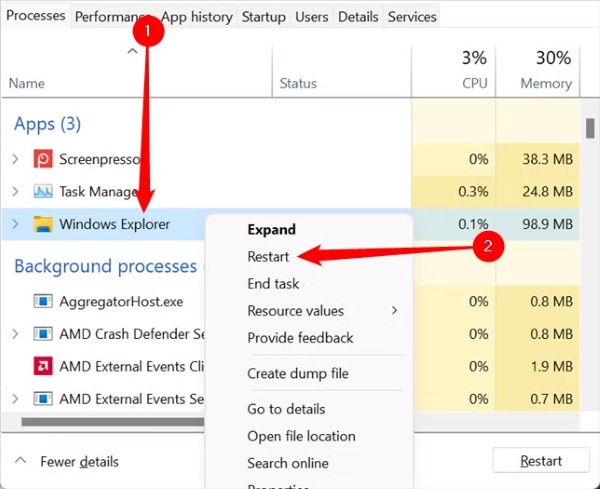
Fix 5. Restart PowerToys

If the settings look correct but Window Hopper still does not respond, completely exit PowerToys and launch it again.

After restarting, try the above solutions again.

Restarting is especially worth trying after updating PowerToys or changing Window Hopper settings.

Bonus: How to Recover Files Accidentally Deleted While Multitasking?

Window Hopper makes it easier to move between multiple File Explorer windows, but you may accidentally delete a file while copying, moving, or organizing files across folders.

If a file goes missing, first check its original folder, search for it in File Explorer, and look in the Recycle Bin. If it was permanently deleted or still cannot be found, try the recovery method below.

Recover Accidentally Deleted Files with 4DDiG

4DDiG Data Recovery can scan HDDs, SSDs, USB drives, and other storage devices for files deleted or lost due to a Windows update, system crash, accidental formatting, or other data loss scenarios. It supports documents, photos, videos, archives, and other common file types.

FREE DOWNLOAD

Secure Download

FREE DOWNLOAD

Secure Download

To recover an accidentally deleted file:

  • Open 4DDiG and select the drive or partition where the accidentally deleted file was originally stored. Then start the scan.

    launch 4ddig and enter interface
  • While the scan is running, use the "File Type" filter or "Search" feature to narrow the results. You can search for the deleted file by its name or filter the results by file type.

    click type to see all files 4ddig
  • Once the scan results appear, select the file you want to restore and preview it when available. After confirming it is the correct file, click "Recover".

    preview and recover the files
  • Choose a different drive or another safe location for the recovered file, then click "Save Now" to complete the recovery.

    save the recoverable files
Important:

To avoid overwriting deleted data, save the recovered file to a different drive or to cloud storage such as OneDrive or Google Drive. Do not save it back to the original location.

FAQs About PowerToys Window Hopper

What is the shortcut for Window Hopper?

The default shortcut is Alt + ` to cycle forward through windows of the focused app. Use Shift + Alt + ` to cycle backward. Both shortcuts can be customized in PowerToys Settings.

Where is the backtick key on my keyboard?

The backtick or grave accent key is `. On most keyboards, it is located above Tab and to the left of the 1 key. Its position may vary depending on your keyboard layout.

Does Window Hopper switch browser tabs?

No. Window Hopper switches between separate browser windows, not tabs inside a single window. If you have several tabs in one Chrome or Edge window, use the browser's tab-switching shortcuts instead.

Why doesn't Window Hopper open with only one window?

Window Hopper requires the focused app to have at least two eligible windows. If only one window is open, the switcher will not appear. Multiple tabs inside that window do not count as separate windows.

Does Window Hopper work on Windows 10?

Yes. Window Hopper works on supported Windows 10 and Windows 11 systems through PowerToys. PowerToys requires Windows 10 version 2004 (build 19041) or later and a supported 64-bit x64 or ARM64 system.

Conclusion

Now that you know how to use Window Hopper in PowerToys, you can switch between windows of the same app more efficiently without changing your usual Windows workflow.

If you accidentally delete an important file while managing multiple File Explorer windows, 4DDiG can help scan the original drive and recover lost files.

FREE DOWNLOAD

Secure Download

FREE DOWNLOAD

Secure Download

William Bollson (senior editor)

William Bollson, the editor-in-chief of 4DDiG, devotes to providing the best solutions for Windows and Mac related issues, including data recovery, repair, error fixes.

(Click to rate this post)

You rated 4.5 ( participated)