[12 Methods in 2026] How to Fix Windows Orange Screen of Death?
Seeing your computer suddenly freeze with a solid orange display can be unsettling, especially when there is no clear error message explaining what went wrong. The Windows orange screen of death is a rare but serious system issue that often points to hardware conflicts, driver problems, or system instability.
If left unaddressed, it may result in repeated crashes or even data loss. This guide explains what causes the orange screen and provides tested solutions to fix it safely.
What Is the Orange Screen of Death on Windows?
The Orange Screen of Death (OSOD) is a critical system error where Windows displays a full orange-colored screen and becomes unresponsive. Unlike the Blue Screen of Death, the orange screen usually appears without diagnostic text or error codes, making troubleshooting more challenging.
This issue is commonly associated with graphics-related failures, system-level conflicts, or unstable hardware settings. In many cases, the system either freezes completely or restarts unexpectedly, preventing normal use of Windows.
What Causes the Orange Screen of Death?
Understanding what causes the orange screen of death helps you apply the right fix. Common causes include:
- Faulty or incompatible graphics drivers
- GPU or CPU overclocking instability
- Hardware acceleration conflicts
- Corrupted Windows system files
- Recent Windows updates that failed or were installed incorrectly
- Incompatible third-party software (especially screen recording or overlay tools)
- Faulty RAM or memory-related errors
- Outdated BIOS or firmware
- Overheating components or power supply issues
These causes affect both the orange screen of death Windows 10 and the orange screen of death Windows 11 systems.
⚡ How to Recover Data When Windows Has an Orange Screen?
Before attempting advanced fixes, it is strongly recommended to secure your data. If Windows cannot boot normally due to the orange screen, your files may still exist on the internal drive but be inaccessible through standard methods.
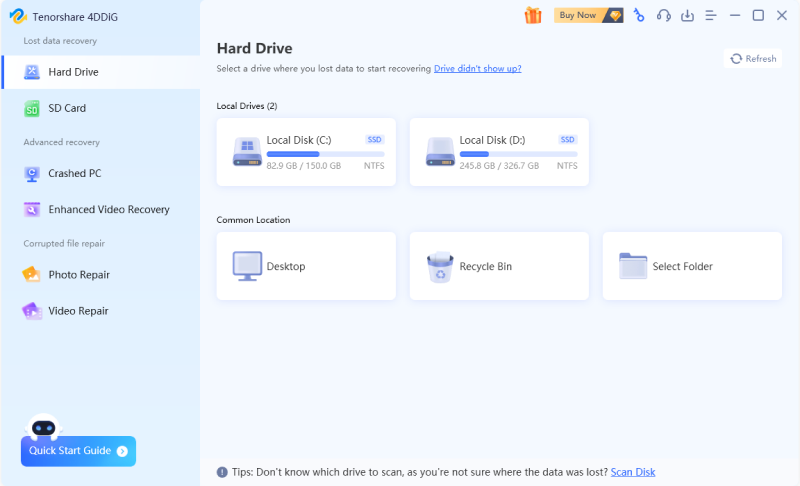
4DDiG Windows Data Recovery is designed to recover data from crashed, frozen, or unbootable Windows systems. It supports recovering documents, photos, videos, and other file types even when Windows fails to load. Lets’ see how to works to recover data from a PC with an orange screen:
Secure Download
Secure Download
-
Prepare a working computer and a blank USB drive with at least 1.5GB of storage space. Install and open 4DDiG on the working computer, connect the USB drive, then select the “Crashed PC” option from the left panel and click “Get Started.”
-
Select the connected USB drive to create a bootable device and click “Create” to proceed. After the process is completed, click “Completed.”
-
Plug the bootable USB into the computer experiencing the orange screen of death and restart it. During startup, press the BIOS key to access BIOS settings, then use the “Arrow Keys” to boot from the USB into 4DDiG under Boot Settings.
-
Select the data you want to back up, choose a destination to save it, and click “Save Now.”
Recovering files first ensures that you can start with system repairs without facing risks like permanent data loss.
How to Fix the Orange Screen of Death on Windows 10/11?
If your data is safe or backed up, you can begin troubleshooting the Windows orange screen of death. Start with simpler fixes before moving on to advanced solutions.
1Perform a Restart
A simple restart can sometimes resolve temporary system glitches that trigger the orange screen. After performing a quick restart, power the system back on. If the orange screen reappears immediately, proceed with the next method.
2Disconnect & Reconnect All Peripherals
External devices can sometimes conflict with system drivers. You can shut down the computer completely and disconnect all external devices (USB drives, printers, and external monitors), then restart the PC with only the keyboard and mouse connected. This helps identify whether a peripheral is causing the crash.
3Disable Overclocking (CPU/GPU)
Overclocking pushes hardware beyond stable limits and is a common trigger for display crashes. If you use overclocking software such as MSI Afterburner or Intel XTU:
Open the overclocking utility.
Restore default clock speeds for CPU and GPU.
Disable any performance profiles and restart the system.
Disabling overclocking improves system stability and reduces the risk of orange screen errors.
4Boot in Safe Mode
Safe Mode loads Windows with minimal drivers, helping isolate software-related issues.
-
Hold the power button to force restart the PC three times to enter Windows Recovery.
-
Select “Troubleshoot”, then go to “Advanced options”, click “Startup Settings", then “Restart”.
-
Press “4 or F4” to boot into Safe Mode.
If the system works normally in Safe Mode, the issue is likely caused by drivers or startup programs.
5Roll Back to Previous Graphics Card Drivers
If the orange screen appeared after a driver update, rolling back can resolve the issue.
-
Once you boot into Safe mode, open “Device Manager” and expand Display adapters.
-
Right-click your graphics card and choose “Properties," then go to the “Driver” tab.
-
Select “Roll Back Driver” if available and restart the PC afterwards.
This restores a previously stable driver version.
6Update Graphics Drivers
Outdated drivers can also cause system instability. Follow the steps below after booting in Safe Mode.
-
Open “Device Manager” by pressing “Win + X” and right-click the graphics adapter.
-
Select “Update driver” then choose “Search automatically for drivers” to install updates and restart.
Keeping drivers up to date helps prevent compatibility issues.
7Uninstall Recently Installed Programs
Problematic software can trigger system crashes. After you get your computer into Recovery Environment, you may follow the steps below:
Click “Troubleshoot” and enter “Advanced options”.
-
Choose “Uninstall Updates” and follow the on-screen steps to remove recently installed or suspicious programs. Once done, restart the computer.
This is especially useful for screen overlay or GPU monitoring tools.
8Update Windows
Windows updates often include bug fixes for system stability. Boot your PC into Safe Mode, then follow the steps below:
-
Open “Settings” and go to “Windows Update”.
-
Click “Check for updates” to install available updates and restart.
Updating Windows reduces the likelihood of system conflicts.
9Scan for Corrupted System Files (SFC / DISM)
Corrupted system files can cause critical display failures.
-
Force your PC into Recovery environment, then go to “Troubelshoot” and pick “Advanced Options”.
Choose “Command Prompt” and run the commands:
sfc /scannow
-
DISM /Online /Cleanup-Image /RestoreHealth
Restart the PC after each process is complete, as these may repair the damaged system components.
10Run the Windows Memory Diagnostic Tool
Faulty RAM can cause unpredictable system crashes. So, after you boot your computer in Safe Mode from the Recovery Environment, you can follow the steps below:
Press “WIN + R” and type “mdsched.exe” then click “OK”.
-
Choose the “Restart Now and check for problems” option and wait for the tool to automatically start.
Once the process is complete, your computer will restart automatically. If errors are detected, faulty RAM may need replacement.
11Restore the Windows System
System Restore can revert Windows to a stable state.
-
Go into the Windows Recovery Environment and choose "Troubleshoot", then open "Advanced options” and select “System Restore”.
-
Choose a restore point before the issue started and confirm and complete the restoration.
12Reset or Reinstall Windows
If all else fails, resetting or reinstalling Windows may be necessary.
-
Go to “Troubleshoot” inside the Windows RE and select “Reset this PC”.
-
Choose “Keep my files” or “Remove everything” and follow the on-screen instructions to reset or reinstall Windows OS.
Ensure your data is backed up before proceeding.
How to Prevent the Orange Screen of Death in the Future
Once resolved, preventive measures can help avoid recurrence. Tips to prevent orange screen issues:
- Keep graphics drivers and Windows updated
- Avoid aggressive CPU or GPU overclocking
- Monitor system temperatures regularly
- Install software only from trusted sources
- Use a reliable power supply
- Run periodic system file checks
- Create regular system restore points
- Back up important data frequently
These habits significantly reduce system instability risks.
Conclusion
The Windows orange screen of death may look alarming, but it is often caused by fixable issues such as driver conflicts, system corruption, or unstable hardware settings. By following the step-by-step methods outlined above, most users can restore system stability without reinstalling Windows.
Before attempting major repairs, recovering files with 4DDiG for Windows ensures your data remains protected throughout the troubleshooting process.
Secure Download
Secure Download
💡 Summarize with AI:
You May Also Like
- Home >>
- Windows Fix >>
- [12 Methods in 2026] How to Fix Windows Orange Screen of Death?
ChatGPT
Perplexity
Grok